
Master How to Copy Data from One Excel Sheet to Another Easily
Learn effective methods for how to copy data from one excel sheet to another effortlessly.

Introduction
Mastering the art of data transfer in Excel can elevate your efficiency to new heights, especially when navigating complex spreadsheets. Users have access to a variety of methods, from straightforward copy-paste techniques to advanced shortcuts and macros. These tools can significantly boost productivity and enhance data management skills. However, many individuals encounter common pitfalls that disrupt this seemingly simple process. How can you effectively overcome these challenges while ensuring your data remains accurate and well-organized?
By leveraging the right strategies, you can transform your approach to data transfer. ShortieCuts offers solutions that not only streamline your workflow but also empower you to manage your data with confidence. Imagine the benefits of seamless data handling - less time spent on tedious tasks and more focus on what truly matters. It's time to take action and master these essential skills.
Understand the Basics of Copying Data in Excel
Learning how to copy data from one excel sheet to another can make duplicating information in a spreadsheet less tedious. However, by selecting the right areas and utilizing the copy function, you can understand how to copy data from one excel sheet to another and streamline this process. Enter the ShortieCuts extension, which enhances your efficiency with 233 Excel ALT shortcuts specifically designed for Google Sheets. Here’s how to make the most of it:
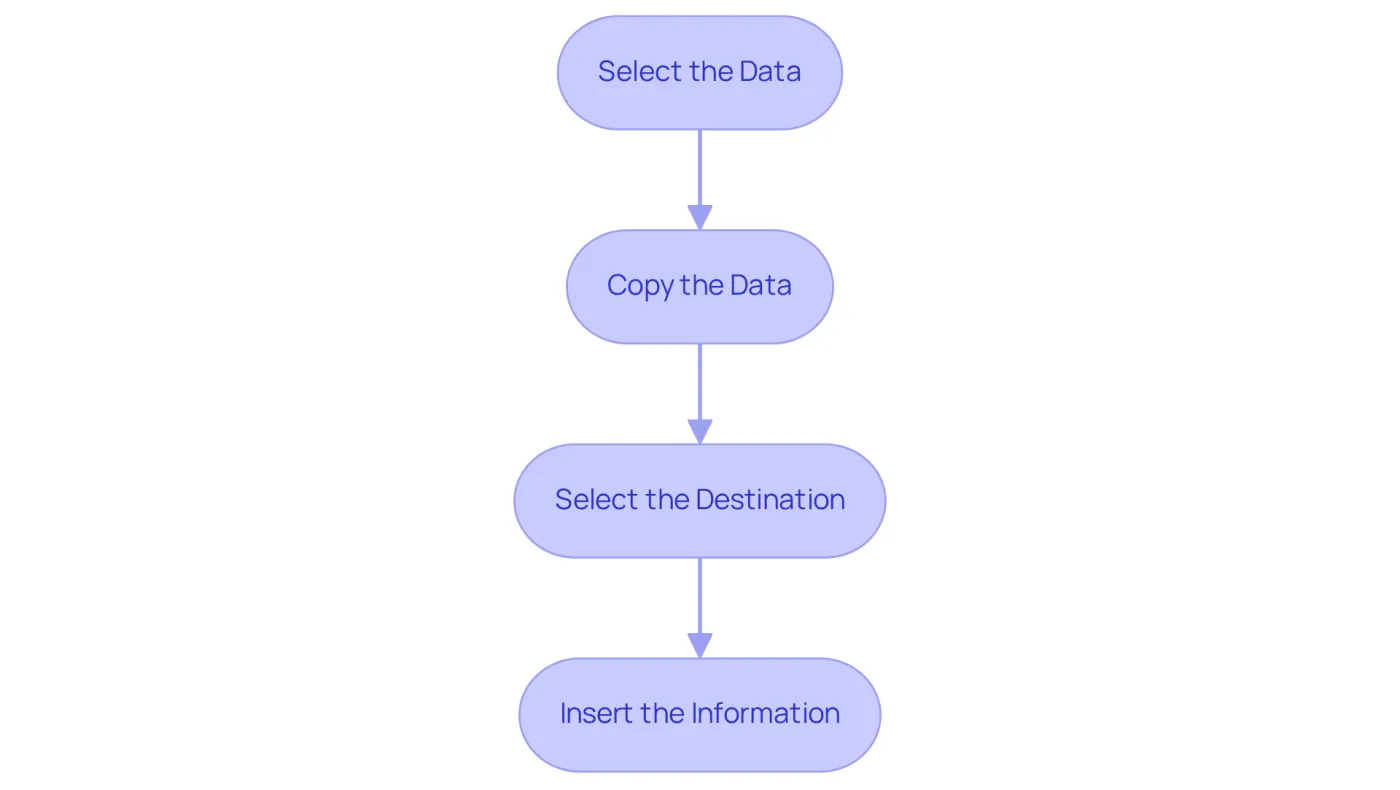
- Select the Data: Click and drag your mouse over the areas you wish to copy. Alternatively, click the first cell, hold down the Shift key, and click the last cell in the range.
- Copy the Data: Right-click on the selected area and choose 'Copy', or simply press
Ctrl + Con your keyboard. For a quicker method, hit the 'ALT' key to see key-tips appear in the corner of your screen, guiding you through the shortcut options. - Select the Destination: Navigate to the sheet or location where you want to paste the information.
- Insert the Information: Right-click on the destination cell and choose 'Paste', or press
Ctrl + Vto insert the copied content.
Mastering these fundamental steps, along with leveraging the ShortieCuts extension for shortcuts, is essential for effectively managing information in spreadsheets, particularly when learning how to copy data from one excel sheet to another. This knowledge will serve as a solid foundation for more advanced techniques.
Explore Methods for Copying Data Between Excel Sheets
Use english for answers
Mastering Data Transfer in Excel: Effective Methods for Every User
Transferring data between Excel sheets can often feel daunting. However, several effective methods exist, each tailored to different user needs and preferences. Here’s how you can streamline your workflow:
-
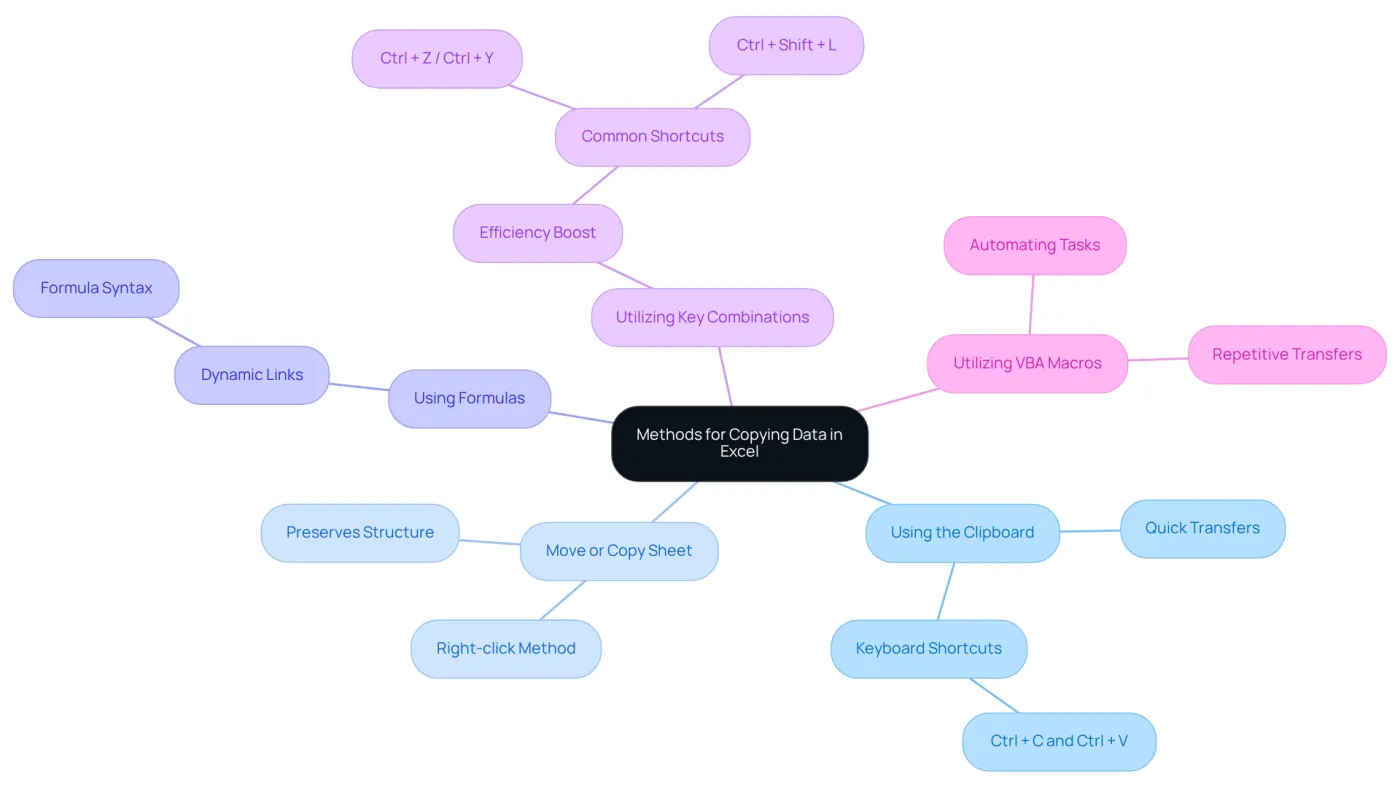
Using the Clipboard: This method is straightforward and ideal for quick transfers. Simply select the desired information, copy it using
Ctrl + C, and paste it into the target sheet withCtrl + V. -
Move or Copy Sheet: Need to duplicate an entire sheet? Right-click on the sheet tab you wish to copy, select 'Move or Copy', check 'Create a copy', and specify the destination. This method preserves the entire sheet structure, making it a reliable choice.
-
Using Formulas: For those looking to create dynamic links, type
=in the destination cell, navigate to the source cell, and press Enter. This ensures that any updates in the source sheet automatically reflect in the destination sheet, enhancing data consistency. -
Utilizing Key Combinations: Familiarity with keyboard shortcuts like
Ctrl + Cfor copying andCtrl + Vfor pasting can significantly accelerate your workflow. This reduces reliance on mouse navigation and minimizes errors. As spreadsheet trainers emphasize, mastering these shortcuts leads to a more effective and streamlined experience. -
Utilizing VBA Macros: For experienced users, creating a simple VBA macro can greatly streamline the copying process, especially for repetitive tasks or large-scale transfers.
By grasping these techniques, you can understand how to copy data from one excel sheet to another, ultimately improving efficiency and information management in spreadsheets. Companies that adopt advanced copying techniques frequently report enhanced information accuracy and decreased processing time, showcasing the practical advantages of these methods.
Are you ready to elevate your Excel skills? Start implementing these strategies today and experience the difference!
Troubleshoot Common Issues When Copying Data
When copying data in Excel, users often face several common issues that can hinder the process:
-
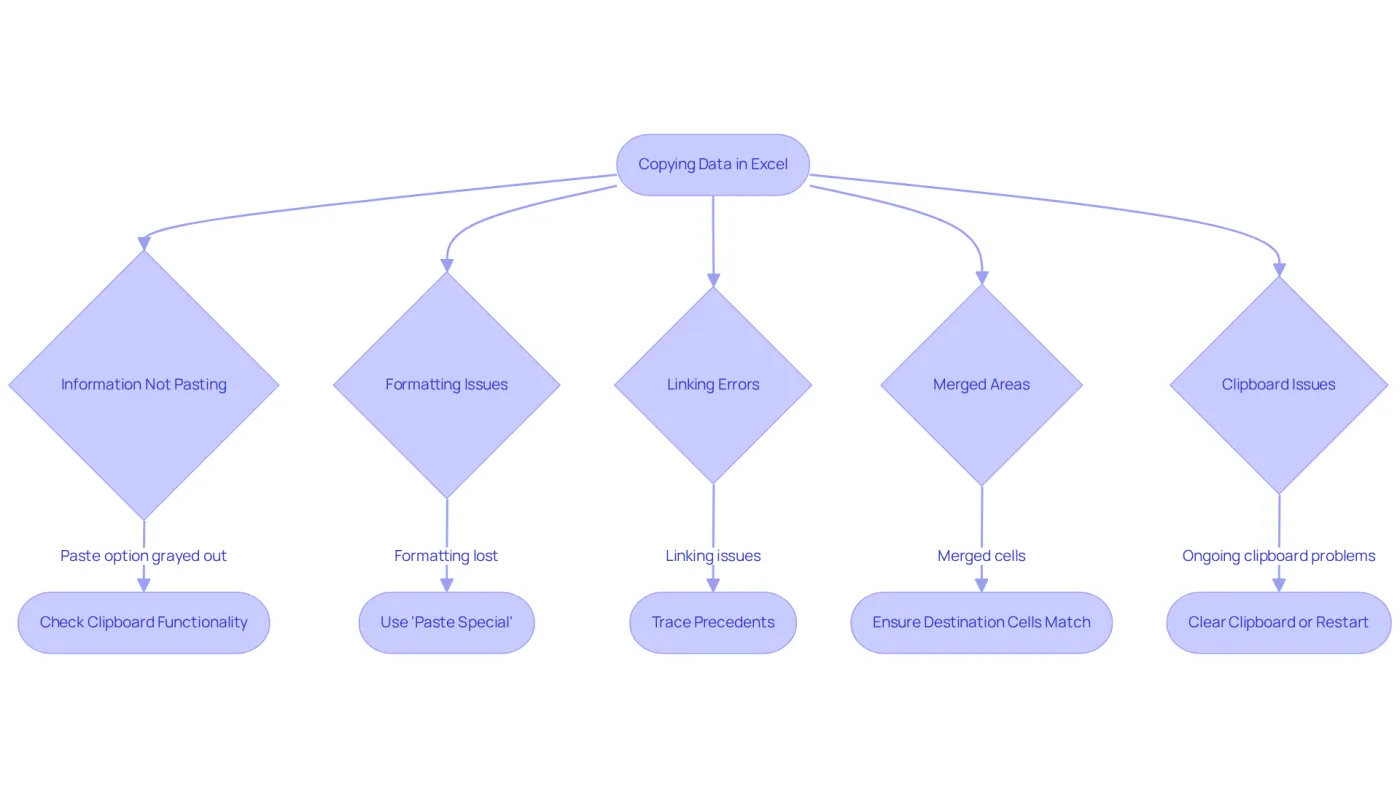
Information Not Pasting: If the paste option is grayed out, it’s crucial to ensure that the content has been copied correctly. A quick check of the clipboard functionality can often resolve this issue. In fact, statistics show that 88% of spreadsheets contain errors, underscoring the importance of effective clipboard management.
-
Formatting Issues: Sometimes, pasted content may lose its original formatting. To retain the desired appearance, utilize the 'Paste Special' option, which allows you to choose how to paste the data-whether as values only or with formatting included. This method can significantly reduce common formatting mistakes that occur during information transfer. As noted by NikolinoDE, "Sometimes, resetting the clipboard can resolve this issue."
-
Linking Errors: When establishing connections between sheets, it’s essential to ensure that the references remain precise, especially if the source information changes. The 'Trace Precedents' feature can be invaluable for identifying and correcting any errors in these links.
-
Merged Areas: Copying data from merged areas can lead to complications if the destination areas are not also merged. To avoid this, ensure that the destination cells match the format of the source cells, or adjust your selection accordingly to prevent errors.
-
Clipboard Issues: If you experience ongoing clipboard problems, consider clearing it or restarting the application. Third-party applications can sometimes interfere with clipboard functionality, so checking for any active extensions or add-ins may also be beneficial. As suggested by NikolinoDE, "Check for Add-ins or Extensions" to ensure they are not causing conflicts.
By understanding these common issues and their solutions, you can navigate the copying process in the spreadsheet application more effectively. This knowledge not only ensures a smoother workflow but also significantly reduces the likelihood of errors.
Utilize ShortieCuts for Enhanced Data Management in Google Sheets
Transform Your Google Sheets Experience with ShortieCuts
Are you tired of the limitations in Google Sheets compared to Excel? ShortieCuts is here to revolutionize your workflow by integrating Excel-style key combinations and features into your Google Sheets experience. Here’s how to make the most of it:
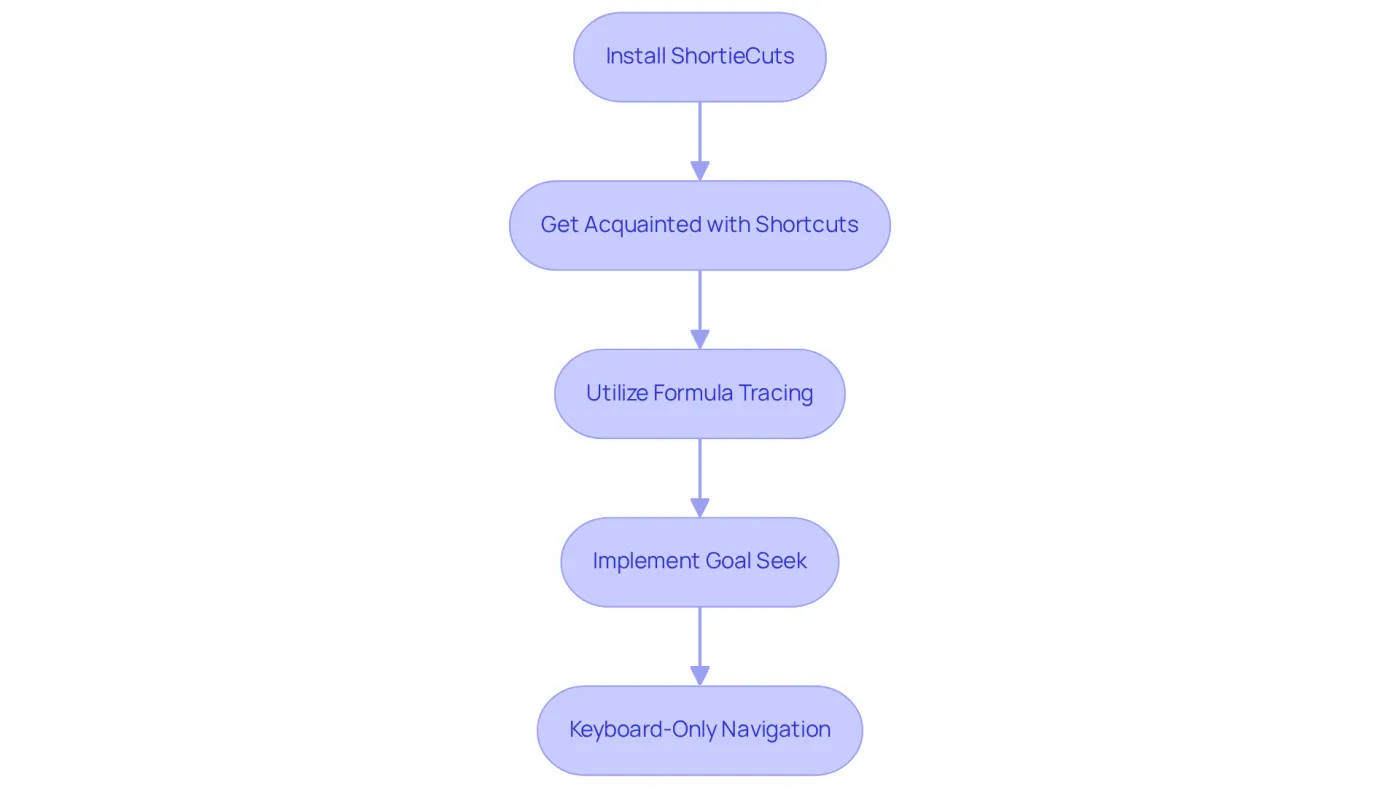
- Install ShortieCuts: Start by downloading the ShortieCuts Chrome extension from the Chrome Web Store. This simple step opens the door to enhanced productivity.
- Get Acquainted with Shortcuts: Explore 233 ALT key combinations available in ShortieCuts. Practicing these shortcuts will significantly speed up your data management tasks, making your work more efficient.
- Utilize Formula Tracing: Take advantage of the formula tracing functionality to easily identify dependents and precedents in your calculations, similar to what you would find in a traditional spreadsheet application.
- Implement Goal Seek: Use the Goal Seek function to quickly determine essential values for your calculations, mirroring a key feature from Excel that can save you time and effort.
- Keyboard-Only Navigation: Enjoy the enhanced color palette designed for keyboard-only navigation, allowing you to select options without a mouse. This can dramatically streamline your workflow.
By leveraging ShortieCuts, you can discover how to copy data from one excel sheet to another, replicating the Excel experience in Google Sheets and ensuring a seamless transition that boosts your overall productivity. Don’t wait-install ShortieCuts today and transform the way you work!
Conclusion
Mastering the technique of copying data between Excel sheets is not just a skill; it’s an essential asset that streamlines information management within spreadsheets. Are you ready to enhance your productivity and accuracy? By grasping the fundamentals and employing various methods, you can transform your data handling experience.
This article outlines crucial steps for copying data effectively. Start by selecting the appropriate cells and utilizing keyboard shortcuts. Explore advanced techniques, such as using formulas and VBA macros, to elevate your efficiency. We also address common issues that may arise during the copying process - like formatting problems and clipboard errors - providing practical solutions to ensure a seamless experience.
Embracing these strategies simplifies the data transfer process and empowers you to take control of your spreadsheet tasks. Imagine mastering keyboard shortcuts or leveraging tools like ShortieCuts for Google Sheets. The potential for improved efficiency is significant.
Don’t wait - start implementing these techniques today to elevate your Excel skills and transform the way you manage data. Your journey to mastering Excel begins now!
Frequently Asked Questions
What is the purpose of copying data in Excel?
Copying data in Excel allows users to duplicate information in a spreadsheet, making data management less tedious.
How do you select the data you want to copy in Excel?
You can select data by clicking and dragging your mouse over the desired areas or by clicking the first cell, holding down the Shift key, and then clicking the last cell in the range.
What are the steps to copy data in Excel?
To copy data, right-click on the selected area and choose 'Copy', or press Ctrl + C on your keyboard. You can also use the 'ALT' key to see key-tips for shortcut options.
How do you select the destination for the copied data?
Navigate to the sheet or location where you want to paste the information.
What are the steps to paste the copied data in Excel?
To paste the copied content, right-click on the destination cell and choose 'Paste', or press Ctrl + V on your keyboard.
What is the ShortieCuts extension and how does it enhance Excel usage?
The ShortieCuts extension enhances efficiency by providing 233 Excel ALT shortcuts specifically designed for Google Sheets, helping users streamline their workflow.
Why is mastering these basic steps important?
Mastering these fundamental steps is essential for effectively managing information in spreadsheets and serves as a foundation for more advanced techniques.