
Master How to Copy Excel Sheet to Another Excel Workbook Easily
Learn how to copy an Excel sheet to another Excel workbook with easy methods and troubleshooting tips.

Introduction
Mastering the art of copying Excel sheets is essential for enhancing productivity, especially for those managing extensive data across multiple workbooks. Are you struggling with lost formatting or broken formulas during this process? This guide reveals various methods to seamlessly transfer sheets, empowering you to choose the technique that best fits your workflow. Understanding how to navigate these challenges is crucial for maintaining data integrity and efficiency. By mastering these skills, you can ensure that your data remains intact and your workflow remains uninterrupted.
Identify Basic Methods to Copy Excel Sheets
When you understand how to copy an Excel sheet to another Excel workbook, the task can become straightforward. Here are several effective techniques to consider:
-
Right-Click Method: Simply right-click on the desired tab, select 'Move or Copy', check the 'Create a copy' box, and choose the destination file from the dropdown menu. This method allows for easy replication of sheets, making it a go-to choice for many users.
-
Drag and Drop Method: Hold down the
Ctrlkey while clicking and dragging the tab to the target workbook. This technique quickly duplicates the document in the new location. However, be cautious: if one of the selected tabs contains an Excel Table, you cannot transfer multiple pages at once. -
Keyboard Shortcuts: Use
Ctrl + Cto copy the sheet andCtrl + Vto paste it into the new document. While effective for copying data, this method may require extra steps to ensure formatting is preserved. Ensure both the source and target files are open to avoid any errors. -
Using the Ribbon: Navigate to the 'Home' tab, click on 'Format' in the 'Cells' group, and select 'Move or Copy Sheet'. This opens a dialog box that offers more options for managing your sheets. Be aware that if a name conflict arises in the destination file, you may encounter an error.
Each method presents unique advantages, enabling you to learn how to copy an Excel sheet to another Excel based on your workflow and specific task requirements. After copying, consider clearing formatting by selecting the entire worksheet and using the 'Clear Formats' option to maintain a clean appearance.

Execute Copying Sheets to Another Workbook
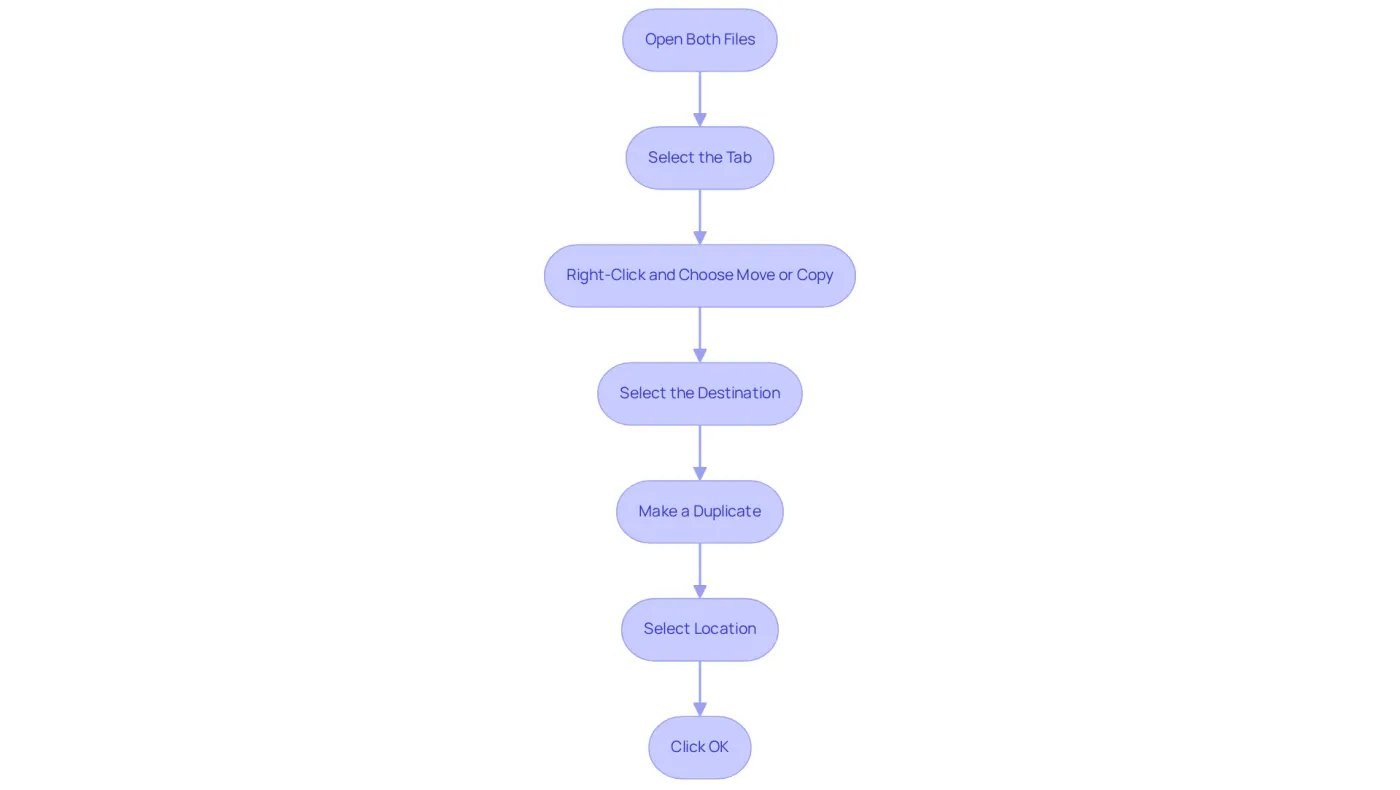
To effectively copy an Excel sheet to another workbook, follow these steps:
- Open Both Files: Confirm that both the source file (containing the tab you wish to duplicate) and the destination file (where you want to place the tab) are open simultaneously.
- Select the Tab: Click on the tab of the document you wish to duplicate in the source file.
- Right-Click and Choose Move or Copy: Right-click on the chosen tab and select 'Move or Copy' from the context menu.
- Select the Destination: In the dialog box that appears, choose the target file from the 'To book' dropdown menu.
- Make a Duplicate: Ensure that you check the 'Create a copy' checkbox to retain the original document in the source file. Be aware that duplicating a document may lead to the loss of any conditional formatting applied to the original document.
- Select Location: Under 'Before page', indicate where you want the duplicated page to be placed in the target file.
- Click OK: Finally, click 'OK' to complete the process. The duplicated page will now appear as a new tab in the intended file.
This method demonstrates how to copy an Excel sheet to another Excel, streamlining your workflow and minimizing the risk of losing important data. As one Excel instructor remarked, "Mastering the skill of duplicating pages can greatly improve your productivity and effectiveness in handling data across various files." Real-world applications of this technique are evident in finance departments, where analysts frequently transfer data for reporting and analysis, ensuring they maintain accurate and up-to-date information across their projects. Furthermore, for individuals using Excel online, it's crucial to recognize that the option to move or duplicate a tab through right-click is not available; instead, users should manually copy the data and paste it into a new tab in the destination workbook.
Troubleshoot Common Copying Issues in Excel
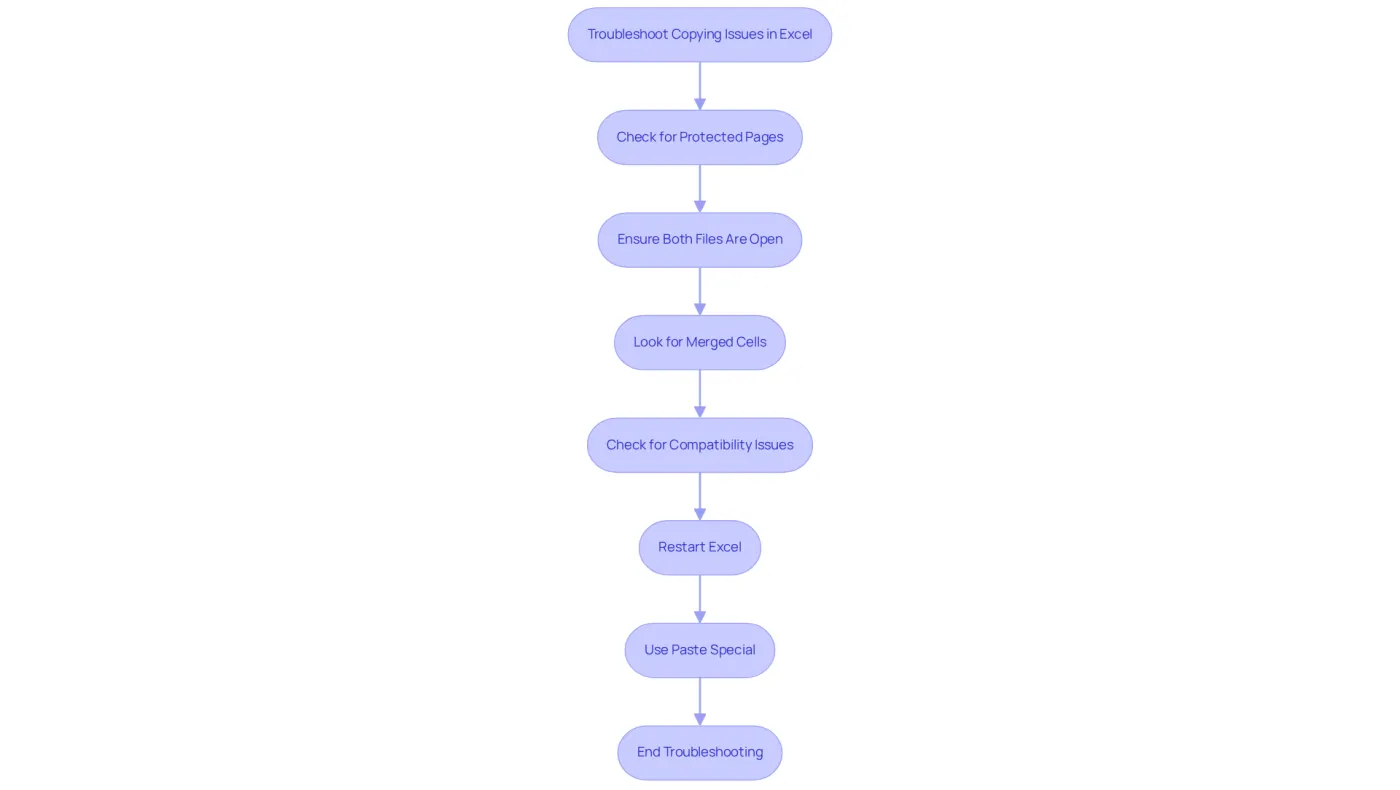
When you encounter challenges while copying sheets in Excel, it’s essential to employ effective troubleshooting strategies:
- Check for Protected Pages: If the page is secured, copying may be limited. Unprotect the sheet by navigating to 'Review' > 'Unprotect Sheet'. This step is crucial, as many users have faced issues due to overlooked protection settings.
- Ensure Both Files Are Open: Confirm that both the source and destination files are open. If the target workbook is closed, the duplication process will not succeed, leading to frustration and wasted time.
- Look for Merged Cells: Merged cells can complicate the duplication process. Unmerge any cells before attempting to copy the document to avoid potential errors.
- Check for Compatibility Issues: When transferring between different versions of Excel, ensure that the features used in the source sheet are compatible with the target version. Compatibility issues can lead to significant errors, as highlighted by the JPMorgan Chase incident, where spreadsheet errors resulted in over $6 billion in losses. In fact, 88% of all spreadsheets contain significant errors, underscoring the importance of troubleshooting duplication issues.
- Restart Excel: Sometimes, simply restarting Excel can resolve unexpected issues. Closing and reopening the application refreshes its state and can clear minor glitches that hinder functionality.
- Use Paste Special: If formatting is lost during duplication, utilize 'Paste Special' to retain specific attributes such as values or formats. This method helps maintain the integrity of your data, especially when dealing with complex spreadsheets.
By following these steps, you can effectively troubleshoot common duplication issues in Excel, ensuring a smoother workflow and reducing the risk of errors that can arise from improper data handling. As noted by Microsoft Community Moderator Vince, addressing these issues promptly can save countless corporate hours wasted in the chaos of version control.
Preserve Formatting and Formulas During Copying
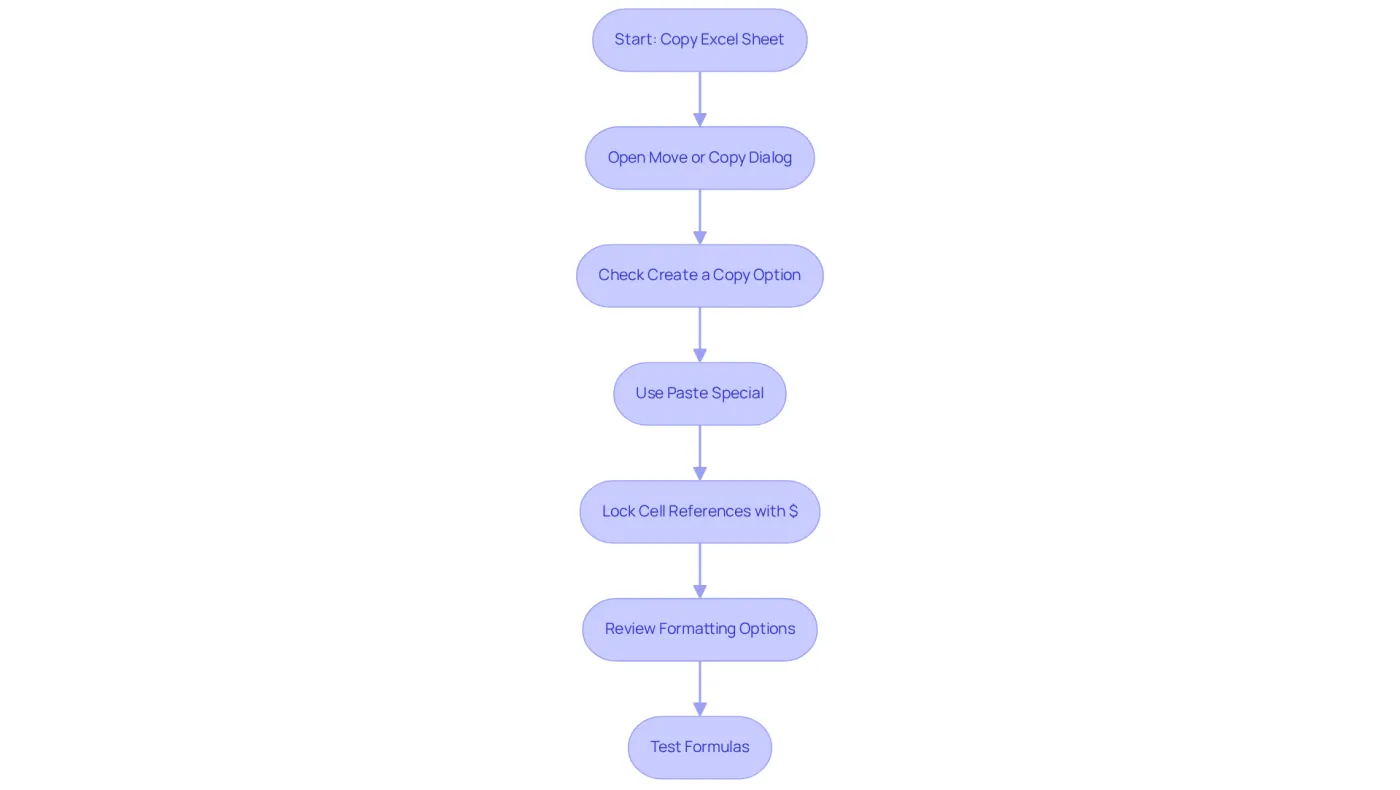
To ensure that formatting and formulas are preserved when copying an Excel sheet, follow these essential steps:
-
To understand how to copy an Excel sheet to another Excel, access the 'Move or Copy' dialog and check the 'Create a copy' option. This crucial action demonstrates how to copy an Excel sheet to another Excel while keeping the original formatting and formulas intact.
-
Utilize Paste Special: After duplicating the sheet, employ the 'Paste Special' feature in the target document. This allows you to select specific attributes for pasting. For instance, you can choose to paste only values, formats, or formulas, which is vital for maintaining the integrity of your data.
I need to learn how to copy an Excel sheet to another Excel. Lock Cell References: To understand how to copy an Excel sheet to another Excel while keeping specific cell references in formulas unchanged, use the $ symbol to lock them before copying. This prevents Excel from automatically adjusting the references based on the new location, ensuring your calculations remain accurate.
To learn how to copy an Excel sheet to another Excel, follow these steps. Review Formatting Options: After you learn how to copy an Excel sheet to another Excel, examine the formatting options in the target workbook. You may need to adjust cell styles or formats to align with those of the original sheet, especially if color palettes differ.
Here is a guide on how to copy an Excel sheet to another Excel. Test Formulas: After learning how to copy an Excel sheet to another Excel, verify that all formulas are functioning correctly. If any references appear broken, manually adjust them to point to the correct cells in the new workbook, ensuring your data analysis remains reliable.
Conclusion
Mastering the art of copying Excel sheets to another workbook is crucial for enhancing productivity and streamlining data management. This guide outlines various techniques, from the right-click method to keyboard shortcuts, offering users a range of options tailored to their preferences and workflow. By understanding these methods, you simplify the copying process and ensure that important data is preserved and easily transferable.
Key points discussed include the effectiveness of different copying methods, such as drag and drop, and the importance of troubleshooting common issues that may arise during the process. Ensuring both source and destination files are open, addressing protected sheets, and utilizing features like Paste Special are essential for maintaining data integrity and formatting. Additionally, locking cell references and adjusting formatting in the target workbook can prevent errors, ensuring that your calculations remain accurate after transferring data.
In conclusion, the ability to copy Excel sheets efficiently is not merely a convenience; it is vital for maintaining accuracy and consistency in data handling. By implementing the strategies discussed and being mindful of potential pitfalls, you can enhance your Excel skills and improve your overall productivity. Embrace these techniques and take control of your data management tasks, transforming the way you work with Excel.
Frequently Asked Questions
What are the basic methods to copy Excel sheets?
The basic methods to copy Excel sheets include the Right-Click Method, Drag and Drop Method, Keyboard Shortcuts, and using the Ribbon.
How does the Right-Click Method work for copying Excel sheets?
To use the Right-Click Method, right-click on the desired tab, select 'Move or Copy', check the 'Create a copy' box, and choose the destination file from the dropdown menu.
What is the Drag and Drop Method for copying sheets?
The Drag and Drop Method involves holding down the Ctrl key while clicking and dragging the tab to the target workbook, which quickly duplicates the sheet in the new location.
Are there any limitations when using the Drag and Drop Method?
Yes, if one of the selected tabs contains an Excel Table, you cannot transfer multiple pages at once using the Drag and Drop Method.
What keyboard shortcuts can be used to copy Excel sheets?
You can use Ctrl + C to copy the sheet and Ctrl + V to paste it into the new document. Both source and target files must be open to avoid errors.
How can I copy sheets using the Ribbon in Excel?
To copy sheets using the Ribbon, navigate to the 'Home' tab, click on 'Format' in the 'Cells' group, and select 'Move or Copy Sheet', which opens a dialog box for managing sheets.
What should I be aware of when using the Ribbon method?
When using the Ribbon method, be aware that a name conflict in the destination file may result in an error.
What should I do after copying a sheet to maintain a clean appearance?
After copying, consider clearing formatting by selecting the entire worksheet and using the 'Clear Formats' option.