
Master How to Delete Duplicates in Excel but Keep One Instance
Learn how to delete duplicates in Excel but keep one for better data integrity and analysis.

Introduction
Understanding the complexities of data management is crucial for achieving accuracy in analytical tasks, particularly in finance, where decisions rely heavily on reliable information. The challenge of managing duplicates in Excel - deleting them while keeping a single instance - can significantly enhance data integrity and streamline reporting processes.
But what occurs when the data intended to inform decisions is muddled with repetitions? This article explores effective strategies for managing duplicates, ensuring that datasets remain clean and actionable. By doing so, users are empowered to make informed choices that can lead to better outcomes in their financial analyses.
Understand the Importance of Removing Duplicates
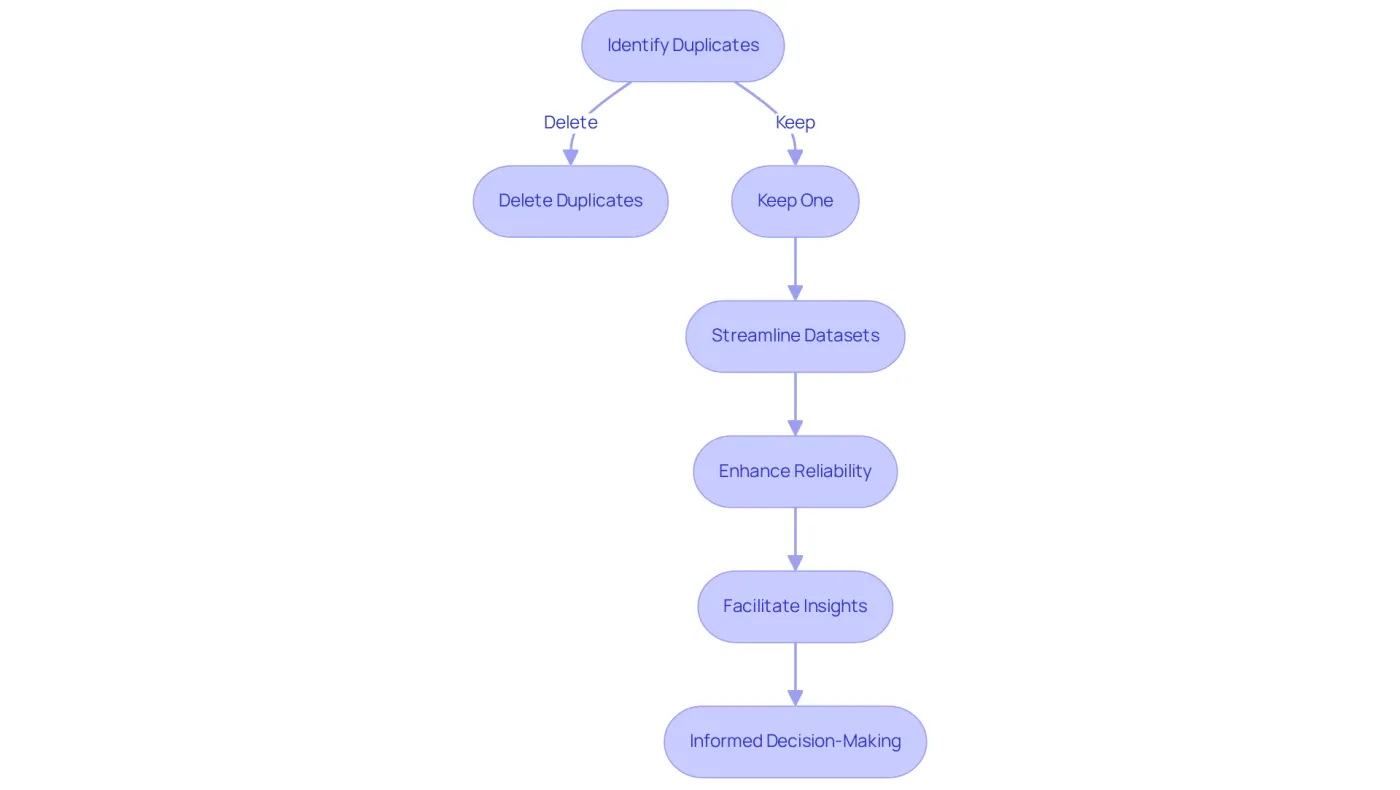
Understanding how to delete duplicates in Excel but keep one is crucial for maintaining the integrity of your information. Duplicates can distort analyses, leading to inaccurate results and misguided decisions. In finance and information analysis, ensuring each entry is unique is vital for reliable reporting and forecasting. Did you know that inadequate information hygiene can lead to 40% of business initiatives failing? This statistic underscores the significance of accurate information.
Precise information enhances forecasting, enabling FP&A teams to predict future financial performance with greater confidence. Understanding how to delete duplicates in Excel but keep one allows you to streamline your datasets while enhancing their reliability, facilitating the extraction of meaningful insights. Consider the case of Children's Medical Center Dallas, which successfully lowered its duplicate rate from 22% to 0.14% through advanced algorithms, staff training, and process standardization. This example illustrates how effective duplicate management can significantly enhance information quality and operational efficiency.
Ultimately, maintaining accurate information is crucial for informed decision-making and achieving financial precision. Don't let duplicates undermine your success-prioritize information integrity today.
Access the Remove Duplicates Feature in Excel
Eliminate Data Duplication in Excel: A Step-by-Step Guide
Are you struggling with repetitive data in your Excel spreadsheets? The Remove Duplicates feature is essential for understanding how to delete duplicates in Excel but keep one. Follow these straightforward steps to streamline your data management:
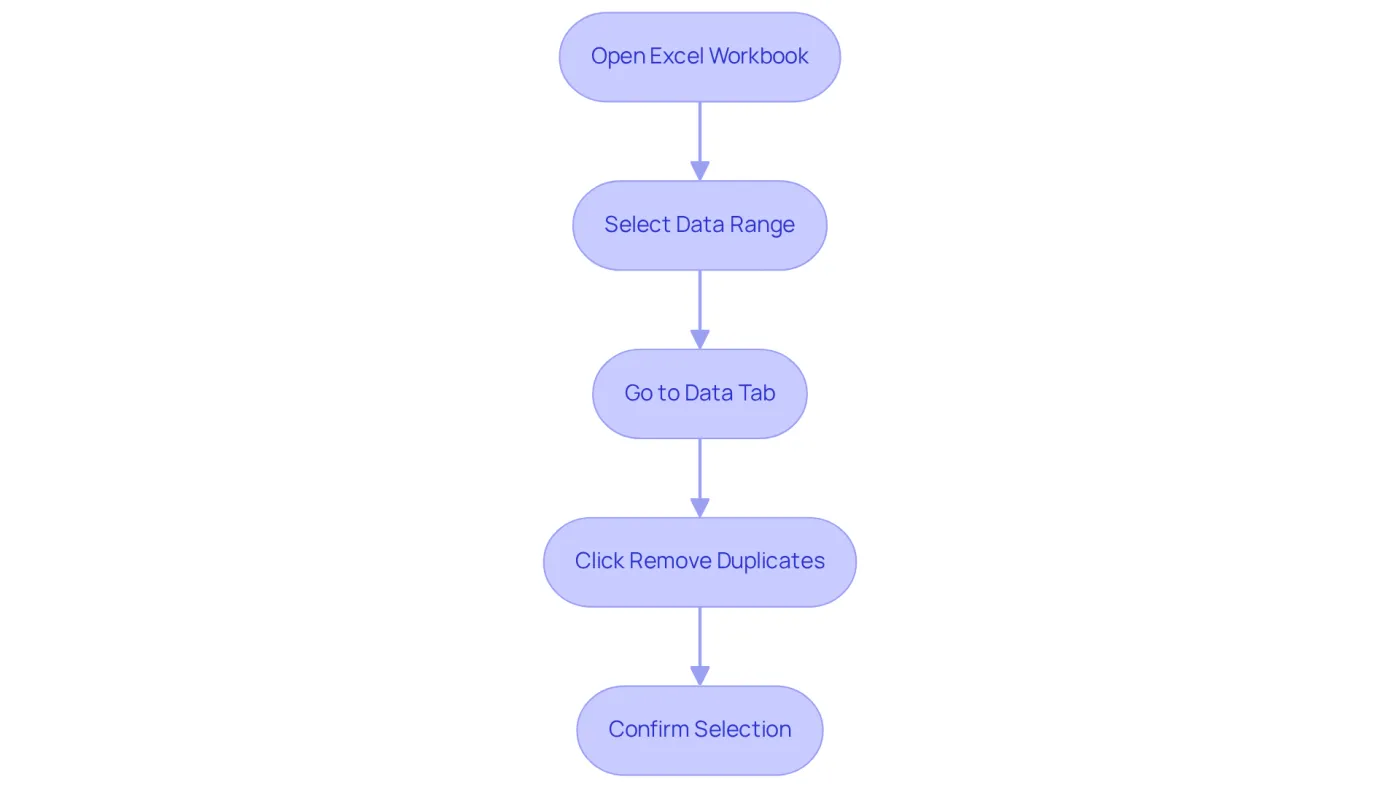
- Open your Excel workbook and select the range of cells containing the data you want to check for duplicates.
- Navigate to the 'Data' tab on the Excel ribbon.
- In the 'Data Tools' group, click on 'Remove Duplicates'. A dialog box will appear, allowing you to specify which columns to check for duplicates. Make sure to select the appropriate columns based on your data structure.
As Ibhadighi wisely notes, "In the Remove Duplicates dialog box, ensure all columns are selected and then click OK." This feature is not just a convenience; it’s a necessity. Statistics show that finance professionals widely utilize this functionality to enhance their information management processes. For instance, in a dataset of 1,170 entries, five pairs of identical entries were identified and effectively removed, showcasing the efficiency of this tool in maintaining data integrity.
Before you proceed with this function, especially when considering how to delete duplicates in Excel but keep one, remember to back up your data. This precaution, as emphasized by various sources, helps prevent any accidental loss of content. Additionally, consider using the Advanced Filter option to create a deduplicated list without altering the original data. This approach offers greater flexibility in managing duplicates.
By leveraging these powerful tools, you can significantly boost your productivity and ensure accurate reporting - an essential aspect of finance-related tasks. Don't let duplicate data hold you back; take action today by understanding how to delete duplicates in Excel but keep one to streamline your processes!
Execute the Remove Duplicates Process
To effectively harness the Remove Duplicates feature in Excel, follow these essential steps:
-
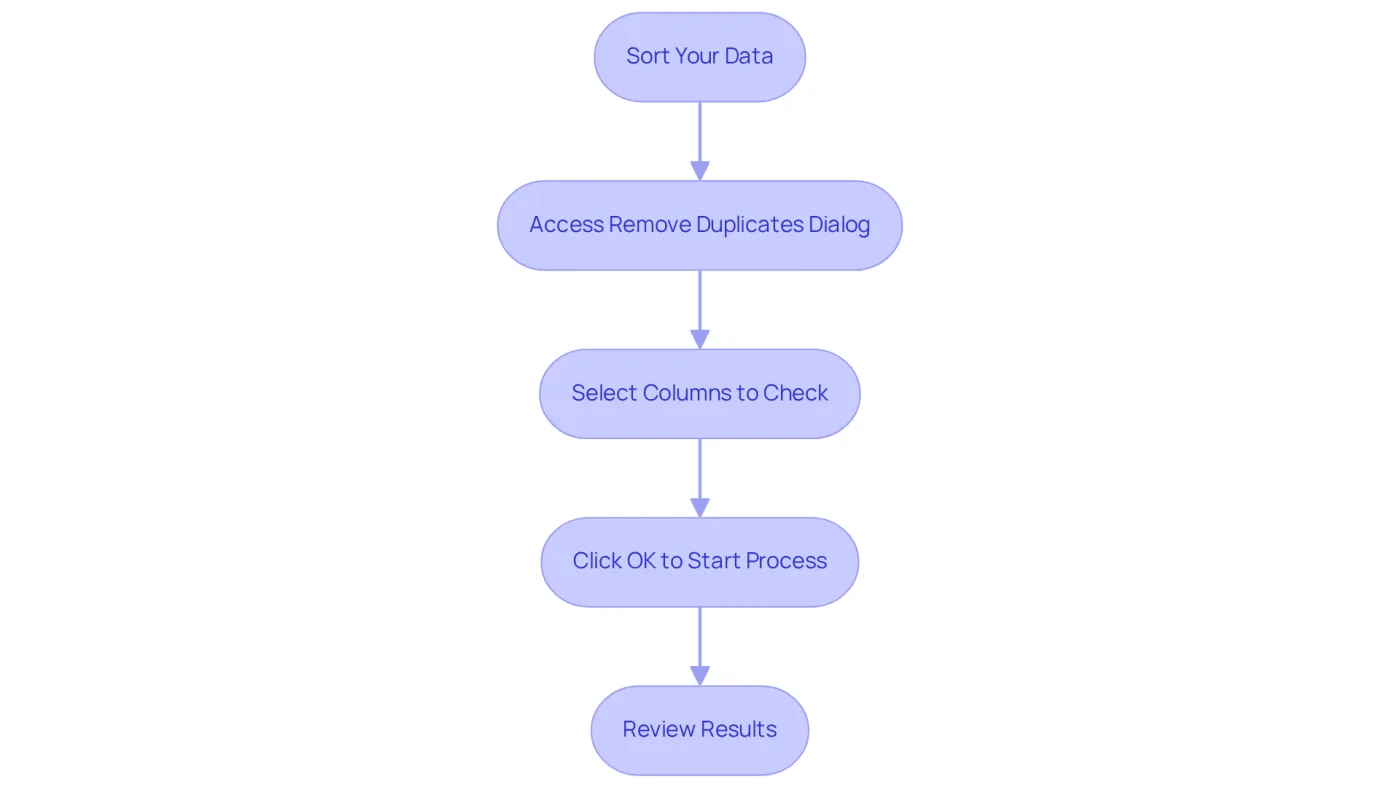
Sort Your Data: Before diving into the Remove Duplicates dialog box, sort your data based on the criteria that matter most to you. This crucial step influences which copies are retained during the deduplication process. Once sorted, access the Remove Duplicates dialog box, where you’ll see a list of columns with checkboxes. Select the columns you wish to check for repetitions, ensuring the 'My information has headers' option is checked if your dataset includes headers.
-
Initiate the Process: Click 'OK' to start the deduplication process. Excel will demonstrate how to delete duplicates in excel but keep one by analyzing the selected columns and removing any repeated entries, retaining only the first instance of each unique value.
-
Review the Results: After the process is complete, a summary message will display the number of repetitions eliminated and the count of unique values remaining. This provides valuable insight into the effectiveness of your data cleanup efforts. After removing duplicates, it’s wise to scroll through your dataset to confirm that no repetitions linger. Alternatively, consider using Excel's 'Advanced Filter' option to filter unique entries without deleting repeated values, offering you greater flexibility in managing your data.
Explore Alternative Methods for Managing Duplicates
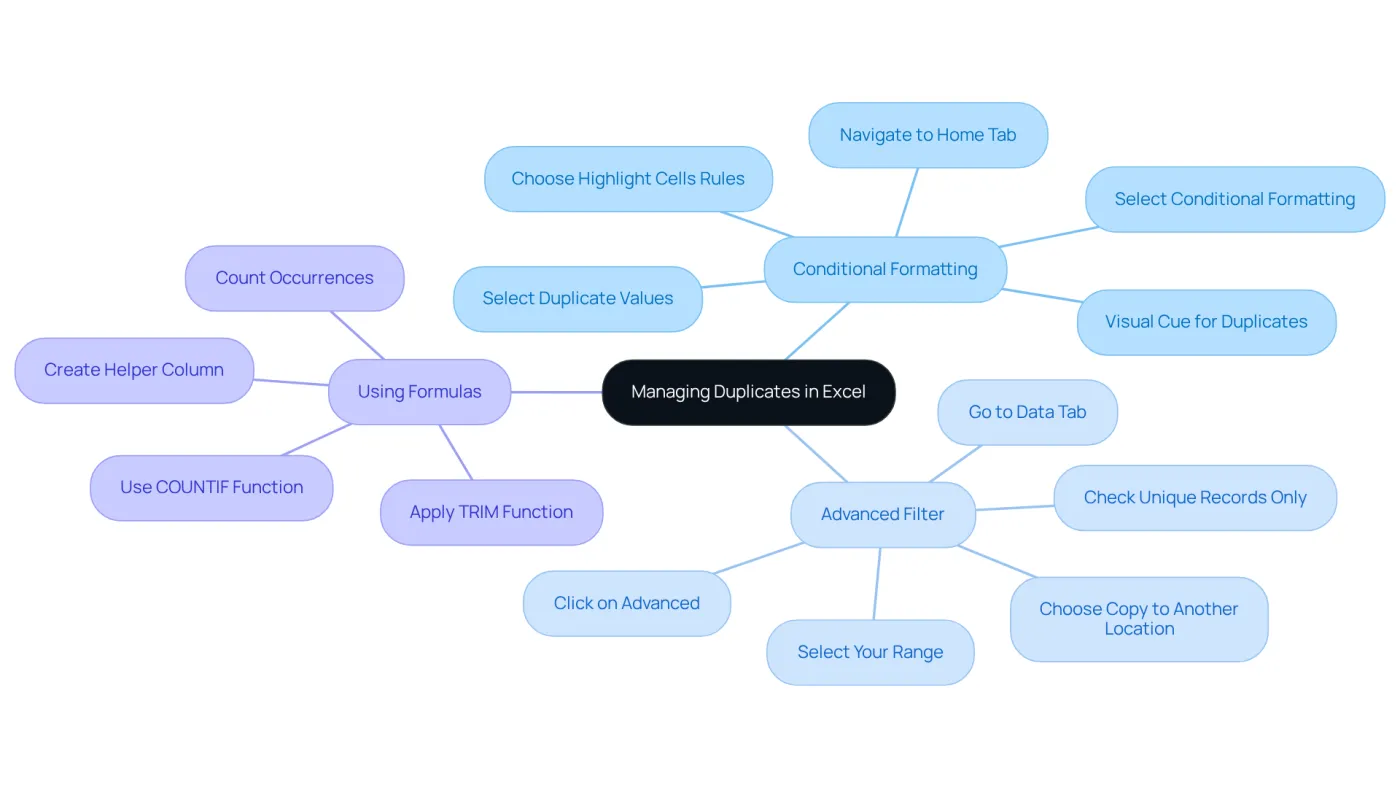
Managing duplicates in Excel can be a daunting task, but knowing how to delete duplicates in Excel but keep one can streamline this process and enhance your data integrity. Here are three powerful techniques:
-
Conditional Formatting: This feature allows you to highlight repeated values, making it easier to spot duplicates before deciding which to remove. Simply navigate to the 'Home' tab, select 'Conditional Formatting', then 'Highlight Cells Rules', and choose 'Duplicate Values'. This visual cue is particularly beneficial in financial datasets, where accuracy is crucial. Many finance experts rely on this method to maintain data integrity, as highlighted repetitions can lead to costly mistakes in analysis. As Laiba Siddiqui, a content strategist, points out, "Cleaning up duplicates in Excel may seem like a small task, but it can make a big difference in your work."
-
Advanced Filter: This method enables you to filter unique records while preserving the original dataset. To implement it, select your range, go to the 'Data' tab, and click on 'Advanced' in the 'Sort & Filter' group. Choose 'Copy to another location' and ensure 'Unique records only' is checked. This approach is non-destructive, allowing you to maintain a clean dataset without altering the original data.
-
Using Formulas: Formulas like COUNTIF can be essential for recognizing repetitions. For example, in a new column, you can use
=COUNTIF(A:A, A1)to count occurrences of each value. This method provides a clear overview of repetitions, aiding in your decision-making process regarding which entries to keep or eliminate. Additionally, it's advisable to clean your data using the TRIM function to remove any extra spaces before analysis, as this can significantly enhance accuracy.
By combining these techniques, you can learn how to delete duplicates in Excel but keep one, effectively managing redundancies to ensure your datasets remain accurate and reliable. Remember, best practices for duplicate removal include keeping a backup of your raw data and clearly defining what constitutes a duplicate.
Conclusion
Understanding how to effectively delete duplicates in Excel while retaining one instance is crucial for ensuring data integrity and enhancing the quality of analysis. This skill not only improves decision-making processes but also helps avoid the pitfalls of inaccurate data, which can lead to misguided conclusions and failed initiatives.
The article outlines a comprehensive approach to managing duplicates, starting with the importance of data hygiene and moving to practical steps for utilizing Excel's Remove Duplicates feature. Key techniques such as conditional formatting, advanced filtering, and the use of formulas are discussed, providing readers with a toolkit to streamline their data management efforts. Real-world examples, like the success of Children's Medical Center Dallas, illustrate the tangible benefits of effective duplicate management, reinforcing the necessity of maintaining accurate datasets.
In conclusion, prioritizing the removal of duplicates in Excel is not merely about tidying up data; it is a critical step toward achieving operational excellence and informed decision-making. Embracing these methods can lead to enhanced data quality, ultimately contributing to more successful business outcomes. Whether through Excel's built-in features or alternative strategies, taking action to clean up data is an investment in the future accuracy and reliability of analyses.
Frequently Asked Questions
Why is it important to remove duplicates in Excel?
Removing duplicates in Excel is crucial for maintaining the integrity of information, as duplicates can distort analyses, leading to inaccurate results and misguided decisions.
How can duplicates affect business initiatives?
Inadequate information hygiene, including the presence of duplicates, can lead to 40% of business initiatives failing, highlighting the significance of accurate information.
What are the benefits of having precise information in financial forecasting?
Precise information enhances forecasting, allowing FP&A teams to predict future financial performance with greater confidence and reliability.
Can you provide an example of effective duplicate management?
Children's Medical Center Dallas successfully lowered its duplicate rate from 22% to 0.14% through advanced algorithms, staff training, and process standardization, demonstrating how effective duplicate management can enhance information quality and operational efficiency.
What is the overall impact of maintaining accurate information?
Maintaining accurate information is crucial for informed decision-making and achieving financial precision, as it helps prevent duplicates from undermining success.