
Master How to Do a New Line in Excel Cell: Step-by-Step Guide
Learn how to do a new line in Excel cell with simple methods for better data organization.

Introduction
Enhancing data clarity in Excel often hinges on the ability to insert new lines within cells. This seemingly simple technique can transform lengthy text into organized, easy-to-read formats-whether for creating lists, formatting addresses, or breaking up dense paragraphs. Yet, many users struggle with the mechanics of inserting these line breaks, leading to frustration and inefficiency.
How can you master the art of adding new lines in Excel cells? By doing so, you can significantly improve both presentation and comprehension. Imagine presenting your data in a way that not only looks professional but also enhances understanding for your audience. This skill is not just a convenience; it’s a necessity for effective communication in today’s data-driven world.
Understand the Need for New Lines in Excel Cells
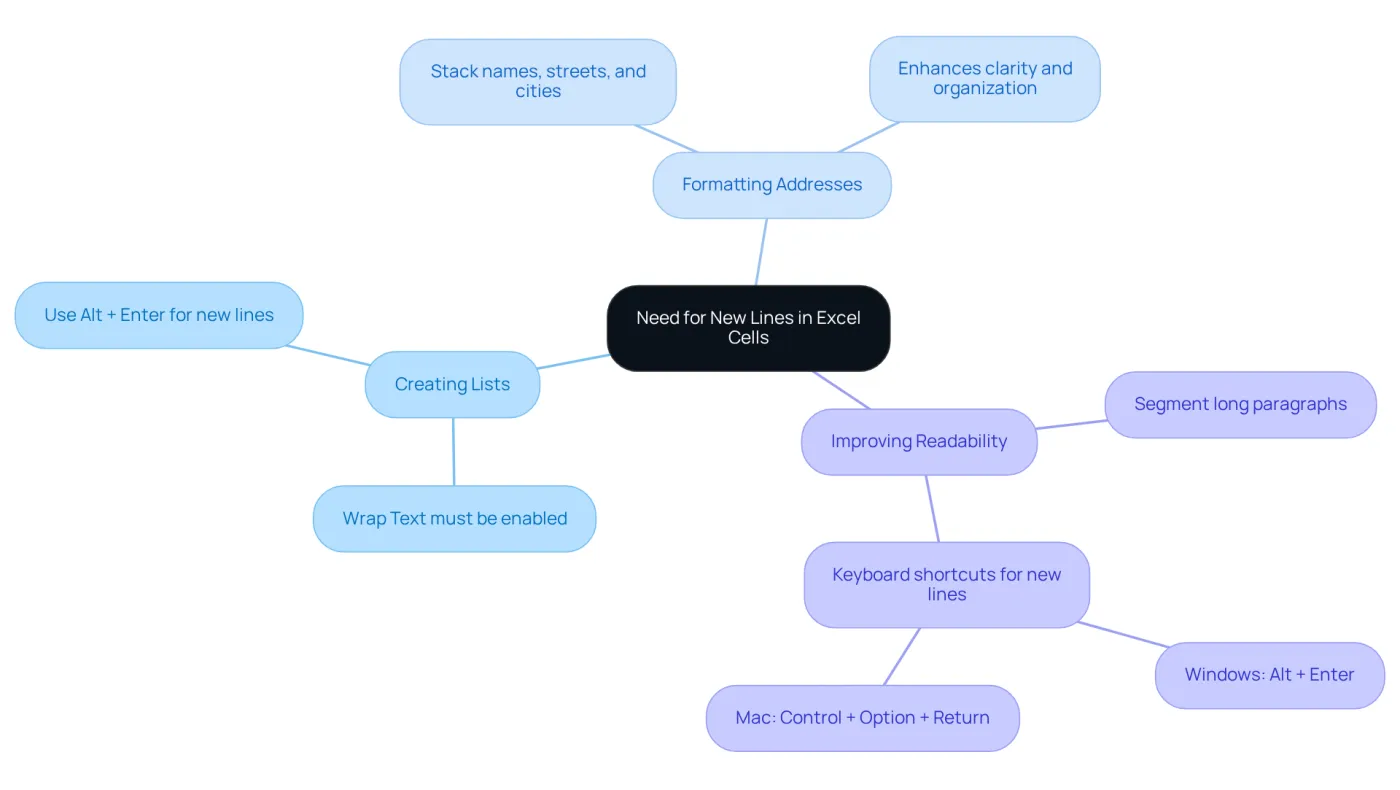
Enhancing the clarity and structure of your data in Excel can be significantly achieved by adding new rows within tables. For instance, breaking lengthy text entries into multiple rows not only improves readability but also fosters better understanding. This technique proves particularly advantageous in various scenarios:
- Creating Lists: When you need to list items or steps within a single cell, inserting new lines effectively separates each entry, making it easier to follow. As Ruby aptly points out, "One important thing: Wrap Text must be enabled, or the break won't show."
- Formatting Addresses: For addresses or contact details, utilizing new rows creates a visually appealing format that enhances clarity. This method is especially useful when combining names, streets, and cities in one location.
- Improving Readability: Long paragraphs can overwhelm readers; segmenting them into smaller sections aids in comprehension and retention. Remember, keyboard shortcuts like
Alt + Enteron Windows orControl + Option + Returnon Mac can show you how to do a new line in excel cell for quick edits within a single cell.
Moreover, leveraging the Find and Replace feature can streamline the process of inserting breaks across multiple entries, making it an invaluable tool for organizing complex data.
By mastering these techniques, you can elevate the presentation of your data, rendering it more accessible and organized.
Explore Methods to Insert New Lines in Excel Cells
For many users, understanding how to do a new line in excel cell can be a challenge. However, there are several effective methods to accomplish this, each catering to different preferences:
-
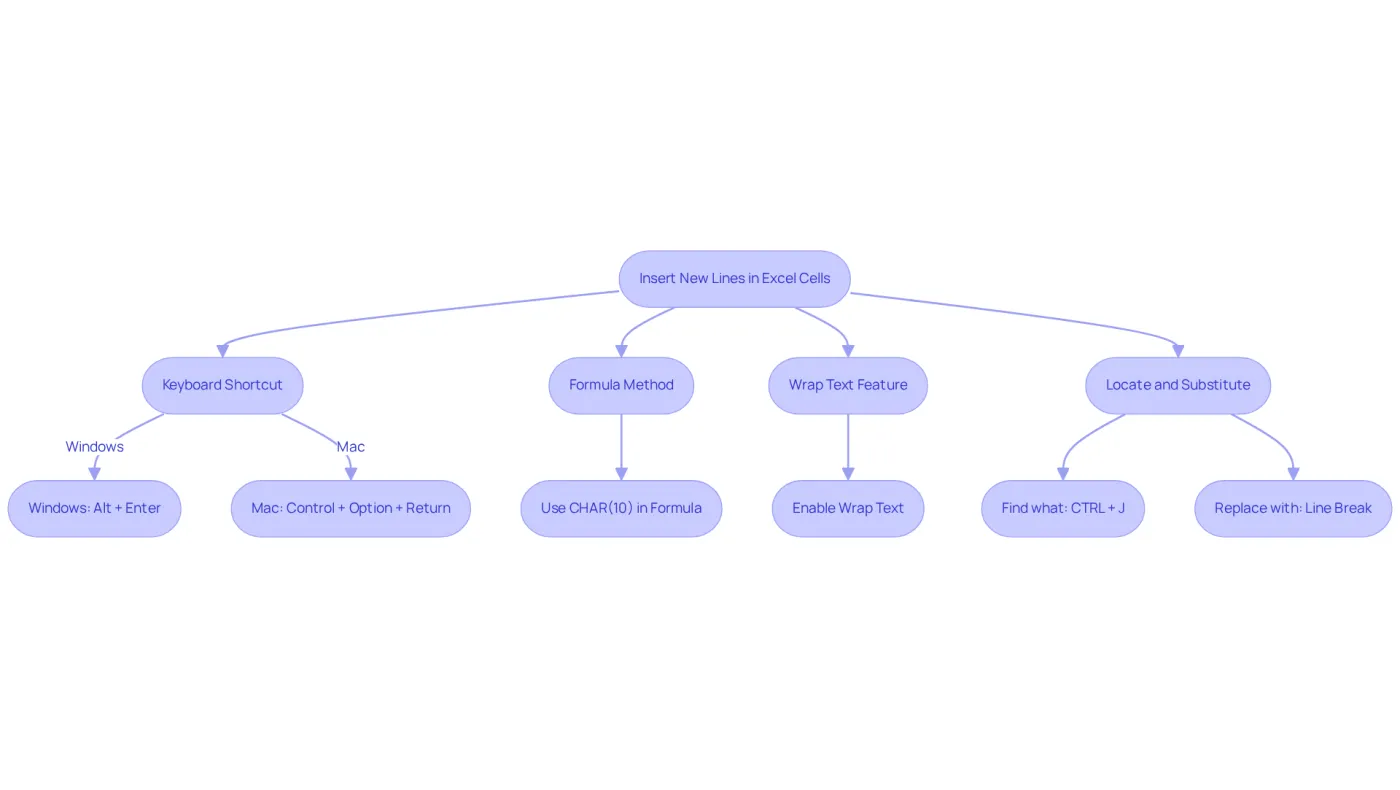
Keyboard Shortcut: The fastest way to insert a new line is by using a keyboard shortcut. On Windows, simply press
Alt + Enterat the desired location. For Mac users, the combination isControl + Option + Return. -
Formula Method: Another powerful approach involves the
CHAR(10)function within a formula. For instance, using=A1 & CHAR(10) & A2combines the contents of A1 and A2, inserting a break between them. -
Wrap Text Feature: To ensure that text automatically wraps to the next line when it reaches the edge of the cell, enable the 'Wrap Text' option in the formatting settings. This feature is crucial for maintaining readability in cells with extensive content.
-
Locate and Substitute: For bulk paragraph separations, the Locate and Substitute function is invaluable. In the 'Find what' box, input
CTRL + Jto locate existing breaks and replace them as needed.
Each of these methods offers distinct advantages, allowing users to choose the most suitable approach for their specific needs. By mastering these techniques, you can significantly enhance data presentation and organization in Excel, including how to do a new line in excel cell.
Follow Step-by-Step Instructions for Each Insertion Method
Here are detailed instructions for each method of inserting new lines in Excel cells:
Method 1: Keyboard Shortcut
- Click on the cell where you want to add a new row.
- Start typing your text.
- When you reach the point where you desire a new row, press
Alt + Enter(Windows) orControl + Option + Return(Mac). - Continue typing your text on the new row.
Method 2: Formula Method
- Click on the area where you want the combined text.
- Enter the formula using
CHAR(10). For example:=A1 & CHAR(10) & A2. - Press
Enterto view the result with a new line. Note: If you find that CHAR(10) alone does not work, consider using CHAR(13) alongside it, as some users have reported better results with this combination.
Method 3: Wrap Text Feature
- Choose the square or range of squares you wish to format.
- Go to the Home tab on the ribbon.
- Click on 'Wrap Text' in the Alignment group. Remember, if 'Wrap Text' is not enabled, text separations will not display correctly.
- Input your text, and it will automatically wrap to the next row when it reaches the boundary of the box.
Method 4: Find and Replace
- Choose the area of boxes where you wish to add new lines.
- Press
CTRL + Hto open the Find and Replace dialog. - In the 'Find what' box, press
CTRL + J(you won’t see anything). - In the 'Replace with' box, enter the text you want to substitute or leave it empty for a new line.
- Click 'Replace All' to apply changes.
These methods will assist you in effectively managing text within your Excel boxes, including how to do a new line in excel cell, which enhances the organization and readability of your data. Furthermore, for users of Excel 365 or 2019+, consider utilizing the TEXTJOIN function to merge values with breaks, which can further enhance your data management.

Troubleshoot Common Issues with New Line Insertion
Common Excel Issues and Effective Solutions
Adding new rows in Excel entries can often seem straightforward, yet many users encounter frequent challenges. Understanding these issues and knowing how to resolve them can significantly enhance your productivity.
-
Shortcut Not Working: If the
Alt + Entershortcut isn’t functioning, make sure you’re in edit mode. You can enter edit mode by double-clicking the cell or pressingF2before trying the shortcut again. -
Text Not Wrapping: When text fails to wrap to the next row, check that the 'Wrap Text' option is enabled. Select the cell, go to the Home tab, and click 'Wrap Text' to activate this feature.
-
Paragraph Separators Not Showing: If you can’t see paragraph separators, ensure the cell height is adequate to display multiple lines. Adjust the row height as necessary to fit the text properly.
-
Formula Issues: When using the
CHAR(10)function in a formula, confirm that the cell format is set to 'General' or 'Text'. Additionally, ensure 'Wrap Text' is activated for the cell to display text formatting correctly. -
Several Paragraph Gaps: If you notice extra spaces between paragraphs, this could be due to multiple paragraph gaps. To fix this, use the Find and Replace feature by entering
CTRL + Jin the 'Find what' box and replacing it with nothing to eliminate unnecessary breaks.
By addressing these common issues, you can significantly improve your experience in learning how to do a new line in excel cell, ensuring your data remains organized and easily readable.

Conclusion
Mastering the insertion of new lines within Excel cells is essential for enhancing data clarity and organization. By employing various methods, users can effectively break up lengthy text entries, making their spreadsheets not only more readable but also visually appealing. This skill significantly improves the presentation of information and aids in better data comprehension, leading to a more efficient workflow.
In this guide, we've explored several techniques, including:
- Keyboard shortcuts
- The formula method
- The 'Wrap Text' feature
- The Find and Replace function
Each approach offers unique advantages, allowing users to select the method that best suits their needs. Understanding these techniques empowers individuals to manage their data more effectively, enhancing both the functionality and aesthetics of their Excel documents.
Ultimately, the ability to create new lines in Excel cells transcends mere formatting; it’s about making information more accessible and easier to digest. Embracing these methods can significantly elevate the quality of your data presentation. Whether you're preparing a report, organizing contacts, or creating lists, implementing new lines can transform your Excel experience.
Take the time to practice these techniques and witness the difference they make in your data management endeavors. Your spreadsheets deserve the clarity and organization that new lines can provide.
Frequently Asked Questions
Why is it important to add new lines in Excel cells?
Adding new lines in Excel cells enhances clarity and structure, making data more readable and easier to understand.
In what scenarios can new lines in Excel cells be particularly beneficial?
New lines are beneficial for creating lists, formatting addresses, and improving the readability of long paragraphs.
How do new lines improve the presentation of data in Excel?
New lines break lengthy text entries into smaller, manageable sections, which aids in comprehension and retention.
What must be enabled for new lines to be visible in Excel cells?
The 'Wrap Text' feature must be enabled for new lines to display properly in Excel cells.
What keyboard shortcuts can be used to add new lines in Excel cells?
For Windows, use Alt + Enter; for Mac, use Control + Option + Return.
How can the Find and Replace feature assist with inserting new lines in Excel?
The Find and Replace feature can streamline the process of inserting breaks across multiple entries, helping to organize complex data effectively.