
Master How to Get Data from PDF to Excel with Easy Steps
Unlock seamless data analysis by learning how to get data from PDF to Excel effortlessly.

Introduction
Unlocking the data trapped within PDF files is crucial for professionals aiming to elevate their analytical capabilities. As the demand for efficient data manipulation rises, mastering the transfer of information from PDF to Excel is no longer optional - it's essential. Yet, the complexities of this process can lead to frustration and errors.
What are the most effective methods for ensuring accurate data extraction? How can you navigate the common hurdles in this vital task? Understanding these challenges is the first step toward a more streamlined workflow. With the right tools and strategies, you can transform this daunting task into a seamless experience.
Understand the Importance of Extracting Data from PDF to Excel
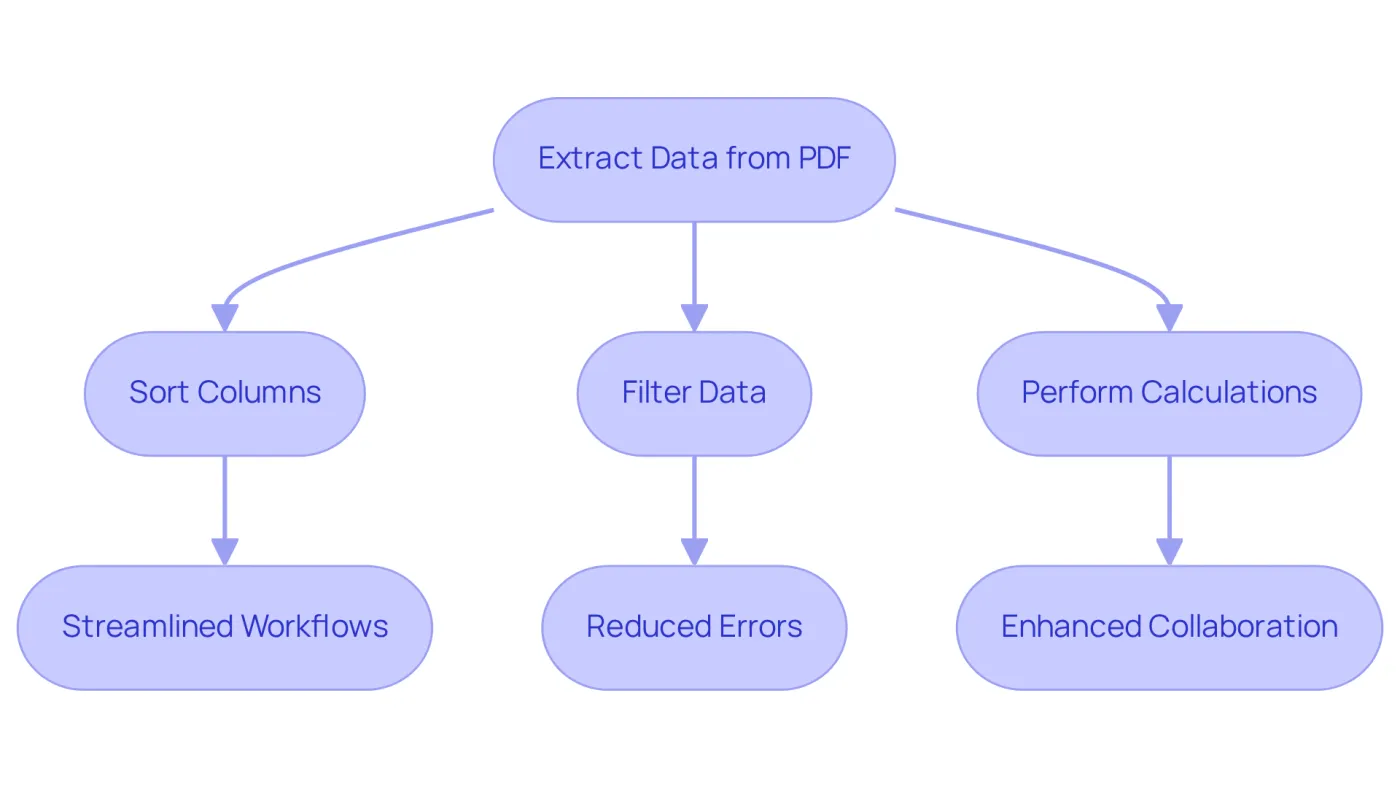
For professionals who need to analyze and manipulate data effectively, it is essential to get data from PDF to Excel. PDFs are widely used for information exchange, yet they often lack the flexibility necessary for in-depth analysis. By using methods to get data from PDF to Excel, users can unlock the full potential of powerful software features, such as:
- Sorting columns alphabetically or numerically
- Filtering data
- Performing complex calculations
This transformation streamlines workflows by eliminating the tedious task of manual data entry, significantly reducing the risk of errors. As a result, professionals can achieve more accurate analysis and reporting. For example, financial teams that get data from PDF to Excel can enhance compliance checks and improve accuracy in credit assessments. Case studies illustrate the efficiency gained through automation, showcasing how these techniques lead to better outcomes.
Moreover, integrating PDF documents into spreadsheets fosters seamless collaboration and information sharing among team members, further supporting improved decision-making. Adopting these extraction techniques is vital for professionals looking to elevate their analytical capabilities. Embrace the power of automation and transform your data handling today.
Explore Proven Methods for PDF to Excel Data Extraction
While it can be a challenge to get data from PDF to Excel, several effective methods can simplify this process. Here’s a look at the most reliable techniques:
-
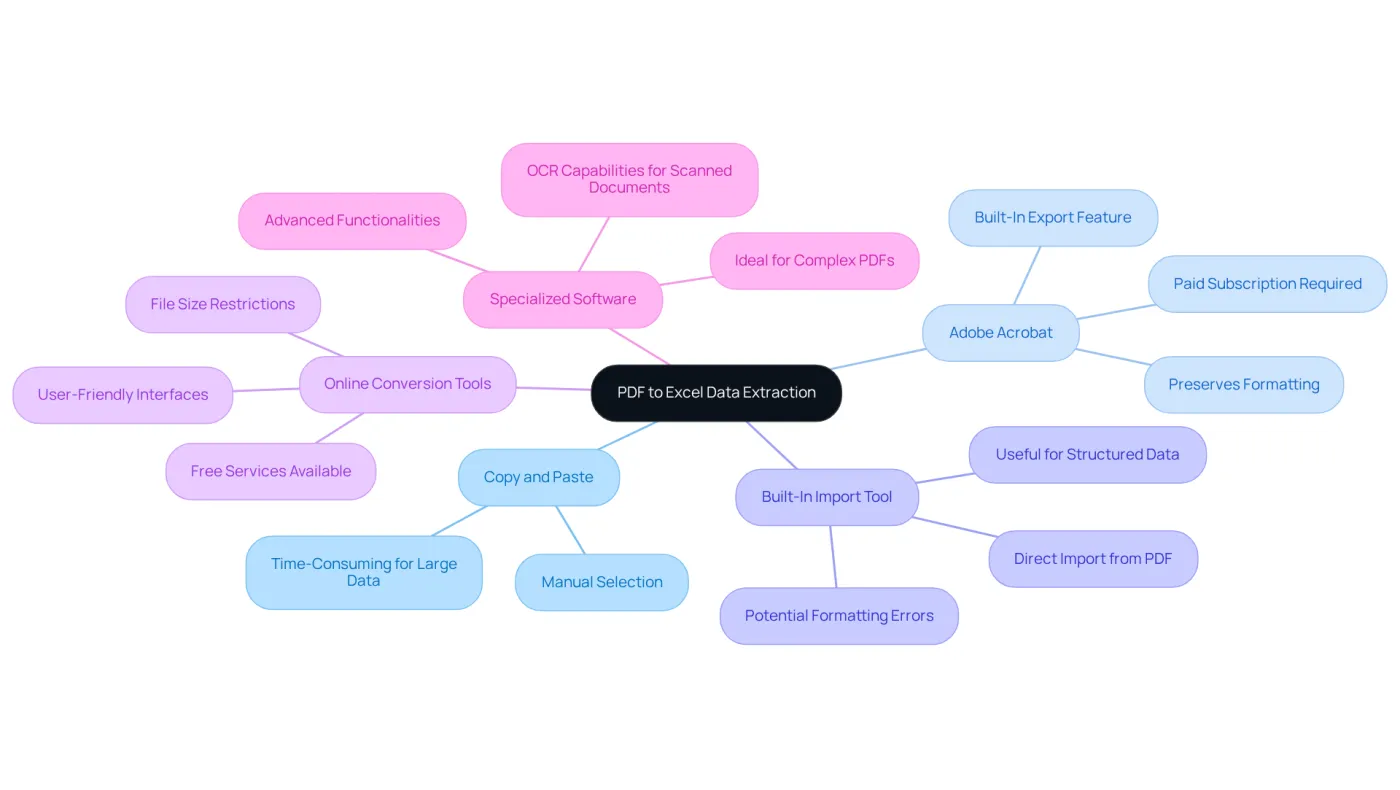
Copy and Paste: This straightforward method involves manually selecting the information in the PDF, copying it, and pasting it into a spreadsheet. While this works well for small amounts of data, it can become tedious with larger datasets.
-
Adobe Acrobat: If you have access to Adobe Acrobat, take advantage of its built-in export feature. This allows you to convert PDFs directly into a spreadsheet format, often preserving the original formatting better than manual copying.
-
Built-In Import Tool: Many spreadsheet applications include a feature under the 'Data' tab that enables direct import of information from a PDF file. This is particularly useful for structured data and can significantly save time.
-
Online Conversion Tools: Websites like Smallpdf and PDFtoExcel provide free services to convert PDFs to Excel. These tools are user-friendly and require no software installation, making them accessible for anyone.
-
Specialized Software: For more complex PDFs, tools like Able2Extract and Nitro PDF Pro offer advanced functionalities for data extraction. They often include Optical Character Recognition (OCR) capabilities to handle scanned documents effectively.
By understanding these methods, users can select the approach that best meets their needs and helps them get data from PDF to Excel based on the specific characteristics of their PDF files.
Follow Step-by-Step Instructions for Effective Data Extraction
To effectively extract data from a PDF to Excel, follow these structured steps:
-
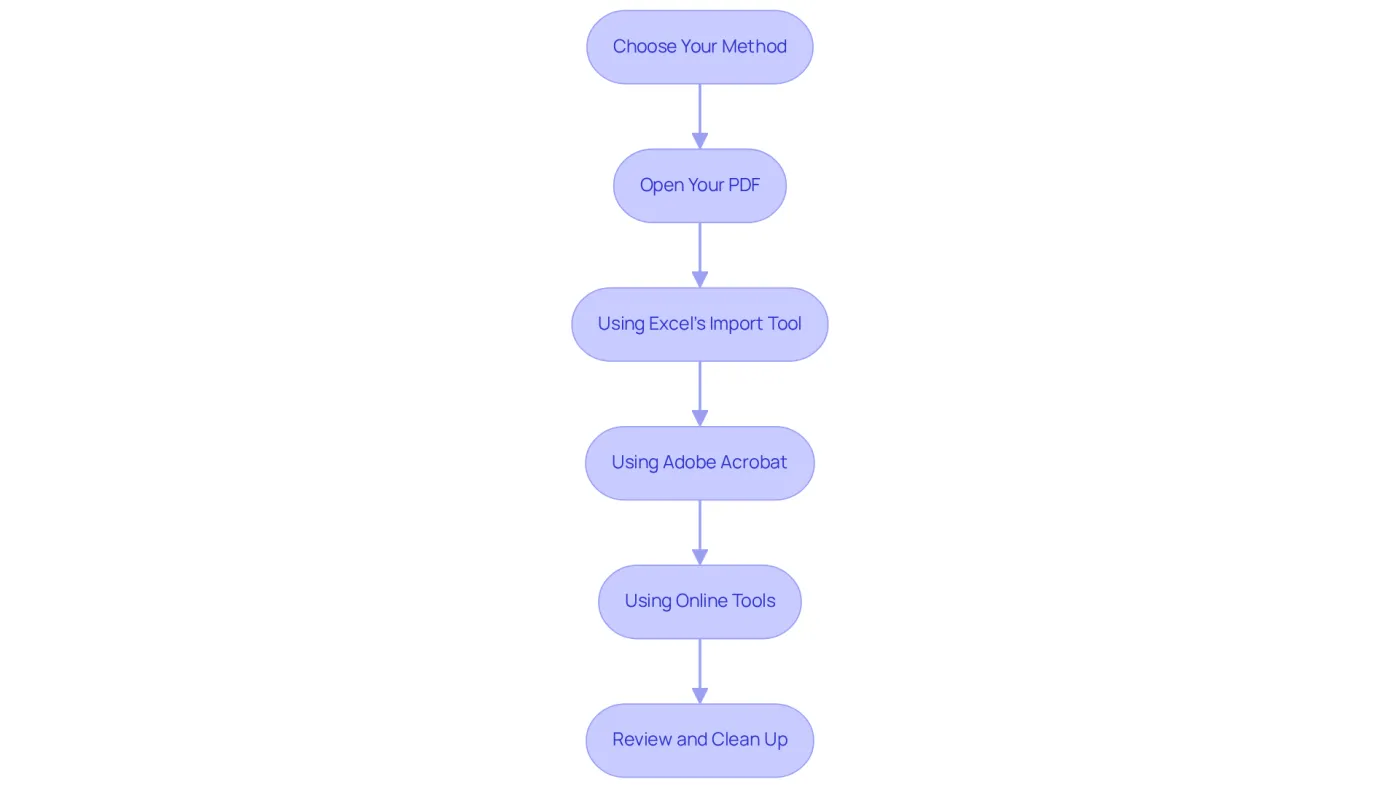
Choose Your Method: Determine whether to use copy and paste, Adobe Acrobat, Excel's import tool, or an online converter based on your specific needs and the complexity of the PDF. Each technique has its advantages and disadvantages. For instance, while copy-pasting is straightforward, it can become tedious and prone to errors when dealing with large volumes of information.
-
Open Your PDF: If you're using Adobe Acrobat or an online tool, open the PDF document from which you wish to extract data.
-
Using Excel's Import Tool:
- Open Excel and navigate to the 'Data' tab.
- Click on 'Get Data' > 'From File' > 'From PDF'.
- Browse to select your PDF file and click 'Import'.
- Follow the prompts to select the information you want to extract. This method is efficient for straightforward data but may encounter formatting errors with complex tables.
-
Using Adobe Acrobat:
- Open the PDF in Adobe Acrobat.
- Click on 'File' > 'Export To' > 'Microsoft Spreadsheet Workbook'.
- Save the new spreadsheet. This method is user-friendly but requires a subscription for advanced features.
-
Using Online Tools:
- Visit a PDF to Excel conversion website.
- Upload your PDF document and click 'Convert'.
- Download the converted spreadsheet file. Online tools such as JotForm Smart PDF Forms allow users to retrieve information for free, needing only a JotForm account.
-
Review and Clean Up: Open the extracted information in a spreadsheet program. Check for any formatting issues or errors and tidy up the information as necessary. Utilize features like 'Text to Columns' to separate combined information if needed. Remember, individuals spend 60% to 80% of their time trying to find information, so ensuring accuracy in this step is crucial.
By following these steps, you can efficiently get data from PDF to Excel, preparing it for thorough analysis. This approach not only boosts productivity but also guarantees precision, tackling common difficulties encountered during information extraction. For instance, Klippa DocHorizon automates document workflows, significantly saving time and reducing errors, showcasing the effectiveness of structured extraction methods.
Troubleshoot Common Issues in PDF to Excel Extraction
When you get data from pdf to excel, several common issues may arise during the transfer of information to a spreadsheet. Here are effective troubleshooting tips to enhance your extraction experience:
-
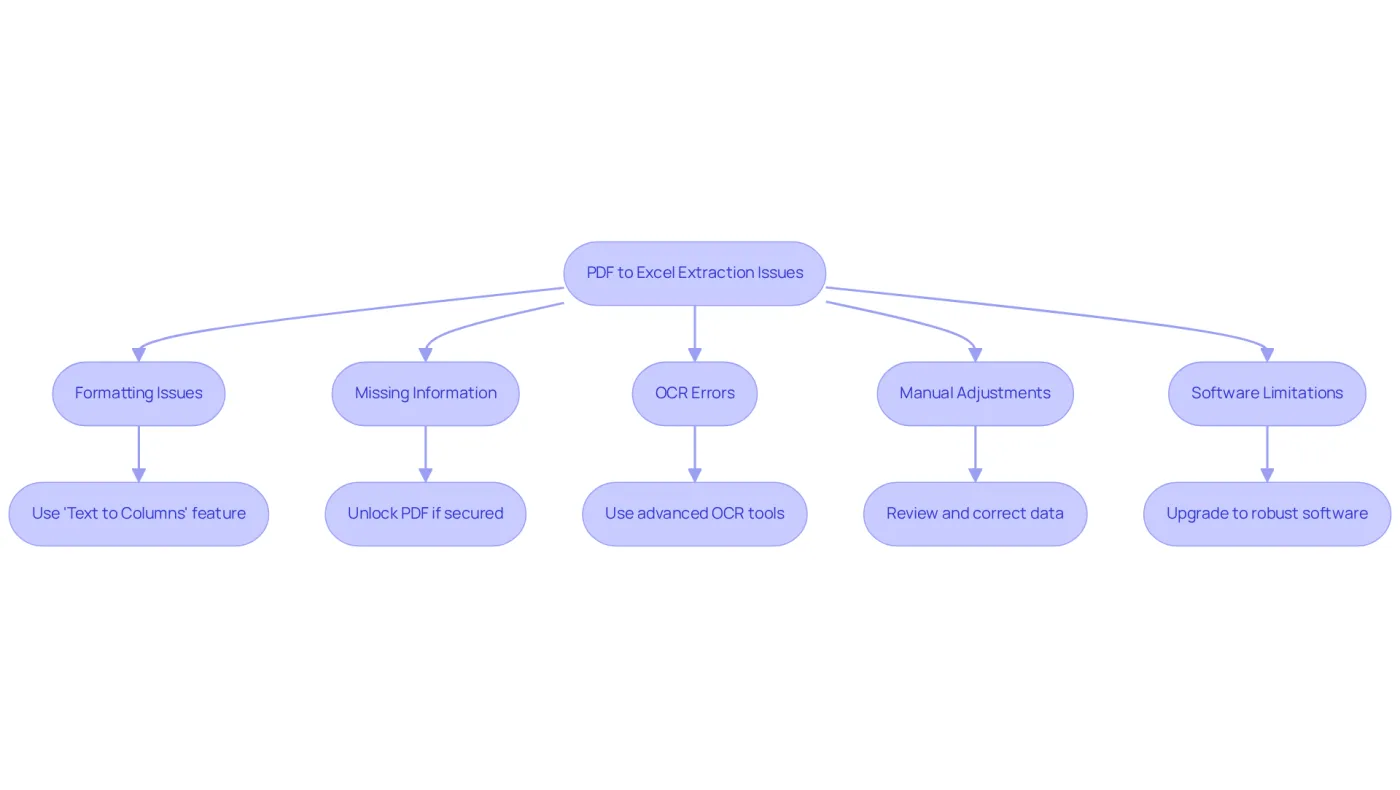
Formatting Issues: If the information appears jumbled or misaligned, utilize Excel's 'Text to Columns' feature. This allows you to divide information into distinct columns based on delimiters such as commas or spaces, significantly enhancing readability. Traditional copy-and-paste methods often fail to accurately capture information from complex PDF structures, highlighting the need to get data from pdf to excel.
-
Missing Information: Ensure that the PDF is not password-protected or encrypted, as this can hinder information extraction. If it is secured, you will need to unlock it before proceeding with the extraction process.
-
OCR Errors: For scanned PDFs, it is essential to use a tool that supports Optical Character Recognition (OCR). If the text is not recognized accurately, consider switching to a more advanced OCR tool, as some may struggle with older or poorly scanned documents. A case study on managing non-standardized PDF files emphasizes how advanced tools that help to get data from pdf to excel can effectively tackle common problems.
-
Manual Adjustments: After extraction, review the information for any errors or inconsistencies. Manual adjustments may be necessary to correct formatting issues or fill in missing information, ensuring the final dataset is accurate and usable. The frequency of formatting issues encountered when users get data from PDF to Excel conversions is a common challenge, underscoring the importance of this step.
-
Software Limitations: If you encounter limitations with free online tools, consider upgrading to a paid version or utilizing more robust software solutions like Adobe Acrobat or Able2Extract. These tools frequently offer improved capabilities for managing intricate PDF structures and preserving information integrity. Investing in quality software can significantly enhance the extraction process.
By understanding these common challenges and their solutions, you can navigate the extraction process more effectively, ultimately leading to improved accuracy and efficiency in your data management tasks.
Conclusion
Harnessing the power of data extraction from PDF to Excel is vital for professionals eager to elevate their analytical skills. By transforming static PDF documents into dynamic Excel spreadsheets, users can tap into advanced features that enhance data manipulation, streamline workflows, and boost accuracy in reporting. This shift not only saves time but also equips teams to make informed decisions grounded in reliable data.
In this guide, we've explored effective methods for data extraction, ranging from straightforward copy-and-paste techniques to specialized software and online tools. Each approach presents distinct advantages, tailored to the complexity of the PDF and the volume of data at hand. We've also tackled common issues like formatting errors and missing information, empowering users to navigate potential challenges with confidence.
As the need for efficient data handling escalates, adopting these extraction techniques becomes essential. Whether you're involved in financial analysis, project management, or any field that demands data-driven insights, mastering the conversion of PDF to Excel can significantly boost productivity and accuracy. Don't wait - explore the recommended tools and methods today, and transform your data management approach for superior outcomes.
Frequently Asked Questions
Why is it important to extract data from PDF to Excel?
Extracting data from PDF to Excel is important because it allows professionals to analyze and manipulate data more effectively, unlocking powerful software features for sorting, filtering, and performing complex calculations.
What are some benefits of converting PDF data to Excel?
Benefits include streamlining workflows by eliminating manual data entry, reducing the risk of errors, achieving more accurate analysis and reporting, and enhancing compliance checks in financial assessments.
How does extracting data from PDF to Excel improve collaboration?
Integrating PDF documents into spreadsheets fosters seamless collaboration and information sharing among team members, which supports improved decision-making.
What impact can automation have on data handling?
Automation can significantly enhance efficiency in data handling, leading to better outcomes and more accurate analyses, as illustrated by case studies in various professional settings.
Who can benefit from extracting data from PDF to Excel?
Professionals across various fields, especially financial teams, can benefit from these extraction techniques to elevate their analytical capabilities and improve their workflows.