

Overview
The article delves into the effective merging of multiple Excel files through Power Query and VBA, presenting various methods to streamline this essential process. It highlights the challenges faced during data consolidation and introduces Power Query as a solution that significantly enhances efficiency and minimizes errors. Furthermore, the article emphasizes the role of VBA in automating repetitive tasks, thereby improving overall data management and productivity.
By leveraging Power Query, users can experience a more efficient workflow, as it simplifies the process of combining data from different sources. The automation capabilities of VBA complement this by handling repetitive tasks, allowing professionals to focus on more strategic activities. This dual approach not only streamlines operations but also leads to better accuracy in data handling.
In conclusion, the integration of Power Query and VBA presents a compelling case for enhancing productivity in data management. Embracing these tools will not only address current challenges but also pave the way for improved efficiency in future projects.
Introduction
Merging multiple Excel files revolutionizes how professionals manage data, transforming chaotic spreadsheets into streamlined, insightful reports. This essential skill not only enhances data management and reporting but also saves valuable time, enabling users to concentrate on analysis rather than the tedious task of data consolidation.
However, with various methods available—from manual copy-pasting to advanced VBA scripts—what is the most effective approach to ensure accuracy and efficiency in this critical task?
Understand the Basics of Merging Excel Files
Understanding how to merge multiple Excel files is a critical process that consolidates information from various workbooks into a single document, significantly enhancing analysis and reporting capabilities. This approach proves particularly advantageous for professionals managing extensive datasets across multiple documents. The key advantages of merging include:
- Improved Data Management: By consolidating data into one file, management and analysis become streamlined, allowing for a more organized approach to data handling.
- Enhanced Reporting: A unified dataset not only facilitates straightforward reporting but also simplifies visualization, making it easier to derive insights and present findings effectively.
- Time Efficiency: The act of combining documents can yield considerable time savings, eliminating the need to toggle between multiple workbooks. Research indicates that 50% of employees find that spending long hours searching for data points hampers productivity, underscoring the necessity for efficient data management.
Before diving into how to merge multiple Excel files, make sure that all documents are arranged and formatted uniformly. This preparation is essential to avoid complications during the merging process, ultimately leading to a smoother experience and superior outcomes.

Explore Different Methods to Merge Excel Files
There are several effective methods to merge Excel files, each offering distinct advantages:
-
Manual Copy-Paste: This method is the simplest approach, where users open each file and copy the information into a master workbook. While it is straightforward, it can become time-consuming when dealing with large datasets.
-
The Consolidate Function: This integrated tool allows users to merge information from various sheets into a single one. It is particularly useful for summarizing data, although it may require some initial setup.
-
Query Tool: A robust utility within spreadsheet applications, the Query Tool enables users to import and modify data from various sources. This option is ideal for those seeking a more automated solution.
-
VBA Macros: For advanced users, writing a VBA script can significantly automate the merging process, enhancing efficiency for repetitive tasks.
Each method has its specific use case, and the choice ultimately depends on the user's comfort level and their understanding of how to merge multiple excel files, as well as the complexity of the task at hand.

Utilize Power Query for Efficient File Merging
Learning how to merge multiple Excel files using Power Query is a streamlined process that empowers users to efficiently consolidate data. To begin, open your spreadsheet application and navigate to the Data tab. Click on Get Data > From File > From Folder. Then, browse to the folder containing the Excel documents you wish to merge and click OK.
In the Navigator window, select the files you want to combine and click Combine. Power Query will then present a preview of the information, allowing you to filter and modify the content as needed. This ensures that only relevant information is included. Once you are satisfied with the adjustments, click Close & Load to import the combined data into a new worksheet.
Employing Power Query functionality not only simplifies how to merge multiple Excel files but also significantly reduces the likelihood of errors associated with manual data consolidation. Organizations utilizing Power Query have reported substantial time savings. Users have noted that this tool facilitates seamless updates when new files are added to the designated folder. For instance, many organizations have effectively integrated Power Query into their workflows, enhancing data accuracy and productivity.
Testimonials from users highlight the transformative impact of Power Query, with numerous individuals claiming it has revolutionized their approach to data management within spreadsheets. By adopting this powerful tool, you can elevate your data handling capabilities and streamline your processes.

Implement VBA for Automated Merging Solutions
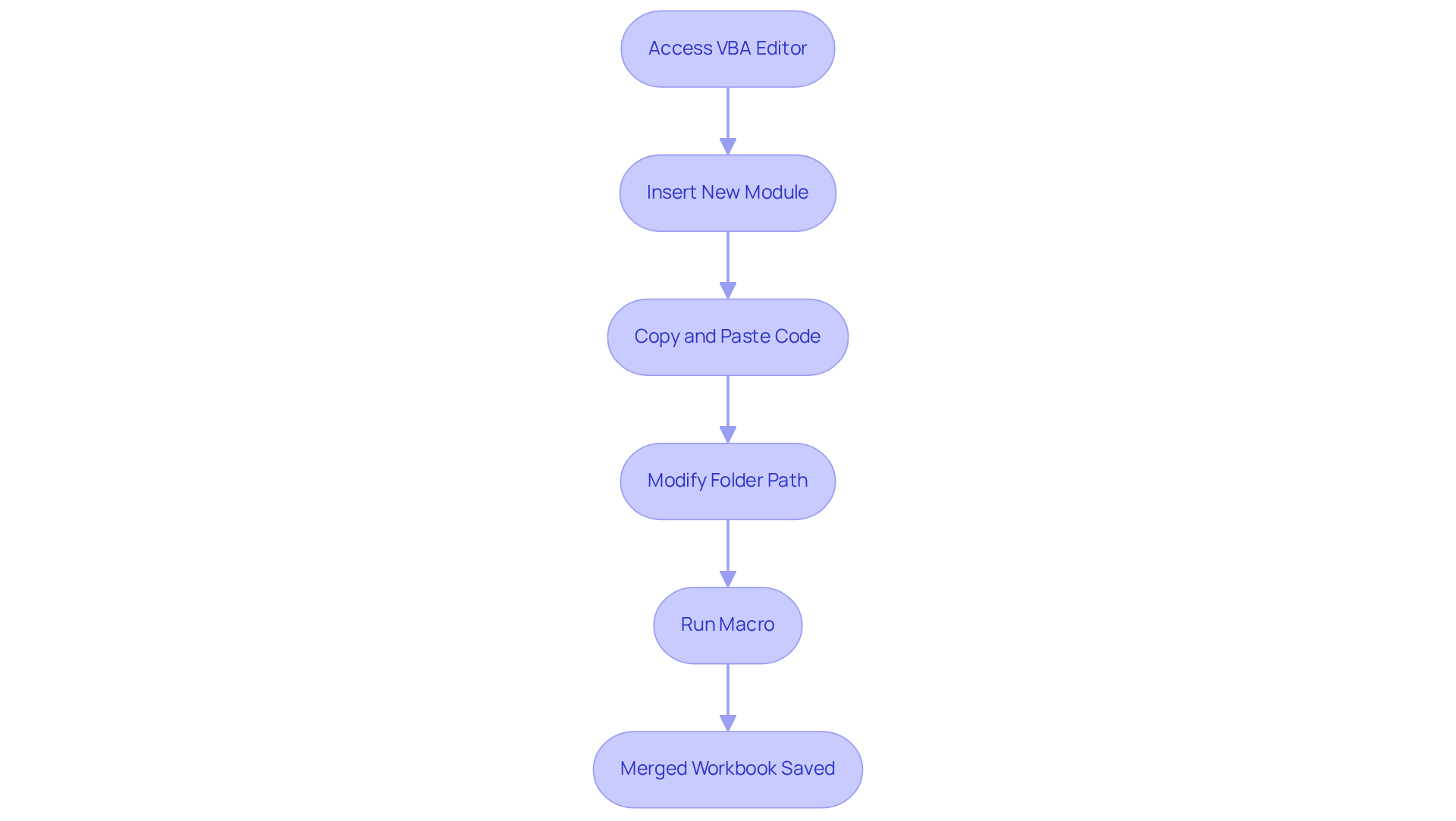
To automate the merging of Excel files using VBA, follow these essential steps:
- Launch the spreadsheet software and press Alt + F11 to access the VBA editor.
- Insert a new module by clicking Insert > Module.
- Copy and paste the following code:
Sub MergeWorkbooks() Dim wb As Workbook Dim ws As Worksheet Dim masterWb As Workbook Set masterWb = Workbooks.Add Dim folderPath As String folderPath = "C:\YourFolderPath\" ' Change to your folder path Dim fileName As String fileName = Dir(folderPath & "*.xlsx") Do While fileName <> "" Set wb = Workbooks.Open(folderPath & fileName) For Each ws In wb.Worksheets ws.Copy After:=masterWb.Sheets(masterWb.Sheets.Count) Next ws wb.Close False fileName = Dir Loop masterWb.SaveAs folderPath & "MergedWorkbook.xlsx" End Sub - Modify the
folderPathvariable to the location where your spreadsheet documents are kept. - Run the macro by pressing F5.
This script will efficiently open each Excel document in the specified folder, copy all worksheets into a new workbook, and save it as 'MergedWorkbook.xlsx'. This method is particularly beneficial for users who regularly need to learn how to merge multiple Excel files, streamlining their workflow.
Conclusion
Mastering the techniques to merge multiple Excel files significantly enhances data management and analysis capabilities. By consolidating various datasets into a single document, professionals streamline their processes, improve reporting accuracy, and save valuable time. Understanding the various methods available—from manual copy-pasting to advanced automation with VBA and Power Query—empowers users to choose the best approach based on their specific needs and technical comfort.
Key insights discussed in this guide highlight the distinct advantages of each merging method:
- While manual methods may be straightforward, they can be tedious for larger datasets.
- The Consolidate function and Query Tool offer more efficient alternatives.
- Power Query stands out for its user-friendly interface and capability to seamlessly integrate new data.
- For those well-versed in Excel, VBA provides an automated solution that can handle repetitive tasks with ease, further enhancing productivity.
Ultimately, embracing these merging techniques simplifies data handling and paves the way for more informed decision-making. Organizations and individuals alike benefit from adopting these practices, transforming the way they manage and analyze their data. Whether through Power Query, VBA, or other methods, the ability to efficiently merge Excel files is a skill that leads to significant improvements in workflow and data insight.
Frequently Asked Questions
Why is merging Excel files important?
Merging Excel files is important because it consolidates information from various workbooks into a single document, enhancing analysis and reporting capabilities, especially for professionals managing extensive datasets.
What are the key advantages of merging Excel files?
The key advantages of merging Excel files include improved data management, enhanced reporting, and time efficiency. It streamlines data handling, simplifies visualization for reporting, and saves time by reducing the need to switch between multiple workbooks.
How does merging Excel files improve data management?
Merging Excel files improves data management by consolidating data into one file, allowing for a more organized approach to handling and analyzing information.
In what way does merging facilitate enhanced reporting?
Merging facilitates enhanced reporting by creating a unified dataset that simplifies the reporting process and makes it easier to visualize data, thus aiding in deriving insights and presenting findings effectively.
How does merging Excel files contribute to time efficiency?
Merging Excel files contributes to time efficiency by eliminating the need to toggle between multiple workbooks, which can save considerable time and improve productivity.
What should be done before merging Excel files?
Before merging Excel files, it is essential to arrange and format all documents uniformly to avoid complications during the merging process, leading to a smoother experience and better outcomes.