
Master How to Remove Duplicates in Excel Columns Efficiently
Learn efficient methods to remove duplicates in Excel columns and streamline your data management.

Introduction
Efficient data management is essential in today’s fast-paced business landscape, where clarity and accuracy can profoundly influence decision-making. Excel stands out as a powerful tool for data analysis, providing users with various methods to identify and eliminate duplicates. This ensures that datasets remain reliable and actionable. Yet, many users find themselves grappling with the complexities of these processes, often resulting in confusion and inefficiencies.
So, how can you master the art of duplicate removal in Excel? By doing so, you not only streamline your workflow but also enhance the integrity of your data. Imagine the confidence you'll gain in your decision-making, backed by accurate and dependable datasets. It's time to take control of your data management and unlock the full potential of Excel.
Identify Duplicates in Excel Columns
To efficiently identify duplicates in Excel columns, follow these essential steps:
- Open Your Excel Workbook: Launch Excel and open the workbook containing the data you want to analyze.
- Choose the Header: Click on the title of the section where you suspect repetitions may occur. This action emphasizes the whole section.
- Use Conditional Formatting: Navigate to the Home tab, click on Conditional Formatting, then select Highlight Cells Rules and choose Duplicate Values. This will prompt a dialog box.
- Choose Formatting Options: In the dialog box, select how you want the repeated items to be highlighted (e.g., with a specific color). Click OK to apply your choice.
- Review Highlighted Repeats: Examine your section to identify which values are highlighted; these represent your repeats.
- Count Repetitions (Optional): To count how many repetitions exist, utilize the
COUNTIFfunction. For example, in a new cell, type=COUNTIF(A:A, A1)to find out how many times the value in cell A1 appears in the range A.
By following these steps, you can effectively recognize repeats in your spreadsheet columns, allowing you to remove duplicates in Excel column during the later processes. A significant number of Excel users encounter challenges in identifying repetitions, which emphasizes the importance of learning how to remove duplicates in Excel column. As Ruby states, "Master the dynamic UNIQUE() function for formula-based control, and discover an AI-powered alternative that gets the job done with simple English commands." Information analysts advocate for conditional formatting as an optimal approach for visually managing repetitions, thereby enhancing overall information integrity. Additionally, consider employing the Advanced Filter method for a non-destructive way to extract unique values while preserving the original data.

Remove Duplicates Using Excel's Built-in Features
To efficiently remove duplicates using Excel's built-in features, follow these steps:
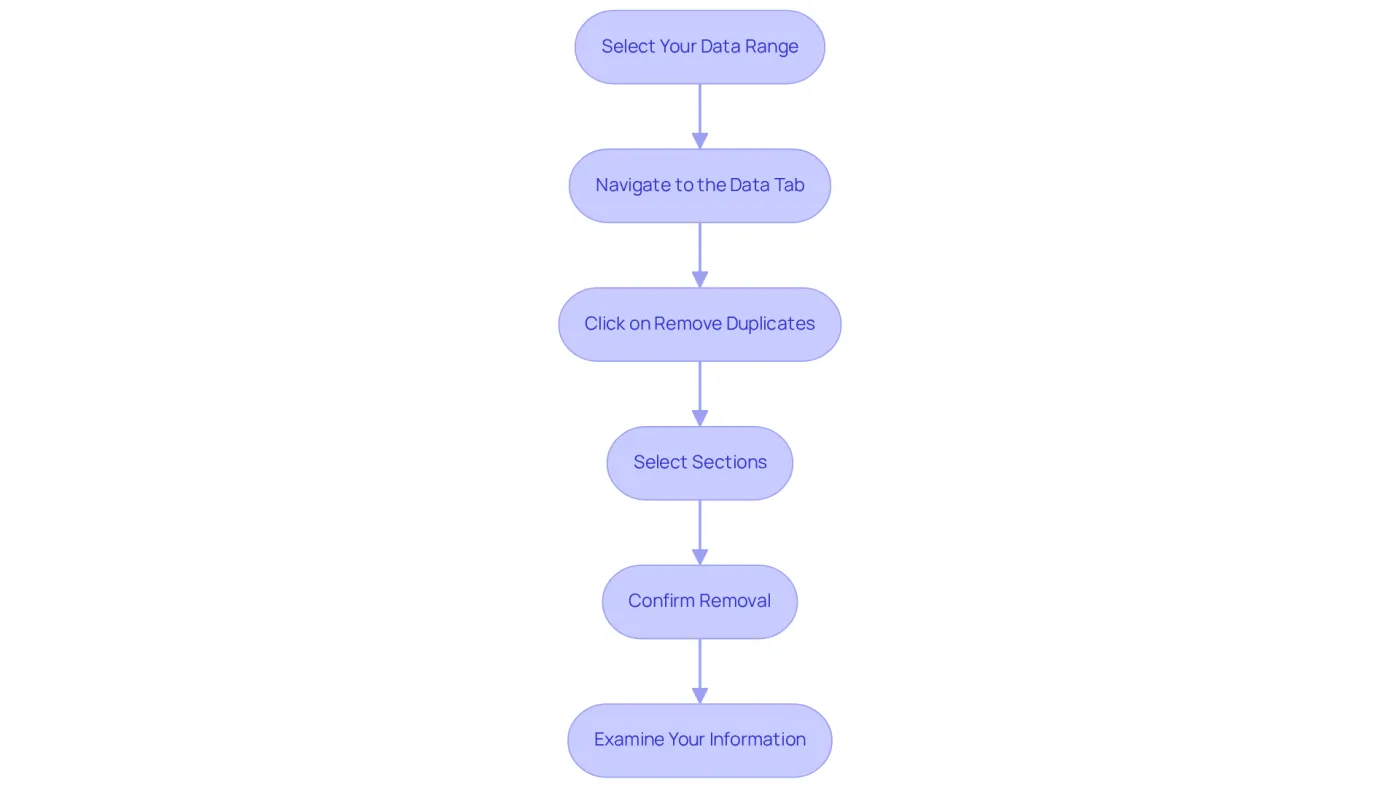
- Select Your Data Range: Highlight the range of cells from which you want to eliminate duplicates, whether it's a single field or multiple fields.
- Navigate to the Data Tab: Click on the Data tab in the Excel ribbon.
- Click on Remove Duplicates: In the Data Tools group, locate and click on the Remove Duplicates button. This action will open a dialog box.
- Select Sections: In the dialog box, you will see a list of sections. Check the boxes next to the columns you want to verify for repetitions. If your information includes headers, ensure the My information has headers option is selected.
- Confirm Removal: Click OK. The spreadsheet software will handle the information and notify you of how many repetitions were eliminated and how many distinct values are left.
- Examine Your Information: Once the process is finished, examine your information to confirm that the repetitions have been eliminated as planned. It's crucial to ensure that the recognized repetitions are truly repetitions, as spreadsheet software may overlook repetitions if information is compared across various columns.
Utilizing Excel's built-in functions to remove duplicates in Excel column not only streamlines your workflow but also significantly enhances your data's clarity. Businesses have reported saving an average of 30% of their time on data management tasks by effectively using these tools. As noted by Excel trainers, "Once you’ve applied the formula, take a look at the results-specifically, the TRUE values. These indicate where repetitions are present in your dataset." Understanding the nuances of removal can lead to more effective data management and improved decision-making. By adhering to these steps, you can ensure your spreadsheets are clear and usable, ultimately facilitating enhanced data analysis and reporting.
Utilize Advanced Techniques for Duplicate Removal
For users seeking to implement advanced techniques for removing duplicates, consider these effective methods:
-
Using Advanced Filter:
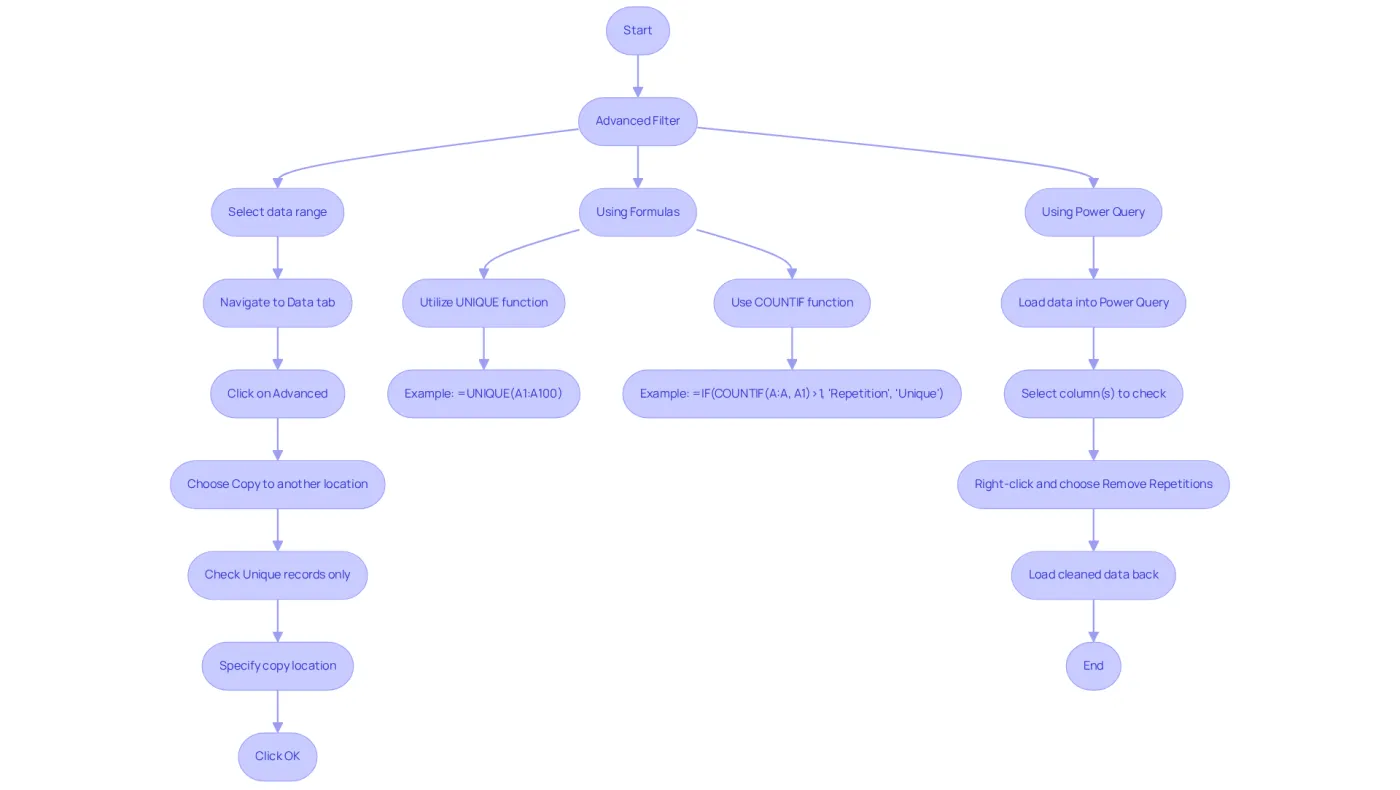
- Select your data range.
- Navigate to the Data tab and click on Advanced in the Sort & Filter group.
- In the Advanced Filter dialog, choose Copy to another location and check the Unique records only option. Specify where you want the unique records to be copied.
- Click OK to extract unique values without repetitions.
-
Using Formulas:
- Utilize the
UNIQUEfunction (available in Excel 365 and Excel 2021) to generate a list of unique values. For example,=UNIQUE(A1:A100)will return unique values from the range A1 to A100. - Alternatively, employ the
COUNTIFfunction to identify repetitions. In a new section, input=IF(COUNTIF(A:A, A1)>1, "Repetition", "Unique")to pinpoint duplicates.
- Utilize the
-
Using Power Query:
- Load your data into Power Query by selecting your data range and clicking on From Table/Range in the Data tab.
- In Power Query, select the column(s) you want to check for repetitions, right-click, and choose Remove Repetitions. Then, load the cleaned data back into the spreadsheet.
These advanced techniques provide robust options to remove duplicates in excel column, allowing users to tailor their approach to meet specific needs.
Leverage Tools and Resources for Efficient Duplicate Management
To enhance your ability to manage duplicates in Excel, consider leveraging these powerful tools and resources:
-
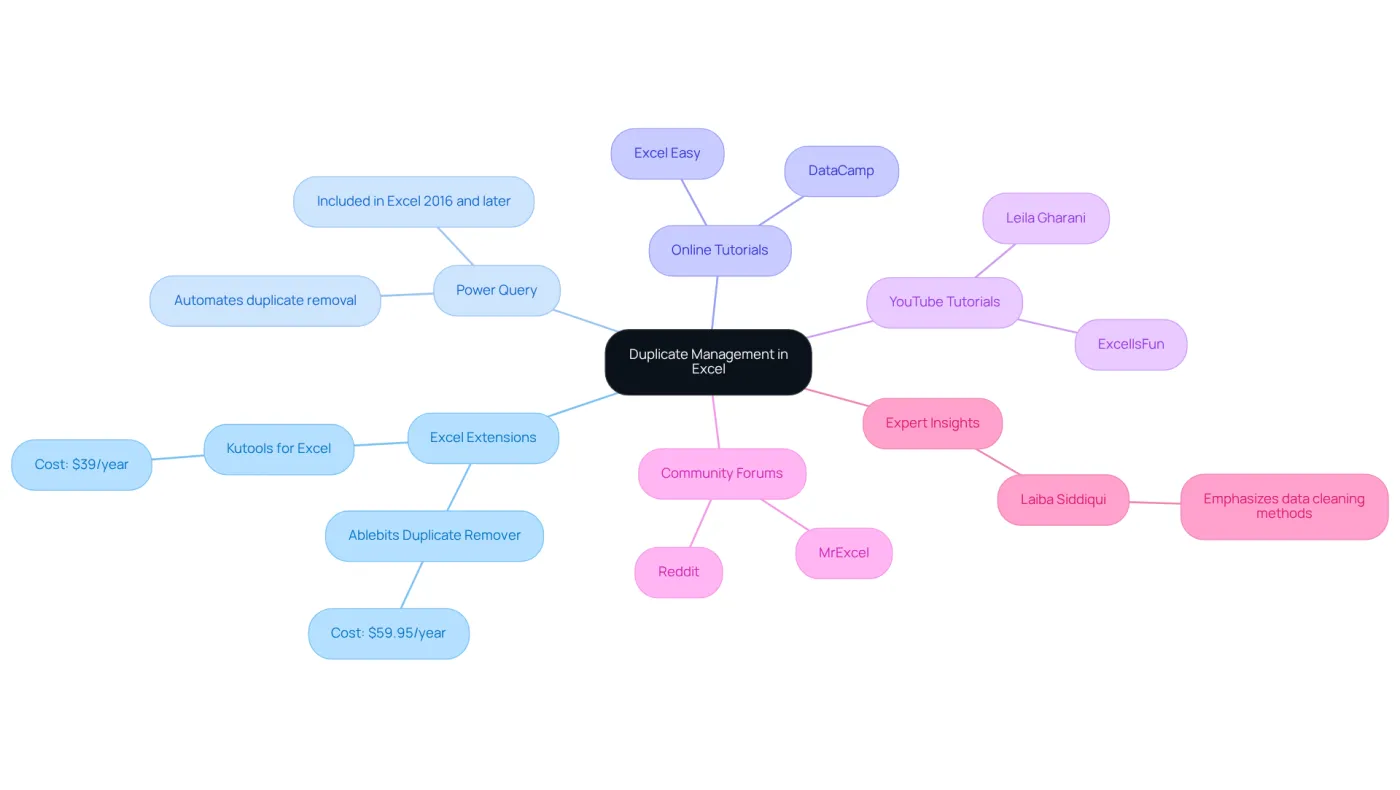
Excel Extensions: Explore extensions like Ablebits Duplicate Remover ($59.95/year) and Kutools for Excel ($39/year). These tools simplify the process to remove duplicates in excel column, thereby significantly streamlining your workflow. In fact, 90% of businesses face document versioning issues, making these extensions invaluable.
-
Power Query: This integrated spreadsheet tool automates the ability to remove duplicates in excel column for future updates. It's essential for finance professionals who need to maintain clean data over time.
-
Online Tutorials and Courses: Websites such as Excel Easy and DataCamp offer extensive tutorials on managing repetitions. Engaging with these resources can deepen your understanding and enhance your skills.
-
YouTube Tutorials: Channels like ExcelIsFun and Leila Gharani provide visual tutorials that illustrate techniques for identifying and eliminating repeated entries, making it easier to follow along.
-
Community Forums: Join discussions on platforms like Reddit or MrExcel, where users share tips and solutions for handling repetitions in spreadsheet software. These forums are invaluable for troubleshooting and learning from others' experiences.
-
Expert Insights: Excel instructor Laiba Siddiqui emphasizes that mastering fundamental data cleaning methods, including how to remove duplicates in excel column, is vital for preserving data integrity. Incorporating these insights can further enhance your approach to managing duplicates.
By leveraging these tools and resources, you can streamline your duplicate management process, making it more efficient and effective.
Conclusion
Efficient duplicate management in Excel is essential for maintaining data integrity and boosting productivity. By mastering the techniques outlined in this guide, you can streamline your workflows and ensure your spreadsheets are clear and actionable. Whether utilizing simple built-in features or advanced methods, the ability to identify and remove duplicates empowers you to make informed decisions based on accurate data.
This article covers crucial steps for identifying duplicates using conditional formatting, alongside built-in tools for their removal. It also delves into advanced techniques like Power Query and formulas, offering a comprehensive approach to managing duplicates. Furthermore, leveraging tools and resources such as Excel extensions and online tutorials can significantly enhance your efficiency in data management.
Ultimately, mastering these skills not only saves time but also greatly improves the quality of your data analysis and reporting. Engaging with available resources and implementing best practices will lead to more effective data management, making it easier to derive insights and make decisions based on reliable information. Embrace these strategies to elevate your Excel proficiency and ensure your data remains accurate and actionable.
Frequently Asked Questions
How do I open my Excel workbook to identify duplicates?
Launch Excel and open the workbook containing the data you want to analyze.
What should I do first to identify duplicates in a specific section?
Click on the title of the section where you suspect repetitions may occur to emphasize the whole section.
How can I use Conditional Formatting to find duplicates?
Navigate to the Home tab, click on Conditional Formatting, select Highlight Cells Rules, and choose Duplicate Values to open a dialog box.
What options do I have for formatting duplicates?
In the dialog box, you can select how you want the repeated items to be highlighted, such as choosing a specific color, and then click OK to apply your choice.
How can I review the highlighted duplicates?
Examine your section to see which values are highlighted; these represent your duplicates.
Is there a way to count how many times a value is repeated?
Yes, you can use the COUNTIF function. For example, type =COUNTIF(A:A, A1) in a new cell to find out how many times the value in cell A1 appears in the range A.
What is the significance of learning how to remove duplicates in Excel?
A significant number of Excel users face challenges in identifying repetitions, making it important to learn how to remove duplicates for better data management.
What is the UNIQUE() function mentioned in the article?
The UNIQUE() function is a dynamic formula-based control that helps in managing duplicates effectively.
What alternative method can I use to extract unique values without altering the original data?
You can use the Advanced Filter method, which allows you to extract unique values while preserving the original data.