
Master How to Remove Spaces in Excel Cells: A Step-by-Step Guide
Learn effective methods to remove spaces in Excel cells for cleaner data management.

Introduction
Mastering data management in Excel is essential for any finance professional, and a key aspect of this mastery is the ability to effectively remove unwanted spaces within cells. Whether it’s leading and trailing gaps or non-breaking spaces that disrupt formulas and sorting, understanding the various types of whitespace is crucial for maintaining data integrity.
This guide unveils effective methods to eliminate these spaces while addressing common pitfalls users encounter along the way.
How can you ensure your data remains clean and organized as you navigate the complexities of Excel's space removal techniques? Discover the solutions that will streamline your workflow and enhance your data management skills.
Understand Different Types of Spaces in Excel Cells
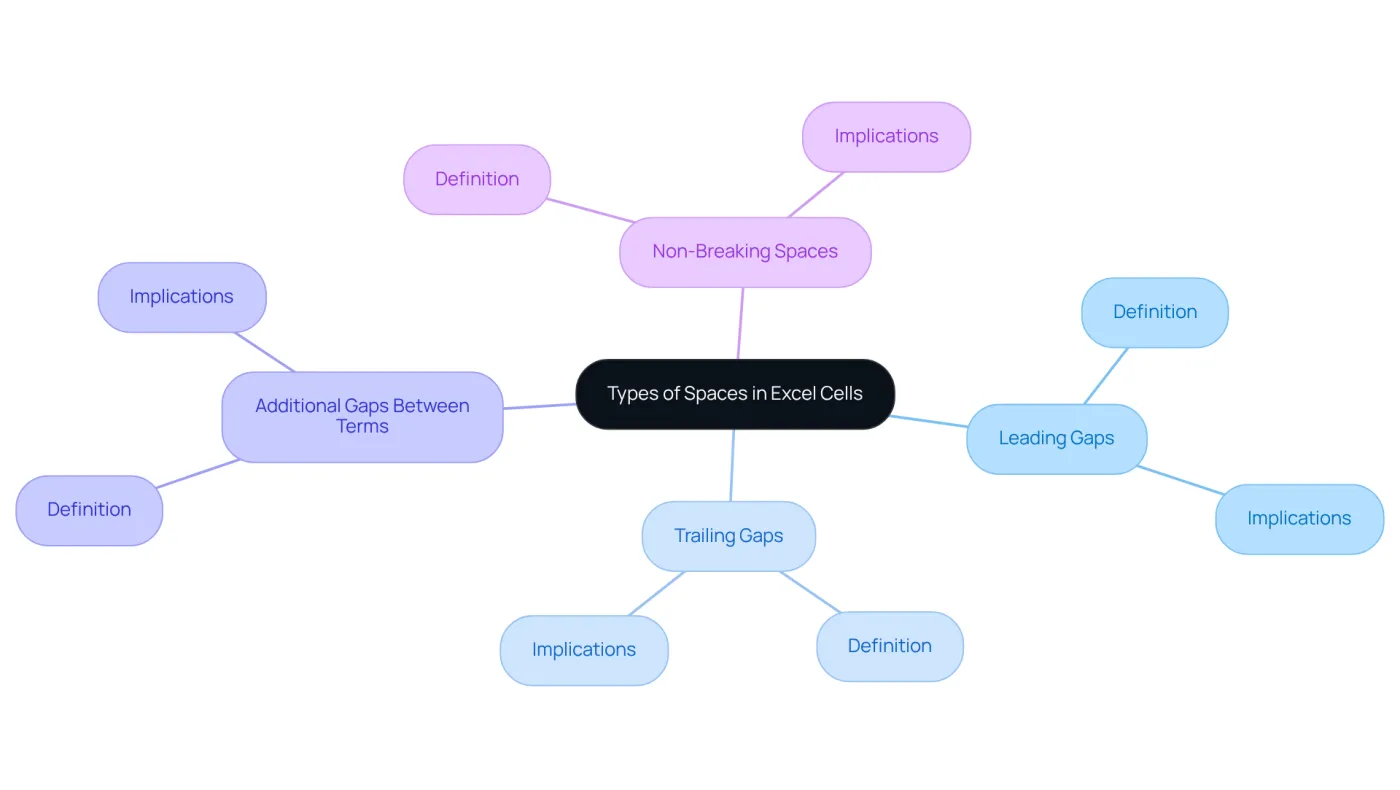
In Excel, spaces can manifest in various forms, each requiring different approaches for removal:
- Leading Gaps: These gaps appear before the text in a cell, potentially causing issues when sorting or using formulas.
- Trailing Gaps: These gaps occur after the text and can similarly interfere with information processing.
- Additional Gaps Between Terms: Sometimes, multiple gaps arise between terms, leading to inconsistencies in information presentation.
- Non-Breaking Spaces: These special characters (ASCII code 160) resemble regular gaps but are not removed by the TRIM function. Understanding these distinctions is vital for effective data cleaning.
Apply Basic Methods to Remove Spaces
To effectively remove spaces in Excel, consider these powerful methods:
-
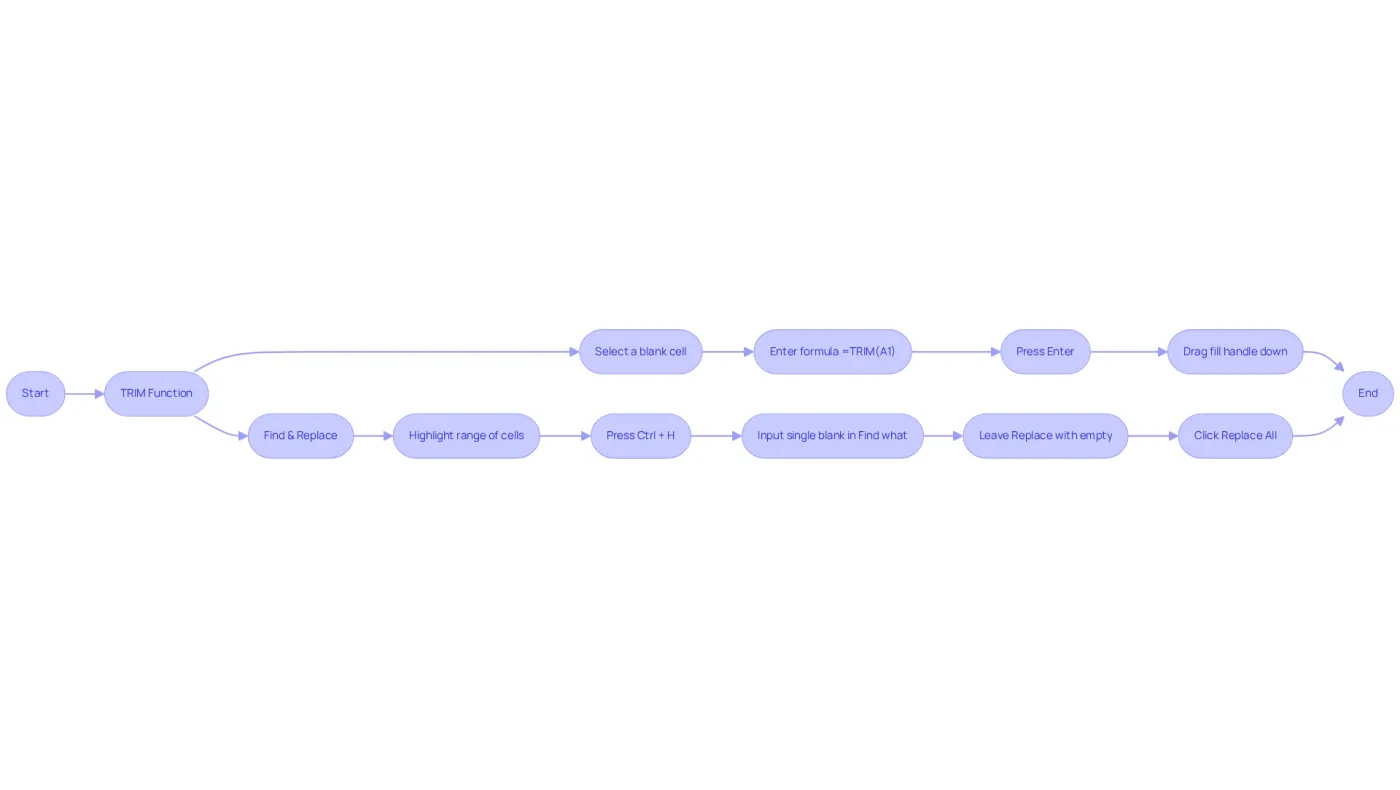
Using the TRIM Function:
- Select a blank cell and enter the formula
=TRIM(A1)(replace A1 with the cell reference you wish to clean). - Press Enter to display the text without leading or trailing spaces.
- Drag the fill handle down to apply this formula to more entries in the column.
- Select a blank cell and enter the formula
-
Using Find & Replace:
- Highlight the range of cells you want to clean.
- Press
Ctrl + Hto open the Find and Replace dialog. - In the 'Find what' box, input a single blank (hit the spacebar once).
- Leave the 'Replace with' box empty and click 'Replace All'.
- This method effectively removes all extra spaces between words as well.
Before cleaning your information, it's wise to create a backup copy of the raw file. This ensures you can refer back to the original data if necessary. The Find & Replace tool is particularly effective for bulk corrections, allowing users to maintain consistency across large datasets. Excel instructors frequently recommend this technique, particularly on how to remove spaces in excel cells, for its efficiency when dealing with disorganized information. For example, utilizing Find & Replace can swiftly eliminate unwanted spaces that may compromise data integrity, resulting in a tidier and more professional presentation of your reports.
Moreover, for more comprehensive data cleaning, consider merging the TRIM function with the CLEAN function using the formula =TRIM(CLEAN(A1)). This approach helps transform messy imported data into clean, usable content. Additionally, leveraging Power Query can streamline the data cleaning process, offering a modern solution alongside traditional methods.
Utilize Advanced Techniques for Space Removal
For those dealing with particularly stubborn spaces, advanced techniques can be a game changer:
-
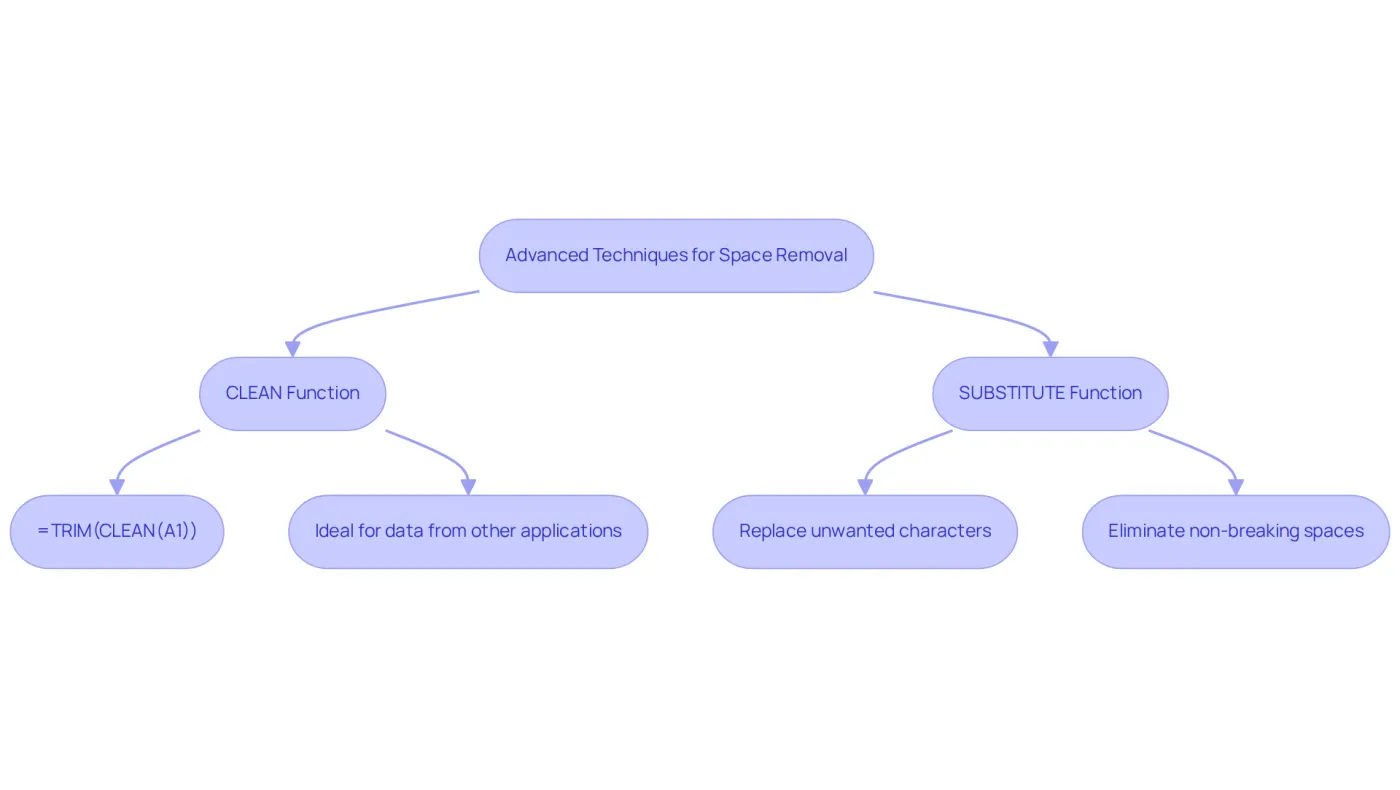
Using the CLEAN Function:
The CLEAN function is designed to remove non-printable characters, which can often clutter your data. When combined with TRIM, it becomes even more powerful:=TRIM(CLEAN(A1)). This method is especially beneficial for data imported from other applications, ensuring your information is clean and ready for analysis. -
Using the SUBSTITUTE Function:
If your goal is to eliminate non-breaking spaces, the SUBSTITUTE function is your ally. This function allows you to replace unwanted characters seamlessly, enhancing the overall quality of your data.
By implementing these techniques, you not only streamline your data but also improve its integrity, making your analysis more reliable. Don't let stubborn spaces hinder your productivity; take action now and learn how to remove spaces in excel cells to elevate your data management skills.
Troubleshoot Common Issues When Removing Spaces
If you're facing challenges with removing spaces, here are some effective troubleshooting tips:
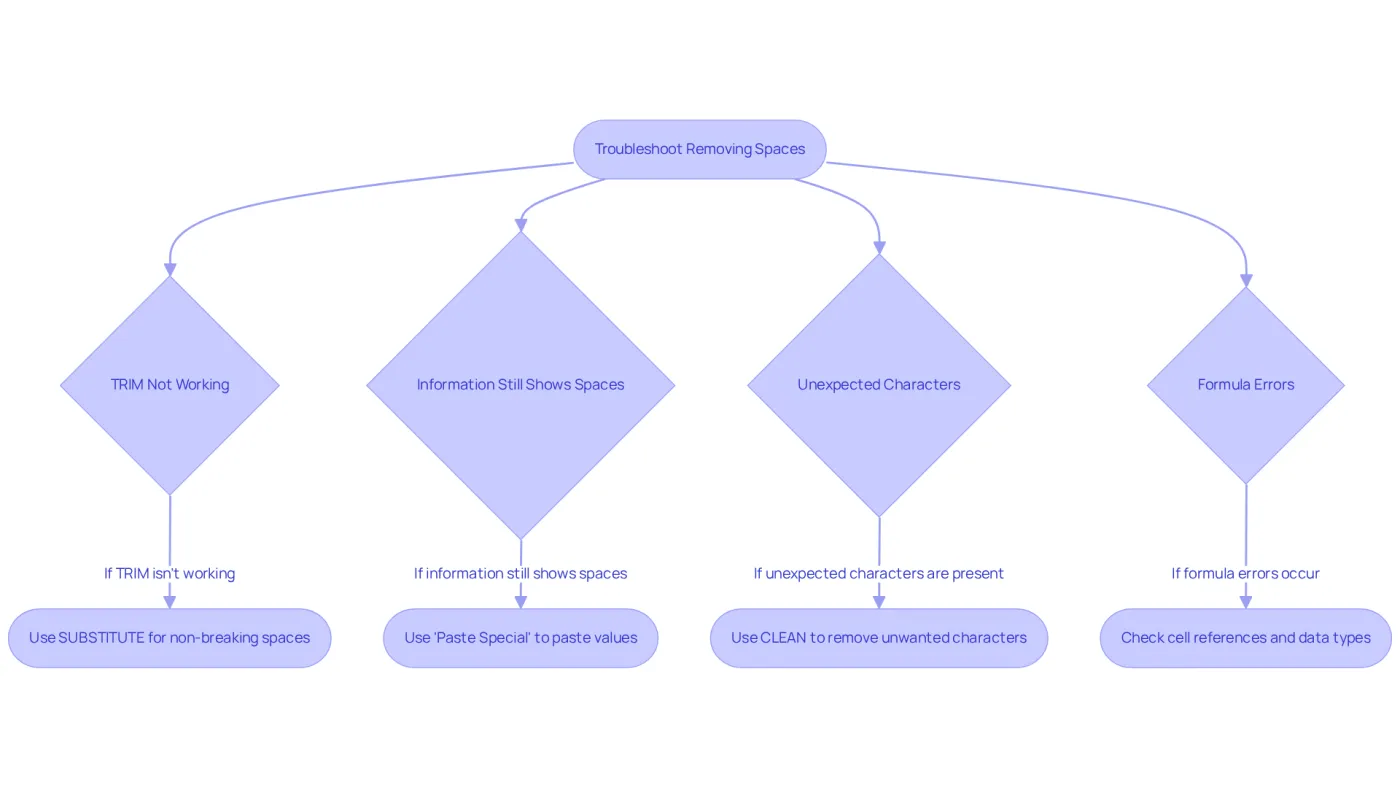
- TRIM Not Working: If TRIM isn't eliminating spaces as expected, check for non-breaking spaces. You can effectively address this issue by using the SUBSTITUTE function, which is helpful for understanding how to remove spaces in excel cells.
- Information Still Shows Spaces: Make sure you're copying the cleaned information correctly. Utilize 'Paste Special' to paste values only, ensuring no hidden spaces remain.
- Unexpected Characters: If your data contains unexpected characters, the CLEAN function can help eliminate them, providing you with a cleaner dataset.
- Formula Errors: Should you encounter errors while using formulas, double-check the cell references. It's crucial to ensure that the data types are consistent to avoid complications.
By following these steps on how to remove spaces in excel cells, you can streamline your data cleaning process and improve your productivity.
Conclusion
Removing spaces in Excel cells is a crucial skill that significantly enhances data accuracy and presentation. Understanding the various types of spaces - leading, trailing, additional gaps, and non-breaking spaces - enables users to effectively tackle data cleaning challenges. The methods outlined, including the TRIM function, Find & Replace, and advanced techniques like CLEAN and SUBSTITUTE functions, empower users to streamline their data management processes.
Key strategies for removing spaces have been discussed throughout this article. The TRIM function is essential for eliminating leading and trailing spaces, while the Find & Replace tool provides a quick solution for bulk corrections. Advanced techniques, such as combining functions and utilizing Power Query, further enhance the ability to manage and clean data efficiently. Troubleshooting tips ensure that users can address common issues that may arise during the space removal process.
Mastering these techniques not only improves the integrity of data but also boosts overall productivity. Embracing these methods leads to cleaner, more reliable datasets, ultimately enhancing the quality of analysis and reporting. Investing time in learning how to remove spaces in Excel cells pays off in clarity and professionalism, making it a vital skill for anyone serious about data management.
Frequently Asked Questions
What are leading gaps in Excel cells?
Leading gaps are spaces that appear before the text in a cell, which can cause issues when sorting or using formulas.
What are trailing gaps in Excel cells?
Trailing gaps are spaces that occur after the text in a cell and can interfere with information processing similarly to leading gaps.
What are additional gaps between terms in Excel cells?
Additional gaps between terms are multiple spaces that can arise between words, leading to inconsistencies in the presentation of information.
What are non-breaking spaces in Excel?
Non-breaking spaces are special characters (ASCII code 160) that look like regular gaps but are not removed by the TRIM function, making it important to recognize them for effective data cleaning.
Why is it important to understand different types of spaces in Excel?
Understanding the different types of spaces is vital for effective data cleaning, as each type requires different approaches for removal to ensure accurate data processing.