
Master How to Split Your Worksheet into Panes in Excel
Learn how to split worksheet into panes for better visibility and efficient data management.

Introduction
Managing extensive datasets can be a significant challenge. However, mastering the technique of splitting worksheets into panes in Excel can provide a powerful solution. This method not only enhances visibility but also boosts productivity by allowing users to view multiple sections of their data simultaneously.
Despite its potential, many users remain unaware of how to fully leverage this feature and often encounter common pitfalls. How can you effectively harness the power of split panes to streamline your workflow and minimize frustration?
By understanding and implementing this technique, you can transform your data management experience, making it more efficient and less overwhelming.
Understand the Benefits of Splitting Worksheets into Panes
Understanding how to split worksheet into panes is a game changer for managing extensive datasets. This approach not only enhances visibility but also streamlines your workflow. Here’s why you should consider it:
-
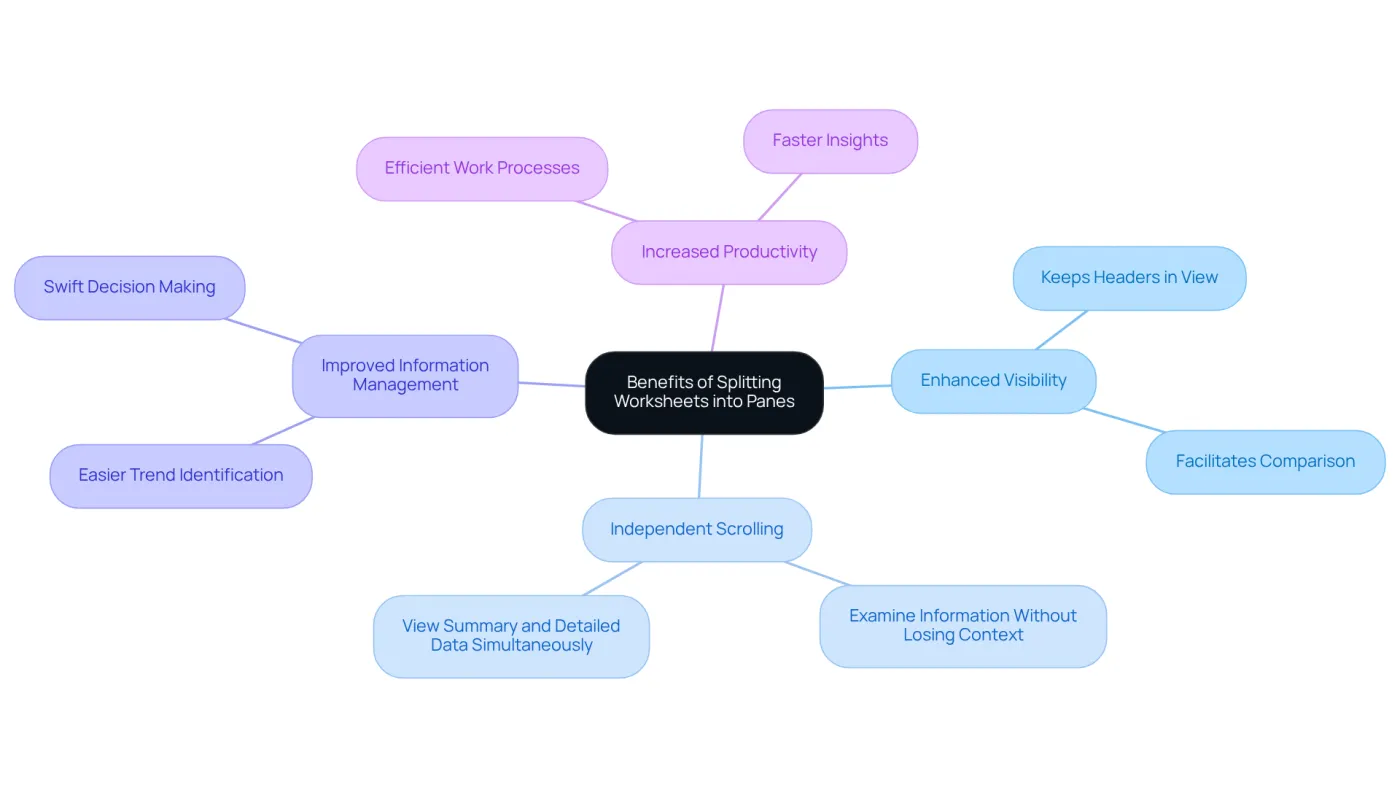
Enhanced Visibility: By splitting panes, you keep headers or critical data in view while scrolling through other parts of your worksheet. This feature is invaluable for monitoring entries or comparing values across different sections, ensuring that crucial information remains accessible.
-
Independent Scrolling: Each section scrolls separately, allowing you to examine information without losing context. For instance, you can view summary information in one pane while analyzing detailed entries in another. This dual perspective facilitates a more comprehensive analysis.
-
Improved Information Management: This technique significantly boosts your ability to manage information effectively. It makes identifying trends or discrepancies easier, eliminating the hassle of constant scrolling. By keeping relevant information in view, you can make informed decisions more swiftly.
-
Increased Productivity: The ability to see multiple areas of your worksheet simultaneously leads to more efficient work processes. This streamlined method reduces the time spent navigating through extensive spreadsheets, resulting in faster insights and improved overall performance in information handling.
Real-world examples underscore how professionals leverage split panes to enhance visibility and efficiency. Finance analysts, for instance, frequently utilize this feature to keep key financial metrics visible while entering detailed transaction information. This practice ensures accuracy and context in their analyses. By adopting this technique, users can transform their approach to information management, ultimately leading to enhanced productivity and effectiveness in their roles.
For practical application, you should learn how to split worksheet into panes at cell A5. This creates two horizontal sections for improved visibility. Productivity experts emphasize that enhancing visibility in spreadsheets is crucial for effective data management and analysis. Don't miss out on the opportunity to elevate your spreadsheet skills!
Follow Step-by-Step Instructions to Split Your Worksheet
To effectively split your worksheet into panes, follow these straightforward steps:
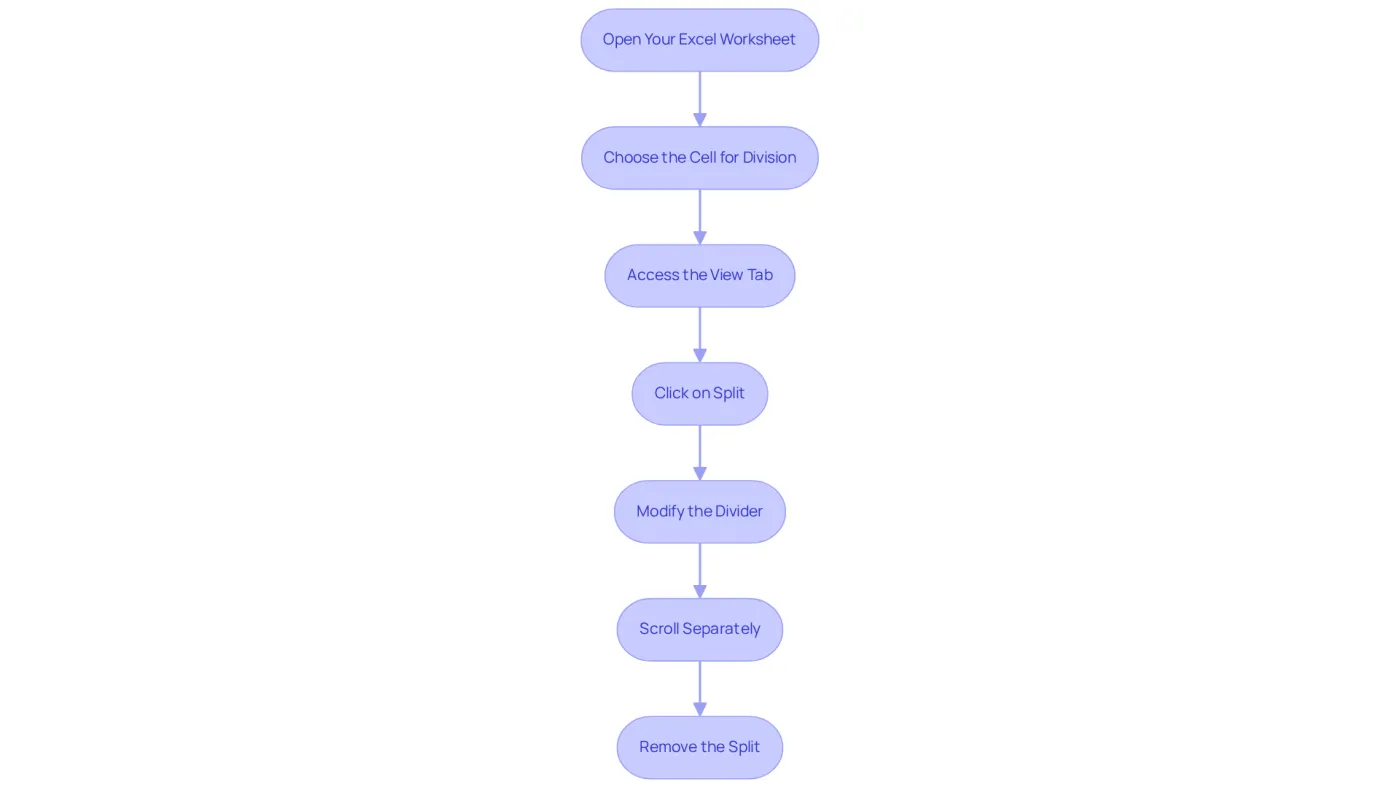
- Open Your Excel Worksheet: Launch Excel and open the worksheet you wish to modify.
- Choose the Cell for Division: Click on the cell directly below the row or to the right of the column where you want the division. For instance, if you want to divide below row 5, select cell A6.
- Access the View Tab: Navigate to the top menu and click on the 'View' tab.
- Click on Split: In the 'Window' group, click on the 'Split' button. This action will illustrate how to split worksheet into panes by creating a division at your selected cell, effectively separating your worksheet into two or four sections.
- Modify the Divider: Adjust the size of the sections by dragging the divider bars to your preferred location.
- Scroll Separately: You can now scroll each section independently, allowing you to view different areas of your worksheet simultaneously.
- Remove the Split: To eliminate the split, simply click the 'Split' button again in the 'View' tab.
Troubleshoot Common Issues When Splitting Panes
Common Issues When Dividing Sections
While dividing sections is generally straightforward, users may encounter some common issues. Here are solutions to help you troubleshoot:
-
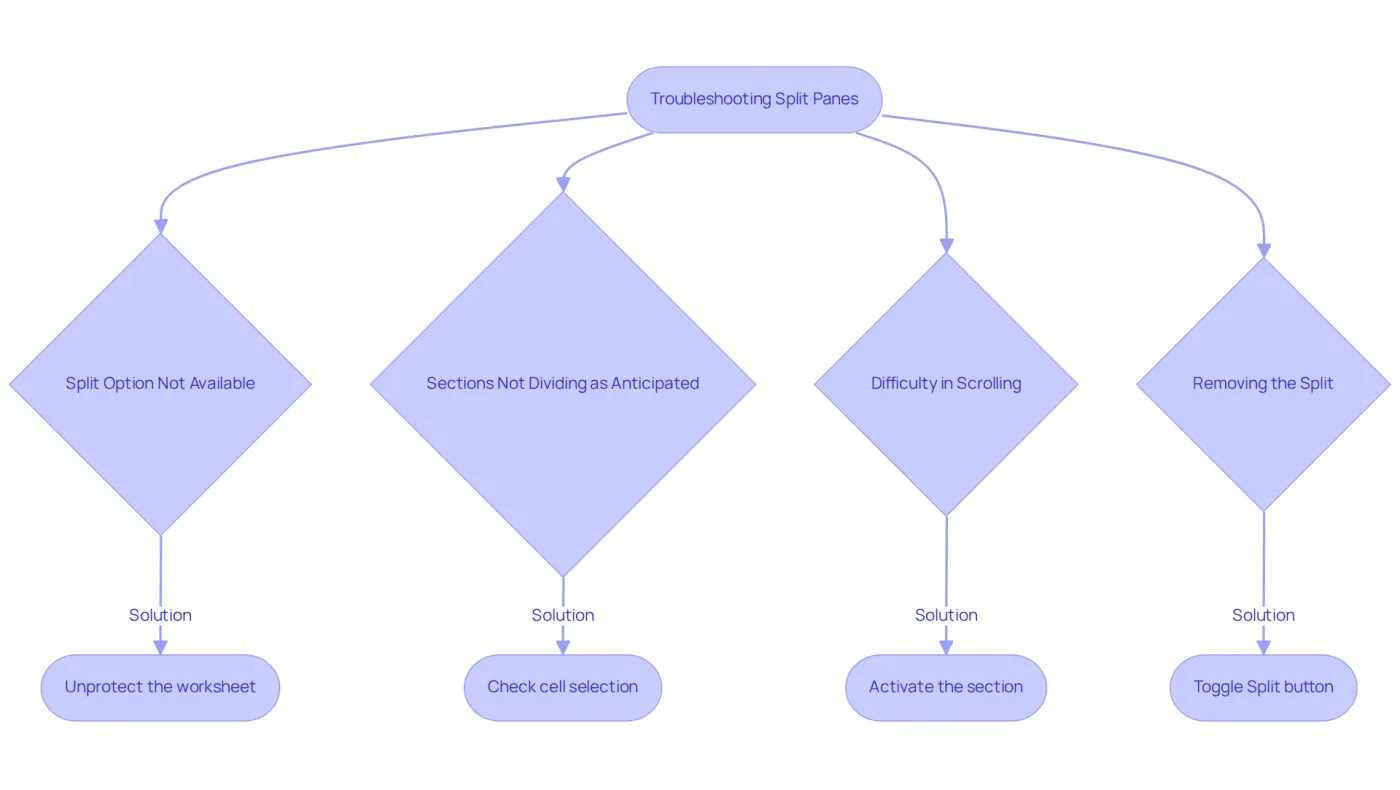
Split Option Not Available: If the 'Split' button is grayed out, ensure that your worksheet is not protected. You can unprotect it by going to the 'Review' tab and selecting 'Unprotect Sheet'.
-
Sections Not Dividing as Anticipated: If the sections are not dividing properly, double-check that you have chosen the correct cell before clicking 'Split'. The split will occur based on the cell selection.
-
Difficulty in Scrolling: If you find it hard to scroll in one of the sections, ensure that you have clicked inside that section to activate it. Each pane must be active for scrolling to work.
-
Removing the Split: If you want to remove the split but are unsure how, simply click the 'Split' button again in the 'View' tab to toggle it off.
By addressing these common issues, you can enhance your experience and efficiency when working with sections.
Explore Tools and Resources for Enhanced Spreadsheet Management
Elevate your spreadsheet management skills with these essential tools and resources:
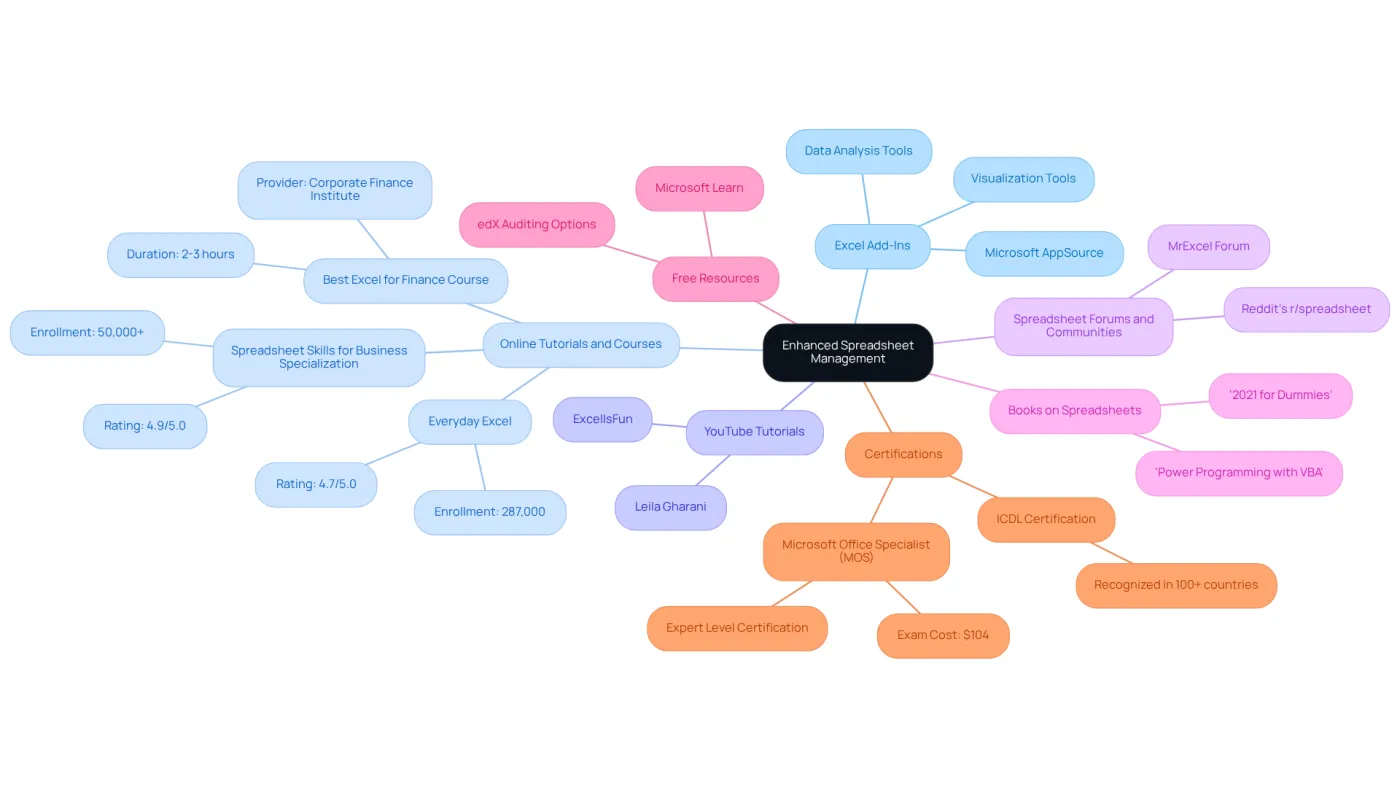
- Excel Add-Ins: Boost your capabilities with a variety of Excel add-ins that provide advanced functionalities, including data analysis and visualization tools. Explore Microsoft AppSource for a wide selection tailored to your specific needs.
- Online Tutorials and Courses: Platforms like Coursera, Udemy, and LinkedIn Learning offer comprehensive courses on spreadsheets, from foundational skills to advanced techniques. Notably, the Spreadsheet Skills for Business Specialization from Macquarie University has garnered over 50,000 enrollments and boasts a 4.9/5.0 rating, underscoring its effectiveness in teaching essential skills. Additionally, the Best Spreadsheet for Finance Course from the Corporate Finance Institute is highly recommended for finance professionals looking to enhance their spreadsheet expertise.
- YouTube Tutorials: If you’re a visual learner, dedicated spreadsheet tutorial channels can be invaluable. Channels like ExcelIsFun and Leila Gharani provide high-quality content that includes instruction on how to split worksheet into panes and effectively utilize advanced features.
- Spreadsheet Forums and Communities: Engage with dynamic online communities like Reddit's r/spreadsheet or the MrExcel forum. These platforms allow users to ask questions, share knowledge, and gain insights from fellow spreadsheet enthusiasts.
- Books on Spreadsheets: For those seeking deeper knowledge, consider reading titles like '2021 for Dummies' or 'Power Programming with VBA.' These resources explore advanced techniques and offer practical examples to enhance your proficiency.
- Free Resources: If you're on a budget, platforms like Microsoft Learn and edX provide free training options, enabling learners to build their skills without financial constraints.
- Certifications: Pursuing the ICDL certification, recognized in over 100 countries, can significantly enhance your employability in international markets. Furthermore, the Microsoft Office Specialist (MOS) certification represents the highest level of recognition for spreadsheet proficiency, validating your skills to potential employers.
By leveraging these resources, you can substantially improve your Excel skills and streamline your data management processes.
Conclusion
Mastering the technique of splitting worksheets into panes in Excel can significantly transform how you manage and analyze data. This powerful feature allows you to maintain visibility of essential information while navigating extensive datasets, enhancing your overall efficiency and productivity.
Consider the key advantages of using split panes:
- Improved visibility of headers
- Independent scrolling for simultaneous analysis
- Better information management
These benefits collectively streamline your workflow, enabling you to make informed decisions quickly and accurately. Moreover, practical steps and troubleshooting tips empower you to effectively utilize this feature, ensuring a smoother experience when working with complex spreadsheets.
Embracing the split panes functionality not only simplifies data management but also unlocks greater analytical capabilities. By leveraging the tools and resources mentioned, you can further enhance your Excel skills, paving the way for increased productivity and success in your professional endeavors. Investing time to master this technique is an investment in both efficiency and effectiveness, ultimately leading to more insightful, data-driven decisions.
Frequently Asked Questions
What is the benefit of splitting worksheets into panes?
Splitting worksheets into panes enhances visibility by keeping headers or critical data in view while scrolling, which is invaluable for monitoring entries or comparing values across different sections.
How does splitting panes improve information management?
It boosts your ability to manage information effectively by making it easier to identify trends or discrepancies, reducing the need for constant scrolling and allowing for quicker decision-making.
What does independent scrolling allow users to do?
Independent scrolling allows each section to scroll separately, enabling users to examine information without losing context, such as viewing summary information in one pane while analyzing detailed entries in another.
How does splitting panes increase productivity?
By allowing users to see multiple areas of a worksheet simultaneously, it streamlines work processes, reduces time spent navigating extensive spreadsheets, and leads to faster insights and improved performance in information handling.
Can you provide an example of how professionals use split panes?
Finance analysts frequently use split panes to keep key financial metrics visible while entering detailed transaction information, ensuring accuracy and context in their analyses.
Where should you learn to split a worksheet into panes for practical application?
You should learn to split the worksheet into panes at cell A5, which creates two horizontal sections for improved visibility.