
Master How to Total a Column in Sheets for Financial Efficiency
Learn how to total a column in sheets for efficient financial analysis and accurate reporting.

Introduction
Mastering how to total a column in Google Sheets is not merely a basic skill; it’s a crucial element of effective financial analysis. Professionals who excel in this technique can streamline their data management processes, ensuring accuracy and significantly enhancing their decision-making capabilities. Yet, many users face challenges that can lead to errors in their calculations. This raises an important question: what are the best practices to ensure reliable totals in financial spreadsheets?
This article explores essential steps and troubleshooting tips that will empower you to total columns with confidence and efficiency. By implementing these strategies, you can avoid common pitfalls and elevate your financial analysis to new heights.
Understand the Importance of Totaling Columns in Google Sheets
Understanding how to total a column in sheets is a fundamental task that enables users to quickly assess the sum of numerical data, especially in financial contexts. Mastering this skill is essential for professionals looking to enhance their analytical capabilities.
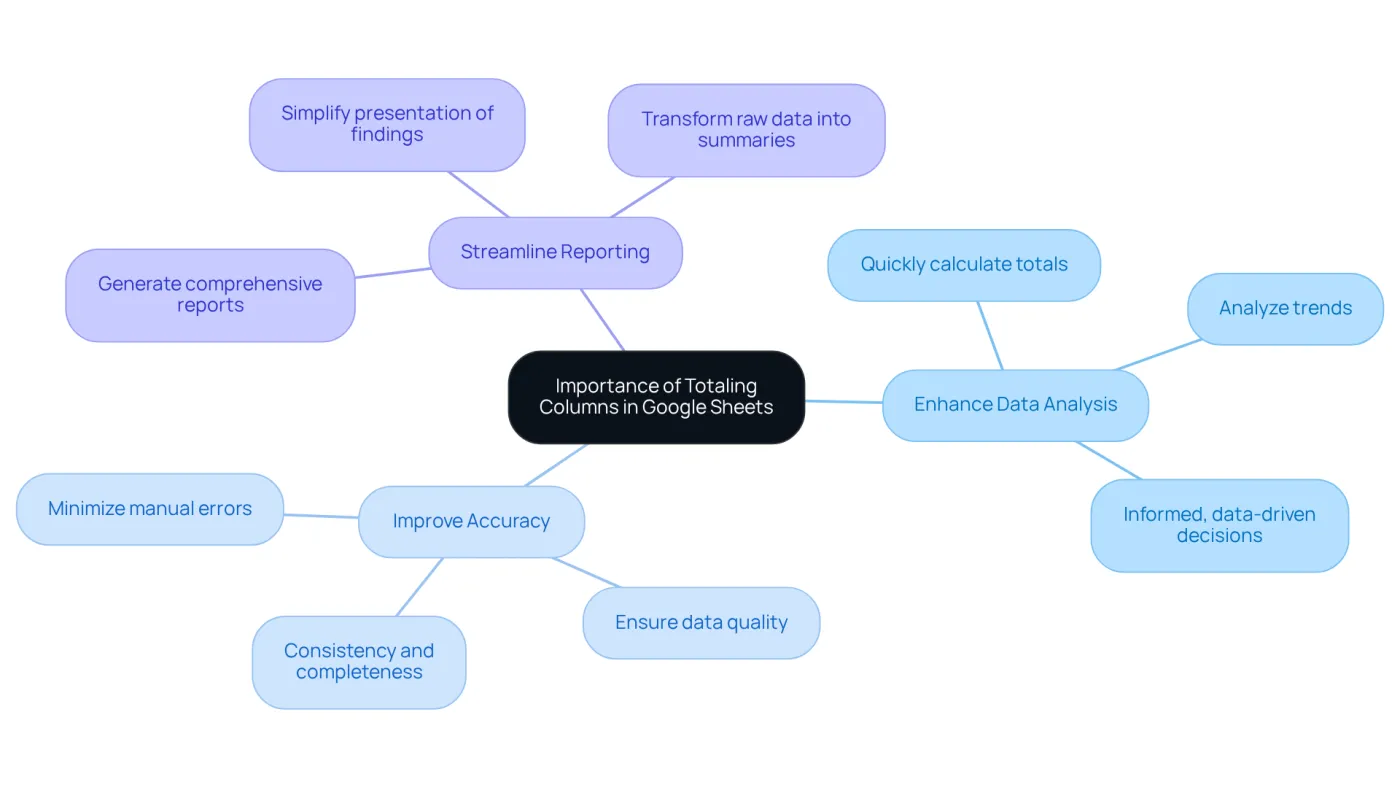
- Enhance Data Analysis: Quickly calculate totals to analyze trends and make informed, data-driven decisions. Accurate data analysis is crucial for financial institutions, as it directly influences investment decisions and risk assessments.
- Improve Accuracy: Minimize the risk of manual errors that can arise when summing values individually. Financial institutions often face challenges regarding information quality, making it vital to ensure accuracy, consistency, and completeness in financial data.
- Streamline Reporting: Generate comprehensive reports that include totals, simplifying the presentation of findings to stakeholders. For example, using functions like SUM can transform raw data into insightful summaries, enhancing the clarity and effectiveness of financial reports.
In financial modeling, understanding how to total a column in sheets efficiently not only saves time but also enhances the overall quality of the analysis. This skill is critical for professionals in the field. As Brian Sanders, a guest author, emphasizes, "Use clear labels, named ranges, data validation, and conditional formatting for accurate and insightful spreadsheets." Such practices lead to more informed decision-making and improved financial outcomes.
Follow Step-by-Step Instructions to Add a Total Column
Efficiently Add a Total Column in Google Sheets with ShortieCuts
Are you struggling to calculate totals in Google Sheets? Look no further. By following these streamlined steps, you can enhance your efficiency and accuracy in managing data.
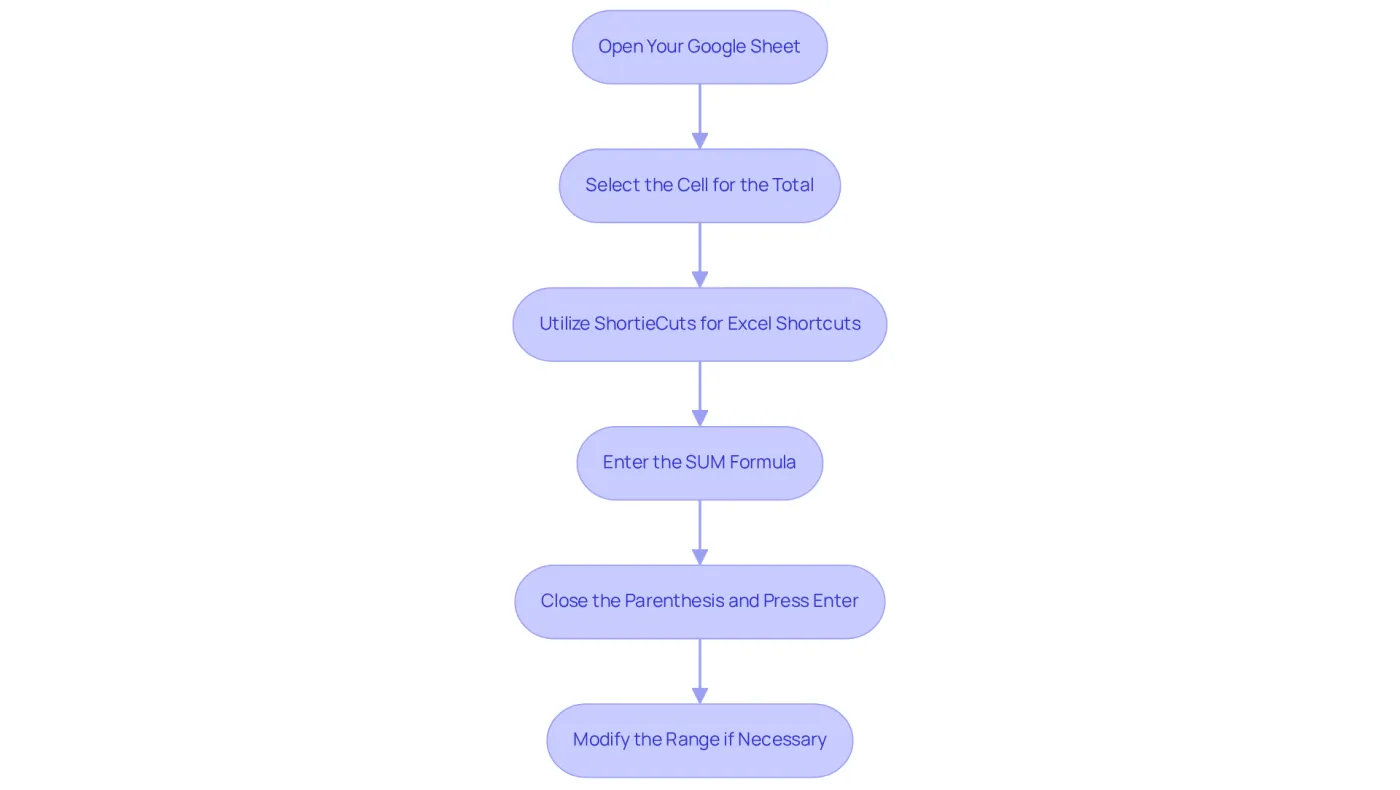
- Open Your Google Sheet: Launch Google Sheets and access the document containing your information.
- Select the Cell for the Total: Click on the cell directly below the column you wish to total. For example, if your data is in column A, select cell A10 (assuming your data ends at A9).
- Utilize ShortieCuts for Excel Shortcuts: With ShortieCuts installed, you can enhance your experience by using the Excel ALT shortcuts. Just hit "ALT" (or Option on Mac) and key-tips will appear in the corner of your screen, guiding you through the process.
- Enter the SUM Formula: Type
=SUM(and choose the range of boxes you wish to add up. For instance, to sum cells A1 to A9, your formula should read=SUM(A1:A9). - Close the Parenthesis and Press Enter: After selecting the range, close the parenthesis and hit Enter. Your total will now display in the selected cell.
- Modify the Range if Necessary: If you include additional information in the section, just modify the range in the equation to encompass the new cells.
By following these steps, you can swiftly and precisely understand how to total a column in sheets, significantly improving your management efficiency. Utilizing formulas like SUM not only saves time but also reduces the risk of errors, making it a best practice for finance professionals managing large datasets.
As Praburam Srinivasan, Growth Marketing Manager, notes, "Knowing how to total a column in sheets is a handy skill, whether you’re balancing budgets, crunching numbers, or wrangling data." Additionally, many users have rated this process highly, with a 4.7 out of 5 stars based on 19,704 reviews, highlighting its effectiveness in real-world applications. Importantly, with ShortieCuts, your data remains private, as everything runs locally on your computer, ensuring that your information is secure.
Troubleshoot Common Issues When Totaling Columns
When summing up rows in Google Sheets, users often face several common problems that can impact the accuracy of their calculations. Here are essential troubleshooting tips to ensure reliable totals:
-
Check Cell Formatting: Make sure the cells you are summing are formatted as numbers. If they are formatted as text, the SUM function won’t work correctly. As Ben Liebrand, a Diamond Product Expert, points out, "In most cases, when the SUM() function returns zero instead of a total, it means the numbers in the column are not numbers; they are text." To change the format, select the cells, then navigate to Format > Number > Number.
-
Verify the Formula: Double-check your SUM formula for any typos or incorrect cell references. The proper syntax is
=SUM(range), such as=SUM(A2:A)for a single vertical section or=SUM(A2:B)for multiple vertical sections. -
Look for Hidden Rows or Columns: Concealed information may not be included in the total. Unhide any hidden rows or columns to ensure all relevant data is accounted for in your calculations.
-
Check for Errors in Cells: If any cells in the range contain errors (like
#VALUE!), the SUM function may return an error. For instance, if a unit formatted as currency is treated as text, it can prevent summation. Users have reported issues with summing time durations and currency formatting, leading to frustration. Resolve any errors in the cells before summing. -
Consider Locale Settings: Locale settings can influence how Google Sheets interprets data types. If you encounter issues, check your locale settings to ensure they align with your data format.
-
Be Aware of Circular Dependency Errors: Ensure that the SUM function does not refer to itself or include its own position in the range. For example, using
=SUM(A2:A)in cell A7 would create a circular dependency error. Placing the SUM function at the top of the sheet can help prevent this issue.
By addressing these common issues, users can significantly enhance the accuracy and reliability of their totals, especially in understanding how to total a column in sheets, ultimately improving their efficiency in financial tasks.

Leverage ShortieCuts for Enhanced Efficiency in Google Sheets
ShortieCuts delivers a powerful suite of features designed to enhance your efficiency when you want to know how to total a column in sheets. Here’s how to unlock its full potential:
- Utilize Excel Shortcuts: With 233 integrated Excel ALT key shortcuts, accessing the SUM function is effortless. For example, pressing
ALT + =automatically sums a column, eliminating the need to navigate through multiple menus. - Formula Tracing: This feature enables you to quickly identify which cells contribute to your sum, ensuring accuracy in your calculations and reducing the risk of errors.
- Goal Seek Function: Need to reach a specific total? The Goal Seek function allows for dynamic adjustments of values in your spreadsheet, streamlining your workflow and enhancing productivity.
- Keyboard-Only Navigation: The improved color palette supports keyboard-only navigation, allowing you to select options and functions efficiently without relying on a mouse.
By incorporating ShortieCuts into your daily tasks, you can significantly simplify how to total a column in sheets, which will ultimately boost your productivity in Google Sheets.

Conclusion
Mastering the process of totaling columns in Google Sheets is not just a skill; it’s a necessity for anyone engaged in financial analysis. When you understand how to efficiently sum data, you elevate your analytical capabilities, ensuring that your decisions are based on accurate and reliable information.
This article has provided key insights into the significance of precise data analysis, the reduction of manual errors, and the streamlining of reporting processes. The step-by-step instructions serve as a practical guide, while troubleshooting tips address common issues, ensuring that your calculations remain precise. Moreover, leveraging tools like ShortieCuts can dramatically enhance your efficiency, allowing you to navigate and utilize Google Sheets with ease.
Ultimately, mastering the ability to total columns effectively not only boosts your individual productivity but also leads to improved financial outcomes for your organization. Embracing these techniques and tools is essential for anyone aiming to optimize their financial management processes. By doing so, you pave the way for more informed decision-making and enhanced performance in your financial tasks. Don’t wait-start implementing these strategies today and watch your financial analysis transform.
Frequently Asked Questions
Why is totaling columns in Google Sheets important?
Totaling columns in Google Sheets is important because it allows users to quickly assess the sum of numerical data, which is especially useful in financial contexts for analyzing trends and making informed decisions.
How does totaling columns enhance data analysis?
Totaling columns enhances data analysis by enabling quick calculations of totals, which helps in analyzing trends and making data-driven decisions, particularly in financial institutions where accurate data analysis influences investment decisions and risk assessments.
What are the benefits of improving accuracy when totaling columns?
Improving accuracy when totaling columns minimizes the risk of manual errors that can occur when summing values individually, ensuring that financial data is accurate, consistent, and complete.
How does totaling columns streamline reporting?
Totaling columns streamlines reporting by generating comprehensive reports that include totals, simplifying the presentation of findings to stakeholders and transforming raw data into insightful summaries.
What functions can be used to total columns in Google Sheets?
Functions like SUM can be used to total columns in Google Sheets, which enhances the clarity and effectiveness of financial reports.
What best practices should be followed when totaling columns in spreadsheets?
Best practices include using clear labels, named ranges, data validation, and conditional formatting to ensure accurate and insightful spreadsheets, leading to better decision-making and improved financial outcomes.