
Master How to Trace Precedents in Excel for Financial Analysis
Learn how to trace precedents in Excel for accurate financial analysis and data integrity.

Introduction
Understanding the complex web of data relationships within financial spreadsheets is crucial for accurate analysis. Tracing precedents in Excel not only helps analysts maintain data integrity but also empowers them to make informed decisions based on reliable calculations. Yet, many professionals struggle with the intricacies of this task, often leading to errors that can significantly impact financial outcomes.
How can one master the art of tracing precedents to ensure precision in their financial models? This guide explores effective techniques and troubleshooting strategies designed to elevate analytical skills and enhance overall productivity in Excel. By honing this skill, you can transform your approach to financial modeling, ensuring accuracy and reliability in your analyses.
Understand Precedents: Definition and Importance in Financial Analysis
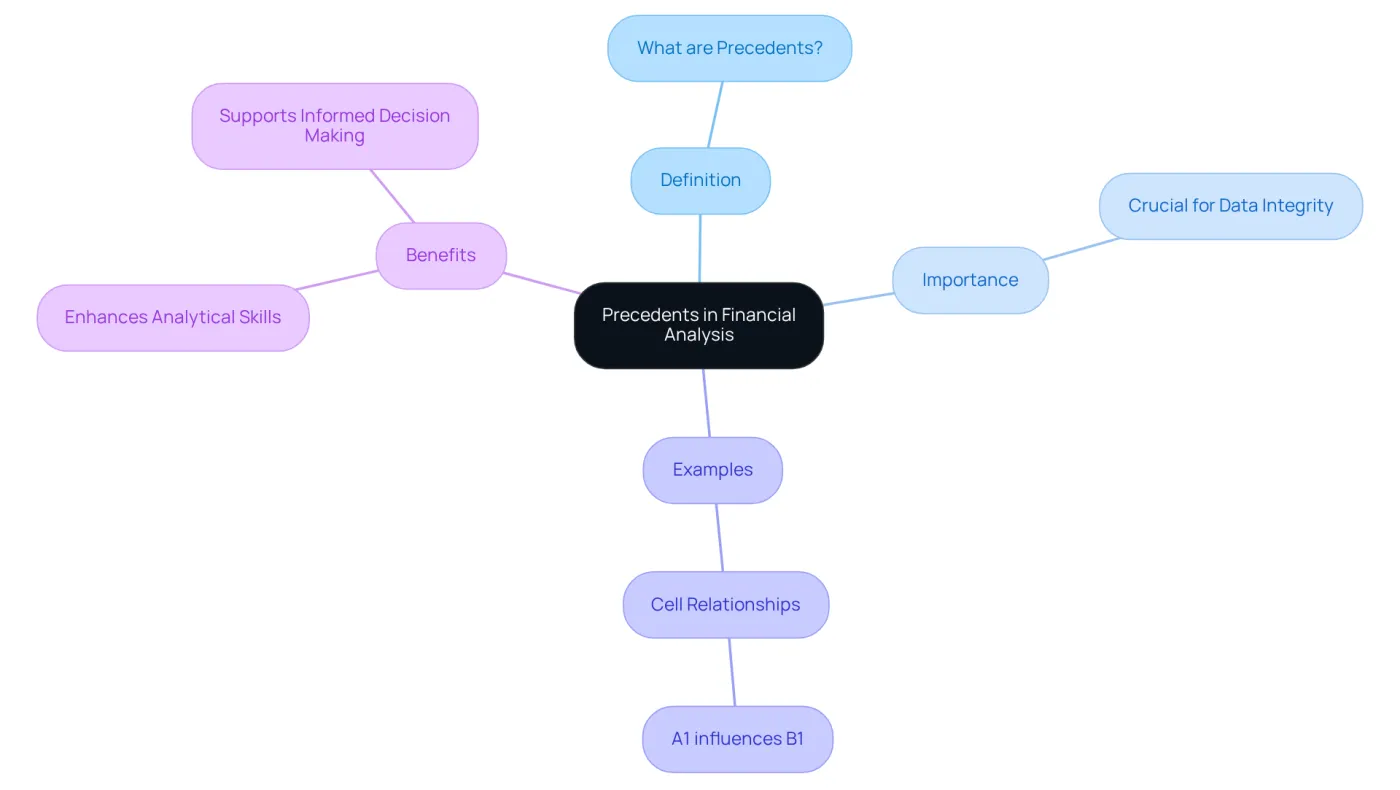
For financial analysts, knowing how to trace precedents in Excel is crucial. These precedents denote the cells that influence the value of a selected unit, and knowing how to trace precedents in Excel is essential for monitoring data flow through a spreadsheet. This knowledge ensures that calculations remain precise and reliable.
For example, if cell B1 contains a formula referencing cell A1, then A1 serves as a source for B1. Recognizing this relationship is vital when auditing spreadsheets or troubleshooting errors. It allows users to learn how to trace precedents in Excel and understand how they impact other calculations.
By mastering the concept of precedents, financial professionals can significantly enhance their analytical skills. This not only aids in maintaining data integrity in reports but also empowers analysts to make informed decisions based on accurate data. Embrace the power of understanding precedents to elevate your financial analysis.
Implement Techniques to Trace Precedents in Excel
To effectively trace precedents in Excel, follow these essential steps:
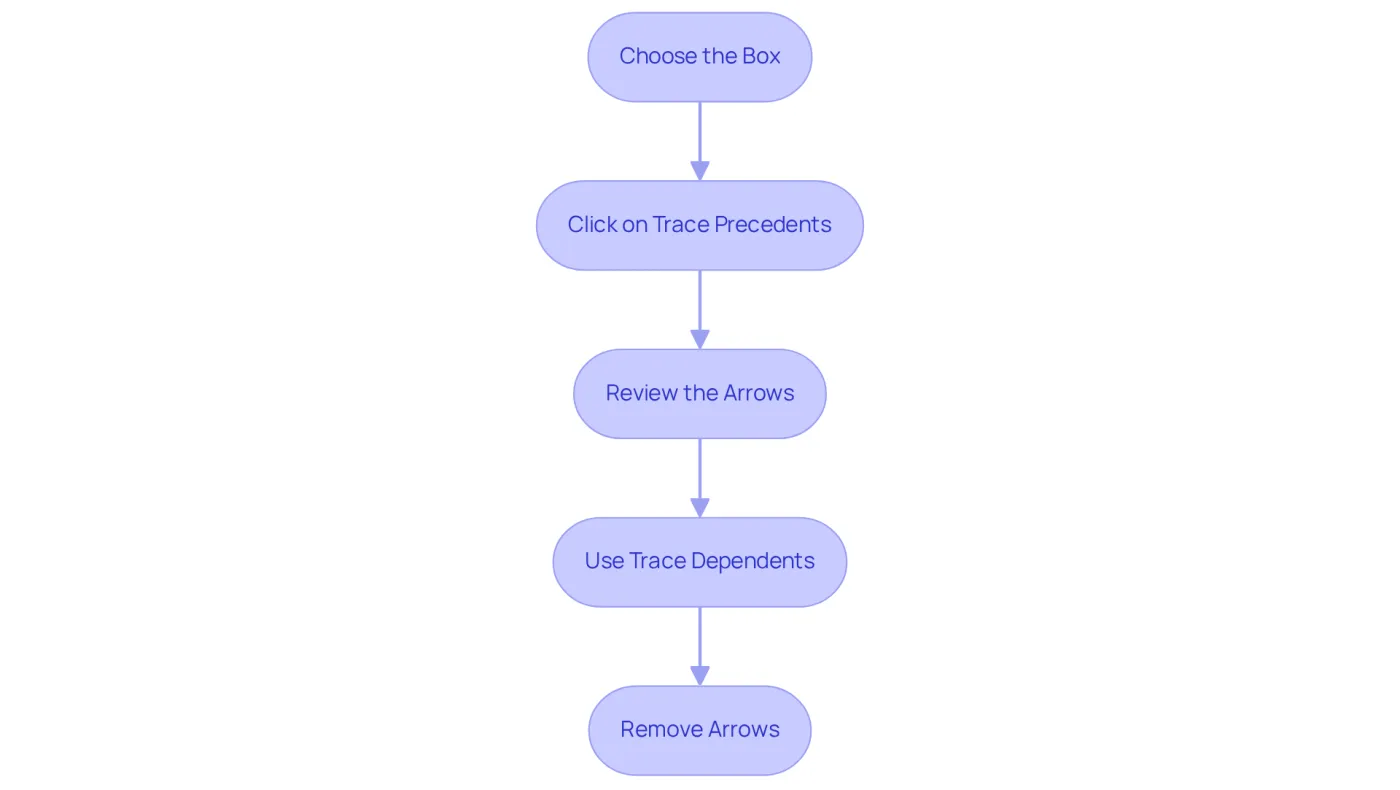
- Choose the Box: Click on the box you want to examine, such as B1, to determine its sources.
- To understand how to trace precedents in Excel, navigate to the 'Formulas' tab in the ribbon and click on 'Trace Precedents.' This action will display arrows indicating all units that contribute to the selected unit's value.
- Review the Arrows: The arrows will highlight the prior cases. If multiple precedents exist, clicking on the arrows will clarify the connections between these units. This step is crucial for understanding how variations in input areas can influence final results in your monetary models.
- Use Trace Dependents: To see where a cell's value flows next, utilize the Trace Dependents tool. This will help you assess the impact of changes before making adjustments.
- Remove Arrows: To eliminate visual clutter, return to the 'Formulas' tab and select 'Remove Arrows.' This will reset your view, allowing for further analysis without distractions.
For finance professionals, knowing how to trace precedents in Excel is vital, as it ensures accuracy in monetary models by confirming the source of numbers. A single typo or incorrect link can significantly alter final figures, making careful tracing essential. Additionally, be aware that a beep sound may indicate the completion of tracking or the presence of untraceable items. By mastering this tool, you can greatly enhance your ability to present clear and reliable monetary data.
Troubleshoot Common Issues When Tracing Precedents
When tracing precedents in Excel, financial analysts often face several common challenges:
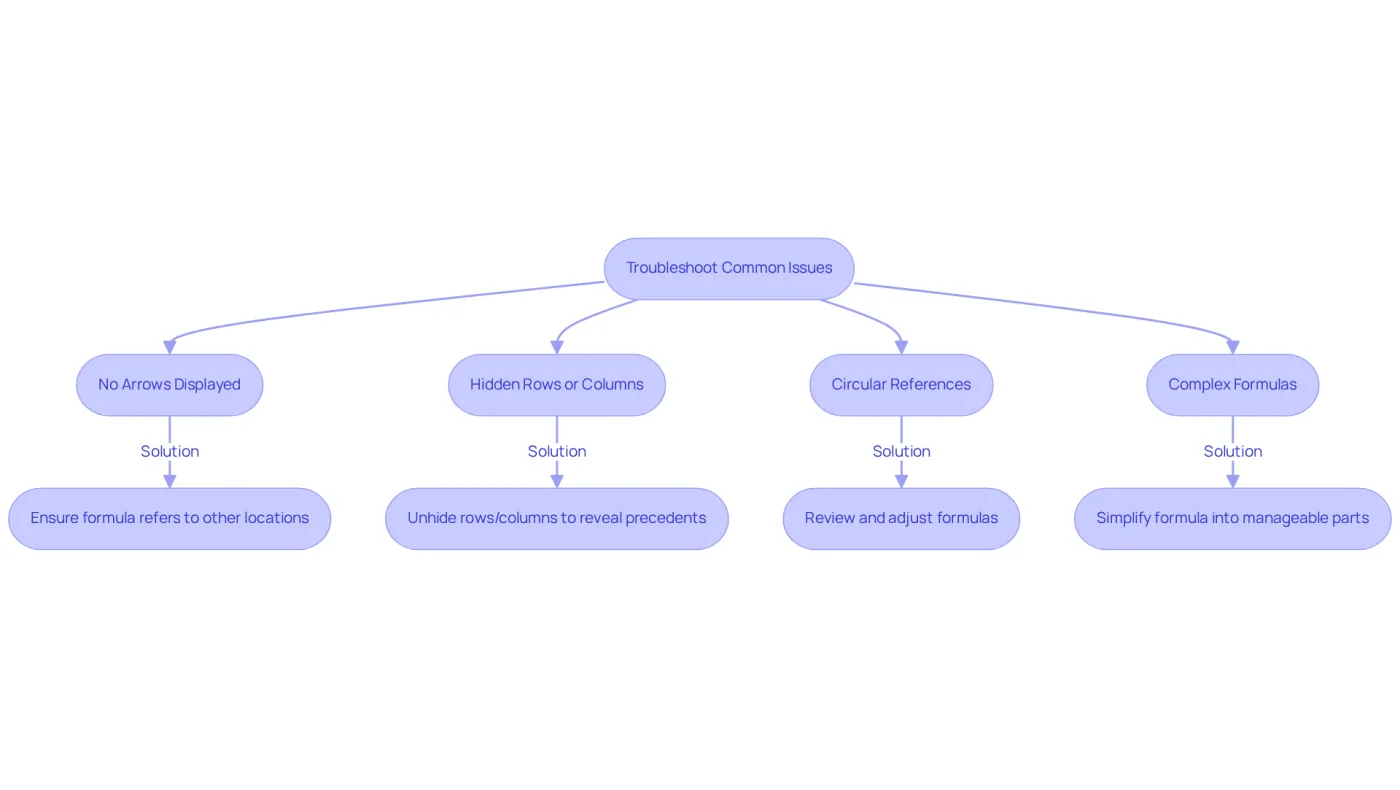
- No Arrows Displayed: If the Trace Precedents tool produces no arrows, ensure that the selected location contains a formula referring to other locations. Remember, static values won’t have precedents to trace.
- Hidden Rows or Columns: Precedents may be located in hidden rows or columns. Unhiding these sections can reveal influences on the chosen element.
- Circular References: A circular reference warning indicates that the formula in the selected cell refers back to itself, creating a loop. This can lead to functions iterating until a specific numeric condition is met. Excel will stop calculating after 100 iterations unless maximum iterations are adjusted. To resolve this, carefully review and adjust your formulas.
- Complex Formulas: Complex formulas can obscure the tracing of all prior instances. Simplifying the formula into manageable parts can help clarify each precedent.
By understanding these issues and their solutions, users can more effectively learn how to trace precedents in Excel, ultimately enhancing the precision of their analysis. Notably, circular references frequently occur in financial spreadsheets, often resulting in calculation errors if not addressed promptly. By employing these troubleshooting strategies, analysts can ensure their financial models remain robust and reliable. As François Auerbach from Microsoft Excel states, "Troubleshooting formulas in Excel is easy thanks to the Formula Auditing Tools," highlighting the importance of utilizing available resources for effective analysis.
Leverage ShortieCuts for Enhanced Precedent Tracing in Google Sheets
ShortieCuts revolutionizes the experience of tracing precedents in Google Sheets with several key features:
-
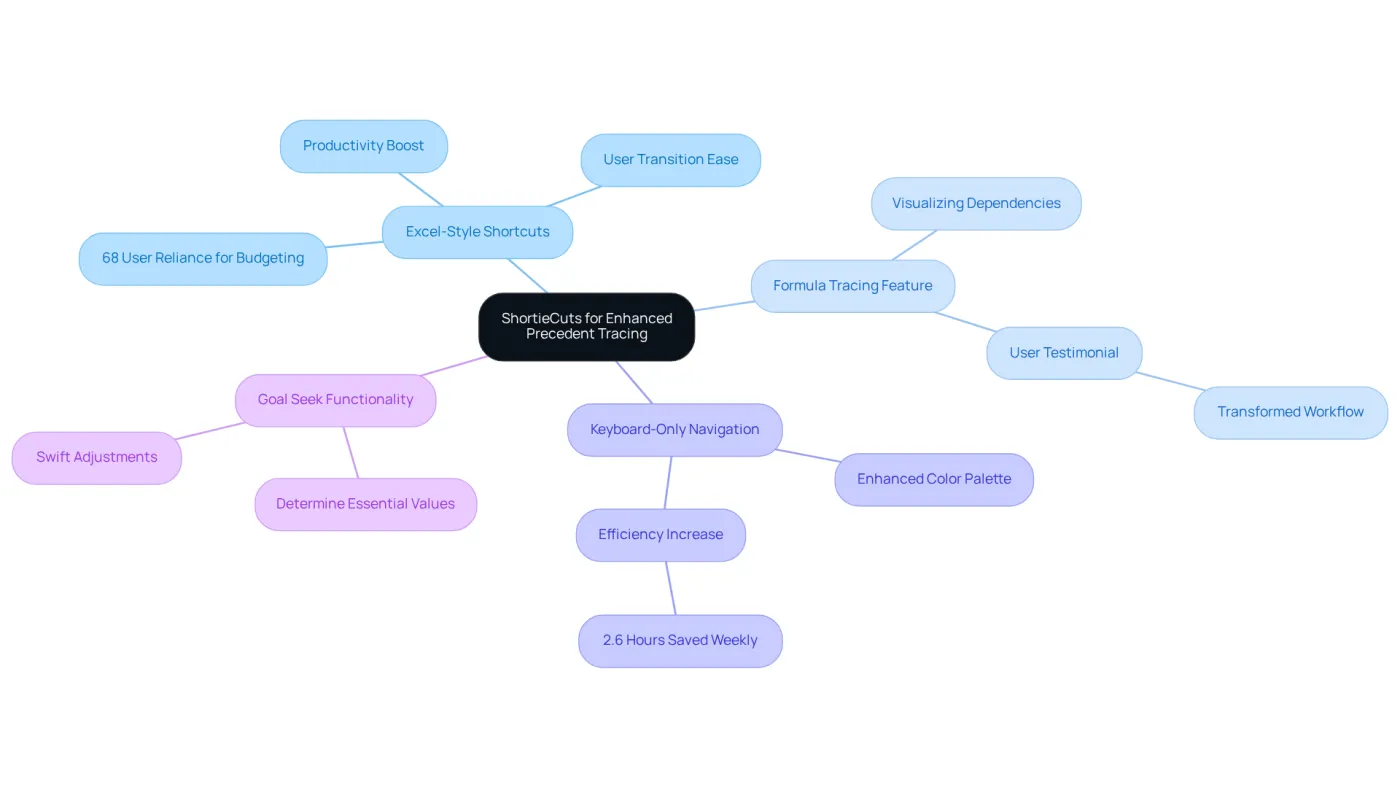
Excel-Style Shortcuts: Familiar keyboard shortcuts streamline the process of tracing precedents, making it easier for users transitioning from Excel to Google Sheets. This familiarity can significantly boost productivity, allowing tasks to be completed more efficiently. Research shows that 68% of users rely on Google Sheets for budgeting and expense tracking, underscoring its effectiveness in financial analysis.
-
Formula Tracing Feature: The formula tracing functionality in ShortieCuts enables users to visualize dependencies with ease, replicating the capabilities found in Excel. This feature is crucial for financial professionals who depend on accurate data relationships in their analyses. As one finance expert noted, "The ability to quickly track prior instances has transformed my workflow, ensuring data precision."
-
Keyboard-Only Navigation: With an enhanced color palette and optimized keyboard navigation, users can select and examine precedents without a mouse. This improvement not only speeds up workflows but also caters to those who prefer keyboard-centric operations, significantly increasing overall efficiency. Many users report saving an average of 2.6 hours each week by utilizing these keyboard shortcuts.
-
Goal Seek Functionality: The integrated Goal Seek feature allows users to determine essential values based on established benchmarks, further enhancing analytical capabilities. This function is particularly beneficial for finance professionals needing to make swift adjustments based on fluctuating data inputs. The rising use of Google Sheets in the finance sector highlights the growing reliance on this tool for effective data management.
Incorporating ShortieCuts into your Google Sheets workflow enhances your understanding of how to trace precedents in Excel, ensuring your financial analyses are both precise and efficient. The impact of these Excel-style shortcuts on productivity is profound, with numerous users reporting significant improvements in their workflow and comfort while using Google Sheets.
Conclusion
Mastering the art of tracing precedents in Excel is not just a skill; it’s a fundamental necessity for financial analysts. This expertise directly impacts the accuracy and reliability of financial models. By grasping the relationships between cells and their contributions to calculations, analysts can maintain data consistency and trustworthiness. This knowledge enhances analytical capabilities and empowers professionals to make informed decisions based on precise information.
In this article, we explore essential techniques for tracing precedents. From navigating the 'Formulas' tab to utilizing visual indicators, we cover it all. Additionally, we address common issues like circular references and hidden rows. Each step is vital for preserving the integrity of financial data, as even minor errors can lead to significant discrepancies in outcomes. Moreover, integrating tools like ShortieCuts in Google Sheets streamlines the process, allowing for efficient precedent tracing that mirrors Excel's functionality.
Ultimately, the ability to trace precedents effectively is indispensable for anyone involved in financial analysis. By embracing these techniques and tools, analysts can enhance their workflow, improve data accuracy, and drive better financial outcomes. Mastering these skills is not merely a technical necessity; it’s a strategic advantage in the fast-paced world of finance. Are you ready to elevate your financial analysis skills? Start implementing these techniques today and witness the transformation in your data accuracy and decision-making capabilities.
Frequently Asked Questions
What are precedents in financial analysis?
Precedents are cells in Excel that influence the value of a selected unit, meaning they are the source cells that affect calculations in other cells.
Why is it important to trace precedents in Excel?
Tracing precedents is crucial for monitoring data flow in a spreadsheet, ensuring calculations remain precise and reliable, and aiding in auditing spreadsheets or troubleshooting errors.
Can you provide an example of how precedents work in Excel?
For instance, if cell B1 contains a formula referencing cell A1, then A1 is a precedent for B1, as it serves as a source for its value.
How does mastering the concept of precedents benefit financial professionals?
Mastering precedents enhances analytical skills, maintains data integrity in reports, and empowers analysts to make informed decisions based on accurate data.