
Master Merging Two Excel Spreadsheets Based on Common Fields
Master the process of merging two Excel spreadsheets based on common fields for seamless data integration.

Introduction
Merging two Excel spreadsheets can feel like navigating a complex maze, particularly when aligning common fields like customer IDs or product names. This essential skill not only enhances data analysis but also ensures accurate reporting and informed decision-making. However, the journey toward seamless integration is often riddled with challenges, including data inconsistencies and formula errors.
So, how can users effectively prepare their data and leverage powerful tools like VLOOKUP to overcome these hurdles? By mastering these techniques, you can unlock the full potential of your spreadsheets, transforming them into invaluable assets for your business.
Understand the Basics of Merging Spreadsheets
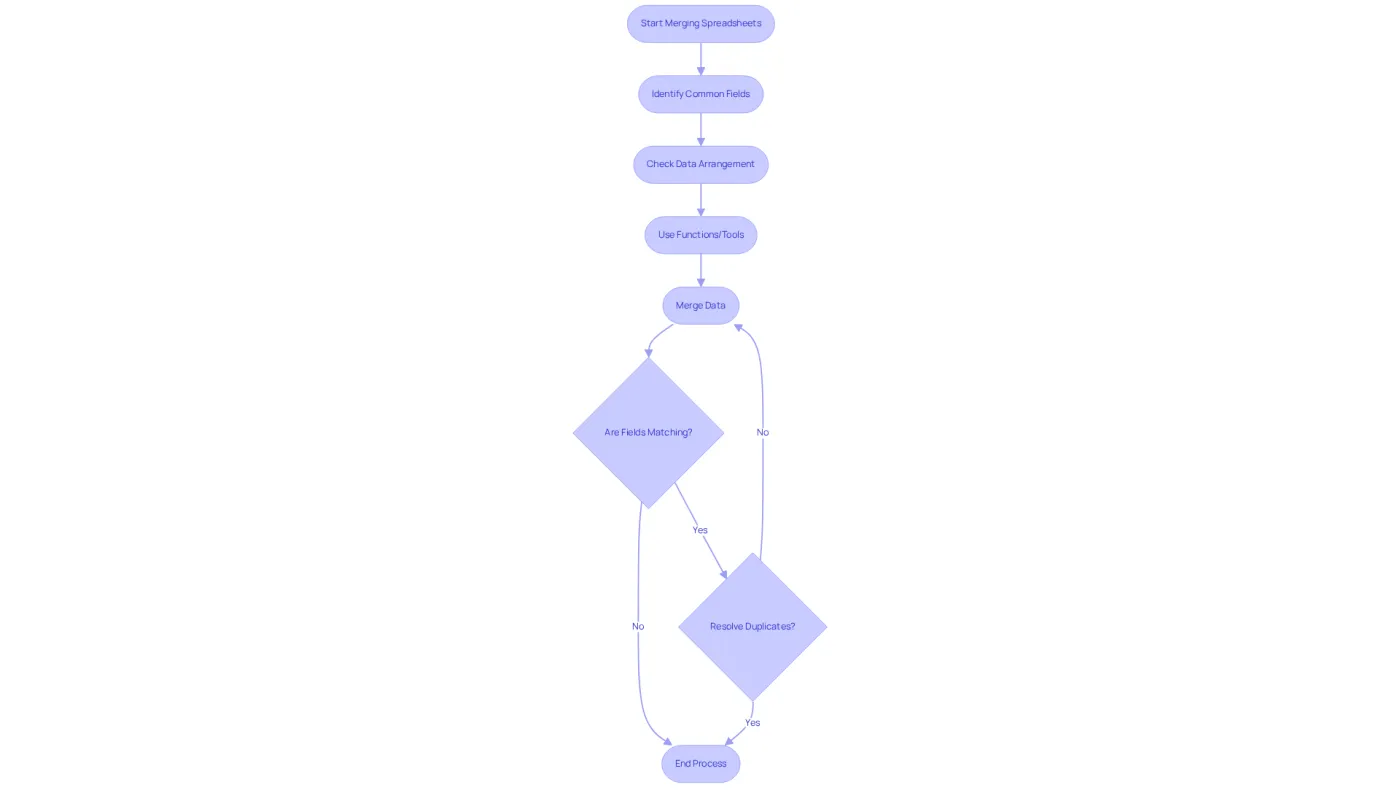
Merging two Excel spreadsheets based on common fields is a critical task that involves combining information from two or more sheets, such as IDs or names. This process is essential for effective information analysis, reporting, and maintaining the integrity of data. In Google Sheets, users can efficiently consolidate information using various functions and tools. Understanding the arrangement of your data and its typical attributes is crucial, as it directly influences the efficiency of the merging process. For instance, if you have two sheets containing customer information, merging two Excel spreadsheets based on common field 'Customer ID' allows for a comprehensive view of customer interactions.
Information analysts emphasize that integrating spreadsheets goes beyond merely uniting data; it requires adherence to best practices to ensure accuracy and reliability. Adam Wilson, Senior Vice President at Alteryx, states, "We believe analytics should be accessible to everyone," underscoring the significance of effective information management. Furthermore, statistics reveal that 61% of organizations consider information engineering essential, highlighting the role of spreadsheet integration in enhancing analytical capabilities.
However, it is vital to recognize potential drawbacks of spreadsheet-based planning, such as limited collaboration and human errors, which can lead to inconsistencies in the merged data. By addressing these challenges and following best practices - such as ensuring matching types in shared fields and resolving duplicates - users can significantly enhance the analytical benefits of their integrated data, resulting in deeper insights and more effective reporting.
Prepare Your Data for Merging
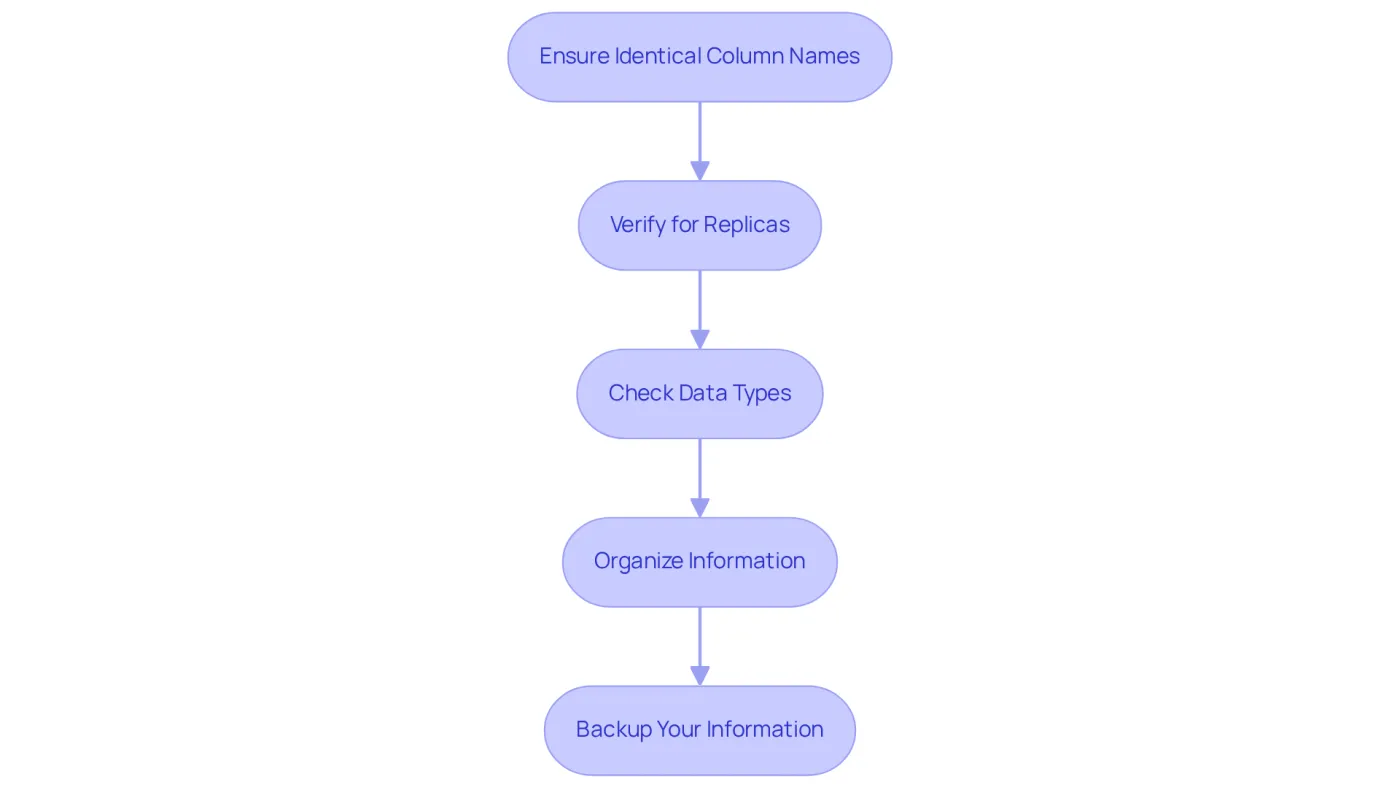
Before merging two excel spreadsheets based on a common field, it's crucial to ensure that your information is clean and organized. Follow these essential steps to prepare your data effectively:
- To ensure successful merging of two excel spreadsheets based on a common field, make sure that the columns you intend to merge on have identical names in both sheets. For instance, if one sheet lists 'Customer ID' and the other 'Cust_ID', rename them to match.
- Verify for Replicas: Eliminate any repeated entries in the shared areas to prevent merging mistakes.
- To ensure successful merging of two excel spreadsheets based on a common field, make sure that the data types in the common fields are uniform (e.g., both should be text or both should be numbers).
- Organizing information is essential for visualizing the integration process and identifying any inconsistencies prior to merging two excel spreadsheets based on a common field.
- Backup Your Information: Always create a backup of your original sheets before conducting any merging operations to safeguard against data loss.
Merge Spreadsheets Using Google Sheets Functions
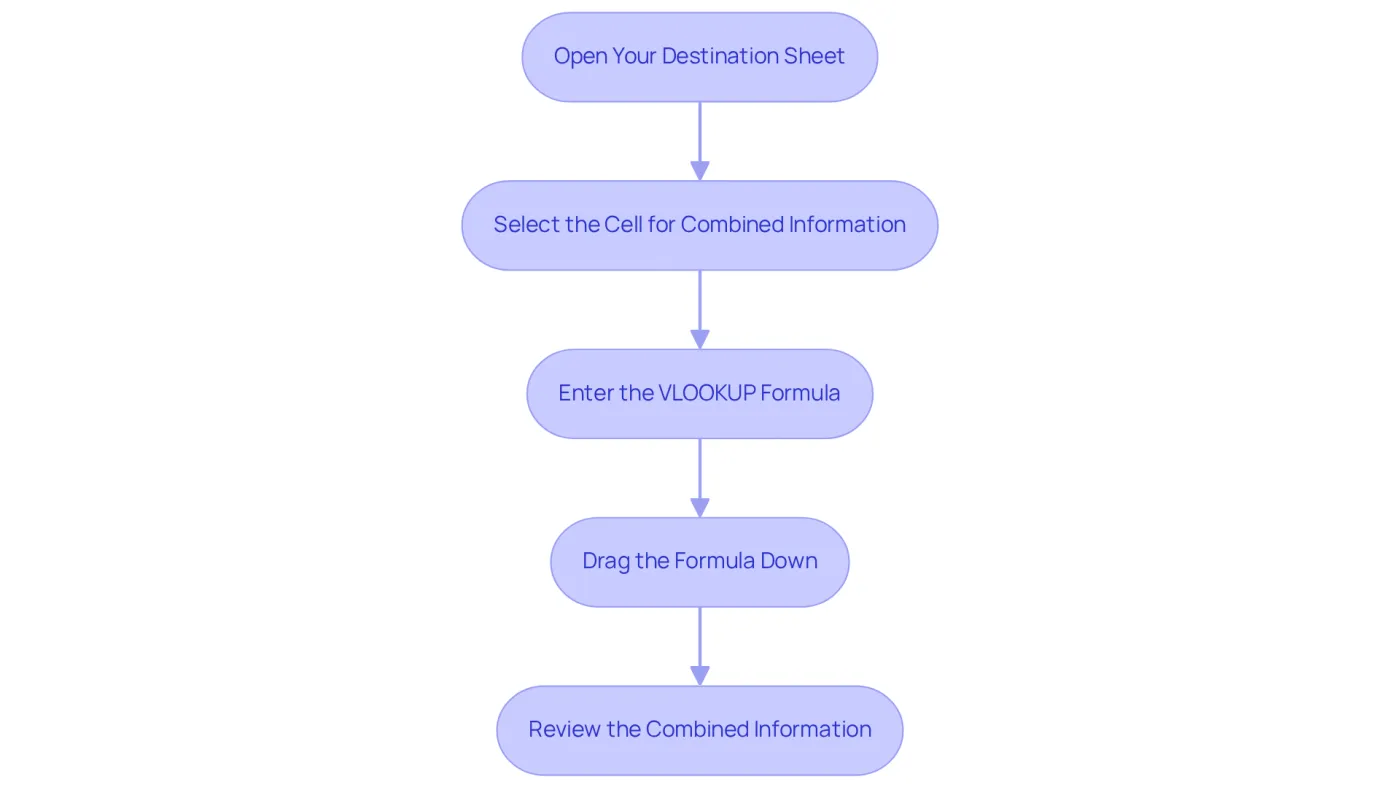
While merging two excel spreadsheets based on a common field in Google Sheets can often feel daunting, it doesn't have to be. With powerful functions like VLOOKUP, INDEX-MATCH, and the QUERY function at your disposal, you can streamline this process effectively. Here’s a straightforward guide to using VLOOKUP:
- Open Your Destination Sheet: This is where you want the combined information to appear.
- Select the Cell for the Combined Information: Click on the cell where you want to begin showing the merged information.
- Enter the VLOOKUP Formula: Type the following formula:
In this example, A2 is the cell in your destination sheet that contains the common field (e.g., Customer ID), 'Sheet2'!A:B is the range in the second sheet where the data is located, and 2 indicates the column number from which to retrieve the data. To prevent unpredictable changes when copying formulas, consider using absolute references, such as:=VLOOKUP(A2, 'Sheet2'!A:B, 2, FALSE)=VLOOKUP($A$2, 'Sheet2'!$A:$B, 2, FALSE) - Drag the Formula Down: Click on the small square at the bottom-right corner of the cell containing the formula and drag it down to fill the cells below with the combined information.
- Review the Combined Information: Check for any errors or mismatches in the combined information and correct them as necessary. Be aware that using VLOOKUP can lead to #N/A errors if the search key is not found, and ensure your information is clean to avoid issues with leading or trailing spaces.
For greater flexibility and resilience against structural changes, consider using INDEX-MATCH instead of VLOOKUP. This approach enables searching in any column and is less susceptible to mistakes when information structures change. Recent enhancements in Google Sheets have also improved the functionality of merging two excel spreadsheets based on common field techniques, making it simpler than ever to consolidate information effectively. As noted by experts, "VLOOKUP is a powerful tool, but understanding its limitations and best practices can significantly enhance your data management capabilities.
Troubleshoot Common Merging Issues
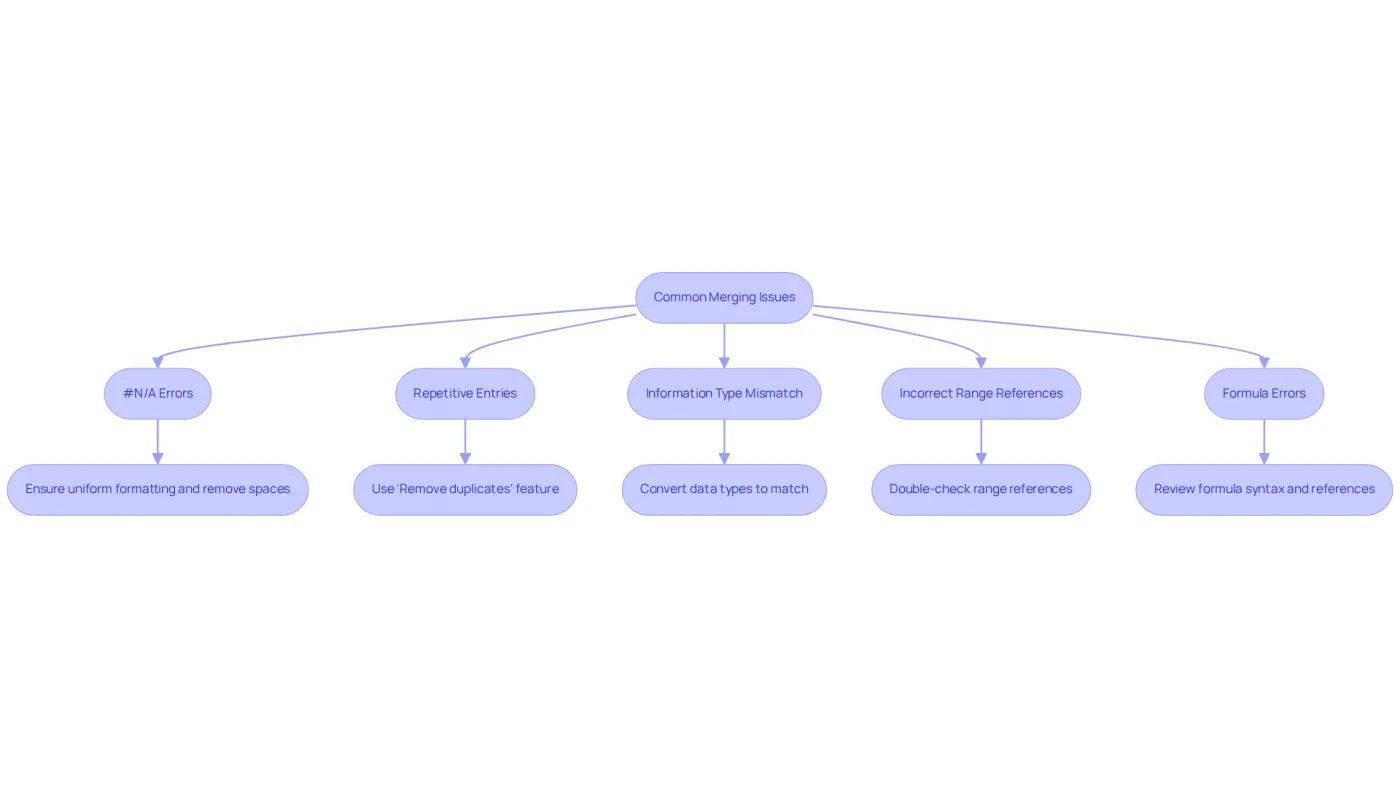
Even with careful preparation, issues can arise during the merging of two Excel spreadsheets based on a common field. Here are some common problems and their solutions:
-
#N/A Errors: This error occurs when VLOOKUP cannot find a match. To resolve this, ensure that the shared attributes are formatted uniformly and that there are no leading or trailing spaces in the information.
-
Repetitive Entries: Repetitions in shared areas can lead to inaccuracies during merging. To tidy your information before merging two Excel spreadsheets based on a common field, utilize the 'Remove duplicates' feature in Google Sheets.
-
When merging two Excel spreadsheets based on a common field, it's crucial that the information types in the common fields correspond across both sheets. For instance, if one sheet has numbers formatted as text, convert them to numbers to ensure consistency.
-
Incorrect Range References: Always double-check that the ranges specified in your formulas cover all necessary data. Adjust the ranges as needed to include all relevant rows and columns.
-
Formula Errors: If your formula returns an error, review the syntax and ensure that all references are correct. Use the formula auditing tools in Google Sheets to trace and resolve errors.
Conclusion
Merging two Excel spreadsheets based on common fields is not merely a technical task; it’s a crucial skill that significantly enhances data analysis and reporting capabilities. By grasping the fundamentals of this process, users can effectively combine information, ensuring a comprehensive view of their data. This guide underscores the importance of meticulous preparation and adherence to best practices, which are essential for achieving accurate and reliable results.
Key strategies for successful merging include:
- The necessity of uniform column names
- Data type consistency
- The elimination of duplicates
Additionally, powerful Google Sheets functions such as VLOOKUP and INDEX-MATCH provide practical tools to streamline merging processes. Common issues like #N/A errors and repetitive entries are addressed, offering solutions that enhance the merging experience.
Ultimately, mastering the art of merging spreadsheets is vital for anyone aiming to leverage their data effectively. By implementing the outlined best practices and troubleshooting techniques, users can transform their data management processes, leading to deeper insights and more informed decision-making. Embracing these strategies not only improves efficiency but also fosters a culture of data integrity and analytical excellence.
Frequently Asked Questions
What is the purpose of merging spreadsheets in Excel or Google Sheets?
Merging spreadsheets allows users to combine information from two or more sheets based on common fields, such as IDs or names, which is essential for effective information analysis, reporting, and maintaining data integrity.
Why is it important to understand the arrangement of data before merging spreadsheets?
Understanding the arrangement of data and its typical attributes is crucial because it directly influences the efficiency of the merging process and the accuracy of the results.
What is an example of a common field used for merging spreadsheets?
A common field used for merging spreadsheets could be 'Customer ID,' which allows for a comprehensive view of customer interactions when combining customer information from different sheets.
What do information analysts emphasize about integrating spreadsheets?
Information analysts emphasize that integrating spreadsheets involves more than just uniting data; it requires adherence to best practices to ensure accuracy and reliability.
What does Adam Wilson from Alteryx say about analytics and information management?
Adam Wilson states, "We believe analytics should be accessible to everyone," highlighting the significance of effective information management in the context of analytics.
What percentage of organizations consider information engineering essential?
Statistics reveal that 61% of organizations consider information engineering essential, indicating the importance of spreadsheet integration in enhancing analytical capabilities.
What are some potential drawbacks of spreadsheet-based planning?
Potential drawbacks include limited collaboration and human errors, which can lead to inconsistencies in the merged data.
How can users enhance the analytical benefits of their integrated data?
Users can enhance analytical benefits by following best practices, such as ensuring matching types in shared fields and resolving duplicates during the merging process.