
Master Named Ranges in Excel: A Step-by-Step Guide
Master the use of name ranges in Excel to enhance clarity and streamline your spreadsheets.

Overview
This article serves as a comprehensive guide to mastering named ranges in Excel, outlining their definition, creation methods, applications in formulas, and management techniques. Named ranges are essential for enhancing spreadsheet clarity and organization. They make complex calculations more intuitive and significantly reduce the risk of errors. Consequently, this leads to improved overall data management for users, particularly finance professionals. By implementing named ranges, users can streamline their workflows and enhance their productivity.
Introduction
Named ranges in Excel represent a powerful tool that transforms how users interact with their spreadsheets. They offer clarity and efficiency that traditional cell references often lack. By assigning descriptive labels to specific cell groups, users can streamline their calculations and enhance data management, making complex spreadsheets more intuitive.
However, despite their advantages, many users still overlook the potential of named ranges, leading to confusion and inefficiency. This begs the question: how can mastering this feature elevate one's Excel skills and improve overall productivity?
The answer lies in understanding that named ranges not only simplify navigation within spreadsheets but also enhance the overall user experience. By leveraging this feature, users can significantly reduce errors and improve accuracy in their data analysis.
Define Named Ranges in Excel
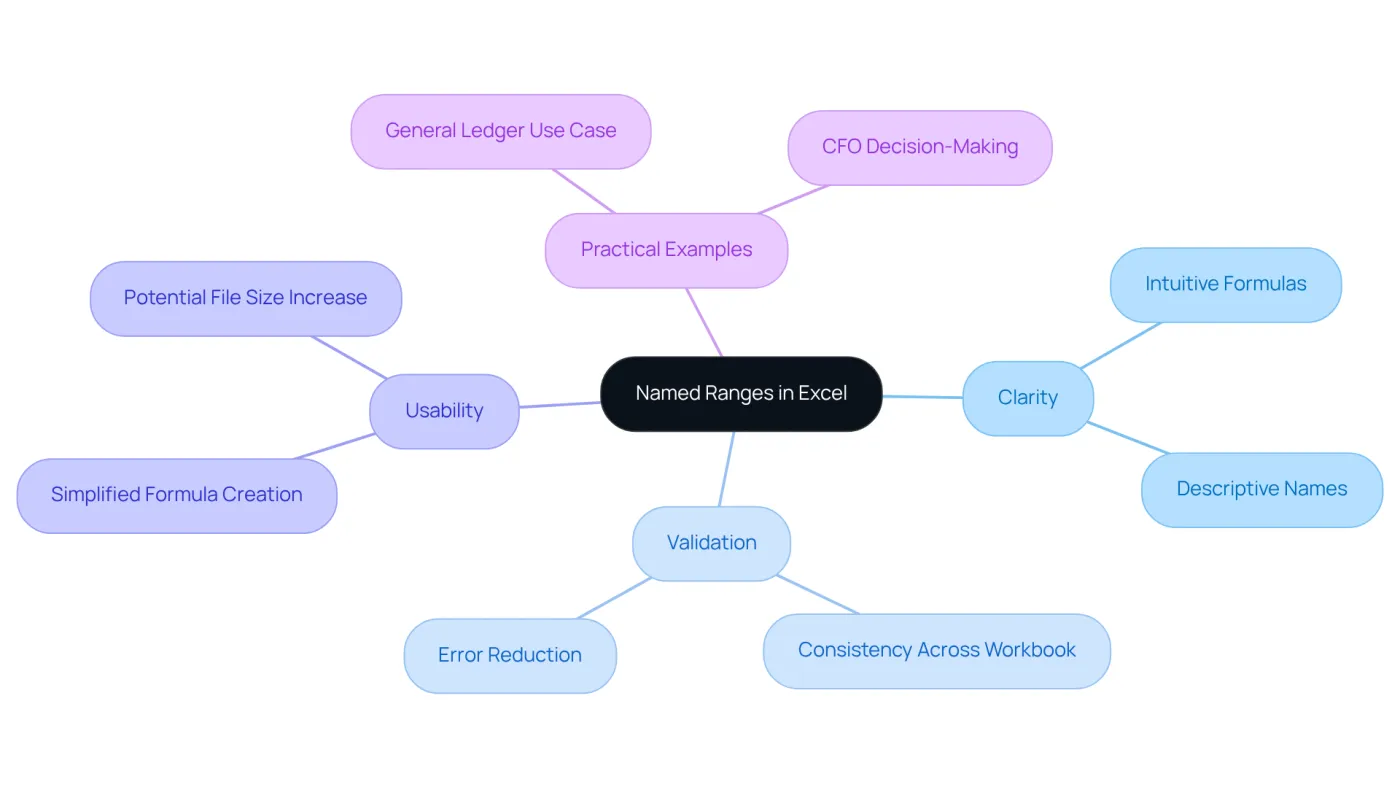
The name range in Excel serves as user-defined labels that represent specific cells or groups of cells, significantly enhancing the clarity of your spreadsheets. Rather than relying on traditional cell references like A1:A10, you can use a name range in Excel, such as 'SalesData', to assign a descriptive name to that range. This approach simplifies formulas involving the name range in Excel, rendering them more intuitive and easier to comprehend. For instance, instead of writing =SUM(A1:A10), you can utilize a name range in Excel, like =SUM(SalesData), which clearly conveys the purpose of the information involved.
The advantages of utilizing a name range in Excel extend beyond mere clarity. They play a crucial role in information validation, chart creation, and various other Excel functionalities, with the name range in Excel substantially enhancing overall spreadsheet management. For finance experts, designated groups simplify intricate calculations and bolster data analysis by ensuring consistency throughout the workbook. This reduces the risk of errors and facilitates more efficient formula creation, particularly when managing large datasets. However, it is important to note that a name range in Excel can also contribute to larger file sizes and potentially hinder basic Excel functions, which may impact usability.
Practical examples illustrate the impact of using a name range in Excel on spreadsheet clarity. In a General Ledger scenario, utilizing specified areas for various financial information columns streamlines formulas and enhances analysis, enabling CFOs and business leaders to focus on strategic decision-making. As Alan Murray, an Excel trainer, observes, 'The use of a name range in Excel not only enhances usability but also promotes a more structured approach to data management.' Specialists in this field emphasize that designated categories are an essential resource for finance experts managing complex spreadsheets. Furthermore, Excel users generally fall into two categories regarding defined areas: those who never utilize them and those who employ them extensively, underscoring the varying degrees of acceptance and potential advantages for those eager to adopt them.
Create a Named Range Using Different Methods
Establishing designated areas in Excel significantly enhances your spreadsheet organization. Here are several effective methods to consider:
-
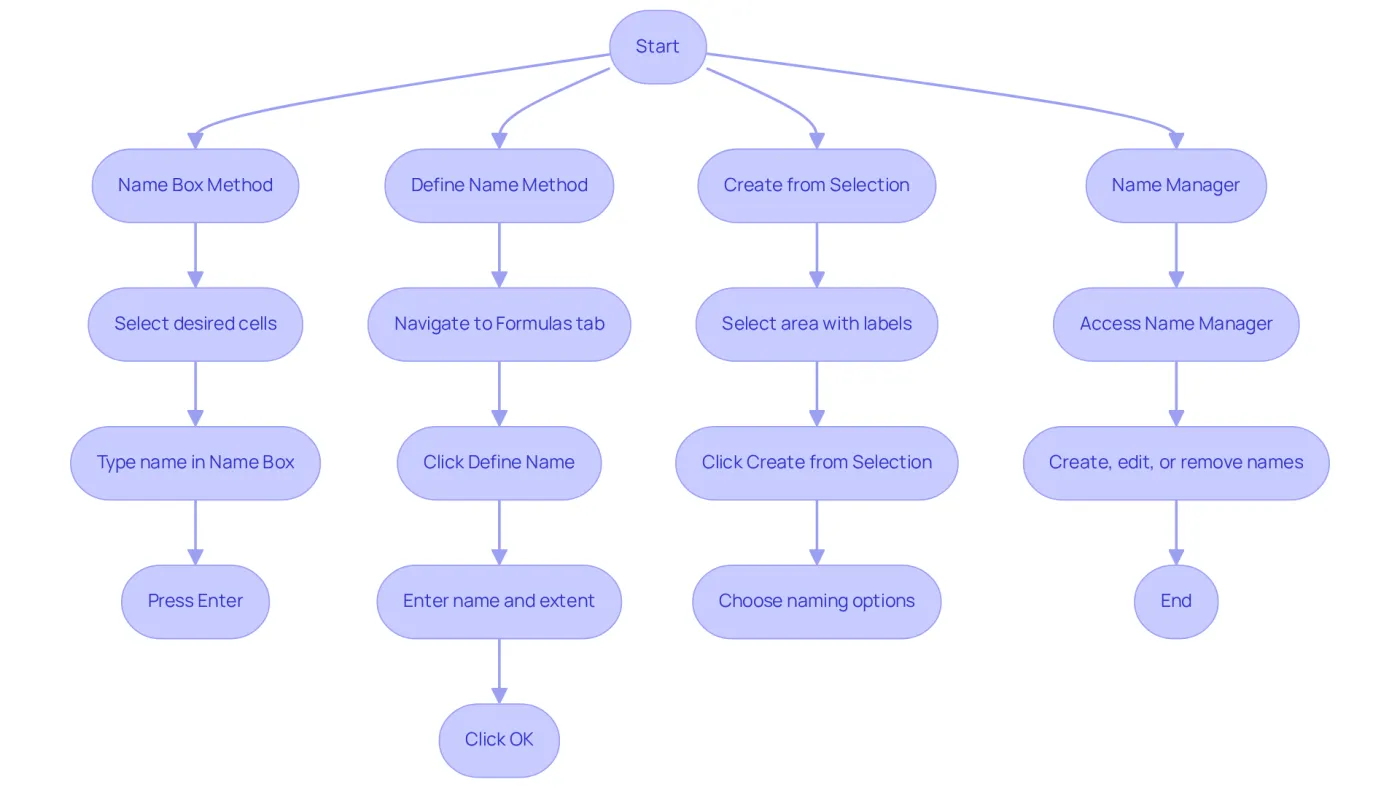
Using the name range in Excel: To create a named selection, select the desired cells, click on the Name Box located to the left of the formula bar, type in your chosen name, and press Enter. This method is quick and straightforward, ideal for users who value efficiency.
-
To use the name range in Excel, navigate to the Formulas tab and click on 'Define Name' in the Defined Names group. In the dialog box that appears, enter the name you wish to assign and indicate the extent. This method provides more detailed naming options, making it particularly useful for complex datasets.
-
Using Create from Selection, if your information includes labels, select the area that encompasses these labels to define a name range in Excel. Then, go to the Formulas tab, click 'Create from Selection', and choose whether to use the top row, left column, or both as names. This technique is especially beneficial for organizing data efficiently, as it automatically generates names based on your headers.
-
Using the name range in Excel, you can access the Name Manager by navigating to the Formulas tab and selecting 'Name Manager'. This tool allows you to create, edit, and remove a name range in Excel, offering a comprehensive method to manage your named areas in one location.
These techniques not only streamline your calculations but also enhance the clarity and organization of your spreadsheets, making them essential resources for finance experts. Named groups help minimize mistakes and simplify calculations for review, ultimately improving your workflow.
Apply Named Ranges in Formulas for Enhanced Clarity
Utilizing designated areas in calculations significantly enhances clarity and minimizes errors. Here’s how to apply them effectively:
-
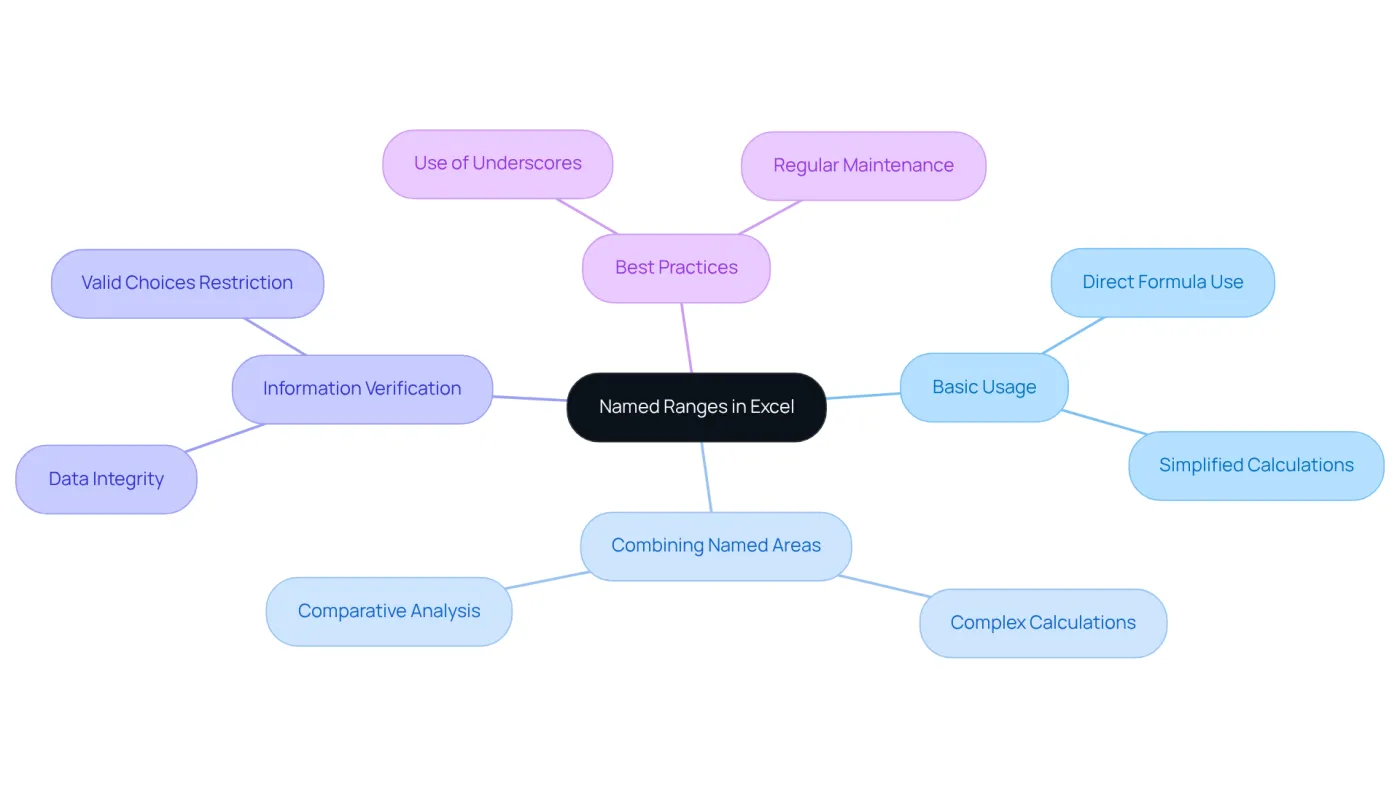
Basic Usage: Rather than relying on traditional cell references, employ named ranges directly in your formulas. For instance, if you label a section as 'Expenses', you can easily compute total expenses with
=SUM(Expenses). This approach not only simplifies your calculations but also makes them more intuitive, similar to how a name range in Excel enhances data management. -
Combining Named Areas: You can integrate a name range in Excel into more complex calculations. For example, you can compare averages using a formula like
=AVERAGE(Expenses) - AVERAGE(Income), enabling straightforward comparisons without the clutter of cell references. -
Information Verification: A name range in Excel also proves beneficial for information validation. If you wish to restrict entries in a cell to a specific list of valid choices, you can establish a defined set containing those options. This ensures that users can only select from predefined choices, thereby enhancing data integrity.
-
Best Practices: When establishing designated sections, it is advisable to use underscores instead of spaces to avert potential issues. Regular maintenance of the Name Manager is also recommended to eliminate any incorrect or unused identifiers, ensuring your workbook remains organized and efficient.
The application of designated areas not only simplifies calculations but also enhances the overall clarity of financial models. As noted by data analysts, designated groups provide substantial clarity, facilitating the auditing and comprehension of intricate formulas. By leveraging designated selections, you can refine your financial modeling techniques, ensuring consistency and minimizing the risk of errors throughout your workbooks.
Manage Named Ranges: Editing and Deleting
Managing name range in Excel is essential for enhancing clarity and organization in your spreadsheets. Here’s how to effectively manage them:
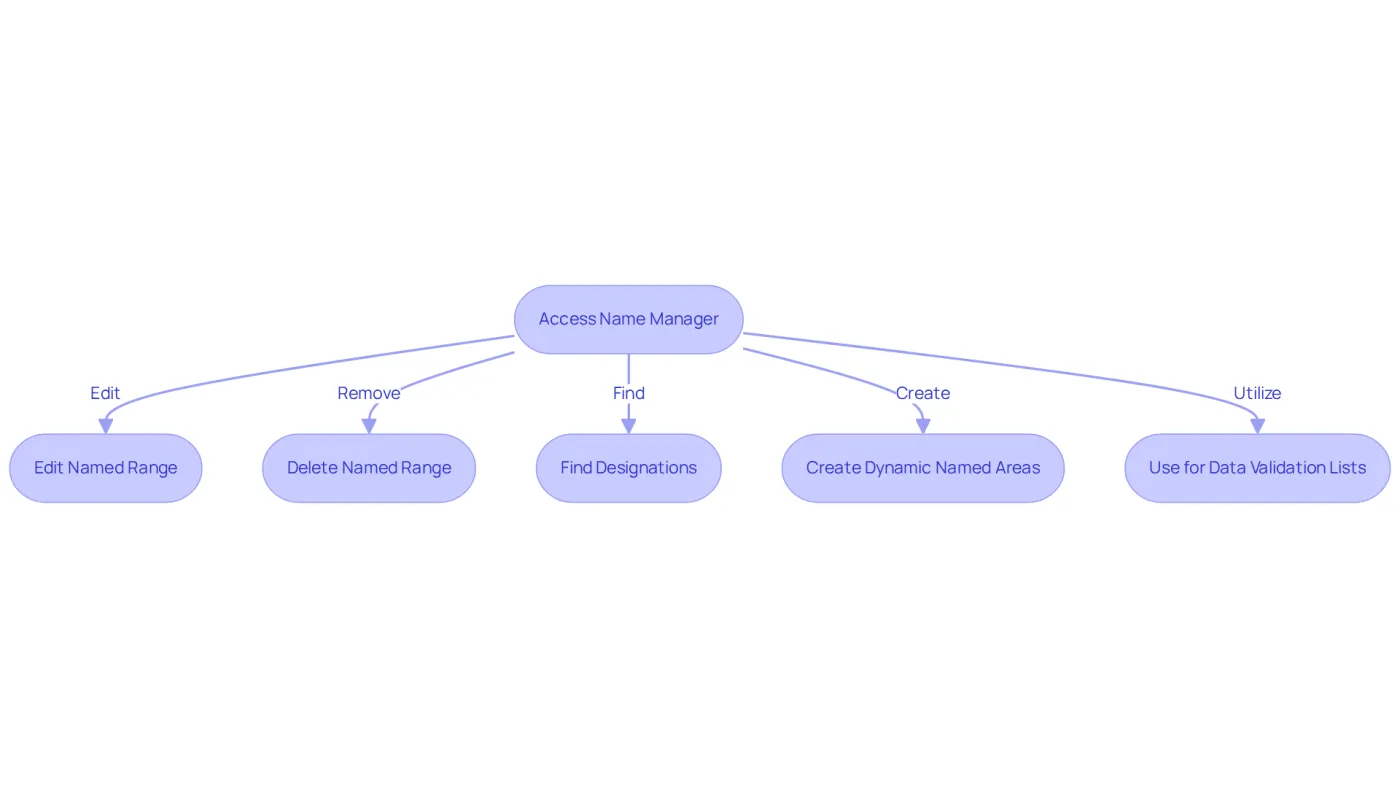
Editing a Named Range: To edit a named range, navigate to the Formulas tab and click on 'Name Manager'. From there, select the area you wish to adjust, click 'Edit', and modify the title or area reference as needed. This practice ensures that your formulas remain descriptive, simplifying your work and minimizing errors.
Removing a Designation: If you need to eliminate a designated area, access the Name Manager, select the area to be removed, and click 'Delete'. Confirm the deletion to permanently remove it from your workbook. This step is crucial in avoiding confusion caused by duplicate variable designations.
Finding Designations: For those managing multiple designations, the Name Manager provides a comprehensive list of all designations within your workbook, facilitating easy navigation and management. This feature is particularly advantageous for finance professionals who rely on accurate information references in their calculations.
Dynamic Named Areas: Establishing dynamic named areas is beneficial as they automatically update when new values are added to the source information. This ensures that your formulas consistently reference the correct data set without requiring manual updates.
Data Validation Lists: Named selections can also be utilized for data validation lists, simplifying dropdown management and ensuring consistency across multiple sheets.
User experiences highlight that efficient management of designated areas not only optimizes workflow but also enhances overall productivity. As noted by Bala_Excel_Insights, 'Creating and managing a name range in Excel improves the organization and clarity of your spreadsheets.' By implementing best practices in naming and organizing ranges, users can significantly enhance their spreadsheet efficiency.
Conclusion
Utilizing named ranges in Excel fundamentally transforms how users manage data, making spreadsheets not only more organized but also more intuitive. By replacing traditional cell references with descriptive names, such as 'SalesData' or 'Expenses', the clarity of calculations and data presentation is significantly enhanced. This user-friendly approach empowers finance professionals and Excel users alike to streamline their workflows and minimize errors.
The article delves into various aspects of named ranges, from defining and creating them to applying them in formulas and managing them effectively. Key methods for establishing named ranges are outlined, highlighting the importance of clarity and organization in complex datasets. Additionally, the benefits of using named ranges in formulas are emphasized, showcasing how they simplify calculations and improve data integrity. Effective management practices, including editing and deleting named ranges, ensure that spreadsheets remain efficient and user-friendly.
Incorporating named ranges into Excel practices is not merely a technical enhancement; it represents a shift towards a more structured approach to data management. By embracing these tools, users can significantly improve their productivity and accuracy in financial modeling and analysis. As the landscape of data management continues to evolve, mastering named ranges in Excel will be an essential skill for professionals seeking to optimize their spreadsheets and achieve greater clarity in their work.
Frequently Asked Questions
What is a named range in Excel?
A named range in Excel is a user-defined label that represents specific cells or groups of cells, enhancing the clarity of spreadsheets by allowing users to use descriptive names instead of traditional cell references.
How does using a named range improve formulas?
Using a named range simplifies formulas, making them more intuitive and easier to comprehend. For example, instead of using =SUM(A1:A10), you can use =SUM(SalesData), which clearly conveys the purpose of the information involved.
What are the advantages of utilizing named ranges in Excel?
The advantages include improved clarity, enhanced information validation, easier chart creation, and better overall spreadsheet management. Named ranges also help finance experts simplify complex calculations and ensure consistency throughout the workbook.
Can named ranges affect file size and usability?
Yes, named ranges can contribute to larger file sizes and potentially hinder basic Excel functions, which may impact usability.
How do named ranges benefit financial analysis?
In financial scenarios, named ranges streamline formulas and enhance analysis, allowing CFOs and business leaders to focus on strategic decision-making by providing a structured approach to data management.
What are the general perceptions of Excel users regarding named ranges?
Excel users typically fall into two categories: those who never utilize named ranges and those who use them extensively, indicating varying degrees of acceptance and potential benefits for those willing to adopt them.