
Master Phone Number Format in Google Sheets: A Step-by-Step Guide
Master phone number format in Google Sheets with our step-by-step guide for clarity and consistency.

Introduction
Mastering phone number formatting in Google Sheets is essential - not merely for aesthetics but for ensuring clarity and preventing errors in data management. This guide explores various formatting styles, providing step-by-step instructions that empower users to present their contact information with professionalism. Yet, many face common pitfalls that can disrupt this process. How can you navigate these challenges to achieve a polished and consistent presentation of phone numbers in your spreadsheets?
Understand Phone Number Formatting Basics
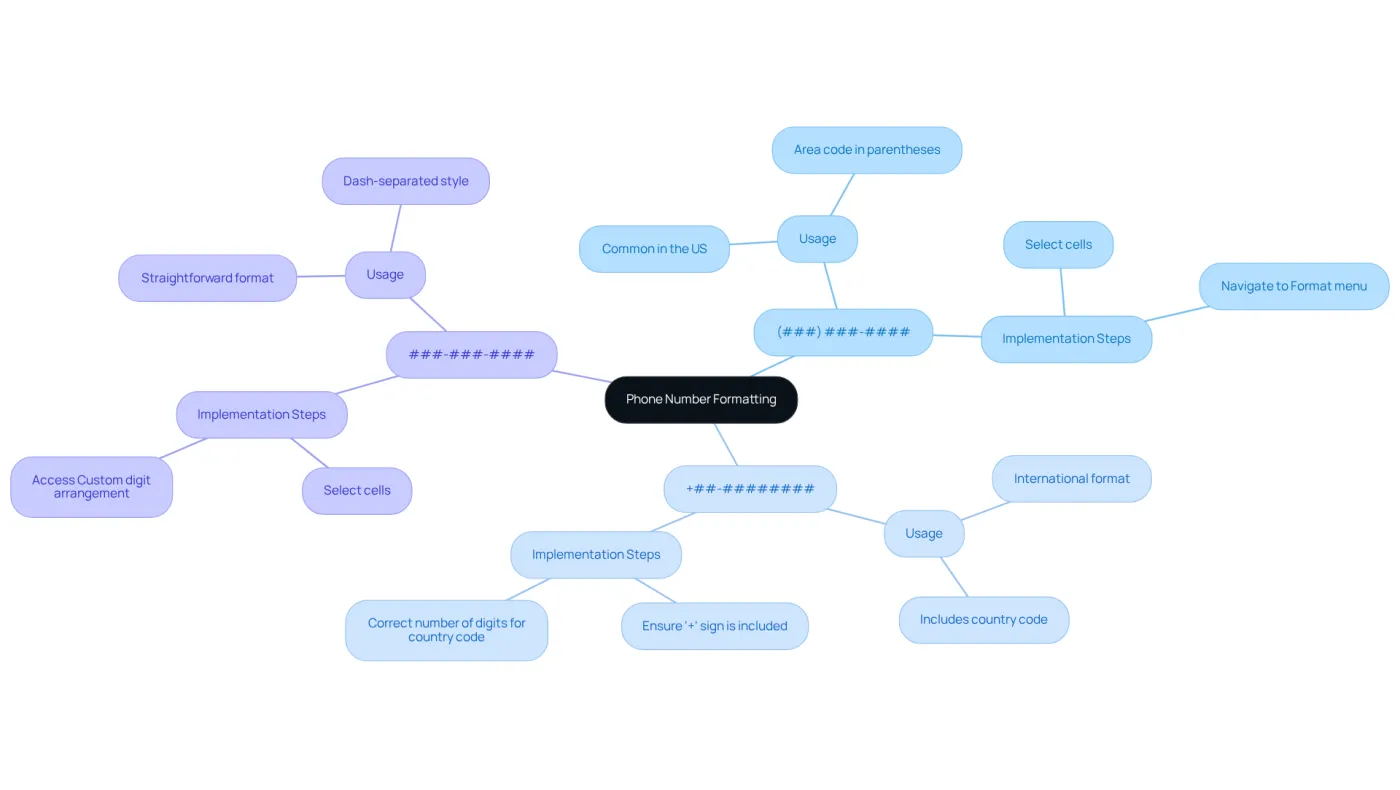
Phone formatting is essential for displaying digits in a visually appealing and functional manner. In Google Sheets, you can format phone numbers in various styles:
- (###) ###-####: This is a widely used format in the United States, where the area code is enclosed in parentheses.
- +##-########: This structure is often employed for international numbers, beginning with a plus sign followed by the country code.
- ###-###-####: A straightforward dash-separated style.
Understanding the phone number format Google Sheets offers allows you to choose the one that best fits your needs, ensuring your information is both easily interpretable and aesthetically pleasing. Moreover, using the correct layout can help prevent errors in data entry and improve communication when sharing spreadsheets with others.
By implementing these formatting styles, you not only enhance the clarity of your data but also establish a professional standard in your presentations. Don't underestimate the impact of well-formatted phone numbers; they can significantly streamline your workflow and foster better collaboration.
Apply Custom Number Formats for Phone Numbers
To format phone numbers in Google Sheets effectively, follow these detailed steps:
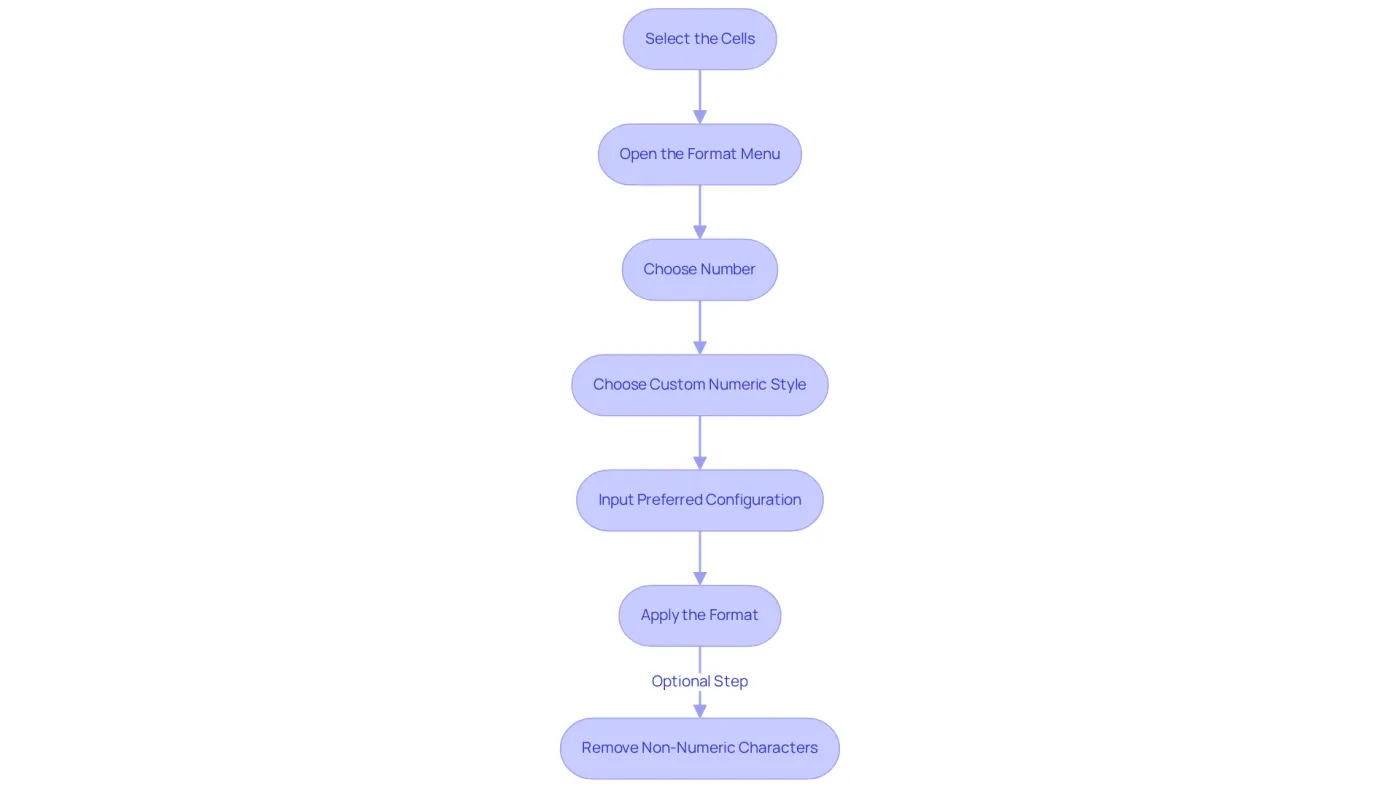
- Select the Cells: Click on the cell or range of cells containing the phone digits you wish to adjust.
- Open the Format Menu: Navigate to the top menu and click on Format.
- Choose Number: Hover over the Number option in the dropdown menu.
- Choose Custom Numeric Style: At the bottom of the submenu for digits, click on Custom numeric style.
- In the dialog box that appears, input your preferred configuration. For example, to format a North American contact, type
+’#’ ‘###’ ‘###’ ‘####or for a UK contact, use+## #### ####. - Apply the Format: Click Apply to see the changes reflected in your selected cells.
To ensure that contact digits are arranged properly, it’s crucial to eliminate any non-numeric symbols. Use the regular expression [^0-9] in the Find text field and leave the Replace With text field blank. This step preserves the integrity of information before applying the formatting rules.
By following these steps, you can ensure that all contact details in your spreadsheet adhere to the phone number format Google Sheets consistently. This not only improves readability but also presents a more professional appearance. Implementing this method enhances data integrity and aligns with best practices observed in organizations that utilize custom formats for contact details in their spreadsheets.
Troubleshoot Common Phone Number Formatting Issues
Even with the correct procedures, users may encounter challenges when applying the phone number format in Google Sheets for formatting contact details. Here are some common issues and their solutions:
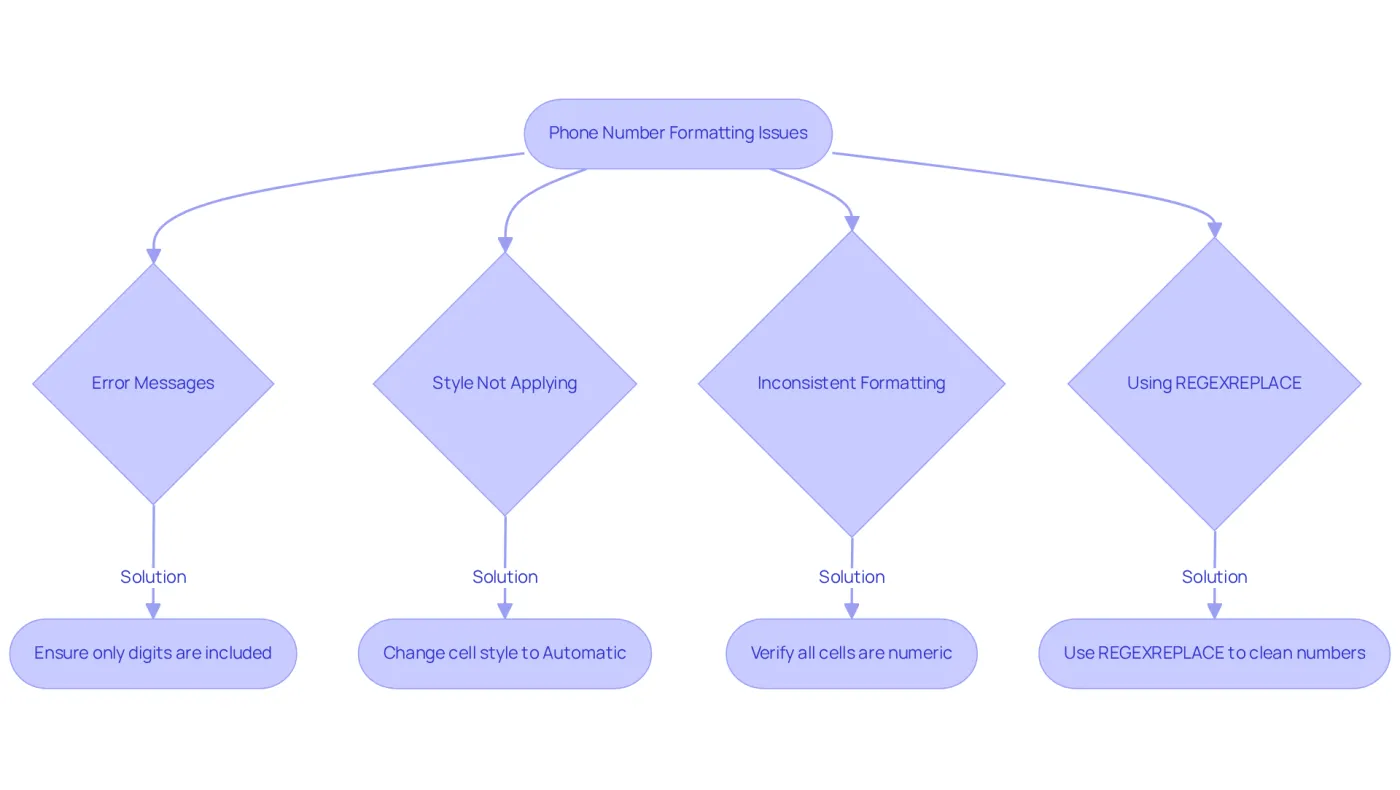
- Error Messages: Encountering an error like
#VALUE!? This often signals non-numeric characters in the phone number. Ensure that only digits are included in the cells you are formatting. - Style Not Applying: If the custom style fails to apply, check that the cell isn’t set to text style. Modify it by selecting the cell, navigating to Style, then Number, and choosing Automatic before reapplying the custom style.
- Inconsistent Formatting: Noticing that certain figures appear differently? Verify that all selected cells share the same type (e.g., all should be numeric). Use the Find and Replace feature to eliminate any unwanted characters.
- Using REGEXREPLACE: To remove unwanted characters from phone numbers, consider using the
REGEXREPLACEfunction. This can streamline your formatting process and maintain information integrity.
Common Structure: For U.S. contacts, the standard phone number format Google Sheets uses is (###) ###-####. Adhering to the phone number format Google Sheets ensures clarity and consistency in your information.
Understanding these typical problems and their solutions will help you maintain a tidy and professional-looking spreadsheet, which is essential for effective communication and data integrity. Remember, maintaining consistency in phone number format in Google Sheets is crucial; studies show that 88% of accounting spreadsheets contain human errors, underscoring the importance of accuracy in data entry.
Conclusion
Mastering phone number formatting in Google Sheets is essential for presenting contact information clearly and professionally. Understanding the various formatting options available enhances data readability and improves communication when sharing spreadsheets. Properly formatted phone numbers not only enhance appearance but also reduce the risk of errors during data entry.
This article highlights key formatting styles, including U.S. standard and international formats, and provides a step-by-step guide for applying custom formats. It also addresses common challenges users may encounter, such as error messages and inconsistent formatting, offering practical solutions to troubleshoot these issues. By adhering to these guidelines, users can uphold data integrity and present their information in a polished manner.
The significance of phone number formatting in Google Sheets goes beyond mere aesthetics; it plays a crucial role in effective communication and collaboration. Embracing these formatting techniques can streamline workflows and lead to a more organized and efficient data management process. Take the time to implement these practices, and you will experience the benefits of clearer, more professional spreadsheets.
Frequently Asked Questions
Why is phone number formatting important?
Phone number formatting is essential for displaying digits in a visually appealing and functional manner, helping to ensure information is easily interpretable and aesthetically pleasing.
What are some common phone number formats available in Google Sheets?
Common phone number formats in Google Sheets include: - (###) ###-####: A widely used format in the United States with the area code in parentheses. - +##-########: A format for international numbers, starting with a plus sign followed by the country code. - ###-###-####: A straightforward dash-separated style.
How does proper phone number formatting improve data entry?
Using the correct phone number format can help prevent errors in data entry and improve communication when sharing spreadsheets with others.
What benefits does well-formatted phone numbers provide in presentations?
Well-formatted phone numbers enhance the clarity of data and establish a professional standard in presentations, which can streamline workflows and foster better collaboration.