
Master Sheets Drop Down List: Create, Customize, and Troubleshoot
Learn to create, customize, and troubleshoot sheets drop down lists for efficient data entry.

Introduction
Mastering dropdown lists in Google Sheets can revolutionize how you manage data. This powerful feature streamlines data entry, significantly reducing errors and boosting efficiency. In this guide, we’ll explore how to create, customize, and troubleshoot dropdown lists, providing you with essential insights to leverage this tool effectively.
But what if your dropdown lists aren’t working as they should? Identifying and resolving common pitfalls is crucial to unlocking the full potential of this feature. By addressing these challenges, you can ensure a seamless experience in data management, enhancing your productivity and accuracy.
Understand Dropdown Lists in Google Sheets
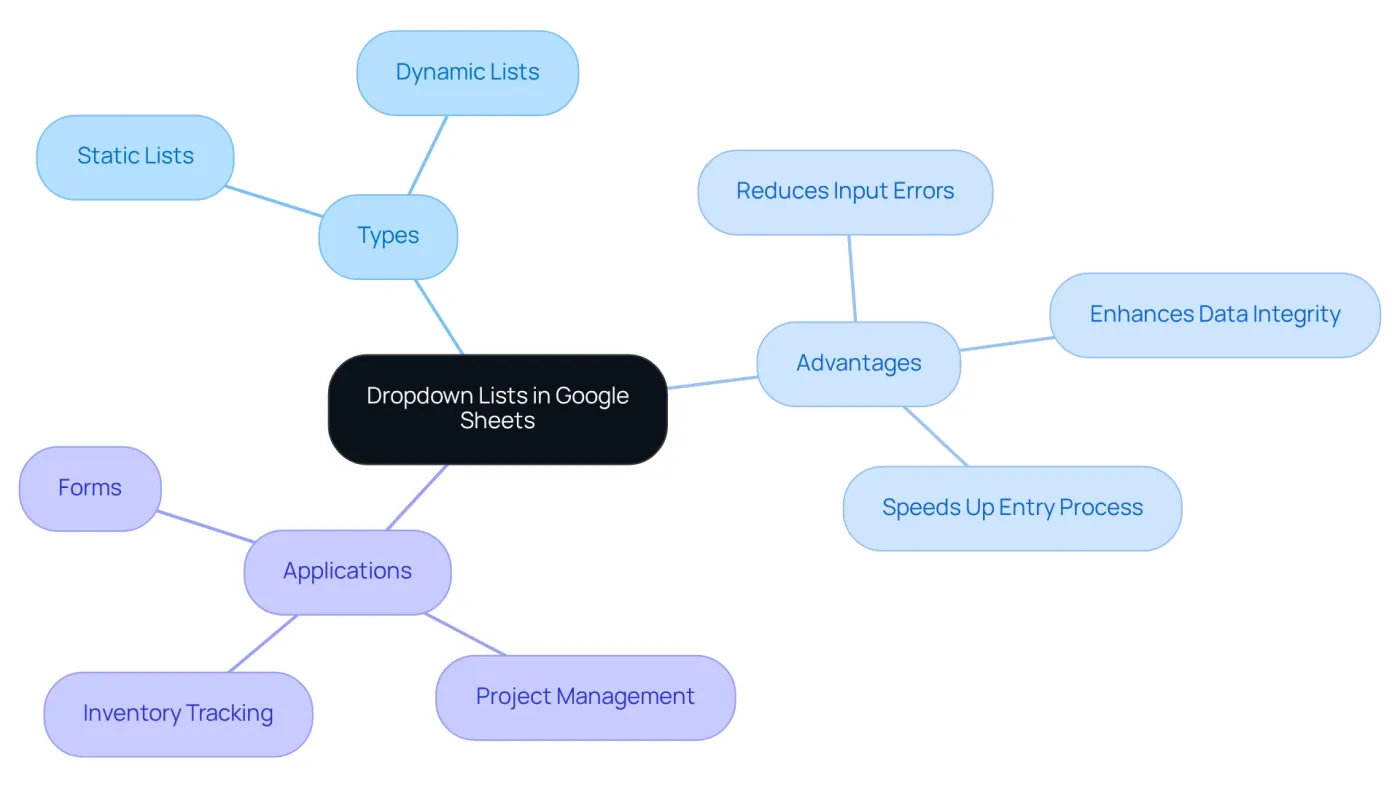
The sheets drop down list in Google Sheets empowers users to select values from a predefined list, streamlining data entry and minimizing errors. This feature is particularly advantageous in contexts where consistent input is crucial, such as forms, surveys, or information tracking. Grasping the mechanics of dropdowns is essential for maximizing their effectiveness. Here are key considerations:
- Types of Dropdowns: There are two primary types of dropdowns: static lists, where options are manually entered, and dynamic lists, which pull options from a designated range of cells.
- Advantages: Implementing dropdowns enhances data integrity, reduces input errors, and speeds up the entry process.
- Applications: Dropdowns find common use in project management, inventory tracking, and any scenario where predefined choices are advantageous.
By comprehending these concepts, you will be well-prepared to create and customize selection menus effectively.
Create Your First Dropdown List
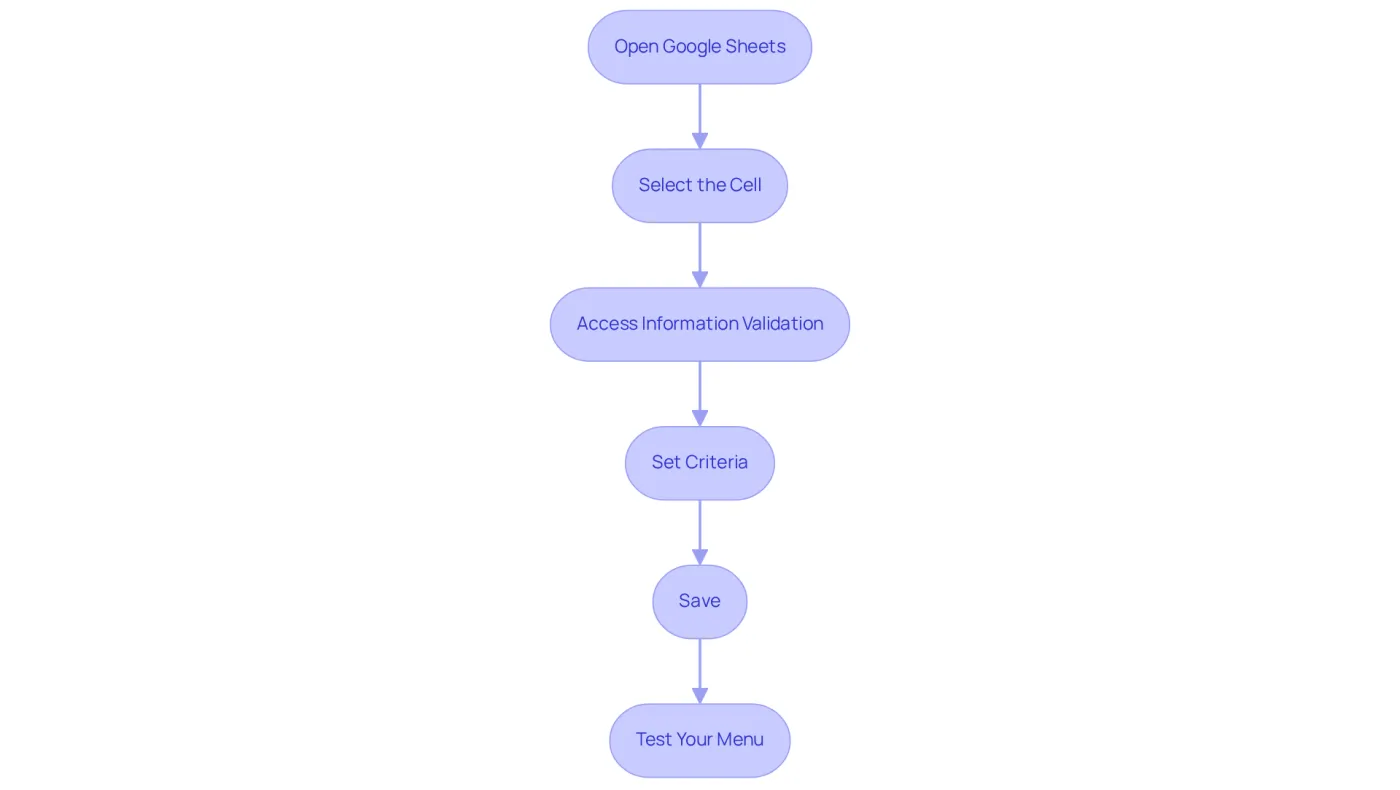
Creating your first selection list with the sheets drop down list in Google Sheets can significantly enhance your data entry efficiency. Follow these straightforward steps to set it up:
- Open Google Sheets: Launch your Google Sheets document.
- Select the Cell: Click on the cell where you want the dropdown to appear.
- Access Information Validation: Navigate to the menu, click on
Information, and selectInformation validation. - Set Criteria: In the Data validation window, choose
Itemsfor a static collection orRangefor a dynamic selection.- For a fixed collection, input your options separated by commas (e.g.,
Option 1, Option 2, Option 3). - For a dynamic collection, select the range of cells containing your options.
- For a fixed collection, input your options separated by commas (e.g.,
- Save: Click
Saveto apply your changes. - Test Your Menu: Click the arrow in the selected cell to view your options.
By implementing these steps, you will have successfully created a sheets drop down list for your selection menu. This not only streamlines your data entry tasks but also enhances the overall functionality of your spreadsheet.
Customize Your Dropdown List
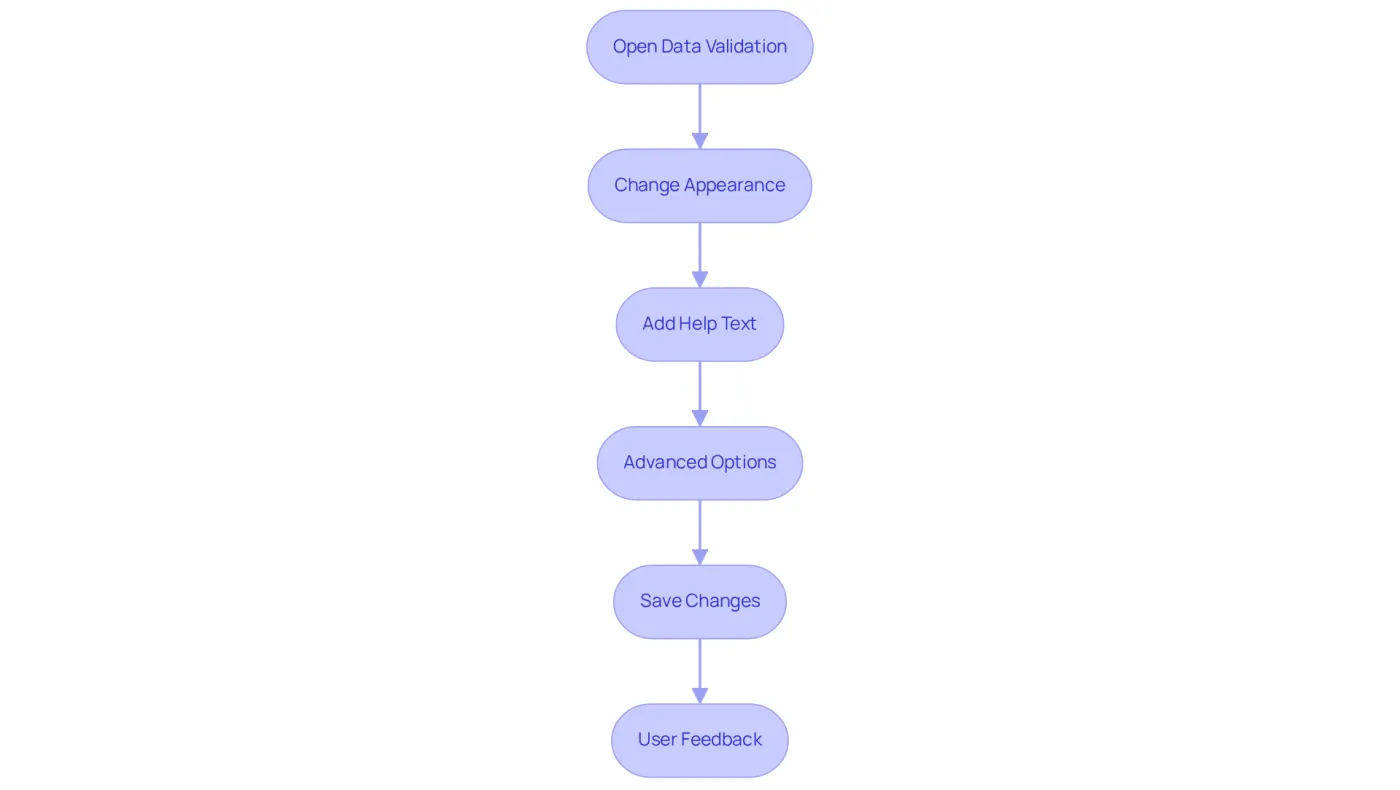
Tailoring your selection menu can significantly enhance both its functionality and aesthetic appeal. Here’s how to effectively customize your dropdown list in Google Sheets:
- Open Data Validation: Select the cell containing the list and navigate to
Data>Data validation. - Change Appearance: Improve the visual aspect by altering the background color of the selection options through conditional formatting. Choose the cell, navigate to
Format, thenConditional formatting, and set rules based on the list values. As design expert Don Norman states, "If you want to create a great product, you have to start by understanding the people who will use it." This highlights the importance of customizing your options to align with user preferences. - Add Help Text: In the Data validation window, include help text that appears when users hover over the list. This guidance assists them in making informed selections.
- Advanced Options: Consider advanced features such as allowing users to input values not included in the selection menu or displaying a warning when invalid data is entered. This enhances flexibility and user control. Blake Ross emphasizes that "the next big thing is the one that makes the last big thing usable," underscoring the need for intuitive design choices.
- Save Changes: After implementing your customizations, click
Saveto apply the changes.
By personalizing your sheets drop down list, you create a more engaging and user-friendly experience, ultimately enhancing interaction with your spreadsheet. Design experts note that enhancing usability through thoughtful customization can lead to increased user satisfaction and productivity. Furthermore, as Teresa Torres proposes, continuous user research is crucial in understanding how to best address user requirements, making it essential to gather feedback on your menu customizations.
Troubleshoot Dropdown List Issues
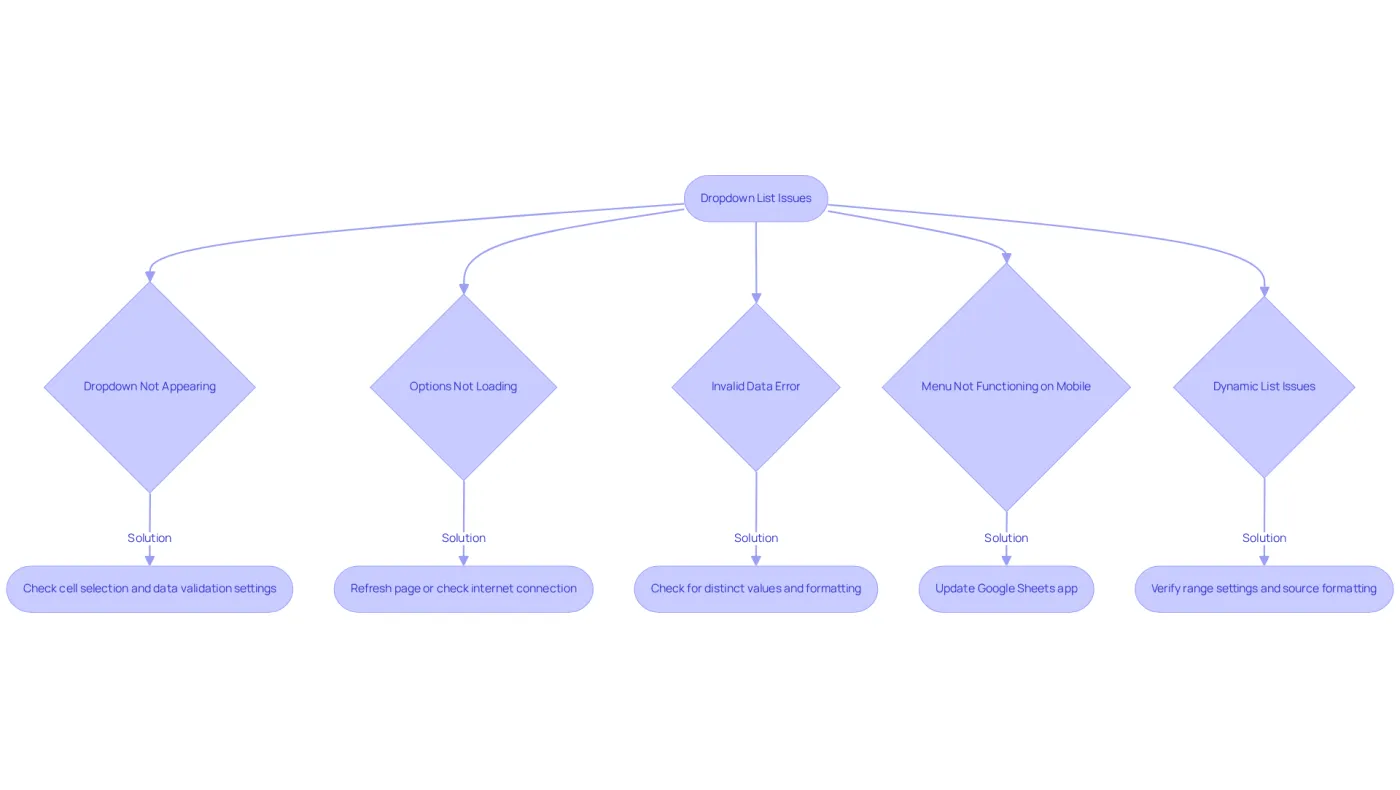
When encountering issues with dropdown lists in Google Sheets, it’s crucial to address these common problems effectively:
- Dropdown Not Appearing: Ensure the correct cell is selected and that data validation settings are properly configured. If using a dynamic collection, verify that the range is accurate.
- Options Not Loading: If menu options fail to load, refresh the page or check your internet connection. A simple reload often resolves this issue.
- Invalid Data Error: An error when selecting an option may indicate that the values in your selection are not distinct or are improperly formatted. Look for leading or trailing spaces in your collection that could cause this problem.
- Menu Not Functioning on Mobile: If the menu works on desktop but not on mobile, ensure your Google Sheets app is updated, as some features may not be fully supported on mobile devices.
- Dynamic List Issues: If your dropdown list isn't updating dynamically, check the range settings and confirm that the source information is correctly formatted and accessible.
Incorporating information validation is essential for maintaining accuracy and consistency. According to Coursera Staff, "Information validation enables you to confirm the information in your spreadsheet is error-free through the creation of predefined rules that restrict the values you can enter into cells." By implementing these troubleshooting strategies and understanding the importance of data validation, you can effectively address common issues with the sheets drop down list and ensure smooth functionality in your Google Sheets.
Conclusion
Mastering dropdown lists in Google Sheets can revolutionize data entry and management within spreadsheets. By grasping the mechanics of dropdowns, users can significantly boost data integrity and streamline workflows. This guide has offered a thorough overview of creating, customizing, and troubleshooting dropdown lists, underscoring their critical role in ensuring consistent and error-free data entry.
Key insights explored include the various types of dropdowns and their benefits in enhancing data accuracy. Practical steps for implementation were also discussed. From setting up static and dynamic lists to customizing their appearance and functionality, each aspect is vital for improving user experience. Additionally, troubleshooting common issues empowers users to maintain smooth operations without interruptions.
As the use of dropdown lists evolves, embracing these features can lead to increased productivity and efficiency in data management. Users are encouraged to explore the customization options available and leverage the troubleshooting tips provided to tackle any challenges. By doing so, the full potential of Google Sheets can be realized, making data handling not only easier but also more effective.
Frequently Asked Questions
What is a dropdown list in Google Sheets?
A dropdown list in Google Sheets allows users to select values from a predefined list, which streamlines data entry and minimizes errors.
What are the types of dropdown lists available in Google Sheets?
There are two primary types of dropdowns: static lists, where options are manually entered, and dynamic lists, which pull options from a designated range of cells.
What are the advantages of using dropdown lists in Google Sheets?
Implementing dropdowns enhances data integrity, reduces input errors, and speeds up the entry process.
In what scenarios are dropdown lists commonly used?
Dropdowns are commonly used in project management, inventory tracking, and any situation where predefined choices are beneficial.
Why is it important to understand dropdown lists in Google Sheets?
Understanding dropdowns is essential for maximizing their effectiveness and for creating and customizing selection menus effectively.