

Introduction
Mastering the SUMIF function is essential for finance professionals aiming to enhance their data analysis and decision-making processes. This powerful tool enables users to sum values based on specific conditions, and when combined with multiple criteria, it paves the way for more sophisticated analyses. Yet, navigating the complexities of the SUMIF function can be challenging. How can one effectively apply it to achieve accurate and insightful financial reporting?
By understanding and utilizing the SUMIF function, finance professionals can streamline their reporting processes, ultimately leading to better-informed decisions. This not only saves time but also enhances the accuracy of financial insights. As you delve deeper into the capabilities of SUMIF, you'll discover how it can transform your approach to data analysis.
Understand the SUMIF Function Basics
The SUM calculation tool, specifically the sum if two criteria function, stands as a powerful resource in spreadsheet software, designed to total values based on specific conditions. The fundamental syntax of the SUMIF function is as follows:
=SUMIF(range, criteria, [sum_range])
- range: This refers to the range of cells evaluated against the criteria.
- criteria: This defines the condition that must be met for a cell to be included in the sum. It can be a number, text, or expression (e.g., ">10", "=Apple").
- sum_range: This optional parameter specifies the actual cells to sum. If omitted, the function sums the cells in the range.
For instance, if you have a list of sales data and wish to sum all sales exceeding $100, you would use:
=SUMIF(A1:A10, ">100")
Mastering the SUMIF function is essential for finance professionals. It enables efficient and accurate data analysis, facilitating informed decision-making in financial contexts. In fact, 96% of FP&A experts utilize spreadsheets as a planning tool at least weekly, underscoring the importance of mastering capabilities like conditional summation. As Mike Dion, a senior finance leader, aptly puts it, "Learning to automate your finance and accounting work isn’t just about making things easier; it’s about transforming your entire approach to finance."
Furthermore, for those needing to evaluate data against multiple standards, the ability to sum if two criteria enhances the functionality of traditional summation methods, allowing for more complex data analysis. The practical applications of this function can significantly elevate financial reporting and analysis, making it an indispensable skill in the finance toolkit.

Apply SUMIF with Two Criteria: Step-by-Step Instructions
To sum if two criteria, you should use the SUMIFS formula, which is specifically designed for this purpose. Here’s a step-by-step guide to help you implement it effectively:
-
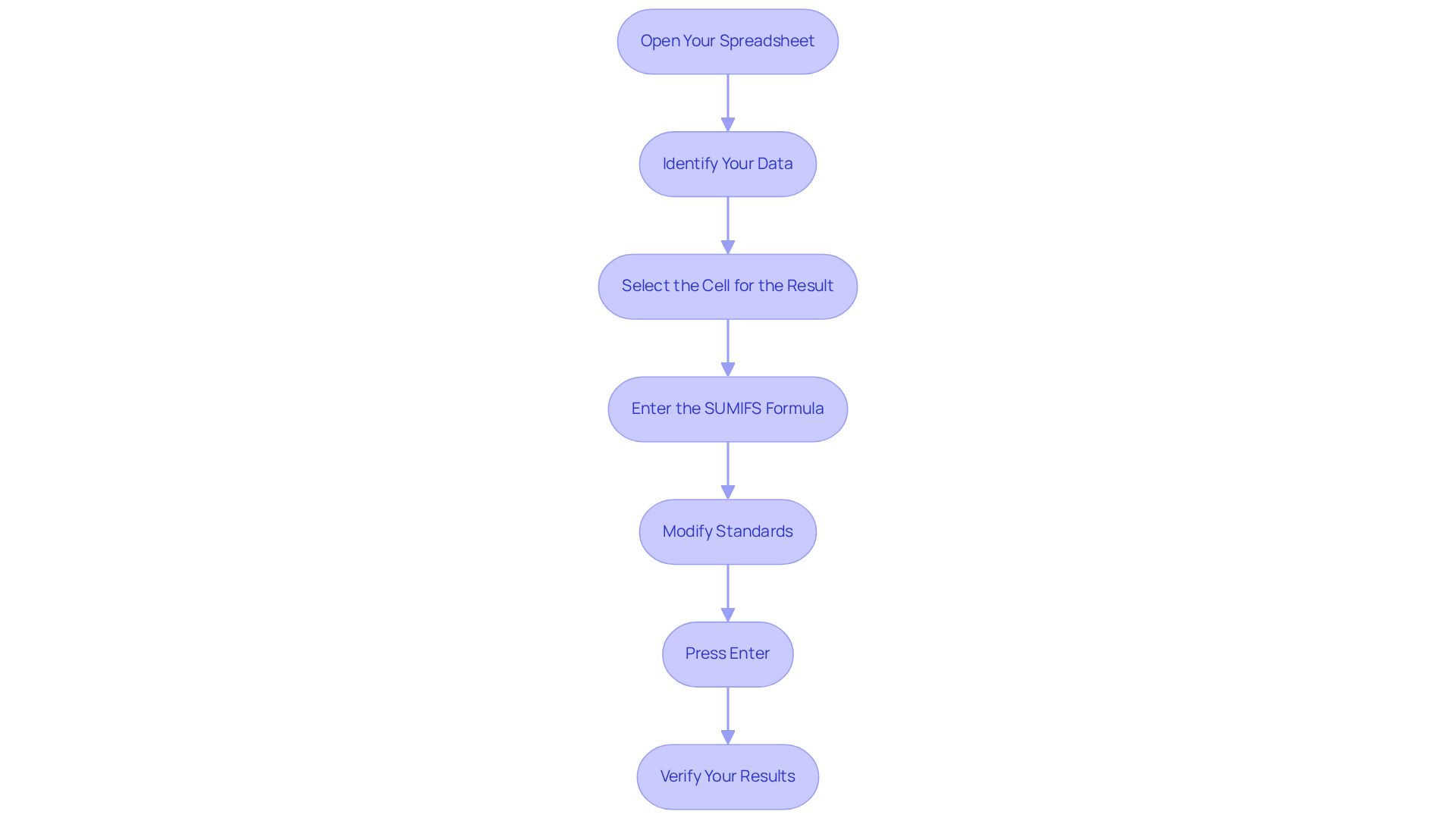
Open Your Spreadsheet: Start by launching Google Sheets and opening the spreadsheet where you want to perform the calculation.
-
Identify Your Data: Ensure you have a dataset ready. For instance, consider sales data in columns A (Product) and B (Sales Amount).
-
Select the Cell for the Result: Click on the cell where you want the result of your SUMIFS function to appear.
-
Enter the SUMIFS Formula: Input the following formula:
=SUMIFS(B:B, A:A, "Product1", C:C, "Region1")In this example, B:B represents the sum range (Sales Amount), A:A is the first criteria range (Product), and C:C is the second criteria range (Region).
-
Modify Standards: Replace "Product1" and "Region1" with the specific criteria you wish to apply. You can also refer to cells that contain these standards.
-
Press Enter: Hit Enter to execute the formula. The cell will now display the sum of sales for the specified product in the specified region.
-
Verify Your Results: Cross-check the result with your data to ensure accuracy. If the outcome seems incorrect, verify your standards and ranges.
By following these steps, you can effectively sum if two criteria, which will significantly enhance your data analysis capabilities.
Troubleshoot Common Issues with SUMIF Functions
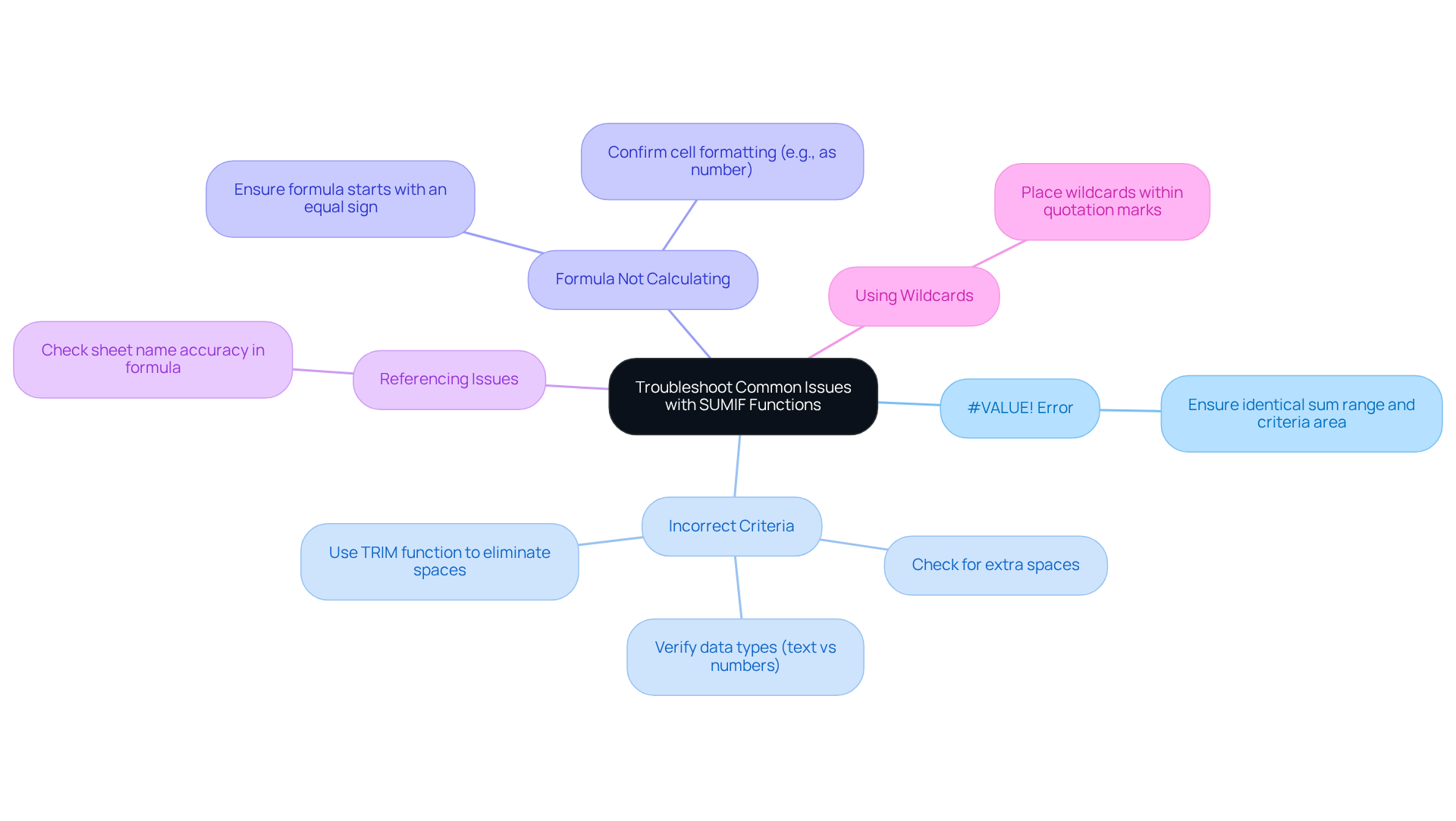
When using the SUMIF function, users often face common issues that can impede accurate data analysis. Here are some effective troubleshooting tips:
-
#VALUE! Error: This error typically arises when the intervals in your formula differ in size. Ensure that both the sum range and the criteria area are identical to avoid this problem.
-
Incorrect Criteria: If your criteria don’t yield the expected results, check for extra spaces or mismatched data types (e.g., text versus numbers). Utilizing the TRIM function can help eliminate any leading or trailing spaces that may affect your results.
-
Formula Not Calculating: If the formula fails to calculate, confirm that the cell is formatted correctly (e.g., as a number) and that the formula begins with an equal sign. This step is crucial for proper execution.
-
Referencing Issues: When your conditional summation formula points to another sheet, ensure that the sheet name is accurately included in the formula. For example:
=SUMIF(Sheet2!A:A, "Product1", Sheet2!B:B)
- Using Wildcards: If you’re using wildcards in your criteria (e.g., "Product"), make sure they are correctly placed within quotation marks to function properly.
Being aware of these common issues and their solutions can significantly enhance your ability to troubleshoot functions that sum if two criteria, ultimately leading to more accurate data analysis. Notably, statistics reveal that nearly 90% of spreadsheets contain errors, and about 50% of spreadsheet models used in large businesses have material defects. This underscores the importance of meticulous attention to detail in financial modeling.
Conclusion
Mastering the SUMIF function with multiple criteria is crucial for finance professionals aiming to elevate their data analysis skills. This powerful tool streamlines the process of summing values based on specific conditions, empowering users to make informed decisions backed by precise data. By grasping the syntax and practical applications of the SUMIF and SUMIFS functions, finance experts can revolutionize their approach to data management and reporting.
In this guide, we’ve thoroughly explored key concepts such as:
- The structure of the SUMIF function
- Step-by-step instructions for applying SUMIFS
- Common troubleshooting tips
The importance of mastering these functions is highlighted by the fact that a significant majority of finance professionals depend on spreadsheets for their analytical needs. By implementing the strategies outlined, users can effectively navigate potential pitfalls and ensure their data remains reliable.
In a landscape where accurate financial reporting is paramount, the ability to utilize advanced functions like SUMIF with two criteria becomes an essential skill. Embracing these techniques not only enhances individual proficiency but also bolsters the overall integrity of financial analysis. As organizations increasingly rely on data-driven insights, mastering the SUMIF function is a vital step toward achieving excellence in finance.
Frequently Asked Questions
What is the SUMIF function used for?
The SUMIF function is used to total values in spreadsheet software based on specific conditions.
What is the basic syntax of the SUMIF function?
The basic syntax of the SUMIF function is =SUMIF(range, criteria, [sum_range]).
What does the 'range' parameter in the SUMIF function refer to?
The 'range' parameter refers to the range of cells that are evaluated against the specified criteria.
What is meant by the 'criteria' in the SUMIF function?
The 'criteria' defines the condition that must be met for a cell to be included in the sum. It can be a number, text, or expression (e.g., ">10", "=Apple").
What is the purpose of the 'sum_range' parameter in the SUMIF function?
The 'sum_range' is an optional parameter that specifies the actual cells to sum. If omitted, the function sums the cells in the range.
Can you provide an example of how to use the SUMIF function?
For example, to sum all sales exceeding $100 from a list of sales data, you would use: =SUMIF(A1:A10, ">100").
Why is mastering the SUMIF function important for finance professionals?
Mastering the SUMIF function is essential for finance professionals as it enables efficient and accurate data analysis, facilitating informed decision-making in financial contexts.
How frequently do finance professionals use spreadsheets as a planning tool?
According to the article, 96% of FP&A experts utilize spreadsheets as a planning tool at least weekly.
What advantage does summing with two criteria provide?
Summing with two criteria enhances the functionality of traditional summation methods, allowing for more complex data analysis.
How can the SUMIF function impact financial reporting and analysis?
The practical applications of the SUMIF function can significantly elevate financial reporting and analysis, making it an indispensable skill in the finance toolkit.