
Master the Excel Formula for If a Cell Contains Text in Google Sheets
Learn to use the excel formula for if a cell contains certain text in Google Sheets effectively.

Introduction
Mastering spreadsheet applications is crucial for elevating your data management skills, particularly when transitioning from Excel to Google Sheets. This guide explores the intricacies of utilizing the IF formula to check if a cell contains specific text, enabling users to perform conditional analyses with confidence. With various functions and nuances, such as case sensitivity and partial matches, how can you effectively navigate these features to enhance your spreadsheet experience?
By understanding these elements, you can unlock the full potential of your spreadsheets, making data management not just easier, but also more efficient. Imagine being able to analyze data with precision and clarity, transforming your workflow and decision-making processes. Let's delve deeper into how mastering these tools can empower you.
Understand Excel Formulas in Google Sheets
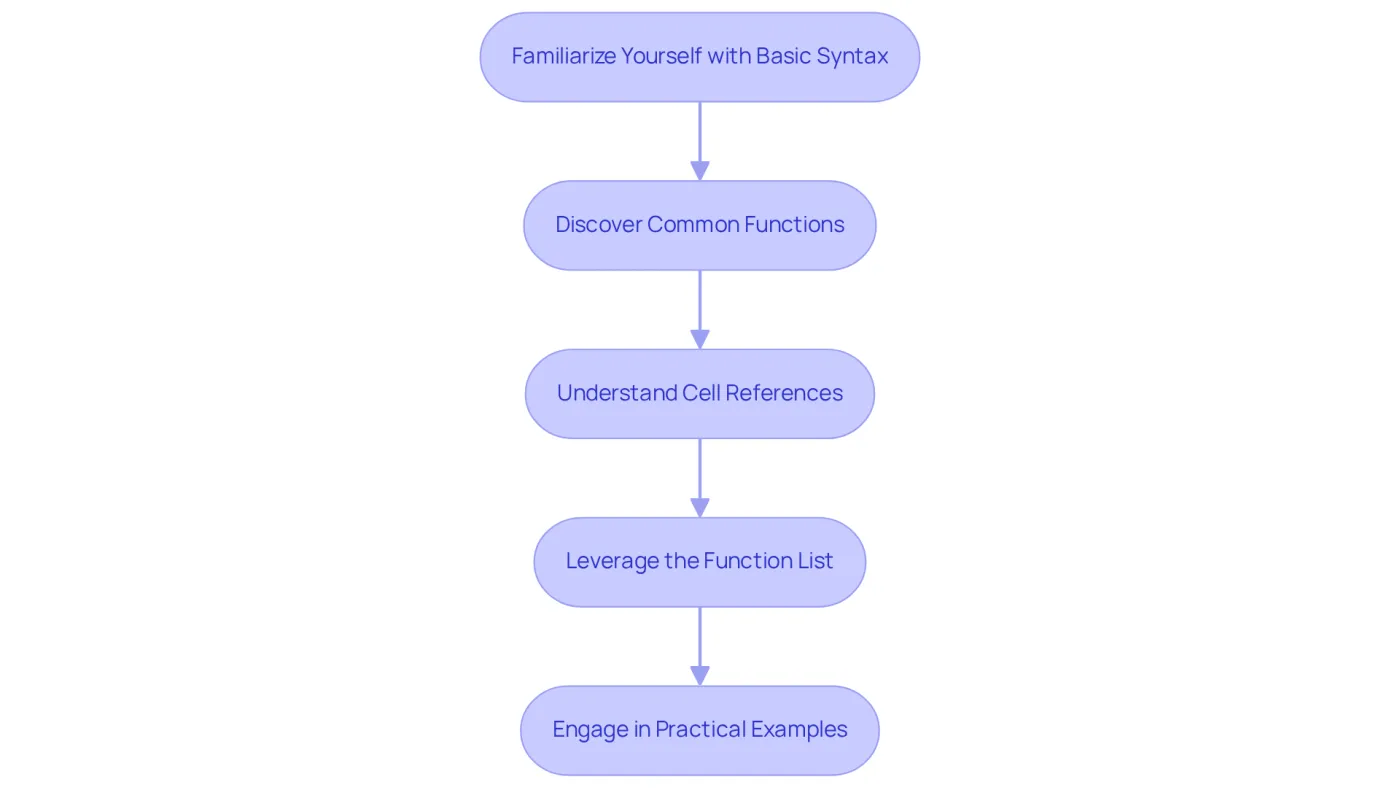
To effectively harness calculations in your application, understanding their correlation with Excel is essential. Here’s a structured guide to get you started:
- Familiarize Yourself with Basic Syntax: In Google Sheets, every calculation begins with an equal sign (
=). For instance, to sum two cells, you would write=A1 + B1. - Discover Common Functions: Functions such as
SUM,AVERAGE, andIFoperate similarly across both platforms. For example,=IF(A1 > 10, "Yes", "No")checks if the value in A1 exceeds 10. - Understand Cell References: Learn how to reference cells effectively. Use relative references (e.g.,
A1) for dynamic calculations, or absolute references (e.g.,$A$1) to keep a reference constant when copying formulas. - Leverage the Function List: The spreadsheet application provides a function list accessible via the
Insertmenu. Familiarizing yourself with this list can unveil new functions that enhance your spreadsheet capabilities. - Engage in Practical Examples: Create sample spreadsheets to practice these calculations. For instance, try building a budget tracker using an excel formula for if a cell contains certain text, along with
SUMandIFfunctions, to help categorize your expenses.
By mastering these fundamentals, you will be well-equipped to implement more advanced calculations in your spreadsheet application.
Apply the IF Formula to Check Cell Content
Mastering the IF Formula in Google Sheets
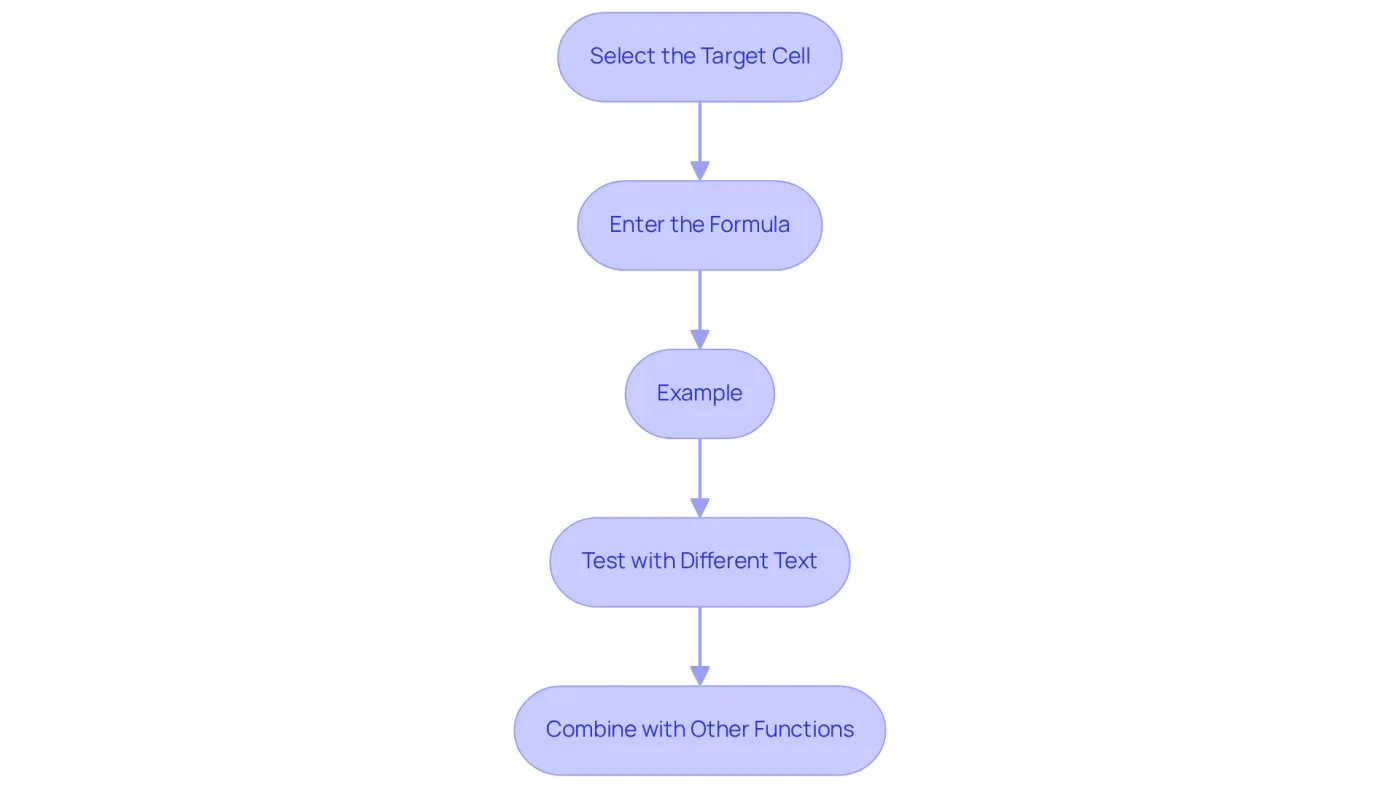
To effectively utilize the IF formula in Google Sheets for checking if a cell contains specific text, follow these essential steps:
- Select the Target Cell: Begin by clicking on the cell where you want the outcome of the IF calculation to appear.
- Enter the Formula: Input
=IF(REGEXMATCH(A1, "text"), "True Result", "False Result"). Be sure to replaceA1with the cell you wish to examine, and use the excel formula for if a cell contains certain text to indicate the specific text you are searching for. - Example: For instance, if you want to verify whether cell A1 includes the word "Apple", your expression would look like this:
=IF(REGEXMATCH(A1, "Apple"), "Yes", "No"). This will return "Yes" if A1 contains "Apple" and "No" otherwise. - Test with Different Text: Modify the text in A1 to observe how the calculation responds. This hands-on approach will deepen your understanding of the excel formula for if a cell contains certain text and how it operates in practice.
- Combine with Other Functions: You can enhance your formulas by nesting IF statements or combining them with other functions for more complex logic. For example,
=IF(REGEXMATCH(A1, "Apple"), "Fruit", IF(REGEXMATCH(A1, "Carrot"), "Vegetable", "Other"))checks for multiple conditions.
By mastering the IF function, you empower yourself to create robust conditional statements that significantly enhance your data analysis capabilities.
Explore Variations: Case Sensitivity and Partial Matches
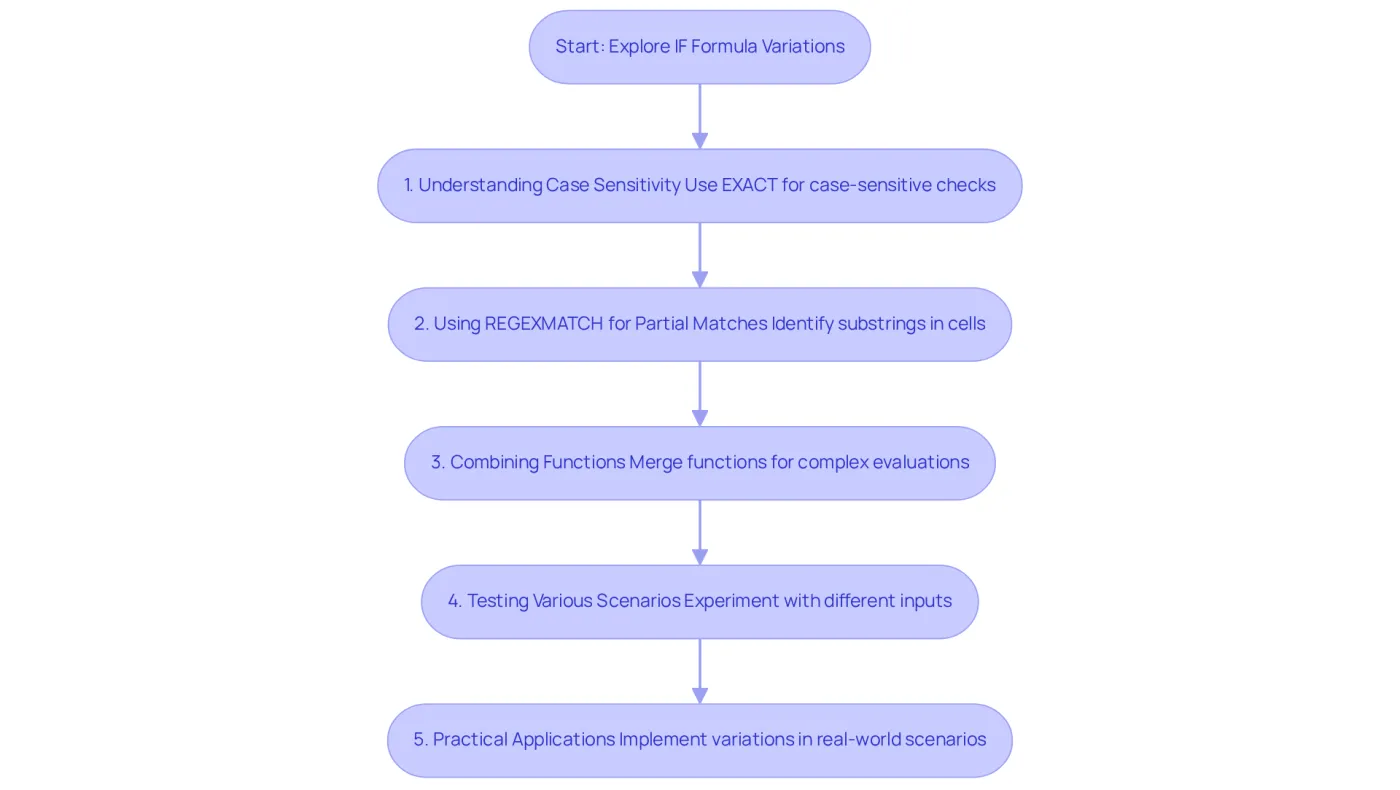
To explore variations of the IF formula in Google Sheets, particularly focusing on case sensitivity and partial matches, follow these steps:
-
Understanding Case Sensitivity: Google Sheets functions are case-insensitive by default. To perform a case-sensitive verification, utilize the
EXACTfunction. For example,=IF(EXACT(A1, "Apple"), "Match", "No Match")checks if A1 precisely matches "Apple" with the same case. -
Using REGEXMATCH for Partial Matches: To identify if a cell contains a substring, employ
[REGEXMATCH](https://coursera.org/articles/regex-match-google-sheets). For instance, the excel formula for if a cell contains certain text,=IF(REGEXMATCH(A1, "App"), "Contains App", "Does Not Contain"), will return "Contains App" if A1 includes any text containing "App". -
Combining Functions: These functions can be merged for more complex evaluations. For instance,
=IF(AND(EXACT(A1, "Apple"), REGEXMATCH(A1, "App")), "Exact and Contains", "No Match")checks both conditions simultaneously. -
Testing Various Scenarios: Experiment with different text inputs in A1 to observe how the calculations respond. This hands-on approach will deepen your understanding of case sensitivity and partial matches.
-
Practical Applications: Implement these variations in real-world scenarios, such as filtering data based on specific criteria or categorizing survey responses.
By mastering these variations, you enhance your data analysis capabilities and can effectively use an excel formula for if a cell contains certain text to ensure your calculations are tailored to your specific needs.
Utilize ShortieCuts for Enhanced Functionality
Maximize Your Efficiency with ShortieCuts in Google Sheets
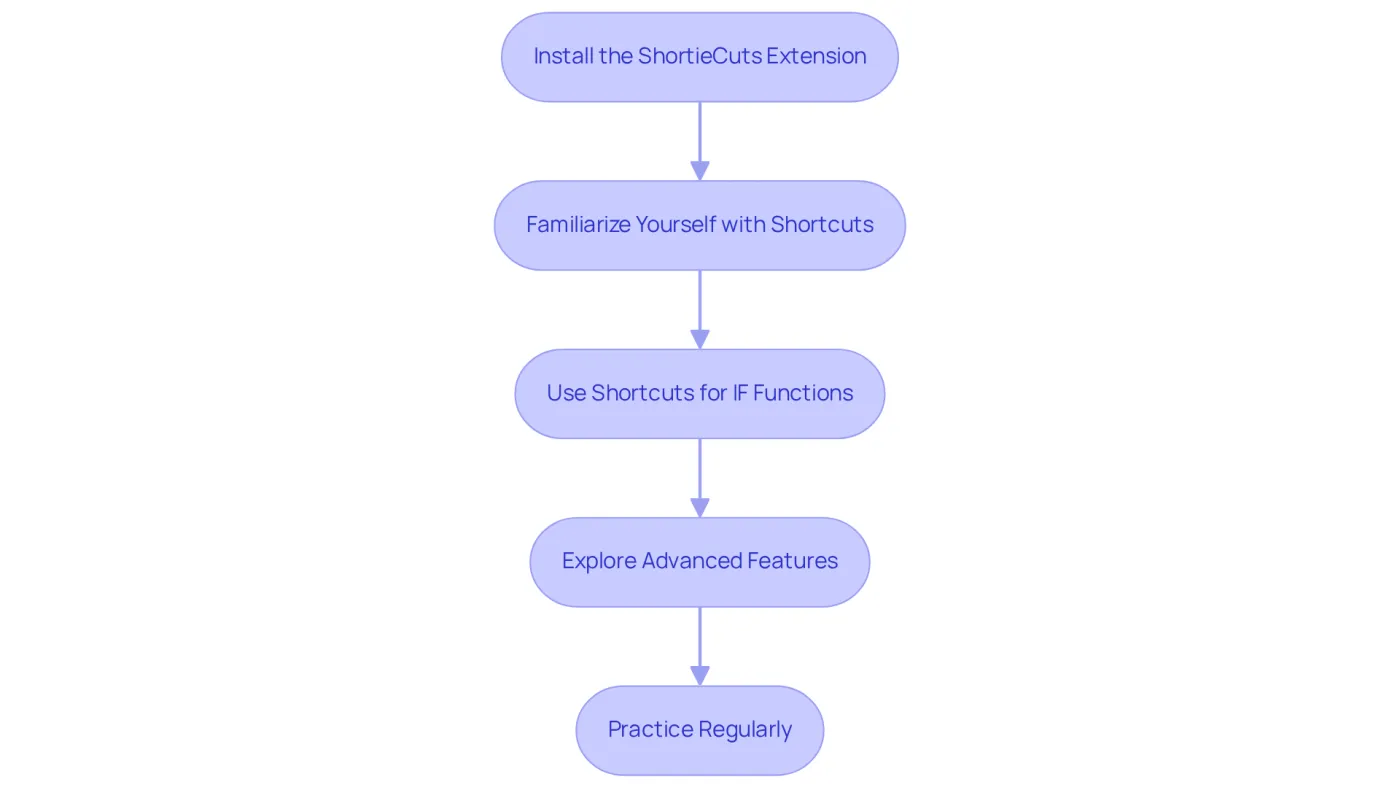
Are you tired of spending too much time on repetitive tasks in Google Sheets? ShortieCuts is here to streamline your workflow and enhance your productivity. Follow these steps to harness its full potential:
- Install the ShortieCuts Extension: Head over to the Chrome Web Store, search for ShortieCuts, and click 'Add to Chrome' to get started.
- Familiarize Yourself with Shortcuts: After installation, take a moment to review the list of Excel-style shortcuts available. These shortcuts cover essential tasks like adding rows, freezing panes, and applying calculations.
- Use Shortcuts for IF Functions: Why type out the excel formula for if a cell contains certain text instead of using shortcuts? Use a shortcut to quickly insert the excel formula for if a cell contains certain text, which saves time and minimizes errors.
- Explore Advanced Features: Don’t miss out on powerful options like equation tracing and goal seeking. For example, formula tracing helps you visualize dependencies in your calculations, simplifying the debugging of complex spreadsheets.
- Practice Regularly: Make ShortieCuts a part of your daily spreadsheet routine. The more you use it, the more proficient you’ll become, ultimately boosting your productivity.
By leveraging ShortieCuts, you can transform your Google Sheets experience, making it more efficient and aligned with your Excel expertise. Start today and see the difference!
Conclusion
Mastering Excel formulas in Google Sheets, especially the IF function, unlocks a realm of opportunities for effective data analysis and management. By grasping the basic syntax, common functions, and practical applications, you can significantly enhance your spreadsheets. This guide has provided a thorough overview, empowering you to apply the IF formula to check cell content, explore variations like case sensitivity and partial matches, and utilize shortcuts for improved efficiency.
Key insights highlight the necessity of mastering the IF formula to create conditional statements, the utility of REGEXMATCH for checking specific text, and the ability to combine functions for complex evaluations. Moreover, the introduction of ShortieCuts streamlines repetitive tasks, fostering a more productive experience in Google Sheets. Engaging with these elements not only boosts your proficiency but also enhances the overall effectiveness of your data handling.
Embracing these techniques empowers you to take control of your data analysis, ensuring that calculations are accurate and tailored to your specific needs. Whether for personal budgeting, project management, or data categorization, mastering these Excel formulas in Google Sheets is an essential skill that leads to informed decision-making and greater efficiency in everyday tasks. Start implementing these strategies today to fully realize your spreadsheet capabilities.
Frequently Asked Questions
What is the starting point for creating calculations in Google Sheets?
Every calculation in Google Sheets begins with an equal sign (=).
Can you give an example of a basic calculation in Google Sheets?
To sum two cells, you would write =A1 + B1.
What are some common functions used in Google Sheets?
Common functions include SUM, AVERAGE, and IF, which operate similarly to those in Excel.
How does the IF function work in Google Sheets?
The IF function checks a condition; for example, =IF(A1 > 10, "Yes", "No") checks if the value in A1 exceeds 10.
What types of cell references can be used in Google Sheets?
You can use relative references (e.g., A1) for dynamic calculations or absolute references (e.g., $A$1) to keep a reference constant when copying formulas.
How can I find more functions to use in Google Sheets?
You can access a function list via the Insert menu in Google Sheets to discover new functions.
What is a practical way to apply these Excel formulas in Google Sheets?
You can create sample spreadsheets, such as a budget tracker, to practice using functions like SUM and IF for categorizing expenses.