
Master the Excel Formula for Percentage Change in Google Sheets
Master the excel formula for percentage change in Google Sheets to enhance your data analysis skills.
Introduction
Understanding the dynamics of percentage change is essential for anyone aiming to analyze data effectively. This metric quantifies shifts over time and empowers individuals to make informed decisions based on trends and patterns. In this article, we will explore the straightforward yet powerful formula for calculating percentage change in Google Sheets, providing you with a practical guide to enhance your analytical skills.
However, what happens when common errors threaten to derail these calculations? This question reveals critical insights that can transform your data management practices and improve your overall spreadsheet proficiency. By mastering these concepts, you not only elevate your analytical capabilities but also position yourself as a knowledgeable professional in your field.
Understand Percentage Change Basics
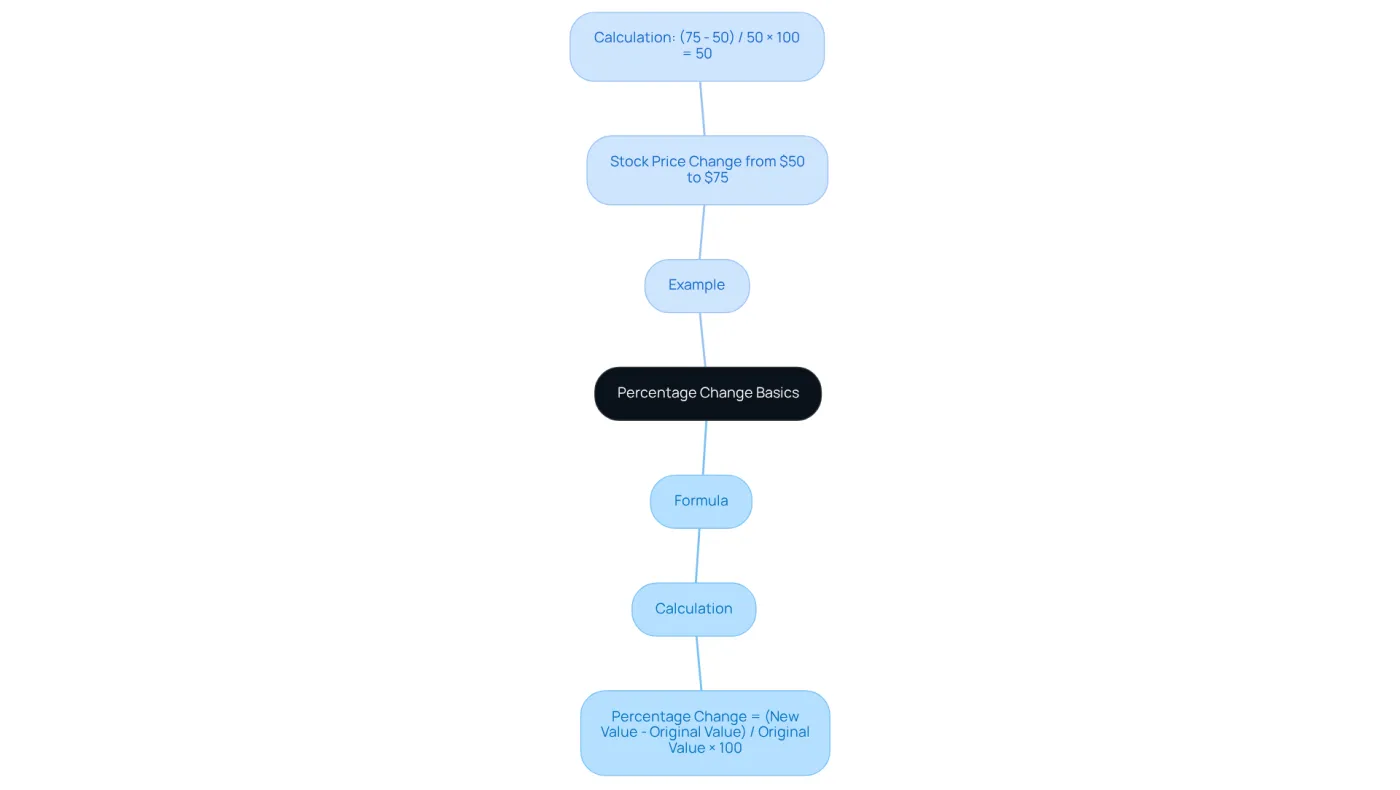
Percentage variation serves as a crucial metric that reveals the extent of change over time. It is calculated by taking the difference between the new value and the initial value, dividing that by the initial value, and then multiplying by 100. The formula is straightforward:
Percentage Change = (New Value - Original Value) / Original Value × 100
Consider this example: if a stock price rises from $50 to $75, the percentage change would be:
Percentage Change = (75 - 50) / 50 × 100 = 50%
Grasping this concept is vital for analyzing trends in data. It empowers you to make informed decisions and communicate changes effectively in reports or presentations. By mastering the excel formula for percentage change, you enhance your analytical skills, which enables you to interpret data with confidence and clarity.
Apply the Percentage Change Formula in Excel
Mastering Percentage Change in Google Sheets with ShortieCuts
Are you looking to streamline your calculations in Google Sheets? Understanding how to apply the excel formula for percentage change can significantly enhance your data analysis capabilities. Here’s how to do it effectively using ShortieCuts:
-
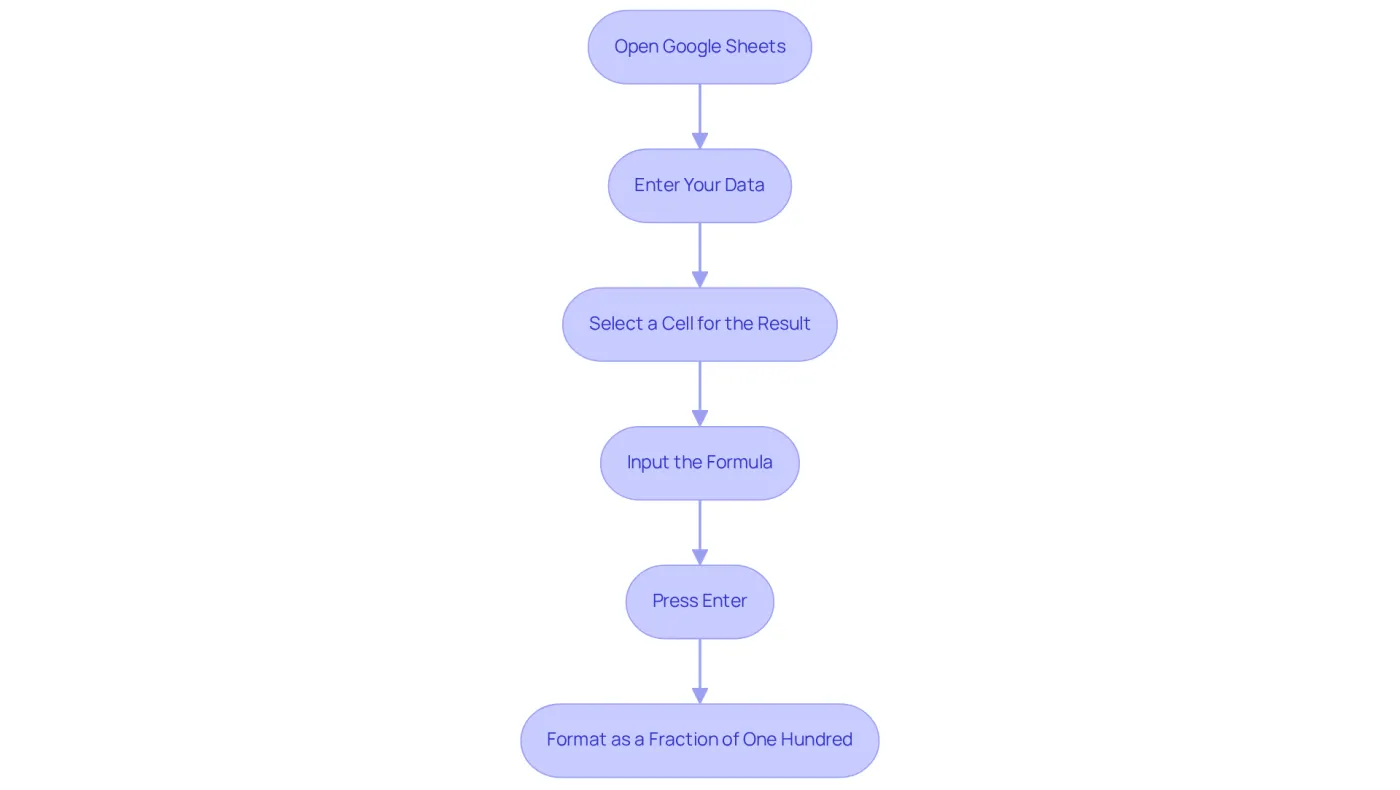
Open Google Sheets: Launch the Google Sheets application and access the spreadsheet where you want to perform the calculation.
-
Enter Your Data: Input the original figure and the new figure in two separate cells. For example, place the original amount in cell A1 and the new amount in cell B1.
-
Select a Cell for the Result: Click on the cell where you want the ratio difference result to appear, such as C1.
-
Input the Formula: In the selected cell, type the following formula:
=((B1 - A1) / A1) * 100This formula calculates the percentage change based on the values in A1 and B1. Understanding the ratio of variance is crucial for contrasting various data sets, such as examining sales trends over time.
-
Press Enter: Hit the Enter key to execute the formula. The cell will now display the proportionate change.
-
Format as a Fraction of One Hundred: To format the result as a fraction of one hundred, select the cell with the result, navigate to the toolbar, and click on the format icon or use the shortcut Ctrl + Shift + %. This will convert the decimal into a percent format.
By following these steps, you can efficiently compute the ratio alteration between two figures in Sheets using the excel formula for percentage change. This method is particularly beneficial for finance professionals, enabling quick analysis of sales trends and performance metrics. For instance, if sales increased from 4.66% to 4.72% over a three-month period, applying this formula provides a clear view of the growth rate, aiding in informed decision-making.
As Zach Bobbitt, creator of Statology, emphasizes, mastering these calculations is vital for effective data analysis in finance. To further enhance your productivity, utilize the ShortieCuts extension: simply hit "ALT" (or Option on Mac) to reveal key-tips for shortcuts that can streamline your workflow, especially when handling larger datasets. Additionally, consider using the ARRAYFORMULA function to further optimize calculations across multiple rows, boosting efficiency in your analysis.
Troubleshoot Common Errors in Percentage Change Calculations
When calculating percentage change in Google Sheets, users often encounter several common errors. Understanding these pitfalls is essential for accurate data interpretation and can significantly enhance your spreadsheet proficiency.
-
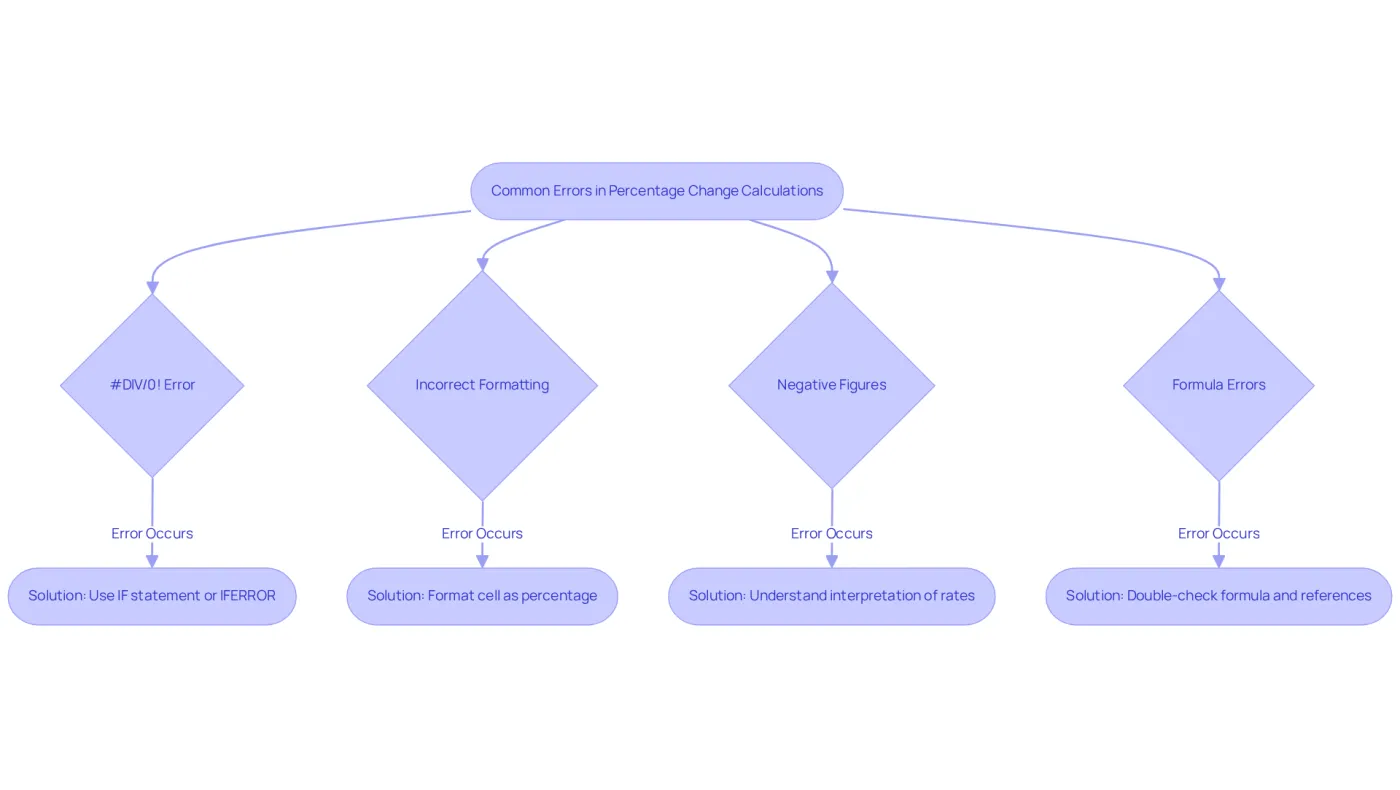
#DIV/0! Error: This error arises when the original amount is zero. To prevent this, ensure that the original value is not zero before performing the calculation. You can use an IF statement to handle this:
=IF(A1=0, "N/A", ((B1 - A1) / A1) * 100)Alternatively, consider using the IFERROR function for a more graceful error management:
=IFERROR(((B1 - A1) / A1) * 100, "N/A") -
Incorrect Formatting: If the result appears as a decimal instead of a percentage, ensure that the cell is formatted correctly. Select the cell and click on the percent icon in the toolbar.
-
Negative Figures: When computing percentage change with negative figures, be mindful of the interpretation. A negative rate indicates a decrease, while a positive rate signifies an increase. Recognizing this distinction is crucial for accurate analysis.
-
Formula Errors: Always double-check your formula for typos or incorrect cell references. Ensure that you are referencing the correct cells for both the original and new values.
Understanding these common errors can greatly improve the accuracy of your calculations when using the excel formula for percentage change in Google Sheets. Research shows that many users struggle with these issues, often leading to misinterpretations of data. For instance, a significant number of American college students mistakenly believed that a 40% decrease followed by a 60% increase resulted in an overall gain. As Will Koehrsen aptly states, "Two percentages that have different base values cannot be directly combined by addition!" By applying these troubleshooting techniques, you can mitigate errors and enhance your spreadsheet skills.
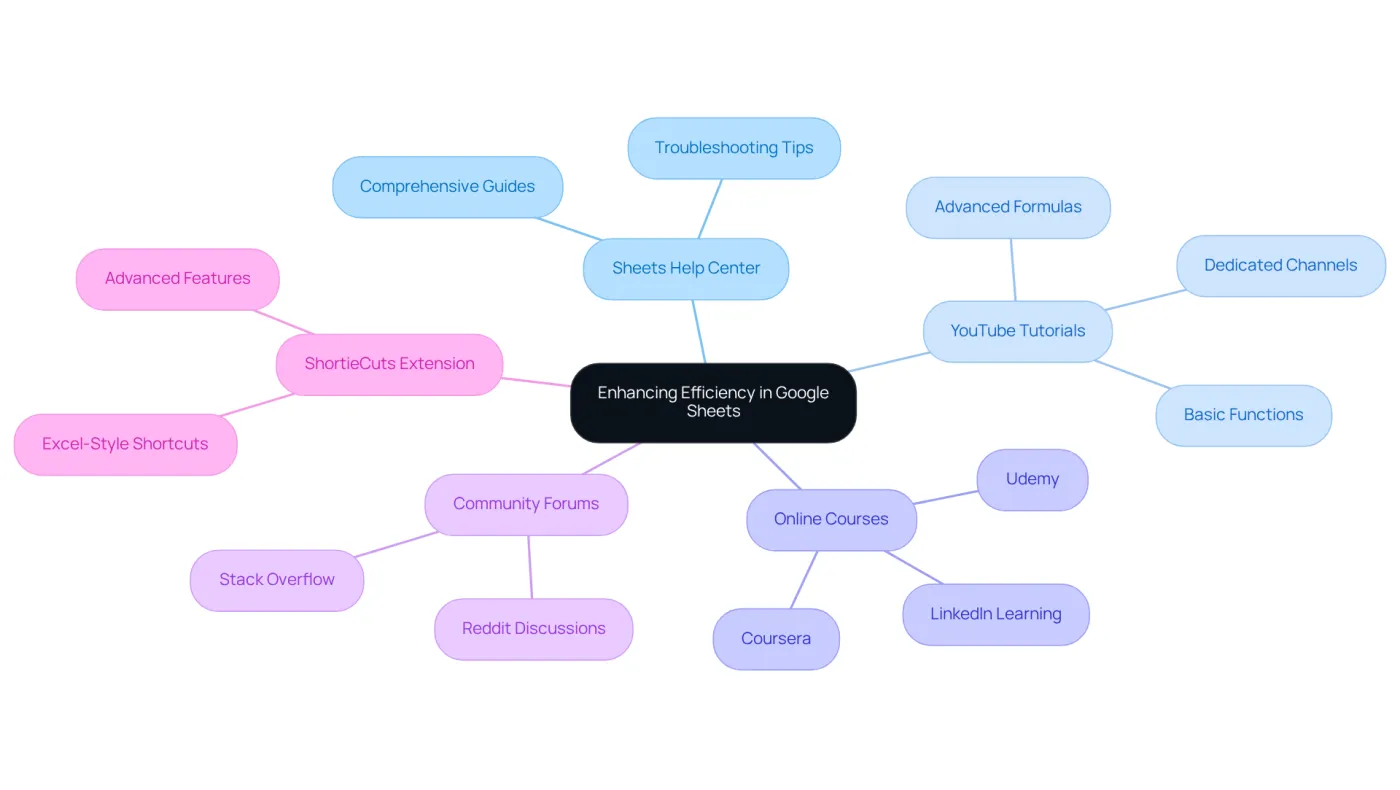
Explore Tools and Resources for Enhanced Spreadsheet Efficiency
Enhance Your Efficiency in Google Sheets
Are you looking to boost your productivity in Google Sheets? Here are some essential tools and resources that can help you master this powerful platform:
- Sheets Help Center: Dive into the official Sheets Help Center for comprehensive guides and troubleshooting tips. Visit Sheets Help to get started.
- YouTube Tutorials: Explore a wealth of video tutorials on YouTube that cover everything from basic functions to advanced formulas. Look for channels dedicated to spreadsheet education.
- Online Courses: Platforms like Coursera, Udemy, and LinkedIn Learning offer targeted courses on Sheets and Excel, helping you develop crucial skills.
- Community Forums: Join discussions on platforms like Reddit or Stack Overflow, where you can ask questions and exchange knowledge with fellow users.
- ShortieCuts Extension: Elevate your Sheets experience with the ShortieCuts Chrome extension. This tool integrates Excel-style shortcuts and advanced features, significantly enhancing your workflow efficiency.
By leveraging these resources, you can sharpen your spreadsheet skills and become more proficient in using Google Sheets. Don't miss out on the opportunity to transform your productivity!
Conclusion
Mastering the calculation of percentage change in Google Sheets is not just an essential skill; it’s a game-changer for anyone looking to enhance their data analysis capabilities. Understanding the formula and its application empowers individuals to track changes over time effectively. This ability is crucial for informed decision-making across various contexts, from finance to business performance.
The straightforward formula for calculating percentage change is easy to grasp, but accuracy in data entry is paramount. This article provides a step-by-step guide for implementation in Google Sheets, ensuring you can apply this knowledge seamlessly. Be aware of common pitfalls, such as division by zero and incorrect formatting. We’ll also explore solutions to troubleshoot these issues, helping you navigate potential challenges with confidence.
Moreover, we highlight valuable resources and tools that can significantly boost your spreadsheet efficiency and proficiency. By mastering the percentage change formula, you not only enhance your analytical skills but also gain the confidence to interpret data effectively. Embracing the available tools and resources can lead to increased productivity and a deeper understanding of data dynamics.
Engaging with these techniques is a crucial step toward becoming a more effective and informed user of Google Sheets. This journey paves the way for successful data analysis and reporting, equipping you with the skills needed to excel in your professional endeavors. Are you ready to take your data analysis to the next level?
Frequently Asked Questions
What is percentage change?
Percentage change is a metric that indicates the extent of change over time, calculated by taking the difference between the new value and the original value, dividing that by the original value, and multiplying by 100.
How is percentage change calculated?
Percentage change is calculated using the formula: Percentage Change = (New Value - Original Value) / Original Value × 100.
Can you provide an example of calculating percentage change?
Yes, for example, if a stock price rises from $50 to $75, the percentage change would be calculated as follows: Percentage Change = (75 - 50) / 50 × 100 = 50%.
Why is understanding percentage change important?
Understanding percentage change is vital for analyzing trends in data, making informed decisions, and effectively communicating changes in reports or presentations.
How can mastering the percentage change formula enhance analytical skills?
Mastering the percentage change formula enhances analytical skills by enabling individuals to interpret data with confidence and clarity.