
Master the Formula to Count Cells in Excel: A Step-by-Step Guide
Learn how to effectively use the formula to count cells in Excel for accurate data analysis.

Introduction
Transforming data management from a tedious task into a streamlined process is possible when you understand how to effectively count cells in Excel. Mastering the COUNT, COUNTA, and COUNTIF functions empowers users to tally numeric entries and analyze data based on specific criteria, significantly enhancing analytical capabilities. Yet, many users encounter common errors and misunderstandings with these functions.
What are the key differences between these counting tools?
How can you avoid pitfalls to ensure accurate data analysis?
By addressing these questions, you can unlock the full potential of Excel for your data management needs.
Understand COUNT and COUNTA Functions in Excel
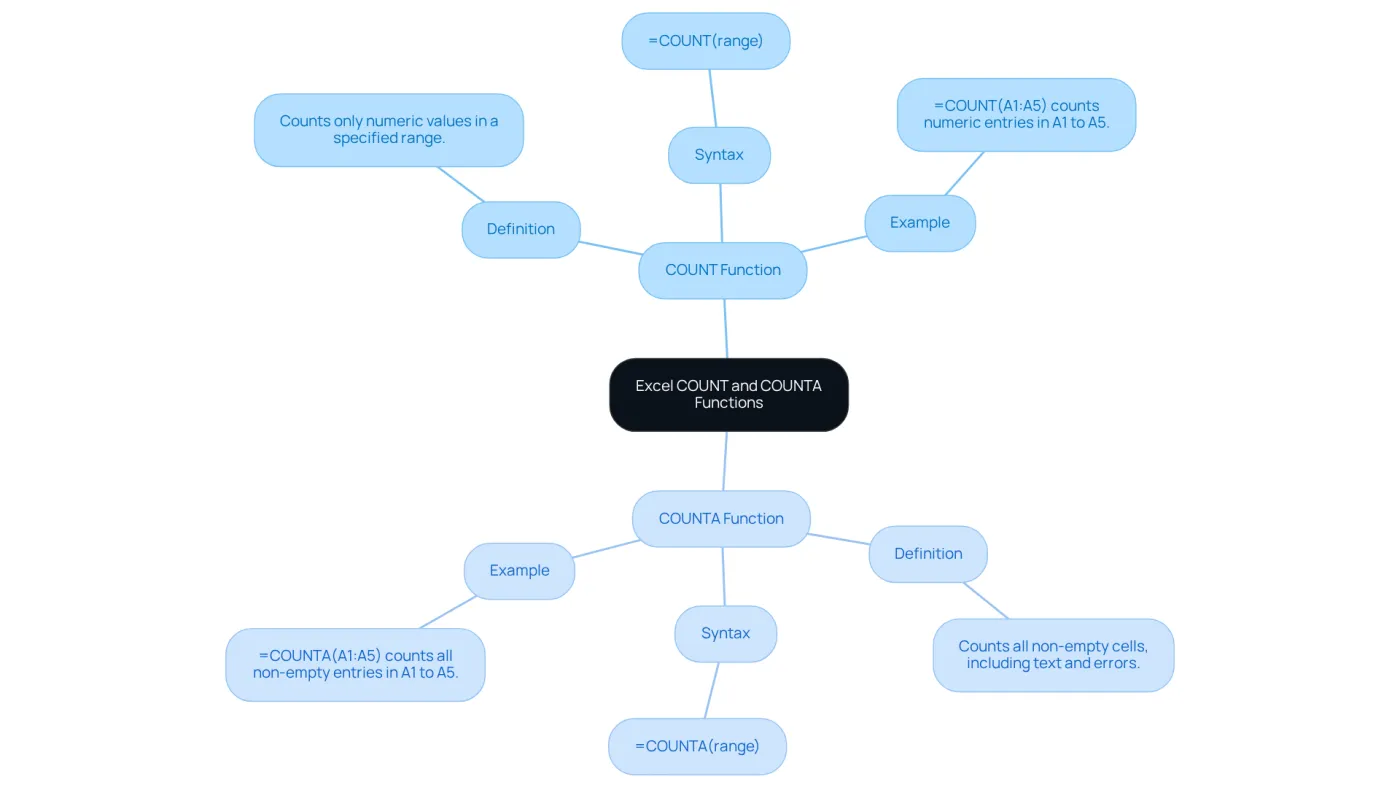
In Excel, the formula to count cells in excel plays a crucial role in tallying the number of entries that contain numeric values within a specified range. Its syntax is straightforward: =COUNT(range). For example, if you have numbers in cells A1 to A5, the formula to count cells in excel =COUNT(A1:A5) will provide the total count of those cells with numeric data.
Conversely, the COUNTA function counts all non-blank entries, regardless of the data type - be it numbers, text, logical values, or others. Its syntax is =COUNTA(range). For instance, =COUNTA(A1:A5) will count all entries that are not empty in the defined range.
Key Differences:
COUNTexclusively counts cells with numeric data.COUNTAcounts all non-empty entries, including text and errors.
Grasping these differences is essential for effective data analysis in Excel, particularly when preparing data for reports or presentations. Mastering these functions not only enhances your analytical skills but also streamlines your workflow, ensuring accuracy in your data handling.
Explore the COUNTIF Function for Conditional Counting
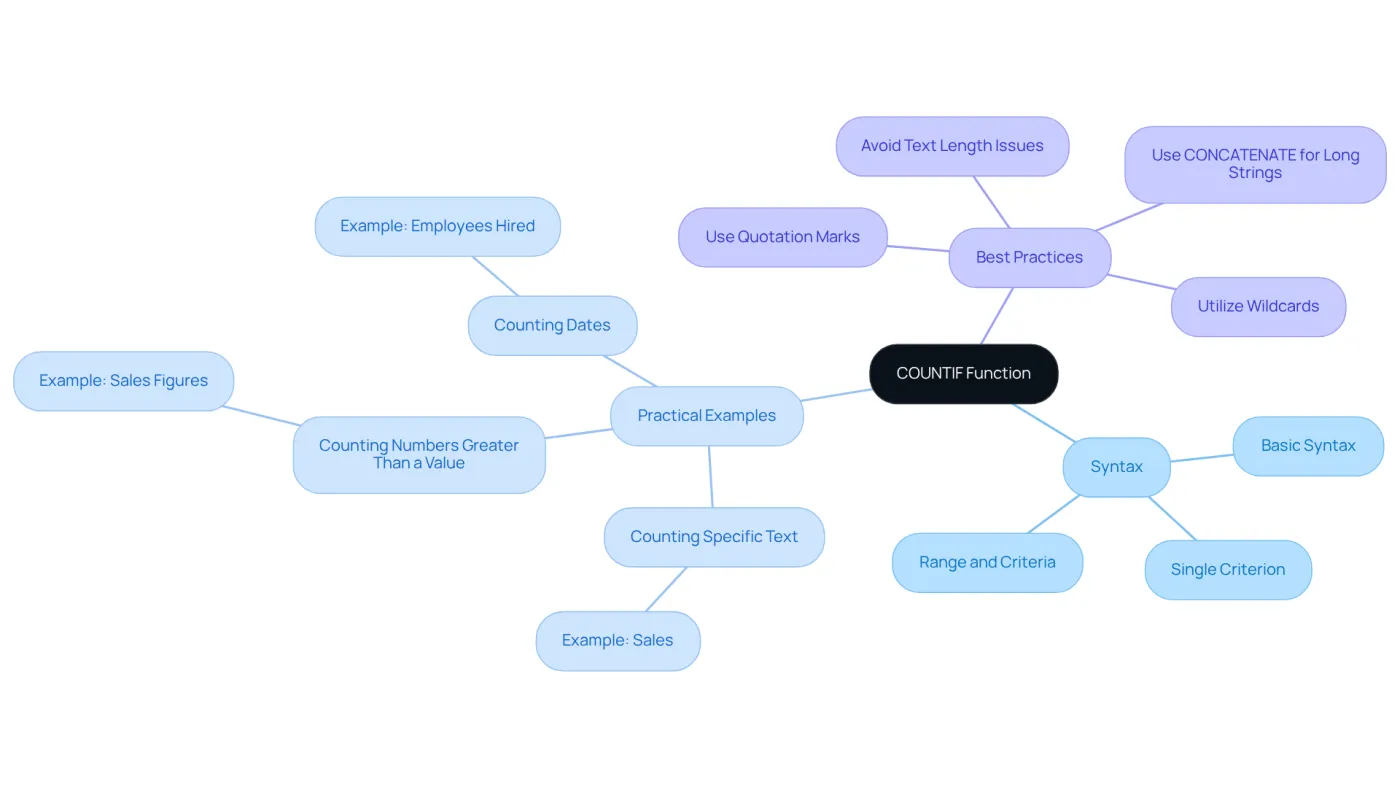
The formula to count cells in Excel is a powerful tool, enabling users to tally entries that meet specific conditions within a defined range. The syntax is straightforward: =COUNTIF(range, criteria). For example, to find out how many times the word 'Apple' appears in cells A1 to A10, you would use =COUNTIF(A1:A10, "Apple"). It's crucial to understand that COUNTIF accommodates only a single criterion; for multiple criteria, the COUNTIFS function is the appropriate choice.
Practical Examples:
- Counting Specific Text: To count occurrences of 'Sales' in a list, apply
=COUNTIF(B1:B20, "Sales"). - Counting Numbers Greater Than a Value: To determine how many sales figures exceed 1000, use
=COUNTIF(C1:C20, ">1000"). - Counting Dates: To count how many employees were hired on or before a specific date in cell B11, use
=COUNTIF(B2:B20, "<="&B11).
Best Practices:
- Ensure that criteria are enclosed in quotation marks to avoid errors.
- Utilize wildcards for flexible criteria; for instance,
=COUNTIF(D1:D20, "*2025*")counts any cells containing '2025'. - Be mindful of common issues with the function, such as its limitation on text strings longer than 255 characters, which can lead to incorrect counts. In such cases, consider using
CONCATENATE()to manage longer strings.
The formula to count cells in Excel is widely embraced by users, with a significant percentage relying on this tool for tasks that require specific criteria. Finance professionals often underscore its efficiency in data analysis, noting that it simplifies the extraction of meaningful insights from large datasets. As Laiba Siddiqui, a content strategist, aptly states, "Instead of manually going through your list, you can utilize this feature to find what you need instantly." By mastering the counting condition feature, users can enhance their data analysis skills, making it an essential capability for anyone working with spreadsheets.
Apply COUNTIF with Practical Examples and Best Practices
To effectively leverage the COUNTIF function, consider these practical examples:
-
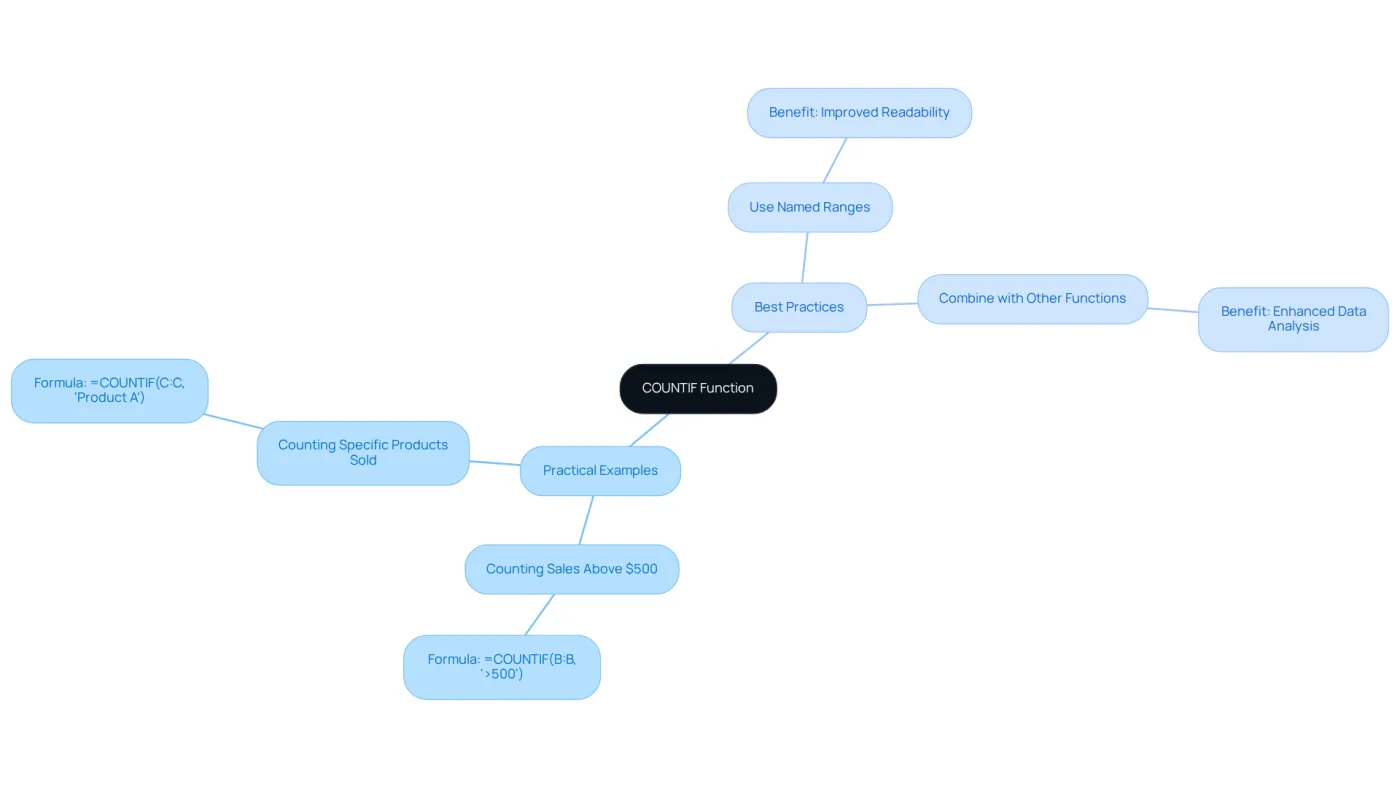
Counting Sales Above a Threshold: To count how many sales figures in column B exceed $500, use:
=COUNTIF(B:B, ">500")This formula returns the total count of sales greater than $500.
-
Counting Specific Products Sold: To determine how many times 'Product A' was sold in column C, apply:
=COUNTIF(C:C, "Product A")This will yield the total number of sales for 'Product A'.
Best Practices:
- Use Named Ranges: For improved readability, consider naming your ranges. For instance, if you name the range B1:B20 as 'Sales', you can simplify your formula to:
=COUNTIF(Sales, ">500") - Combine with Other Functions: Enhance your data analysis by combining
COUNTIFwith functions likeSUMorAVERAGE. This allows for more complex calculations, making your analysis more robust.
Insights from Data Analysts:
Recent studies indicate that approximately 75% of finance professionals utilize the COUNTIF function for tracking product sales, underscoring its significance in sales analysis. Furthermore, case studies illustrate the effectiveness of employing conditional counting with named ranges, which not only streamlines formulas but also minimizes errors in data referencing. By adhering to these best practices, users can maximize the efficiency and accuracy of their data analysis in Excel using the formula to count cells in Excel.
Troubleshoot Common COUNTIF Errors
When using the counting function, users often encounter typical mistakes that can hinder their efficiency. Here are essential troubleshooting tips to enhance your proficiency:
-
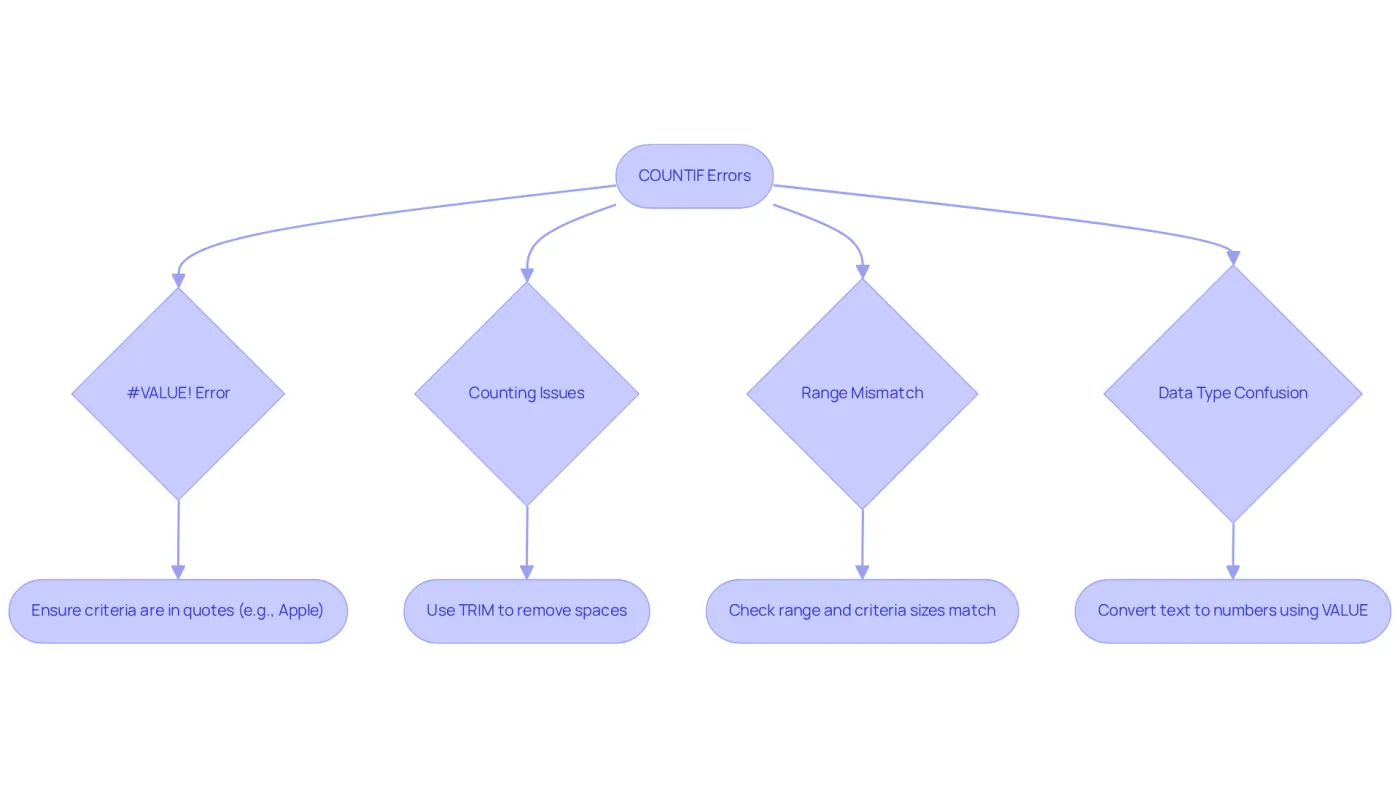
#VALUE! Error: This error typically arises when criteria are improperly formatted. Ensure that your criteria are enclosed in quotation marks. For instance,
=COUNTIF(A1:A10, "Apple")is correct, while=COUNTIF(A1:A10, Apple)will trigger an error. As Travis Tang notes, "COUNT() lets you count the number of rows that match certain conditions." -
Counting Issues: If COUNTIF does not yield expected results, inspect your data for leading or trailing spaces. Employ the TRIM function to clean your data:
=TRIM(A1). Joleen Bothma emphasizes, "Discover how to handle complex criteria in a single formula." -
Range Mismatch: Confirm that the range and criteria are of identical size. For example, if your range is A1:A10, your criteria should also reference the same number of cells.
-
Data Type Confusion: The function may malfunction if data types are inconsistent (e.g., numbers stored as text). Convert text to numbers using the VALUE function or by multiplying by 1.
Statistics indicate that finance professionals frequently encounter errors related to conditional counting, particularly with data type mismatches and formatting issues. Common mistakes include neglecting quotation marks and overlooking spaces, which can lead to erroneous totals. By understanding these common pitfalls and their remedies, users can troubleshoot efficiently and significantly enhance their use of the formula to count cells in Excel. Additionally, COUNTIF can count blank cells using an empty string ('') and non-blank cells using the 'not equal to' operator ('<>').
Conclusion
Mastering the formulas to count cells in Excel is not just beneficial; it’s essential for anyone aiming to elevate their data analysis skills. By understanding the differences between the COUNT, COUNTA, and COUNTIF functions, users can effectively tally entries based on specific criteria-be it numeric values or other data types. This foundational knowledge enhances accuracy in data handling and streamlines workflows, making tasks more efficient.
In this guide, we explored key concepts, including the unique functionalities of COUNT and COUNTA, alongside practical applications of COUNTIF. Valuable insights into best practices were shared, such as utilizing named ranges and combining functions for more complex calculations. Additionally, troubleshooting tips were provided to help users navigate common errors, ensuring a smoother experience with these powerful tools.
Embracing these counting functions can significantly enhance your data analysis capabilities. By applying the knowledge gained from this guide, you can transform your approach to data management in Excel. Whether for personal projects or professional tasks, leveraging these functions will lead to more informed decisions and greater efficiency in handling data.
Frequently Asked Questions
What is the COUNT function in Excel?
The COUNT function in Excel is used to count the number of cells that contain numeric values within a specified range. Its syntax is =COUNT(range).
How do you use the COUNT function?
To use the COUNT function, you can input a formula like =COUNT(A1:A5) to count all cells with numeric data in the range from A1 to A5.
What is the COUNTA function in Excel?
The COUNTA function counts all non-blank entries in a specified range, regardless of the data type, including numbers, text, logical values, and errors. Its syntax is =COUNTA(range).
How do you use the COUNTA function?
You can use the COUNTA function by entering a formula such as =COUNTA(A1:A5) to count all non-empty entries in the range from A1 to A5.
What are the key differences between COUNT and COUNTA?
The key differences are that COUNT exclusively counts cells with numeric data, while COUNTA counts all non-empty entries, including text and errors.
Why is it important to understand the differences between COUNT and COUNTA?
Understanding the differences is essential for effective data analysis in Excel, especially when preparing data for reports or presentations, as it ensures accuracy in data handling.