
Master the Google Sheet OFFSET Function: Syntax, Uses, and Fixes
Master the Google Sheet OFFSET function for dynamic data management and analysis.

Introduction
Transforming data management from a tedious task into a streamlined process is possible with Google Sheets, and at the core of this transformation is the OFFSET function. This powerful tool enables users to reference cells dynamically, adapting effortlessly to changing datasets. Yet, many users find its syntax and applications challenging. How can you harness the OFFSET function to elevate your data analysis and reporting?
This guide explores the intricacies of the OFFSET function, providing insights into its syntax, practical applications, and troubleshooting tips. With this knowledge, you can navigate its challenges confidently and unlock the full potential of your data management.
Understand the OFFSET Function in Google Sheets
Unlock the power of Google Sheets with the Google Sheets OFFSET function, a robust tool that allows you to reference cells a specified number of rows and columns away from a starting point. This function is invaluable for creating dynamic ranges that automatically adjust as your data evolves. Imagine having a dataset that grows over time; with the OFFSET function, you can effortlessly access the latest information without the hassle of constantly updating your formulas.
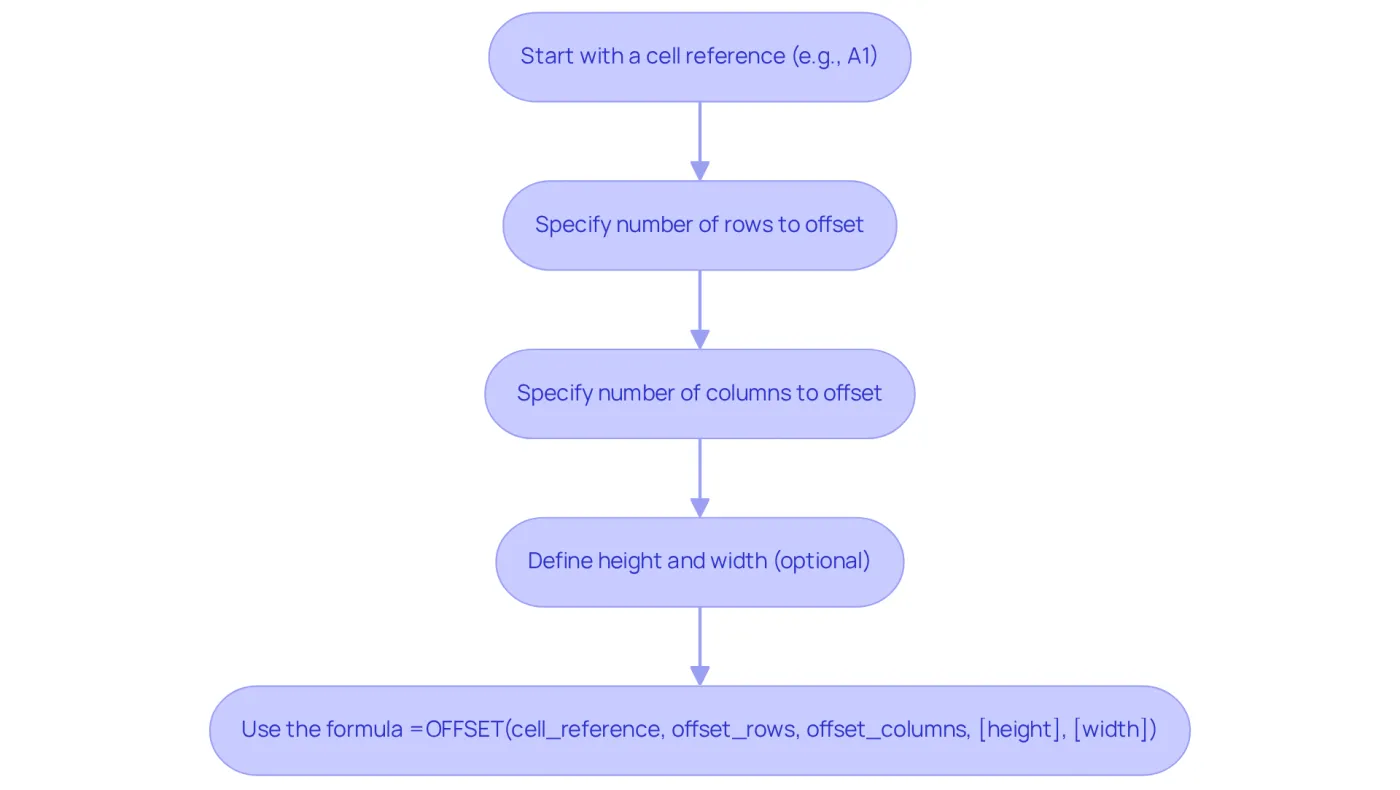
The syntax for the OFFSET function is straightforward: =OFFSET(cell_reference, offset_rows, offset_columns, [height], [width]). For example, if your starting reference is cell A1 and you want to reference the cell two rows down and three columns to the right, simply use the formula =OFFSET(A1, 2, 3). This will return the value in cell D3, making data retrieval seamless.
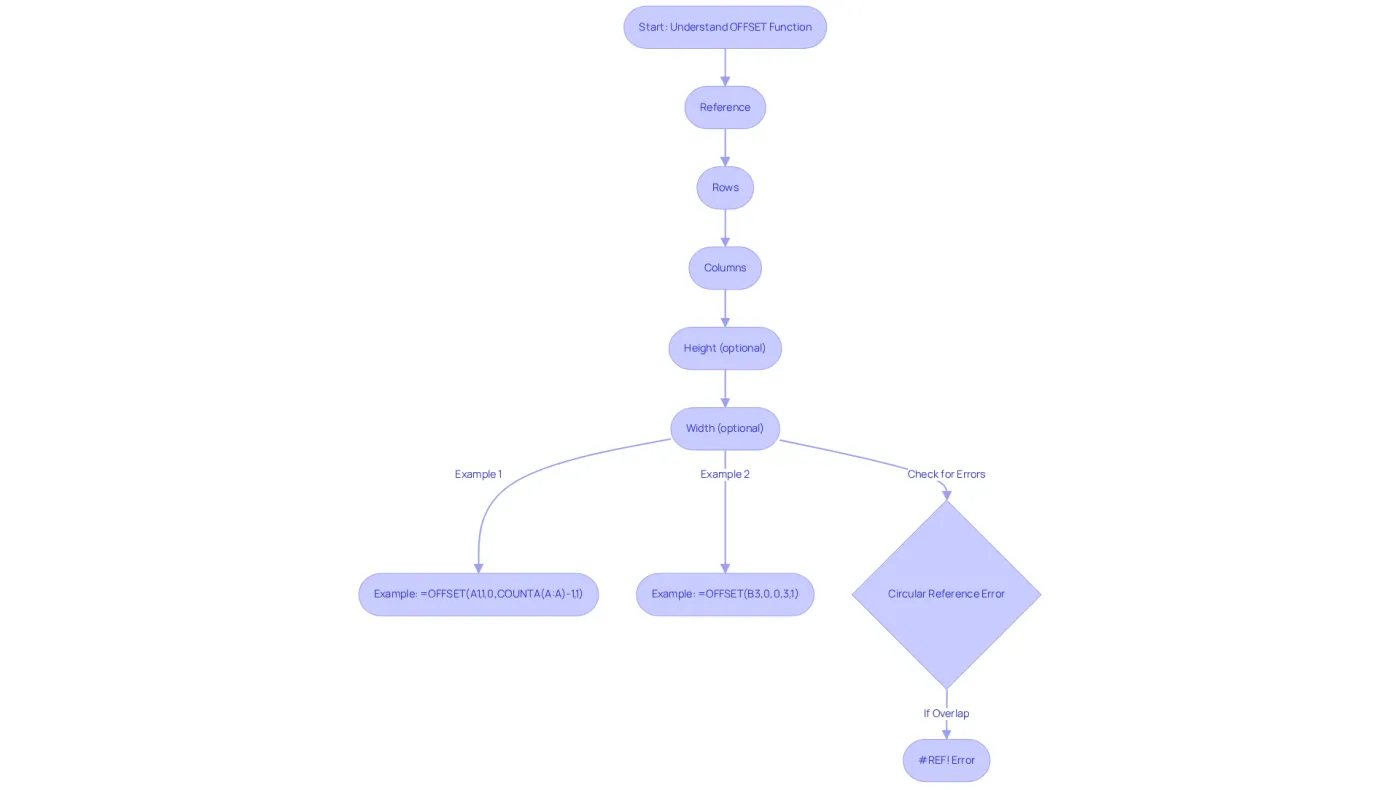
Consider the practical applications of the OFFSET function. A user can apply the formula =OFFSET(B3, 0, 0, 3, 1) to extract data starting from cell B3, extending down three rows to capture monthly sales figures. This dynamic referencing not only simplifies data management but also empowers decision-making with real-time insights.
Data analysts emphasize the importance of dynamic ranges in spreadsheets, noting that they significantly boost workflow efficiency. With over 700,000 users leveraging tools that incorporate dynamic ranges, the Google Sheets OFFSET function is a vital resource for professionals seeking to optimize their data management. As growth marketer Hannah Recker aptly puts it, "Data enablement amongst teams can truly make or break a business." Understanding this formula is a crucial step toward mastering effective data management and analysis.
Learn the Syntax of the OFFSET Function
The syntax of the OFFSET function is structured as follows: =OFFSET(cell, rows, columns, [height], [width]). Each parameter is vital for determining how data is extracted and manipulated:
- reference: This serves as the starting point for the offset calculation, which can be a single cell or a range of cells.
- rows: This parameter specifies how many rows to shift from the starting point. Positive values shift down, while negative values shift up.
- columns: This indicates how many columns to move from the baseline. Positive values move right, and negative values move left.
- height (optional): This defines the number of rows in the returned set. If not specified, it defaults to the height of the reference.
- width (optional): This specifies the number of columns in the returned set. If omitted, it defaults to the width of the reference.
For example, the formula =OFFSET(A1, 1, 2, 3, 4) returns a selection starting from cell C2 (one row down and two columns right from A1) and spans three rows and four columns. This flexibility allows users to establish dynamic intervals with google sheet offset that adjust automatically as information changes, enhancing efficiency in financial analysis.
Moreover, the google sheet offset function can be used in combination with others, like COUNTA, to create dynamic selections that adapt to new data. For instance, =OFFSET(A1, 1, 0, COUNTA(A:A)-1, 1) selects a range starting from cell A2 and extends downward based on the number of non-empty cells in column A.
However, users must be cautious of circular reference errors, which can arise if the function's output overlaps with the target reference, leading to a #REF! error. Understanding these aspects is crucial for finance professionals aiming to effectively utilize the function in their analyses.
Explore Practical Applications of the OFFSET Function
These terms serve as a powerful tool in various scenarios to elevate analysis and reporting. Let’s explore several practical applications that can transform your data management:
-
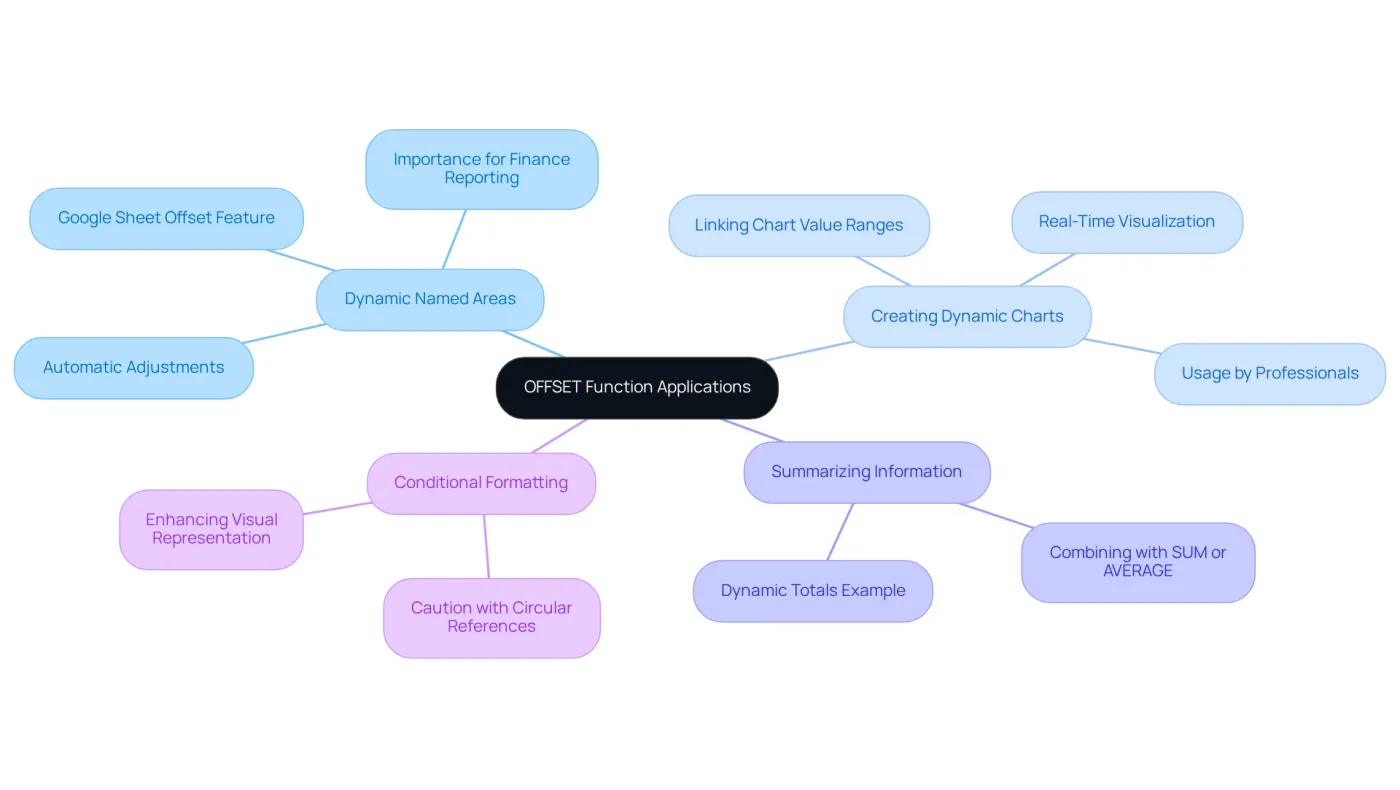
Dynamic Named Areas: The google sheet offset feature allows you to establish named areas that automatically adjust as information is added or removed. For instance, if you maintain an expanding list of sales data, you can create a named selection that consistently includes the latest entries. This ensures your analyses are always current. Finance experts emphasize that dynamic intervals are crucial for precise reporting.
-
Creating Dynamic Charts: By linking chart value ranges to a google sheet offset formula, you can create charts that refresh automatically as new data is entered. This functionality enables real-time visualization of trends without manual adjustments, significantly enhancing reporting efficiency. In fact, over 350,000 professionals rely on tools that leverage such dynamic capabilities for effective data management.
-
Summarizing Information: This function pairs seamlessly with SUM or AVERAGE to compute totals or averages over a flexible scope. For example, the formula
=SUM(MOVE(A1, 1, 0, COUNT(A:A)-1, 1))totals all values in column A while excluding the header, adapting effortlessly as new entries are added. This method has been successfully demonstrated in case studies focusing on dynamic summation of sales figures. -
Conditional Formatting: Google Sheet offset can also enhance conditional formatting rules, allowing styles to be applied based on dynamic ranges. This capability improves the visual representation of your data, making it easier to identify trends and outliers. However, users should be cautious of potential circular reference errors, as overlapping outputs can lead to a #REF! error in Google Sheets.
These applications illustrate how the google sheet offset function can significantly enhance the functionality of spreadsheets, making it an essential tool for effective data management.
Troubleshoot Common OFFSET Function Issues
While the shifting function is powerful, users may encounter some common issues. Here are essential troubleshooting tips to enhance your experience:
-
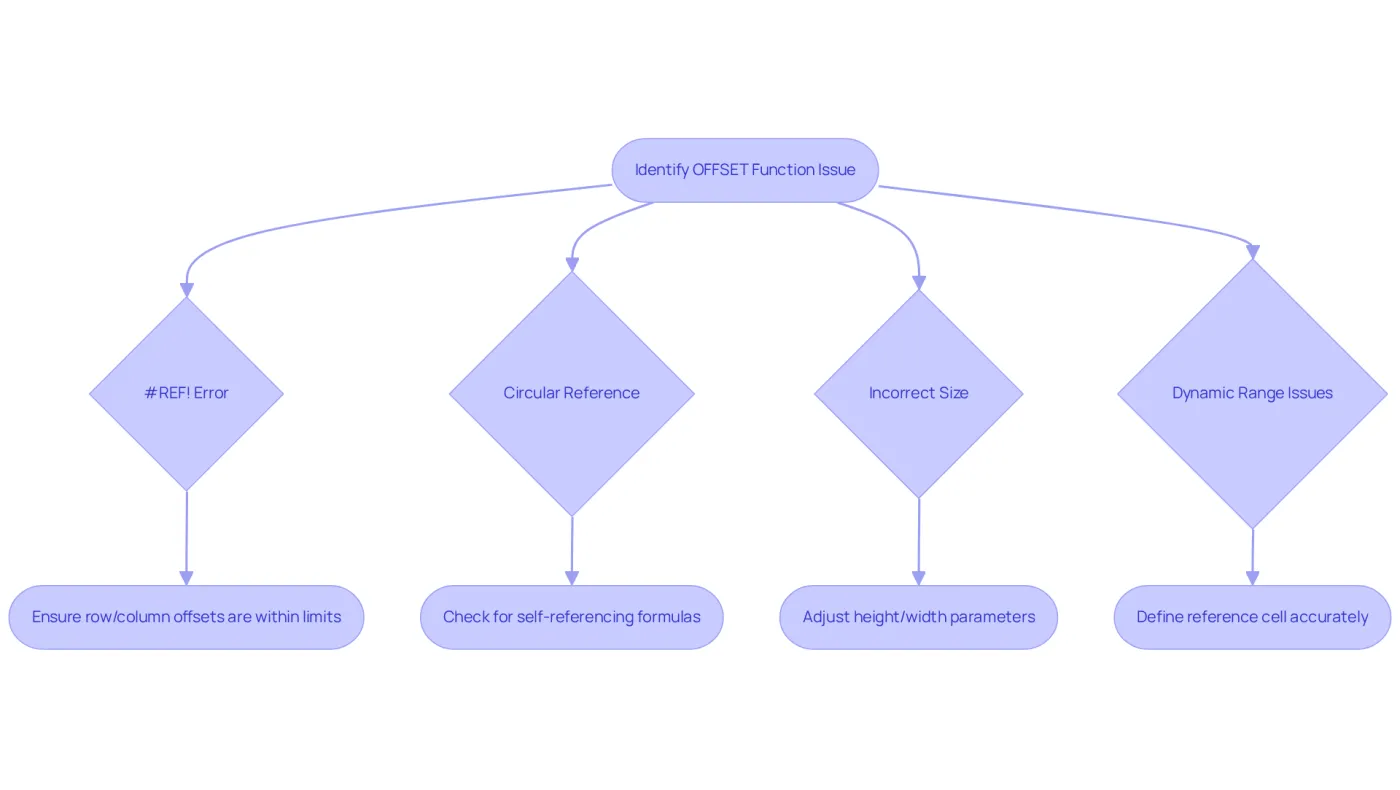
#REF! Error: This error arises when the function points to a set that is out of bounds. Ensure that your row and column offsets do not exceed the limits set by the google sheet offset in your spreadsheet.
-
Circular Reference: If your OFFSET formula refers to itself, it will generate a circular reference error. Double-check your formulas to confirm they do not loop back on themselves.
-
Incorrect Size: Specifying a height or width that exceeds the available limits can lead to errors. Make sure your height and width parameters are appropriate for the comparison cell.
-
Dynamic Range Issues: When using a function for flexible ranges, it’s crucial that your reference cell is accurately defined and that the range remains consistent. If your data changes frequently, consider employing COUNTA or COUNT to dynamically adjust the height.
By understanding these common issues and their solutions, you can effectively utilize the OFFSET function without frustration.
Conclusion
Mastering the Google Sheets OFFSET function is crucial for anyone aiming to enhance their data management processes. This robust tool not only allows for dynamic referencing but also boosts the efficiency of data analysis. By leveraging the OFFSET function, users can adapt to evolving datasets without the hassle of constant manual updates, significantly improving their spreadsheet capabilities and decision-making processes.
In this article, we delved into the OFFSET function's syntax, practical applications, and common challenges. Key insights included:
- Creating dynamic named ranges
- Developing automatic charts
- Effectively summarizing information
We also highlighted the importance of recognizing potential pitfalls, such as circular references and out-of-bounds errors, to ensure seamless usage of this function.
Incorporating the OFFSET function into your daily spreadsheet tasks can revolutionize how data is managed, leading to more accurate analyses and informed decisions. Embracing this knowledge not only empowers individuals but also fosters team collaboration in data-driven environments. As data continues to be a cornerstone of business success, utilizing tools like the OFFSET function is essential for maintaining a competitive edge and cultivating a culture of data enablement.
Frequently Asked Questions
What is the OFFSET function in Google Sheets?
The OFFSET function in Google Sheets allows users to reference cells a specified number of rows and columns away from a starting point, making it a powerful tool for creating dynamic ranges that adjust as data changes.
What is the syntax for the OFFSET function?
The syntax for the OFFSET function is =OFFSET(cell_reference, offset_rows, offset_columns, [height], [width]).
Can you provide an example of how to use the OFFSET function?
For example, if your starting reference is cell A1 and you want to reference the cell two rows down and three columns to the right, you would use the formula =OFFSET(A1, 2, 3), which returns the value in cell D3.
What are some practical applications of the OFFSET function?
One practical application is using the formula =OFFSET(B3, 0, 0, 3, 1) to extract data starting from cell B3 and extending down three rows, which can be useful for capturing monthly sales figures.
Why are dynamic ranges important in spreadsheets?
Dynamic ranges are important because they significantly boost workflow efficiency by allowing users to access the latest information without constantly updating formulas, which helps in effective data management and decision-making.
How many users leverage tools that incorporate dynamic ranges in Google Sheets?
Over 700,000 users leverage tools that incorporate dynamic ranges, highlighting the importance of the OFFSET function for professionals in data management.