
Master the Google Sheet SWITCH Statement: A Step-by-Step Guide
Unlock the power of the Google Sheet SWITCH statement for efficient data management!

Introduction
Mastering data management can often feel overwhelming, particularly when navigating complex logical evaluations in spreadsheets. Enter the Google Sheets SWITCH function - a powerful ally that streamlines your workflow. Unlike cumbersome nested IF statements that clutter formulas and obscure clarity, the SWITCH function offers a more efficient alternative. This guide explores the syntax, practical applications, and distinct advantages of the SWITCH function, inviting you to discover how this tool can elevate your spreadsheet experience. But what makes the SWITCH function not just a convenience, but a necessity for professionals looking to enhance their data analysis efficiency?
Understand the SWITCH Function in Google Sheets
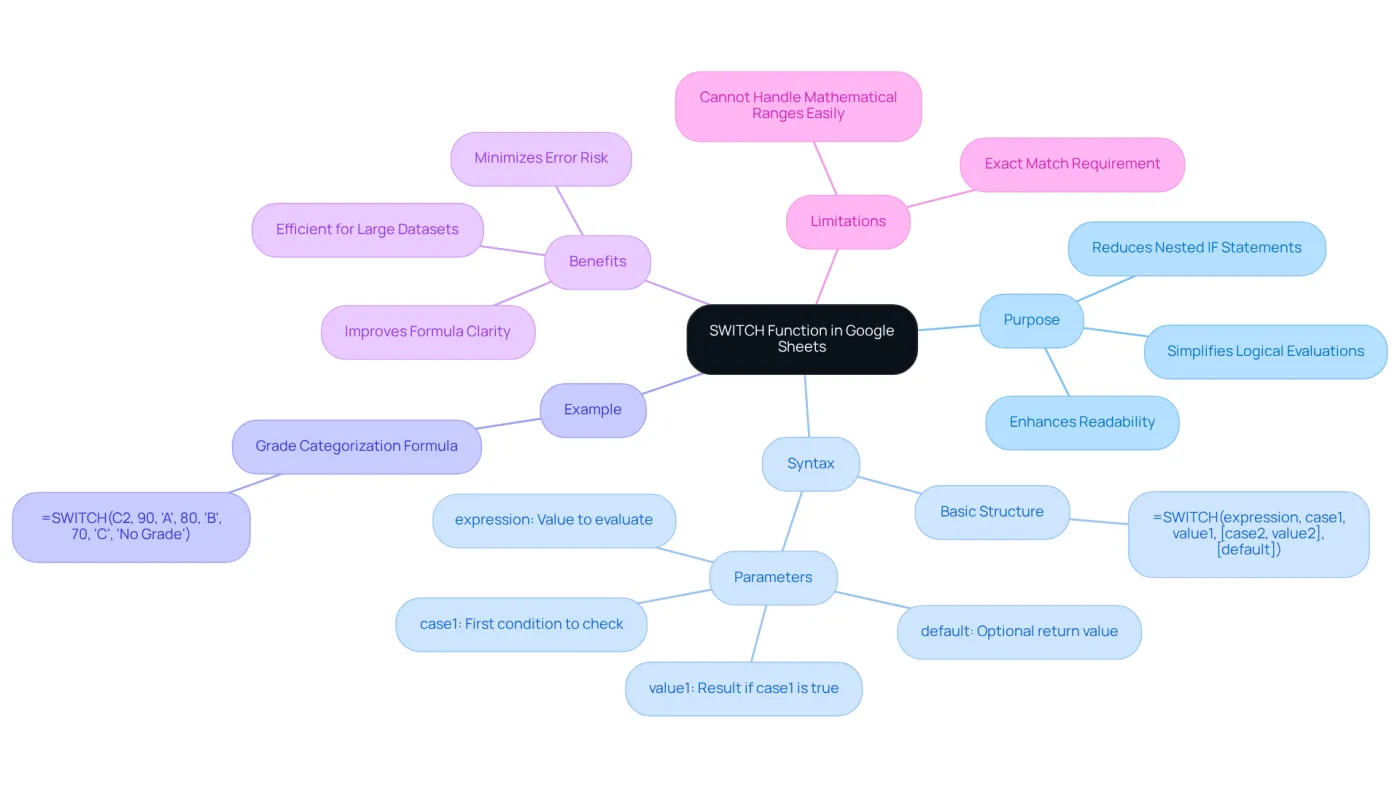
The SELECT operation in Google Sheets evaluates an expression against a predefined list of cases, returning the result of the first matching case. This feature is crucial for simplifying complex logical evaluations that would typically require multiple nested IF statements, enhancing both clarity and sustainability of calculations. Instead of crafting a series of IF statements to assess various inputs, you can utilize a more straightforward method to streamline your formula. This approach not only improves readability but also minimizes the risk of errors.
The basic syntax of the SWITCH function is as follows:
=SWITCH(expression, case1, value1, [case2, value2, ...], [default])
In this structure, the expression denotes the value you wish to evaluate, case1 is the first condition to check, and value1 is the result returned if case1 is true. You can continue adding more cases and values, and optionally include a default item that will be returned if none of the cases match the expression.
For instance, if you want to categorize grades based on scores, you could use:
=SWITCH(C2, 90, 'A', 80, 'B', 70, 'C', 'No Grade')
This formula examines the value in C2 and returns 'A' for 90, 'B' for 80, 'C' for 70, and 'No Grade' if none of the conditions are satisfied.
This alternative is particularly beneficial for users managing large datasets, as it enhances formula clarity and efficiency. It's estimated that over 350,000 professionals leverage this feature in Google Sheets, utilizing its efficiency to optimize their workflows. By replacing cumbersome nested IF statements with the Google Sheets SWITCH statement, users can significantly enhance their spreadsheet management and data analysis capabilities.
Learn the Syntax of the SWITCH Function
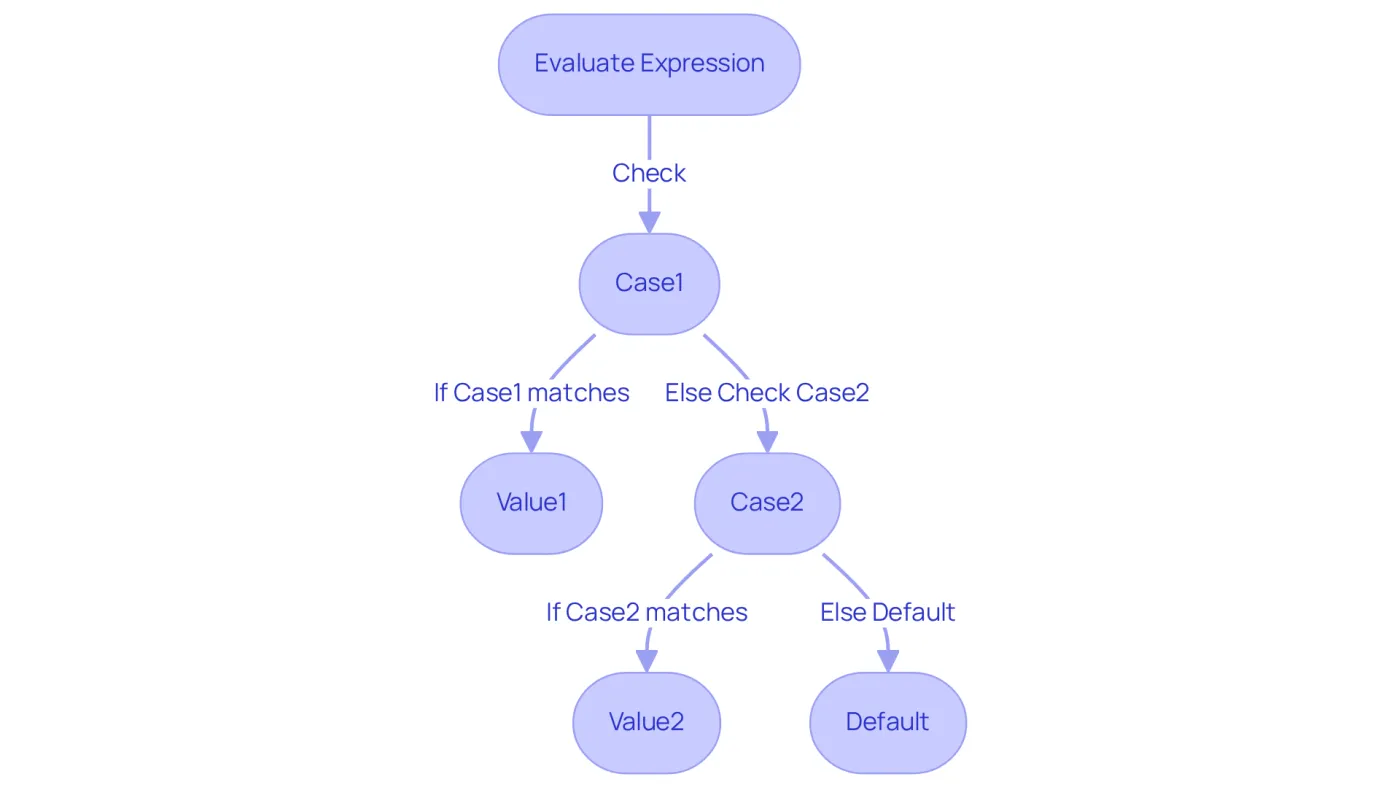
To effectively harness the google sheet switch statement, it is crucial to understand its syntax and the advantages it offers over traditional nested IF statements. Let’s break down its components:
- Expression: This is the quantity or expression you want to evaluate, which can be a cell reference, a number, or a text string.
- Case1: The first condition to check against the expression.
- Value1: The result returned if
case1matches the expression. - Case2, Value2, ...: Additional cases and their corresponding values can be added as needed.
- Default: An optional parameter that specifies what to return if none of the cases match the expression.
The google sheet switch statement is particularly beneficial for precise matches, as it streamlines formulas and avoids the complexity of nested IF statements. For instance, if you want to categorize grades based on scores, you might write:
=SWITCH(A1, 90, "A", 80, "B", 70, "C", "F")
In this example, if the value in cell A1 is 90, the function returns "A"; if it’s 80, it returns "B"; and so forth. If none of the cases match, it defaults to returning "F". This straightforward syntax of the google sheet switch statement not only allows for clear categorization but also enhances data interpretation, making it a valuable tool for professionals managing complex datasets. Successful applications of this control mechanism in professional environments have demonstrated its effectiveness in enhancing data analysis and boosting workflow efficiency.
Explore Practical Examples of the SWITCH Function
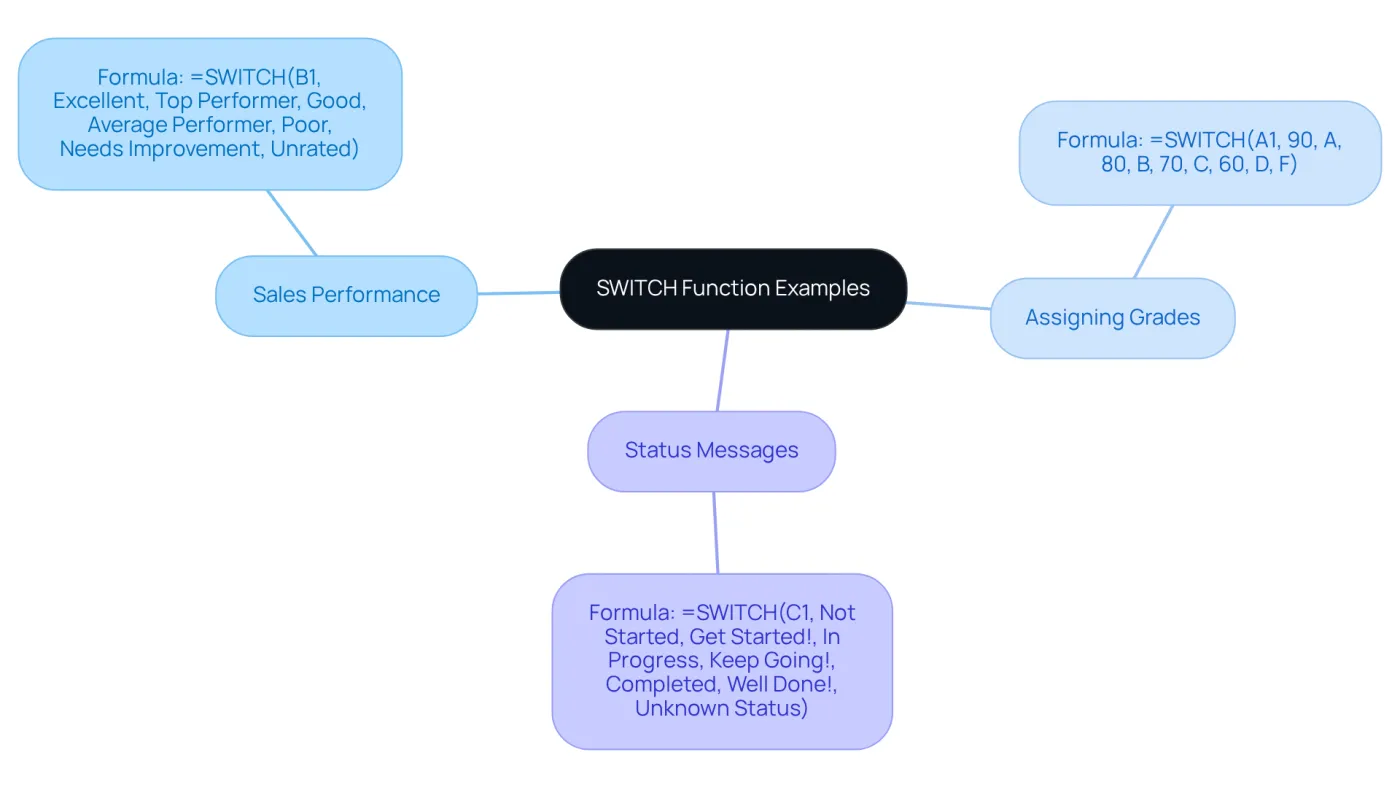
Here are some practical examples of how to effectively use the SWITCH function in Google Sheets:
-
Categorizing Sales Performance: To categorize sales performance based on sales figures, consider the following formula:
=SWITCH(B1, "Excellent", "Top Performer", "Good", "Average Performer", "Poor", "Needs Improvement", "Unrated")In this scenario, if cell B1 contains "Excellent", the function returns "Top Performer". This allows for a quick and efficient assessment of sales performance.
-
Assigning Grades: The SWITCH function can also be utilized to assign letter grades based on numerical scores. For instance:
=SWITCH(A1, 90, "A", 80, "B", 70, "C", 60, "D", "F")This formula evaluates the score in A1 and returns the corresponding letter grade, streamlining the grading process significantly.
-
Displaying Status Messages: If you want to provide different status messages based on project stages, consider this formula:
=SWITCH(C1, "Not Started", "Get Started!", "In Progress", "Keep Going!", "Completed", "Well Done!", "Unknown Status")This example delivers feedback based on the project status in cell C1, enhancing communication and clarity in project management.
These examples illustrate the adaptability of the Google Sheets SWITCH statement, making it an essential resource for categorizing data and enhancing workflow efficiency. Furthermore, it's noteworthy that this method is typically quicker than nested IF statements, especially for extensive datasets. For optimal clarity and efficiency, it is advisable to limit the number of cases in an alternative method to 20-30.
Compare SWITCH with the IF Function
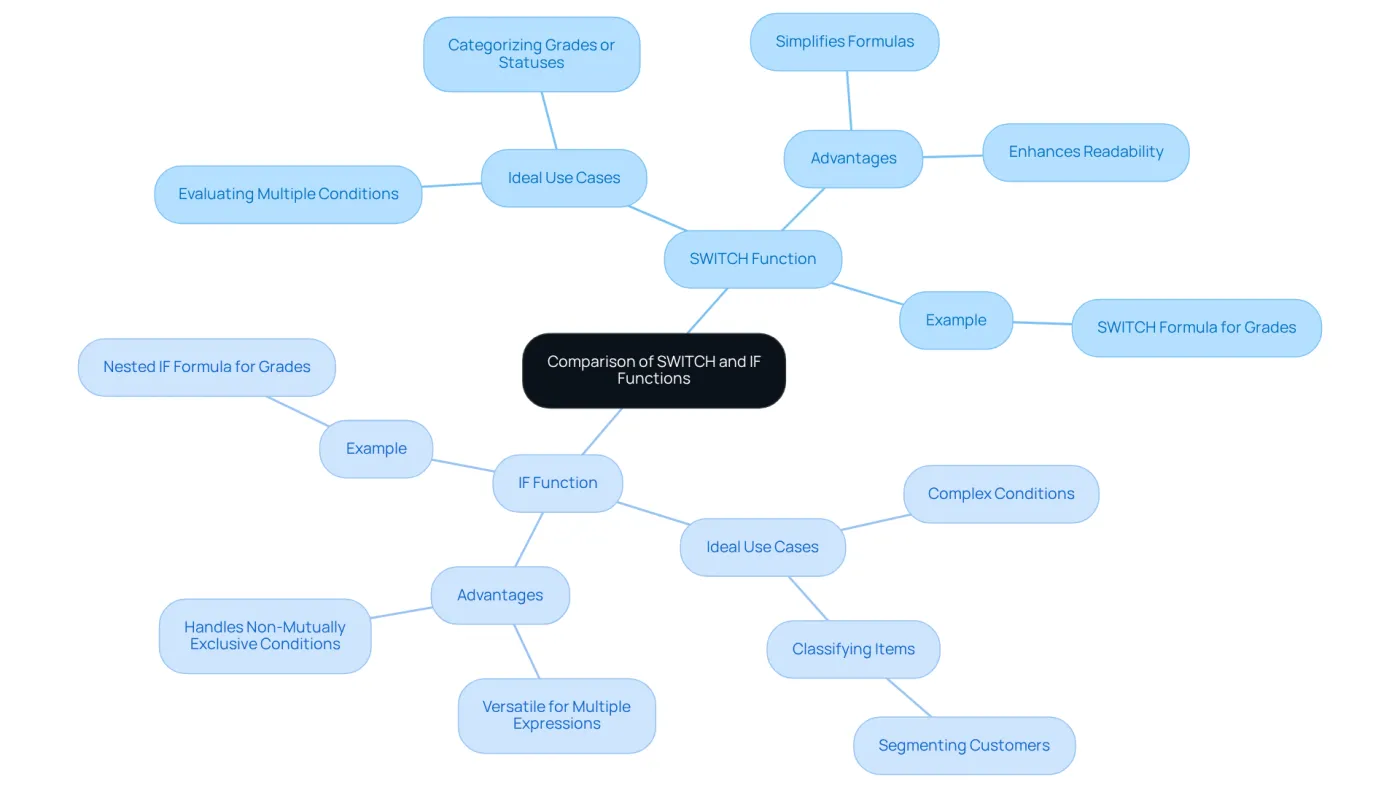
While both the SWITCH and IF functions are essential for conditional logic, they serve distinct purposes and offer unique advantages.
The google sheet switch statement is ideal when you need to evaluate multiple conditions against a single expression. It simplifies your formulas and enhances readability. For instance, categorizing grades or statuses becomes straightforward with SWITCH.
On the other hand, IF is more versatile for complex conditions, especially when evaluating multiple expressions or when conditions are not mutually exclusive. You might use IF to check if a value exceeds a certain threshold, returning different results based on that. The IF function can also classify items, such as segmenting customers into long-term and new clients based on their tenure.
Example Comparison:
Consider using IF for the same grading scenario:
=IF(A1 >= 90, "A", IF(A1 >= 80, "B", IF(A1 >= 70, "C", IF(A1 >= 60, "D", "F"))))
This nested IF statement is more complex and harder to read than the SWITCH equivalent. Therefore, opt for the google sheet switch statement when evaluating a single expression against multiple cases to achieve simpler, cleaner logic. Additionally, for lower threshold checks, consider using the MIN method instead of IF to enhance efficiency and reduce errors.
Combine SWITCH with Other Functions for Advanced Use
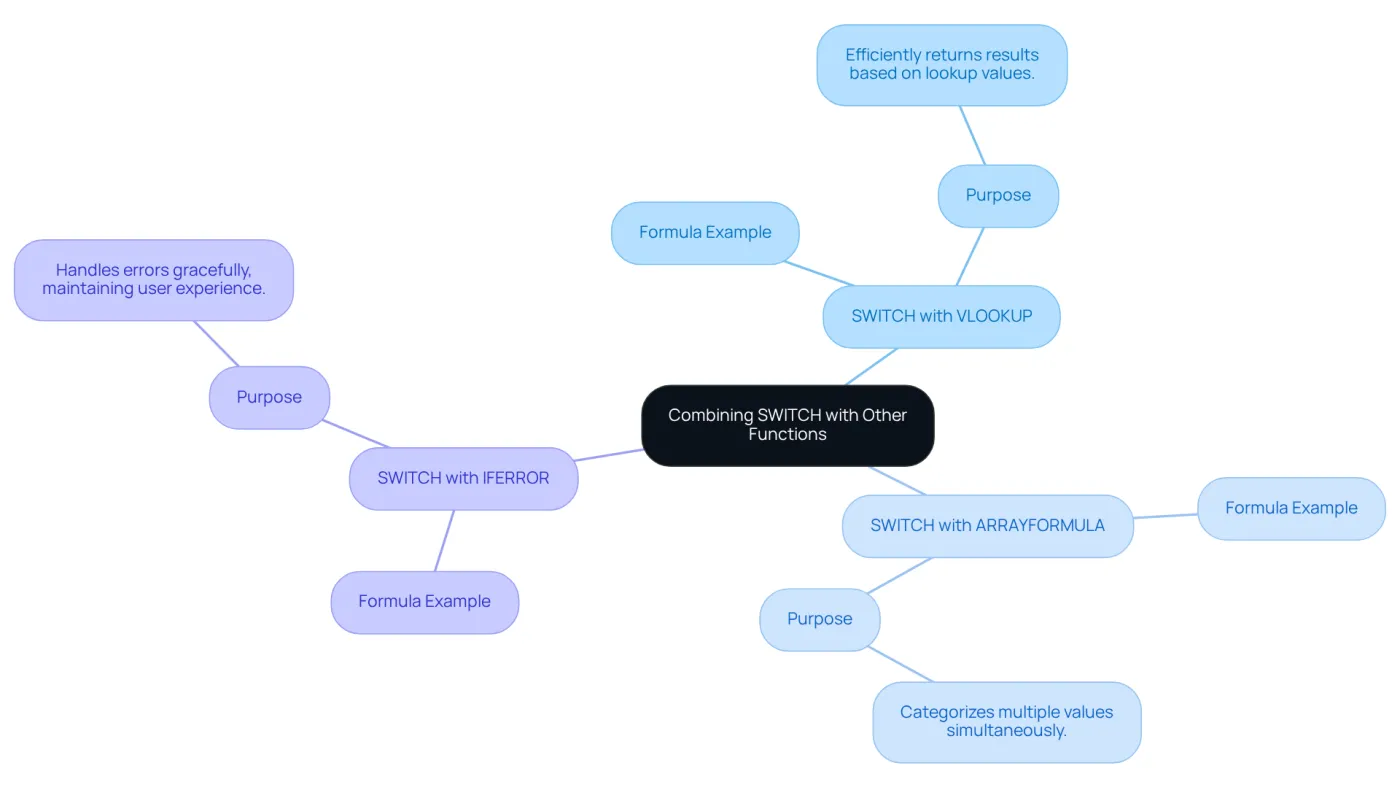
To enhance the usefulness of this tool, consider combining it with additional operations. Here are a few compelling examples:
-
Using SWITCH with VLOOKUP: Leverage SWITCH to return different results based on a lookup value:
=SWITCH(VLOOKUP(A1, D1:E10, 2, FALSE), "Value1", "Result1", "Value2", "Result2", "Not Found")This formula efficiently looks up a value in a specified range and returns a corresponding result based on the SWITCH function.
-
Combining with ARRAYFORMULA: If you aim to apply SWITCH across a range of cells, consider this approach:
=ARRAYFORMULA(SWITCH(A1:A10, 1, "One", 2, "Two", 3, "Three", "Other"))This method allows you to categorize multiple values simultaneously, enhancing your data management.
-
Using SWITCH with IFERROR: To handle errors gracefully, implement this formula:
=IFERROR(SWITCH(A1, "A", 1, "B", 2, "C", 3), "Invalid Input")This formula ensures that if the SWITCH function encounters an error, it will return "Invalid Input," maintaining a user-friendly spreadsheet experience.
Conclusion
The Google Sheets SWITCH function stands out as a powerful tool for simplifying conditional logic within spreadsheets. It allows users to evaluate an expression against multiple predefined cases, streamlining formula creation and enhancing readability. This makes it an invaluable resource for anyone managing complex datasets.
Key insights shared throughout the article highlight the syntax and practical applications of the SWITCH function. From categorizing grades and sales performance to displaying status messages, the versatility of SWITCH is clear. Comparisons with the IF function reveal its advantages, especially in scenarios where clarity and simplicity are crucial. Moreover, combining SWITCH with other functions, such as VLOOKUP and ARRAYFORMULA, amplifies its capabilities, enabling users to tackle advanced data management tasks efficiently.
Embracing the SWITCH function can significantly boost productivity and accuracy in spreadsheet tasks. As users become adept at employing this function, they can expect improved workflows and reduced errors in their data analysis processes. Adopting this straightforward yet effective approach to conditional logic not only simplifies spreadsheet management but also empowers users to make informed decisions based on their data.
Are you ready to enhance your spreadsheet skills? Start using the SWITCH function today and experience the difference it can make in your data management efforts.
Frequently Asked Questions
What is the purpose of the SWITCH function in Google Sheets?
The SWITCH function evaluates an expression against a predefined list of cases, returning the result of the first matching case. It simplifies complex logical evaluations that would typically require multiple nested IF statements, improving clarity and sustainability of calculations.
What is the basic syntax of the SWITCH function?
The basic syntax of the SWITCH function is: =SWITCH(expression, case1, value1, [case2, value2, ...], [default]).
Can you explain the components of the SWITCH function syntax?
The components of the SWITCH function syntax are: - Expression: The value to evaluate (cell reference, number, or text string). - Case1: The first condition to check against the expression. - Value1: The result returned if case1 matches the expression. - Additional cases and values can be added as needed. - Default: An optional parameter that specifies what to return if none of the cases match the expression.
How does the SWITCH function improve formula clarity?
The SWITCH function enhances formula clarity by replacing cumbersome nested IF statements with a more straightforward method, making it easier to read and reducing the risk of errors.
Can you provide an example of how to use the SWITCH function?
For categorizing grades based on scores, you could use: =SWITCH(C2, 90, 'A', 80, 'B', 70, 'C', 'No Grade'). This formula checks the value in C2 and returns 'A' for 90, 'B' for 80, 'C' for 70, and 'No Grade' if none of the conditions are satisfied.
Why is the SWITCH function beneficial for users managing large datasets?
The SWITCH function is beneficial for users managing large datasets as it enhances formula clarity and efficiency, allowing for better data analysis and workflow optimization.
How many professionals are estimated to use the SWITCH function in Google Sheets?
It is estimated that over 350,000 professionals leverage the SWITCH function in Google Sheets to optimize their workflows.