

Introduction
Mastering the Google Sheets filter formula can revolutionize how financial analysts engage with data, paving the way for a more dynamic and insightful approach to financial analysis. This powerful tool empowers users to isolate specific data points, simplifying the identification of trends and facilitating informed decision-making. Yet, many analysts encounter challenges in its implementation. What common obstacles hinder effective analysis, and how can they be surmounted?
Understanding these challenges is crucial. By addressing them head-on, analysts can unlock the full potential of this tool, enhancing their analytical capabilities and driving better financial outcomes. The journey to mastering the Google Sheets filter formula not only improves data interaction but also fosters a deeper understanding of financial trends, ultimately leading to more strategic decisions.
Understand the Google Sheets Filter Function
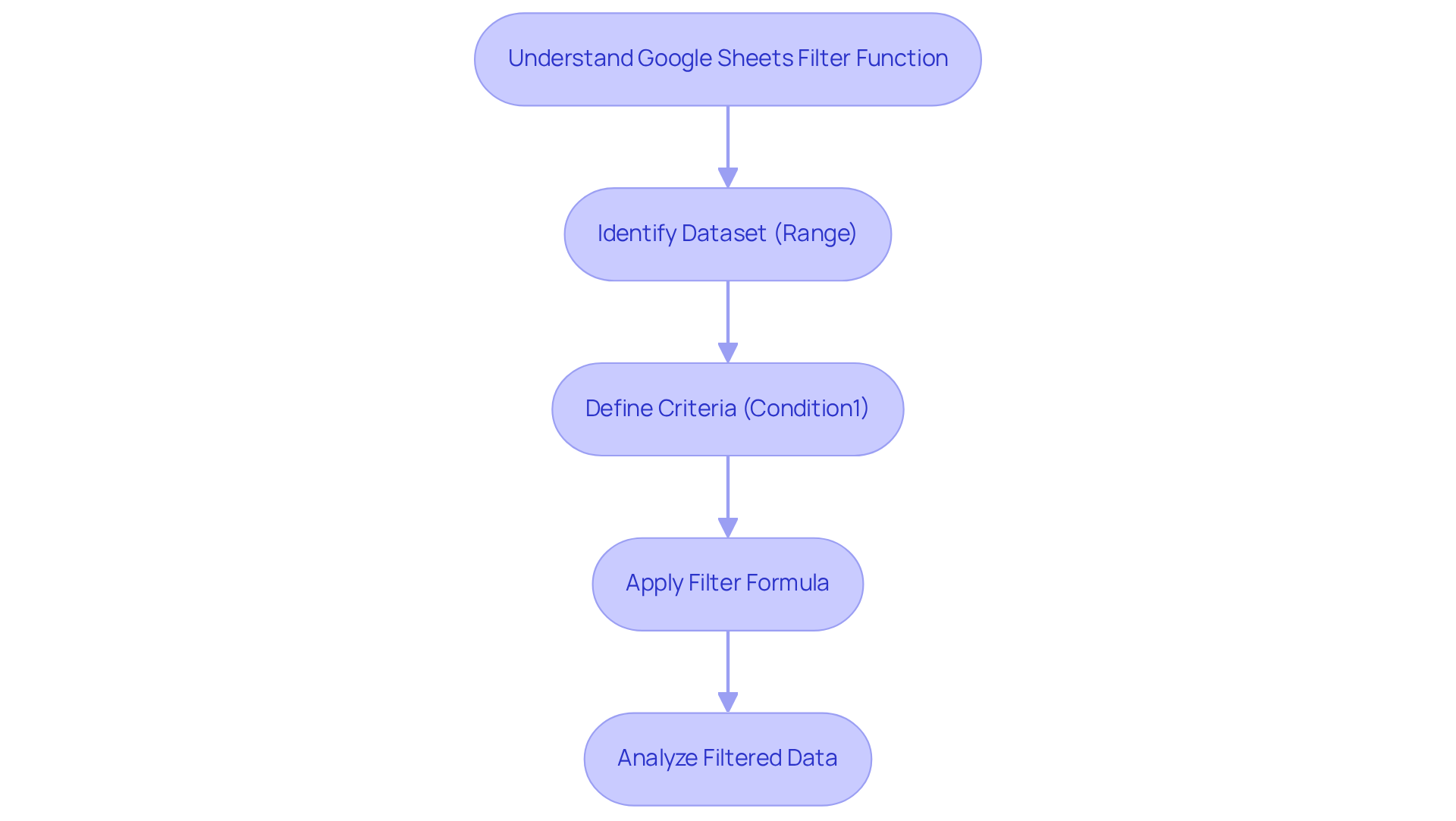
The google sheets filter formula is an essential resource for financial experts, enabling dynamic selection and presentation of information based on specific criteria. The google sheets filter formula structure is =FILTER(range, condition1, [condition2, ...]), where 'range' represents the dataset to be filtered, and 'condition1' is the criterion that must be met for information to be displayed.
Mastering this capability is vital for effective financial analysis. It allows users to swiftly isolate relevant data points, facilitating trend analysis and informed decision-making. For instance, when analyzing a dataset of sales transactions, the google sheets filter formula can be used to showcase only those transactions that exceed a designated amount, thereby focusing the analysis on high-value sales.
Recent enhancements to the filtering capability, such as the ability to nest the MONTH operation for more concise sorting, further streamline this process. Practical applications illustrate its impact; for example, an accounting firm successfully merged information from multiple clients using the google sheets filter formula to analyze financial trends across various sectors.
Data analysts emphasize that the google sheets filter formula is crucial for effective data management. Many have noted its role in boosting productivity and accuracy in financial reporting. As Natalia Sharashova pointed out, "Accountants unfamiliar with Google Sheets frequently question its features," underscoring the importance of mastering such skills for proficient financial analysis.
Apply the Filter Function in Financial Analysis
To effectively apply the Filter function in financial analysis, start by identifying the key metrics you want to examine. For instance, when analyzing expenses, you may want to narrow your focus to show only those from a specific department or within a defined time frame. Here’s a step-by-step guide:
- Choose Your Set of Information: Highlight the selection you wish to filter by clicking and dragging over it.
- Insert the Filter Function: In a new cell, type
=FILTER(and select your information set. For example,=FILTER(A2:D100,. - Set Your Conditions: After specifying the range, add your filtering conditions. For instance, to filter for expenses exceeding $100, you would write
=FILTER(A2:D100, B2:B100 > 100). - Press Enter: The filtered results will appear in the cells below, allowing you to concentrate on specific information points. This streamlined method enhances trend analysis and informed decision-making based on your financial data.
Integrating this function can significantly elevate your financial analysis capabilities. Experts in finance emphasize that using the Google Sheets filter formula for expense analysis not only streamlines information management but also provides a clearer perspective on financial metrics. For example, filtering can help identify spending patterns, enabling better budget allocation and financial planning. Statistics indicate that finance professionals frequently analyze metrics such as expenses, revenue, and profit margins with the help of a Google Sheets filter formula, underscoring its effectiveness in financial reporting and analysis.

Implement the Filter Formula: A Step-by-Step Process
To implement the Filter formula in Google Sheets effectively, follow these steps:
- Open Your Google Sheet: Begin by accessing the Google Sheet that holds your information.
- Identify the Information Span: Determine the specific extent of information you wish to filter. For example, if your information covers from cells A1 to D100, this will be your assigned area.
- Select a Cell for the Output: Click on the cell where you want the filtered results to be displayed. The Google Sheets filter formula can help in organizing and analyzing data efficiently. To enter the Google Sheets filter formula, start typing
=FILTER(, then select your selection of information. For example, you would write=FILTER(A1:D100,. - Add Conditions: After specifying the range, include your filtering conditions. For example, to filter for entries where the value in column B exceeds 500, you would write
=FILTER(A1:D100, B1:B100 > 500). - Close the Parenthesis and Press Enter: Finalize the formula by closing the parenthesis and pressing Enter. The filtered information will now appear in the selected cell, allowing you to concentrate on the pertinent entries for your analysis.
- Handle Errors Gracefully: To guarantee a user-friendly experience, enclose your FILTER operation in the IFERROR operation. For example, you can use
=IFERROR(FILTER(A1:D100, B1:B100 > 500), 'No matching sales found')to display a message if no matches are found. - Dynamic Updates: Remember that the FILTER function refreshes automatically when new information that meets the criteria is added to the original dataset, making it a powerful tool for ongoing financial analysis.
This method not only streamlines data retrieval but also enhances your ability to conduct precise financial analyses. Be aware of typical errors, such as not accurately citing intervals or conditions, which can result in mistakes in your outcomes.

Troubleshoot Common Filter Function Issues
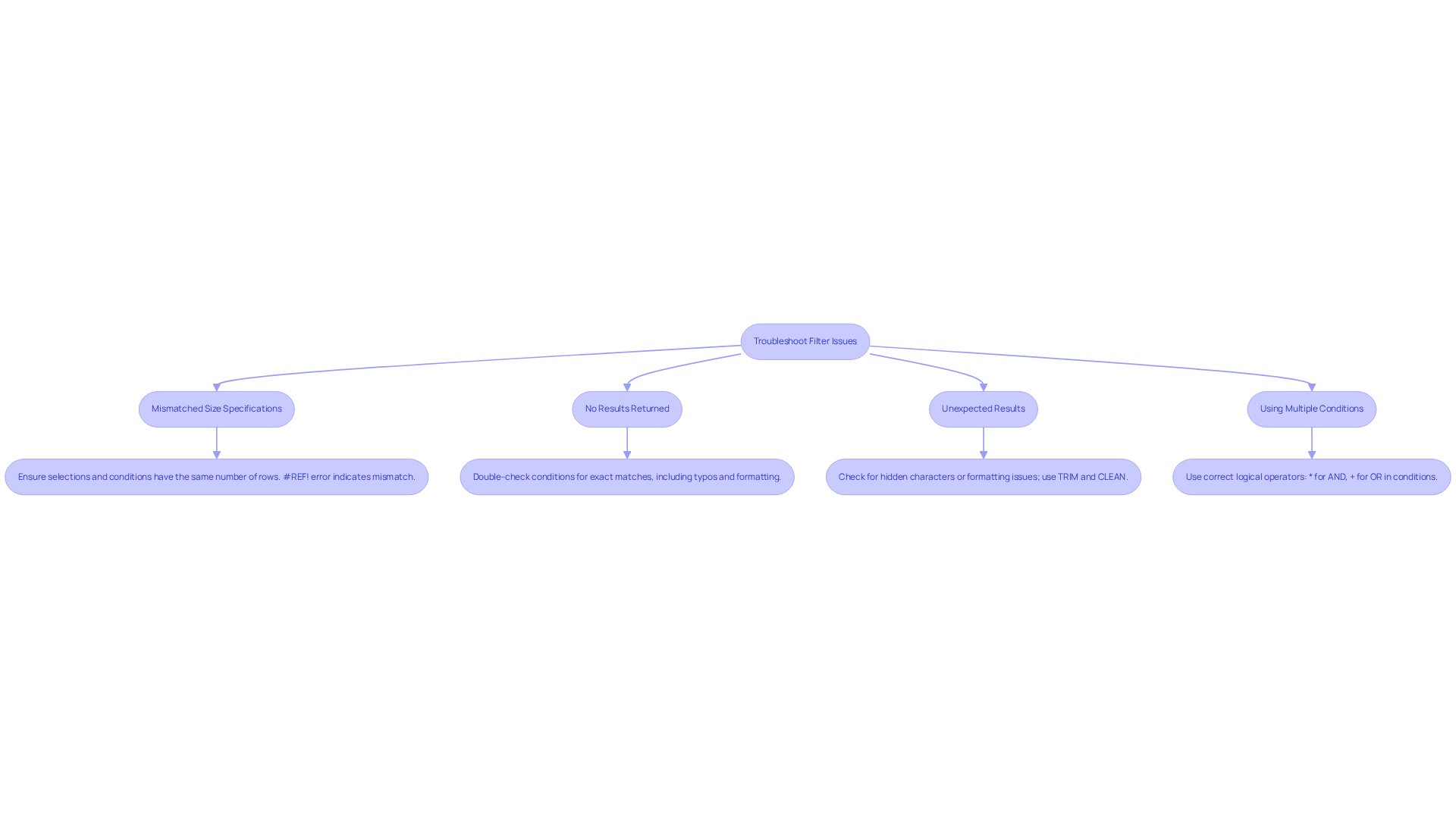
When utilizing the google sheets filter formula, users often encounter several common issues that can hinder their data analysis. Here are some effective troubleshooting tips to enhance your experience:
-
Mismatched Size Specifications: Ensure that the selections you are filtering and the conditions you are applying have the same number of rows. A mismatch will result in a
#REF!error, indicating that the dimensions do not align. This error specifically points to mismatched row counts between the filter area and criteria area. -
No Results Returned: If your filter returns no results, double-check your conditions. Verify that the criteria you set match the information in your range exactly, including any potential typos or formatting discrepancies. The FILTER method can also yield
#N/Aif the criteria do not precisely correspond to the information. -
Unexpected Results: If the results seem incorrect, examine your information for hidden characters or formatting issues that could disrupt the filtering process. Utilizing tools like TRIM and CLEAN can assist in resolving these issues, as they effectively eliminate hidden characters or additional spaces that might lead to unforeseen outcomes.
-
Using Multiple Conditions: To filter based on multiple criteria, ensure you use the correct logical operators. For instance, using
*for AND and+for OR within your conditions is essential. An example formula would be=FILTER(A1:D100, (B1:B100 > 500) * (C1:C100 < 1000)), which returns results that satisfy both conditions.
By following these tips, users can effectively troubleshoot common issues with the google sheets filter formula, significantly enhancing their data analysis capabilities.
Conclusion
Mastering the Google Sheets filter formula is crucial for anyone engaged in financial analysis. This powerful tool enables users to sift through data efficiently and extract meaningful insights, enhancing data management and facilitating informed decision-making. By focusing on specific metrics that matter most, analysts can elevate their analytical capabilities.
In this article, we’ve explored key aspects of the Google Sheets filter formula, including its:
- Syntax
- Practical applications
- Troubleshooting tips
Understanding how to set conditions for filtering data and implementing the formula effectively reinforces its importance in financial reporting. The ability to quickly isolate relevant information - such as high-value transactions or departmental expenses - illustrates its value in optimizing financial analysis.
In an era where data-driven decisions are paramount, embracing the Google Sheets filter formula can significantly enhance your analytical capabilities. By mastering this tool, finance professionals can improve accuracy and productivity while gaining deeper insights into spending patterns and financial trends. The call to action is clear: leverage the Google Sheets filter function to transform financial data into actionable intelligence. Ensure that every analysis leads to more strategic business decisions.
Frequently Asked Questions
What is the Google Sheets filter function used for?
The Google Sheets filter function is used to dynamically select and present information based on specific criteria, making it a vital tool for financial analysis.
What is the structure of the Google Sheets filter formula?
The structure of the Google Sheets filter formula is =FILTER(range, condition1, [condition2, ...]), where 'range' is the dataset to be filtered, and 'condition1' is the criterion that must be met for information to be displayed.
Why is mastering the Google Sheets filter function important for financial experts?
Mastering the Google Sheets filter function is important for financial experts as it allows them to swiftly isolate relevant data points, facilitating trend analysis and informed decision-making.
Can you provide an example of how the filter function is applied?
An example of the filter function's application is analyzing a dataset of sales transactions to showcase only those transactions that exceed a designated amount, thereby focusing the analysis on high-value sales.
What recent enhancements have been made to the filtering capability in Google Sheets?
Recent enhancements include the ability to nest the MONTH operation for more concise sorting, which further streamlines the filtering process.
How has the filter function been utilized in practical applications?
In practical applications, an accounting firm successfully merged information from multiple clients using the Google Sheets filter function to analyze financial trends across various sectors.
What do data analysts say about the importance of the Google Sheets filter function?
Data analysts emphasize that the Google Sheets filter function is crucial for effective data management and has been noted to boost productivity and accuracy in financial reporting.
What challenges do accountants face regarding Google Sheets?
Many accountants unfamiliar with Google Sheets frequently question its features, highlighting the importance of mastering the filter function for proficient financial analysis.