

Overview
The article "Master the IF Then Excel Formula: A Step-by-Step Guide" serves as an essential resource for users seeking to harness the power of the IF function in Excel for informed decision-making based on specific conditions.
It delivers a comprehensive breakdown of the formula's syntax, outlines practical application steps, offers troubleshooting tips, and explores advanced techniques.
By mastering this function, users can significantly enhance their data analysis capabilities and improve efficiency in spreadsheet management.
Introduction
The IF function in Excel transcends the realm of mere formulas; it serves as a pivotal tool for making informed decisions within spreadsheets. By mastering this powerful logical instrument, users can automate decision-making processes, streamline data analysis, and significantly enhance overall efficiency. Yet, as data complexity escalates, so too does the challenge of effectively harnessing the IF function.
How can one adeptly navigate the intricacies of this essential formula to unlock its full potential in financial modeling and beyond?
Understand the IF Function Basics
The IF formula in Excel stands as a powerful logical tool, empowering users to make informed decisions based on specific conditions. Its syntax is straightforward:
=IF(logical_test, value_if_true, value_if_false)
- logical_test: This component represents the condition to evaluate. For instance,
A1 > 10assesses whether the value in cell A1 exceeds 10. - value_if_true: This is the output returned when the logical test evaluates to TRUE. For example, you might return "Yes" if the condition is satisfied.
- value_if_false: Conversely, this is the output when the logical test evaluates to FALSE. In this case, you could return "No".
Consider the formula =IF(A1 > 10, "Yes", "No"). It will yield "Yes" if A1 is greater than 10, and "No" otherwise.
Understanding this structure is crucial for effectively utilizing the if then excel formula in your spreadsheets, particularly in finance, where decision-making often hinges on conditional assessments. Recent insights reveal that a substantial percentage of Excel users leverage the if then excel formula as a logical operation, underscoring its significance in data analysis and financial modeling. As Alan Murray, a Microsoft Excel MVP, aptly states, 'The IF statement is extremely useful.' This feature enables the automation of decision-making processes within spreadsheets.
As you master the IF formula, you will bolster your capability to streamline decision-making, ultimately enhancing your efficiency and accuracy.

Apply the IF Function in Your Spreadsheet
To effectively apply the IF function in your spreadsheet, follow these essential steps:
-
Open Your Spreadsheet: Launch Google Sheets and access the spreadsheet where you intend to use the IF formula.
-
Select a Cell: Click on the cell designated for the outcome of the IF operation.
-
Enter the Formula: Start by typing
=followed byIF(to initiate the function. For example:=IF( -
Define the Logical Test: Input your logical test. For instance, to check if the value in cell A1 is greater than 10, type:
=IF(A1 > 10, -
Specify the True Value: After the first comma, enter the value to return if the condition is true. For example, type "Yes":
=IF(A1 > 10, "Yes", -
Specify the False Value: Following the second comma, enter the value to return if the condition is false. For example, type "No":
=IF(A1 > 10, "Yes", "No") -
Close the Parenthesis: Finalize the equation by closing the parenthesis and pressing Enter. Your completed formula should appear as:
=IF(A1 > 10, "Yes", "No") -
Review the Result: The cell will now display "Yes" if A1 is greater than 10, or "No" if it is not. You can drag the fill handle to apply this formula to additional cells as needed.
This method simplifies decision-making in your data analysis and enhances your spreadsheet's functionality by utilizing an if then excel formula, making it a vital tool for effective data management. Industry specialists highlight that employing tools such as IF can significantly enhance data analysis effectiveness, enabling professionals to make informed choices swiftly. Moreover, existing trends suggest that data analysts increasingly depend on such capabilities to optimize their workflows and improve productivity.

Troubleshoot Common IF Function Issues
When utilizing the if then excel formula, several common issues may arise. Here are some troubleshooting tips to enhance your formula accuracy:
- Check Your Syntax: Ensure your expression adheres to the correct syntax. Missing commas or parentheses can lead to errors. For example,
=IF(A1 > 10, "Yes", "No")is correct, while=IF(A1 > 10 "Yes", "No")is incorrect due to the missing comma. - Data Type Mismatch: Verify that the data types in your logical test are compatible. Comparing text to numbers can yield unexpected results. Use quotes for text values, e.g.,
=IF(A1 = "Yes", "Confirmed", "Pending"). - Logical Test Errors: If your logical test does not return the expected result, double-check the condition. For instance,
=IF(A1 > 10, "Yes", "No")will return "Yes" only if A1 is indeed greater than 10. - Using Nested IFs: When employing nested IF functions, ensure each IF statement is correctly structured. For example:
=IF(A1 > 10, "High", IF(A1 > 5, "Medium", "Low"))
- Error Messages: If you encounter error messages like
#VALUE!, it may indicate that your expression is attempting an operation on incompatible data types. Examine your equation for possible discrepancies. - Referencing Issues: Confirm that you are referencing the correct cells. If you replicate a calculation to another cell, verify if the references require modification (consider employing absolute references if necessary).
Statistics indicate that the average human error rate in manual data entry is approximately 1%, underscoring the importance of meticulous formula management in Excel. By addressing these common issues, you can significantly reduce error rates and enhance your data analysis efficiency with an if then excel formula.

Explore Advanced IF Function Techniques
Once you are comfortable with the basic IF function, it's time to delve into advanced techniques like the if then excel formula that will elevate your spreadsheet capabilities.
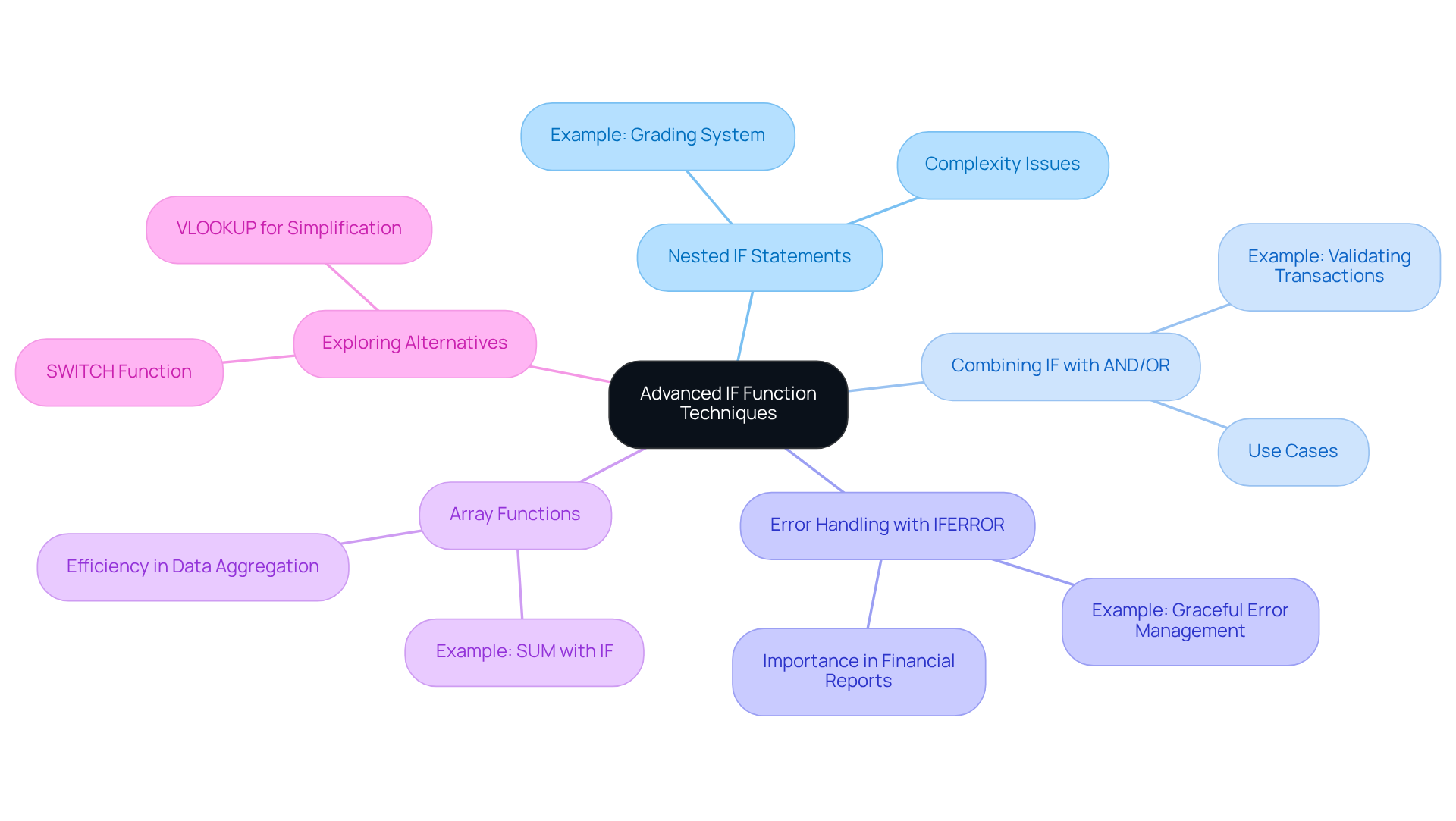
Nested IF Statements: Nesting multiple IF statements allows you to evaluate more than two conditions. For example:
=IF(A1 > 10, "High", IF(A1 > 5, "Medium", "Low"))
This formula checks if A1 exceeds 10, returning "High"; if not, it assesses whether A1 is greater than 5, returning "Medium"; otherwise, it returns "Low". In financial spreadsheets, this is invaluable for categorizing expenses or revenues based on specific thresholds. However, exercise caution, as an if then excel formula with nested IF statements can yield unexpected results 25% of the time, complicating maintenance.
Combining IF with AND/OR Operations: The IF statement can be effectively used alongside AND and OR operations to evaluate multiple conditions. For instance:
=IF(AND(A1 > 10, B1 < 5), "Valid", "Invalid")
This checks if A1 is greater than 10 and B1 is less than 5, proving particularly useful in scenarios like validating financial transactions based on multiple criteria.
To manage errors gracefully, you can use the if then excel formula by combining IF with IFERROR. For example:
=IFERROR(IF(A1 > 10, "Yes", "No"), "Error")
This formula returns "Error" if the IF function encounters an issue, ensuring your financial reports remain clear and informative.
Array Functions: For experienced users, leveraging array functions with IF can perform calculations on multiple values simultaneously. For example:
=SUM(IF(A1:A10 > 10, B1:B10, 0))
This sums the values in B1:B10 where the corresponding A1:A10 values exceed 10. Remember to enter this formula using Ctrl + Shift + Enter. This technique can streamline complex financial analyses, facilitating efficient data aggregation.
Exploring Alternatives: As you progress, consider utilizing the SWITCH method for enhanced readability and maintenance compared to nested IF statements. The IFS function is also available in Microsoft 365 and Excel 2016 and later, simplifying multiple conditions into a single function. For example:
=IFS(A1 > 10, "High", A1 > 5, "Medium", TRUE, "Low")
This approach can significantly improve the readability and manageability of your formulas.
By mastering these advanced techniques, including the if then excel formula, you can greatly enhance your data analysis and decision-making capabilities in Excel, leading to more informed financial strategies.
Conclusion
Mastering the IF function in Excel is essential for effective decision-making and data analysis. Understanding the structure of the IF formula is crucial, as it enables users to evaluate conditions efficiently and automate responses in their spreadsheets. By grasping the syntax and applications of the IF function, users can significantly enhance their productivity and accuracy in data management.
This guide outlines key steps for applying the IF function, troubleshooting common issues, and exploring advanced techniques such as:
- Nested IF statements
- Combining IF with AND operations
- Combining IF with OR operations
Each section provides practical insights and examples, ensuring users can implement the IF function effectively in various scenarios, from simple logical tests to complex financial analyses.
As reliance on data-driven decisions grows, mastering the IF function in Excel becomes increasingly vital. Embracing these techniques streamlines workflows and empowers users to make informed choices swiftly. By leveraging the full potential of the IF function, individuals and businesses can enhance their analytical capabilities, leading to more strategic and impactful outcomes in their data-driven endeavors.
Frequently Asked Questions
What is the IF function in Excel?
The IF function in Excel is a logical tool that allows users to make decisions based on specific conditions.
What is the syntax of the IF function?
The syntax of the IF function is =IF(logical_test, value_if_true, value_if_false).
What does the 'logical_test' component represent?
The 'logical_test' component represents the condition to evaluate, such as checking if a value in a cell exceeds a certain number (e.g., A1 > 10).
What does 'value_if_true' mean in the IF function?
'value_if_true' is the output returned when the logical test evaluates to TRUE. For example, you might return "Yes" if the condition is satisfied.
What does 'value_if_false' mean in the IF function?
'value_if_false' is the output returned when the logical test evaluates to FALSE. For instance, you could return "No" if the condition is not met.
Can you provide an example of an IF function?
An example of an IF function is =IF(A1 > 10, "Yes", "No"). This formula will return "Yes" if the value in A1 is greater than 10, and "No" otherwise.
Why is understanding the IF function important?
Understanding the IF function is crucial for effectively utilizing conditional assessments in spreadsheets, particularly in fields like finance where decision-making often relies on such evaluations.
How widely is the IF function used among Excel users?
A substantial percentage of Excel users leverage the IF function as a logical operation, highlighting its significance in data analysis and financial modeling.
What benefits does mastering the IF function provide?
Mastering the IF function enhances your ability to streamline decision-making processes within spreadsheets, ultimately improving efficiency and accuracy.