
Master the Percent Increase Excel Formula: A Step-by-Step Guide
Learn to effectively use the percent increase Excel formula with this step-by-step guide.

Introduction
Understanding the percentage increase is crucial for anyone aiming to make informed decisions in finance, marketing, or data analysis. This fundamental concept not only aids in evaluating growth trends but also empowers professionals to assess performance effectively. Yet, many users find themselves confused and frustrated when calculating percentage increases in Excel. How can one master this seemingly simple formula and avoid common pitfalls to harness its full potential?
By grasping the intricacies of percentage increases, you can unlock valuable insights that drive better decision-making. Imagine confidently analyzing data, identifying trends, and presenting findings that impress stakeholders. Mastering this skill is not just about numbers; it’s about enhancing your professional credibility and effectiveness.
Understand Percentage Increase: Definition and Importance
Percentage rise is a fundamental mathematical concept that evaluates how much an amount has increased in relation to its initial figure. To determine this, one must find the difference between the new amount and the initial amount, divide that difference by the initial amount, and then multiply by 100 to express it as a percentage. This calculation is crucial across various fields, including finance, marketing, and data analysis, as it enables professionals to assess growth trends, evaluate performance, and make informed decisions.
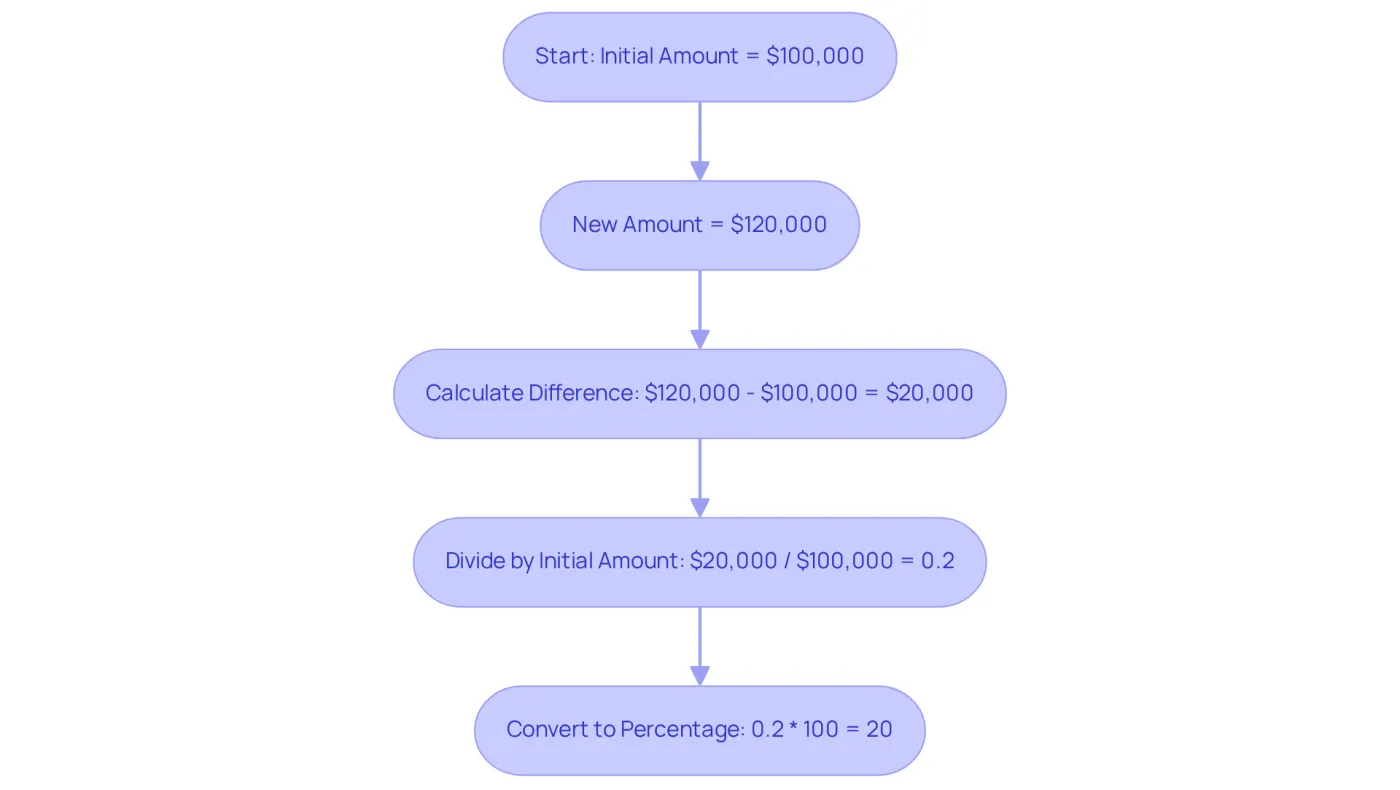
For example, consider a scenario where a company's revenue rises from $100,000 to $120,000. The percentage increase can be calculated as follows:
- Calculate the difference: 120,000 - 100,000 = 20,000
- Divide by the original value: 20,000 / 100,000 = 0.2
- Convert to percentage: 0.2 * 100 = 20%
Thus, the revenue has increased by 20%. Understanding this concept is essential for effectively applying the percent increase excel formula in Excel, allowing for better financial analysis and strategic planning.
Learn the Excel Formula for Calculating Percentage Increase
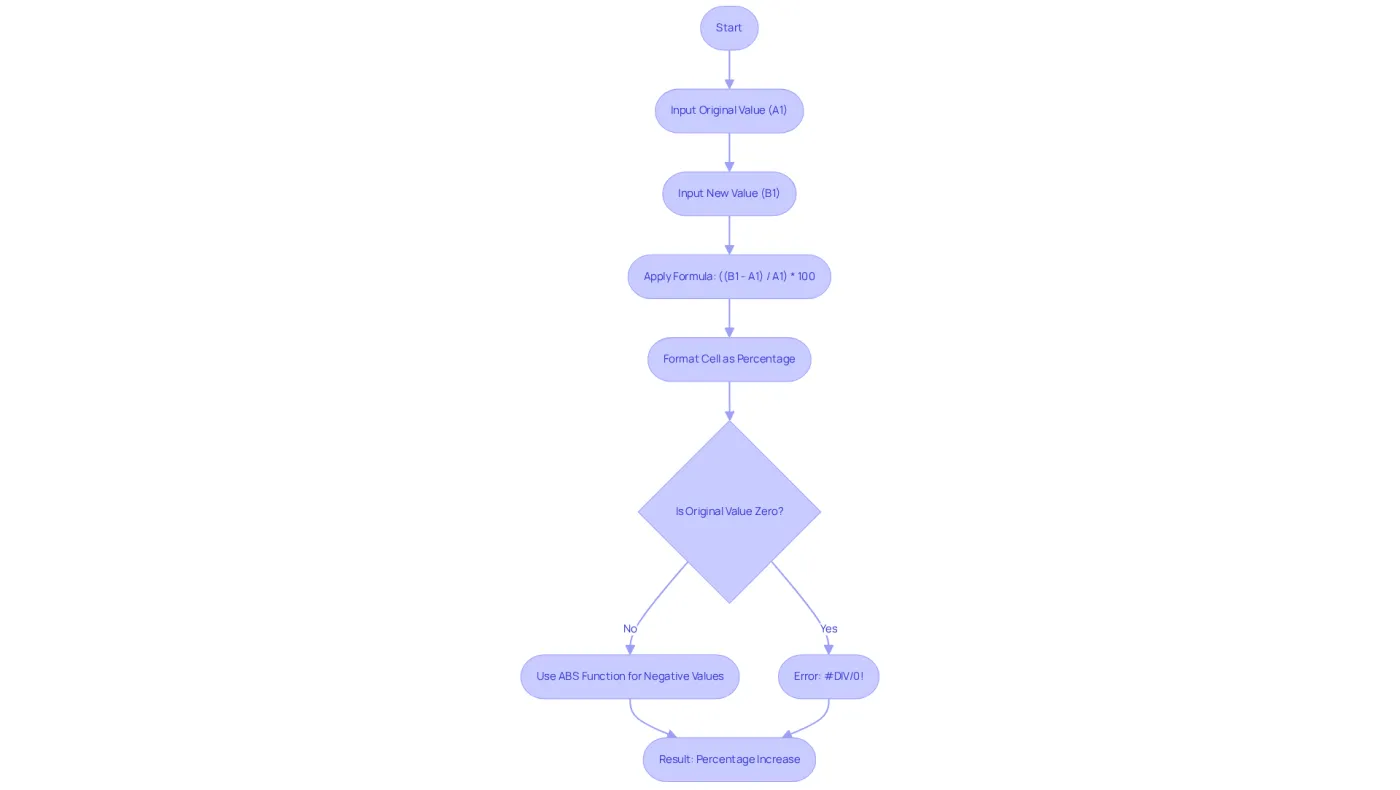
To calculate the percentage increase in Excel, you can use the following formula:
Percentage Increase Formula:
=((New Value - Original Value) / Original Value) * 100
Example:
Assuming the original value is in cell A1 and the new value is in cell B1, input the formula in cell C1 as follows:
=((B1 - A1) / A1) * 100
This formula effectively calculates the percentage increase from the original value to the new value. To ensure the result displays as a percentage, format the cell accordingly: right-click on the cell, select 'Format Cells', and choose 'Percentage'.
Best Practices:
- Always verify that the original value is not zero to avoid division errors, which will result in a #DIV/0! error in Excel. As a best practice, ensure that old numbers aren’t zero to prevent division-by-zero errors.
- Utilize Excel's ABS function to manage negative values effectively, ensuring a more intuitive calculation.
- Familiarize yourself with Excel's fill handle feature to quickly apply the formula across multiple rows, enhancing efficiency in data analysis.
Real-World Application:
Businesses frequently implement percentage increase formulas to track performance metrics, such as revenue growth or cost management. For instance, a company may evaluate a rise in revenue from $10 million to $14 million, leading to a 40% growth, which can guide strategic decisions.
Statistics:
Research indicates that a significant portion of Excel users, approximately 84%, regularly utilize percentage calculations in their financial modeling. This highlights the formula's importance in data analysis and decision-making.
Apply the Percentage Increase Formula in Excel: A Step-by-Step Process
To effectively apply the percentage increase formula in Excel, follow these steps:
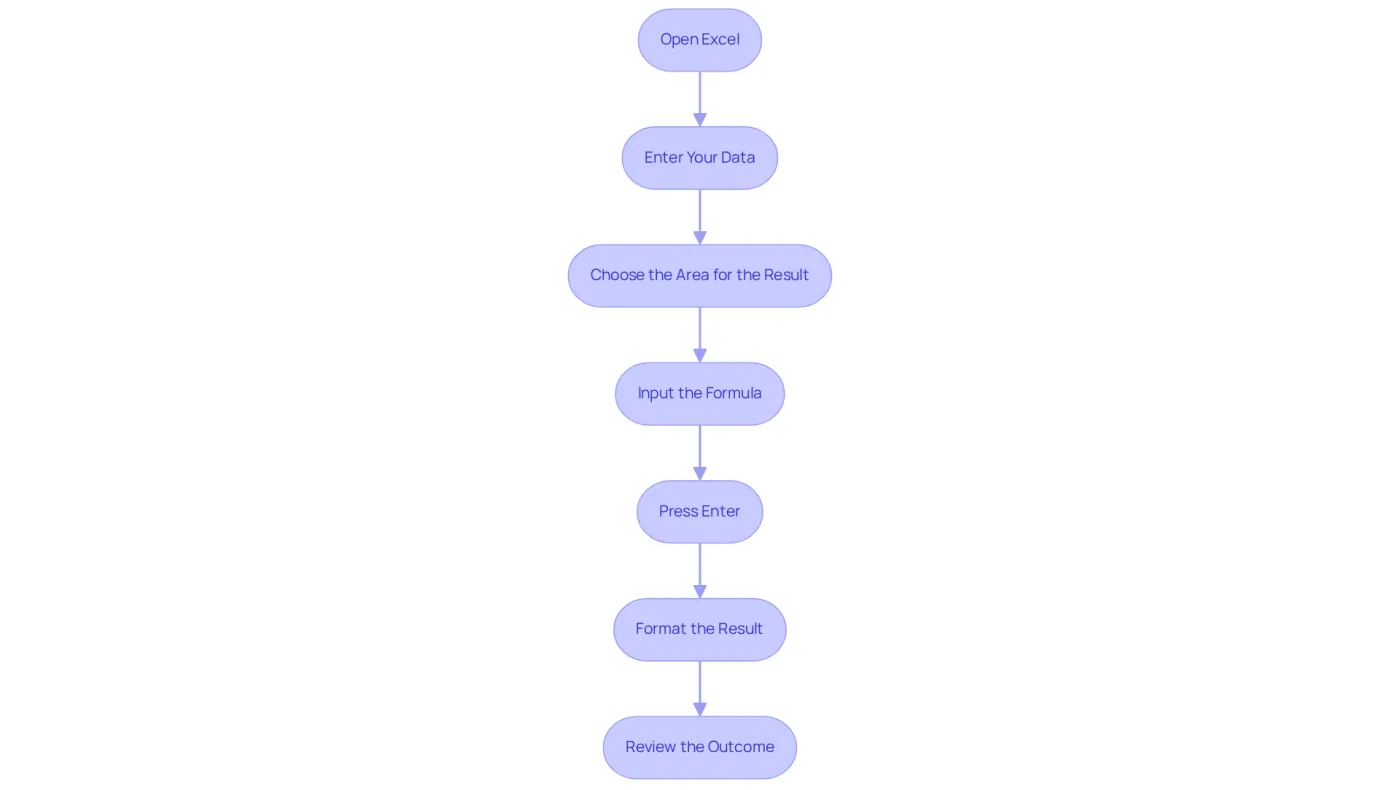
- Open Excel: Launch Microsoft Excel and either create a new spreadsheet or open an existing one.
- Enter Your Data: In box A1, input the original number (for example, 100). In box B1, input the new value (for instance, 120).
- Choose the Area for the Result: Click on C1, where you want the growth to be shown.
- Input the Formula: Type the formula
=((B1 - A1) / A1) * 100into box C1. This percent increase excel formula computes the difference between the new and original values, divides it by the original value, and multiplies by 100 to express it as a ratio. - Press Enter: Hit the Enter key to execute the calculation.
- Format the Result: If necessary, format C1 as a percent by right-clicking the square, selecting 'Format Cells', and choosing 'Percent'. This step ensures that the result is displayed in a user-friendly format.
- Review the Outcome: The cell should now show the proportionate rise, which in this example would be 20%.
By following these steps, you can easily use the percent increase excel formula to compute the proportionate rise for any set of values in Excel. For instance, if a household bill rose from $100 to $125, the rate of growth would be calculated as =((125 - 100) / 100) * 100, resulting in a 25% rise. This formula is essential for finance professionals analyzing trends, such as evaluating quarterly earnings or assessing changes in expenses.
Engaging with Excel tutorials on ratio calculations can further enhance your proficiency. User engagement statistics indicate a growing interest in mastering these essential skills. Additionally, understanding the direction of percent change is crucial for accurately interpreting data trends. Being aware of potential errors like #DIV/0! or #VALUE! can help prevent calculation issues.
Troubleshoot Common Errors in Percentage Increase Calculations
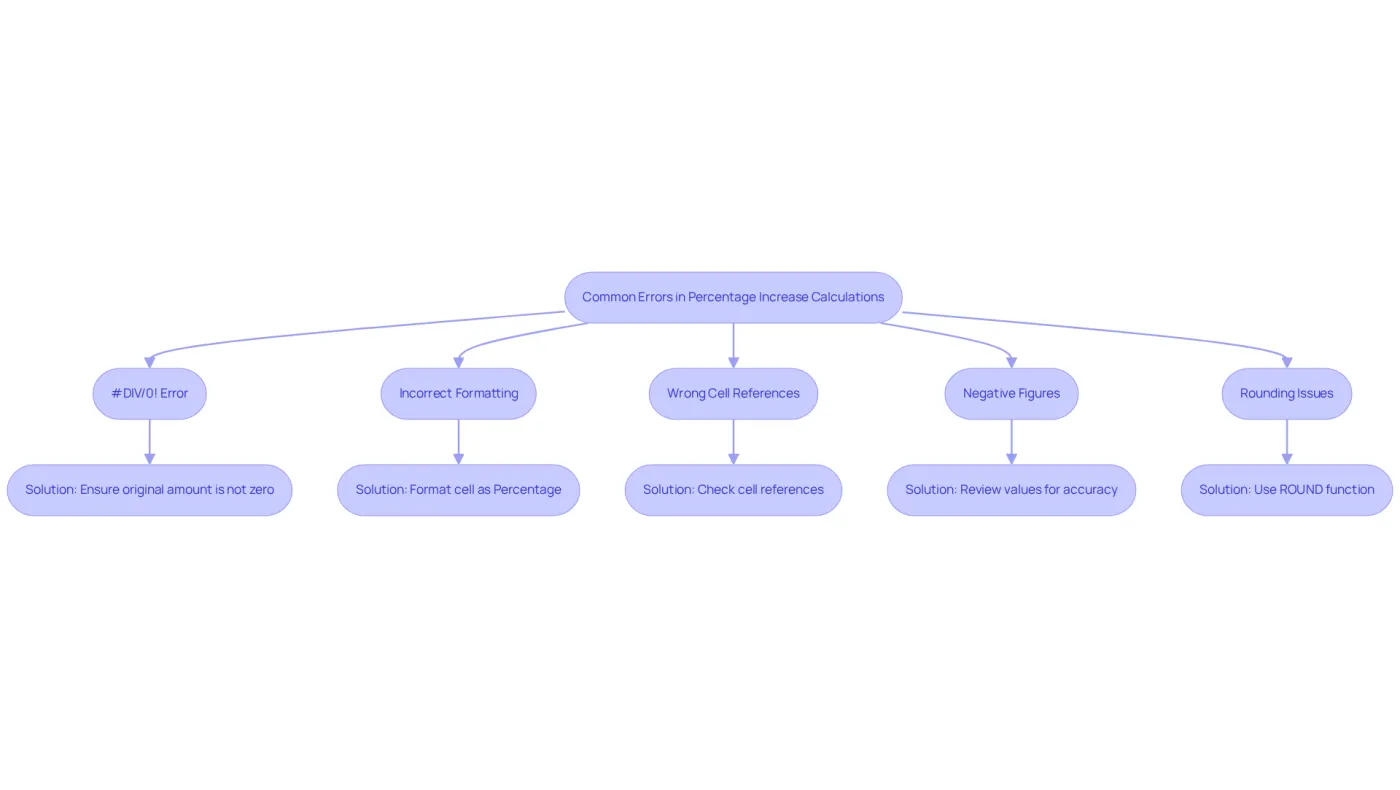
When calculating percent increase Excel formula, users often face several common errors. Understanding these pitfalls is crucial for achieving accurate results. Here are some troubleshooting tips:
-
#DIV/0! Error: This error arises when the original amount is zero. To prevent this, ensure that the original amount is not zero before performing the calculation. For instance, if the old value is zero and the new value is 100, the change in value is considered 100%, as highlighted in the case study on managing zero in change calculations.
-
Incorrect Formatting: If the result appears as a decimal instead of a percentage, check the formatting of the cell. Right-click the item, select 'Format Cells', and choose 'Percentage'. This adjustment is vital, especially since 88% of spreadsheets contain errors, underscoring the importance of careful formatting.
-
Wrong Cell References: Always double-check that you are referencing the correct cells in your formula. For example, if your initial amount is in A1 and the updated amount is in B1, ensure your formula accurately reflects that.
-
Negative Figures: If the new number is less than the original number, the percentage increase will be negative. While this is mathematically correct, it may not align with your expectations. Review your values to confirm their accuracy.
-
Rounding Issues: If your results seem off, consider using the ROUND function to control the number of decimal places displayed. For example,
=ROUND(((B1 - A1) / A1) * 100, 2)will round the result to two decimal places.
By being aware of these common errors and their solutions, you can ensure accurate calculations and a smoother experience when using the percent increase excel formula for your data. As Claudia Buckley, a certified Microsoft Office Expert, emphasizes, understanding error messages is key to enhancing your Excel skills.
Conclusion
Mastering the percentage increase formula in Excel is an invaluable skill that empowers individuals to analyze data effectively and make informed decisions. Understanding how to calculate the percentage rise allows professionals to gain insights into trends and performance metrics, which are crucial for success in various fields such as finance, marketing, and data analysis.
This article provides a comprehensive guide on the definition and importance of percentage increase, along with a detailed step-by-step process for applying the formula in Excel. Key points include:
- The correct formula
- Best practices to avoid common errors
- Real-world applications that highlight the significance of this calculation
By familiarizing yourself with these concepts and techniques, you can enhance your proficiency in Excel and ensure accurate data analysis.
Ultimately, the ability to calculate percentage increases is not just about crunching numbers; it’s about interpreting data to drive strategic decisions. Embracing this knowledge can lead to better financial modeling and performance evaluation. Therefore, practice these skills regularly, troubleshoot potential errors, and explore further resources to deepen your understanding and application of the percentage increase formula in Excel.
Frequently Asked Questions
What is percentage increase?
Percentage increase is a mathematical concept that measures how much an amount has increased relative to its initial figure.
How do you calculate percentage increase?
To calculate percentage increase, find the difference between the new amount and the initial amount, divide that difference by the initial amount, and then multiply by 100 to express it as a percentage.
Why is understanding percentage increase important?
Understanding percentage increase is important as it helps evaluate growth trends, assess performance, and make informed decisions in various fields such as finance, marketing, and data analysis.
Can you provide an example of calculating percentage increase?
Yes, for example, if a company's revenue rises from $100,000 to $120,000, the calculation is as follows: 1. Calculate the difference: 120,000 - 100,000 = 20,000 2. Divide by the original value: 20,000 / 100,000 = 0.2 3. Convert to percentage: 0.2 * 100 = 20% Thus, the revenue has increased by 20%.
How does this concept apply to Excel?
Understanding percentage increase is essential for effectively applying the percent increase formula in Excel, which aids in better financial analysis and strategic planning.