

Introduction
Understanding the intricacies of percentage change is essential in a data-driven landscape, where every fluctuation can signal a significant trend. This article serves as your straightforward, step-by-step guide to mastering the percentage change Excel formula. By empowering you to analyze financial metrics effectively, it enables informed decision-making that can impact your success.
However, a common pitfall lurks within the simplicity of the formula: what happens when the original value is zero? This exploration not only clarifies the calculation process but also highlights critical errors that can derail accurate data analysis. By addressing these challenges, we ensure that you are equipped to navigate the complexities of financial data with confidence.
Understand Percentage Change: Definition and Importance
Percentage variation is a crucial mathematical concept that illustrates the extent of change over time in relation to an initial amount. To find the percentage change, you can use the percentage change Excel formula, which involves:
- Calculating the difference between the new value and the original value.
- Dividing that difference by the original value.
- Multiplying by 100 to express it as a percentage.
This calculation is vital across various fields, including finance, economics, and data analysis, as it enables professionals to evaluate growth, decline, or fluctuations in data.
Consider this example: if a company's income increases from $100,000 to $120,000, understanding the percentage change helps stakeholders grasp the growth rate effectively. The formula for percentage change is:
Percentage Change = (New Value - Original Value) / Original Value * 100
Grasping this concept is essential for making informed decisions based on data trends and performance metrics. By mastering percentage variation, you empower yourself to analyze financial health and make strategic choices that drive success.

Learn the Percentage Change Formula
The formula for calculating percentage change is as follows:
Percentage Change = (New Value - Original Value) / Original Value × 100
Breakdown of the Formula:
- New Amount: This represents the figure after the modification.
- Original Amount: This is the amount before the modification.
- Difference: To find the change, subtract the original amount from the new amount.
- Division: Divide the difference by the original amount to determine the proportion of change.
- Multiplication: Multiply the result by 100 to express it as a percentage.
Example Calculation:
Consider an original value of 50 and a new value of 75. The calculation proceeds as follows:
- Difference: 75 - 50 = 25
- Division: 25 / 50 = 0.5
- Multiplication: 0.5 × 100 = 50%
Thus, the percentage change is 50%, indicating a significant increase.
Common Mistakes:
When calculating percentage change, it’s crucial to ensure that the original value is not zero, as this would lead to division errors. For instance, if earnings decreased from $2,500 to $2,425, the calculation would be:
- Difference: 2,425 - 2,500 = -75
- Division: -75 / 2,500 = -0.03
- Multiplication: -0.03 × 100 = -3%
This indicates a 3% decrease in earnings, a critical insight for financial analysis. Displaying adjustments as ratios offers a clearer understanding than simply mentioning numerical variations, facilitating effective communication of financial performance.

Apply the Percentage Change Formula in Excel: Step-by-Step Instructions
To apply the percentage change formula in Excel, follow these steps:
Step 1: Open Excel and Prepare Your Data
- Launch Excel and open a new or existing spreadsheet.
- Enter your original value in one cell (e.g., A1) and the new value in another cell (e.g., B1).
Step 2: Enter the Formula
- Click on a blank cell where you want the percentage change to appear (e.g., C1).
- Type the equation:
=(B1-A1)/A1*100and press Enter. This equation uses the percentage change excel formula to compute the percentage variation by determining the difference between the new and initial values, dividing by the initial value, and multiplying by 100. As Sandra Simonovic notes, "Percent change is a crucial metric for analyzing data trends, whether you're tracking stock prices, sales figures, or any other numerical data."
Step 3: Format the Result as a Percentage
- Click on the cell with the formula (C1).
- Go to the Home tab, find the Number group, and select the Percentage Style button (or press Ctrl + Shift + %). Presenting the result as a ratio improves clarity and facilitates simpler understanding of the data. This is particularly important in financial analysis, where clarity is key.
Step 4: Review Your Calculation
- The cell will now display the percentage change. For example, if A1 is 50 and B1 is 75, C1 will show 50%. This straightforward calculation using the percentage change excel formula is essential for analyzing trends in financial data, such as revenue growth or sales performance. For instance, a retailer might calculate a 12% sales increase from Q1 to Q2 to identify trends.
Step 5: Copy the Formula for Additional Calculations
- If you have more data, you can drag the fill handle (the small square at the bottom-right corner of the cell) down to apply the formula to other rows. This method allows for quick calculations across multiple datasets, making it a valuable tool for finance professionals. In reality, utilizing templates can simplify percentage adjustments by offering pre-structured columns and built-in calculations.
By adhering to these steps, you can effectively compute proportional variations in Excel, an essential ability for data examination and financial reporting. Keep in mind, as highlighted in recent evaluations, grasping the equation for proportion alterations enables swift examination of value variations over time, which is essential for knowledgeable decision-making.

Avoid Common Errors in Percentage Change Calculations
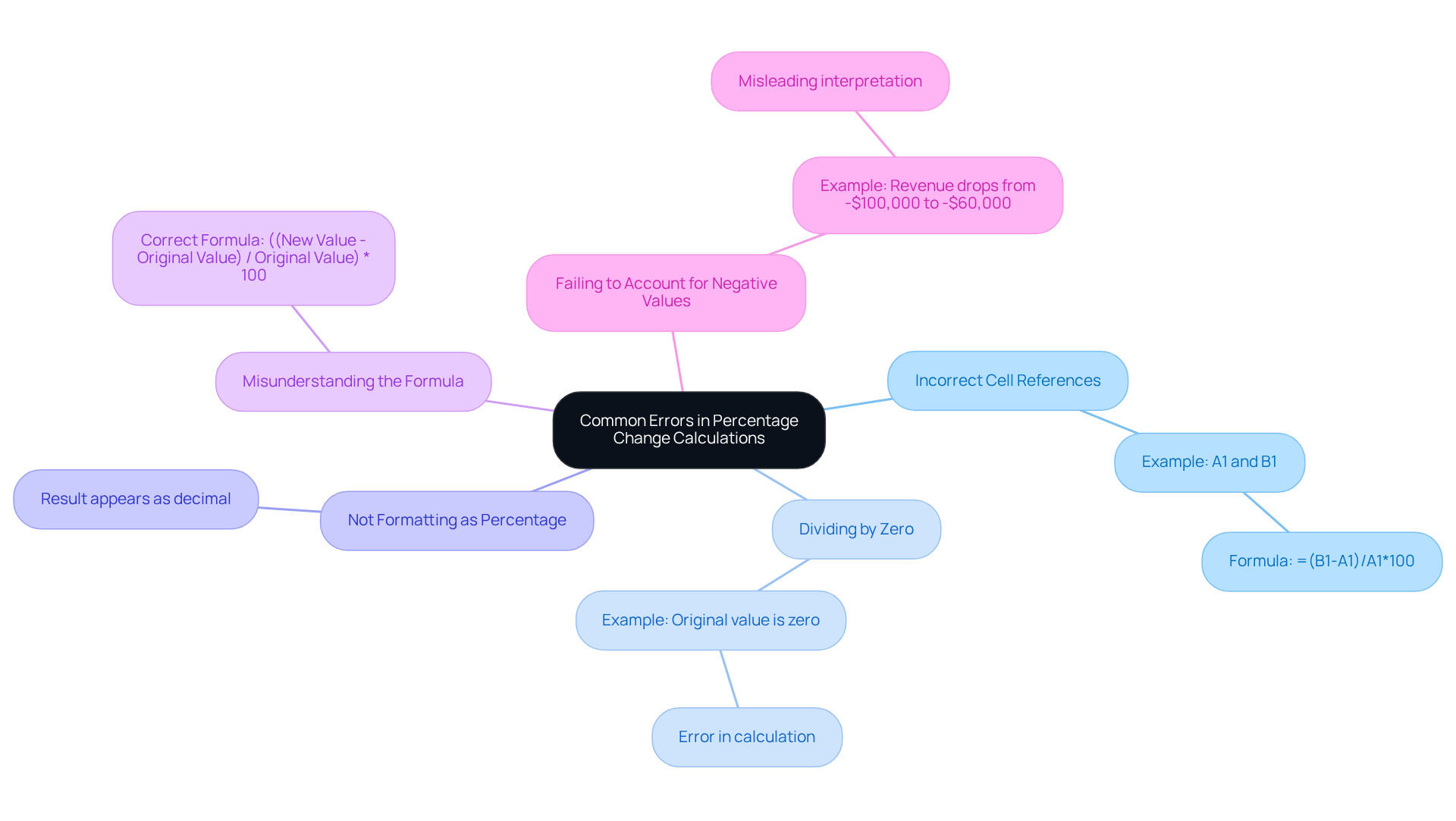
When calculating the percentage change Excel formula, users often face several common errors. Here are some critical pitfalls to avoid:
-
Incorrect Cell References
Ensure that you reference the correct cells in your formula. For instance, if your initial amount is in A1 and your updated amount is in B1, your equation should be=(B1-A1)/A1*100. -
Dividing by Zero
If the original value is zero, the formula will result in a division error. Always check your data to prevent this situation. For example, if a retailer's sales decrease from $15,000 to $0, attempting to compute the change will lead to an error. This highlights the importance of careful data validation. -
Not Formatting as Percentage
After entering the formula, remember to format the result as a percentage. Skipping this step may cause the result to appear as a decimal rather than a fraction. -
Misunderstanding the Formula
Some users confuse the formula for percentage change with other calculations. Remember, the correct formula is:
Percentage Change = ((New Value - Original Value) / Original Value) * 100 -
Failing to Account for Negative Values
If your original value is negative, the interpretation of the percentage change can be misleading. For instance, if a company's revenue drops from -$100,000 to -$60,000, the calculation may imply a rise, skewing the financial assessment.
By being aware of these common errors, you can ensure more accurate calculations and better data analysis. Grasping the subtleties of proportion alteration is essential for efficient financial reporting and decision-making. Statistics indicate that nearly 90% of spreadsheets contain errors, emphasizing the need for vigilance in calculations. A notable case is Fidelity's $2.6 billion error due to a clerical mistake, serving as a significant reminder of the consequences of incorrect calculations. Additionally, over half of college students misinterpret percentage changes, underscoring the need for clarity in calculations.
Conclusion
Mastering the percentage change formula in Excel is not just a skill; it’s a vital asset that empowers you to analyze and interpret data effectively. Why is this important? Understanding how to calculate percentage change enhances financial analysis and aids in making informed decisions across various fields, from business to economics. By grasping this concept, you can evaluate trends and performance metrics more effectively, ultimately driving your success.
In this article, we provided key insights into calculating percentage change, including a clear breakdown of the formula and step-by-step instructions for applying it in Excel. We also highlighted common pitfalls, such as incorrect cell references and division by zero, ensuring you can navigate potential errors with confidence. Practical examples reinforced the importance of accurately interpreting percentage changes, showcasing how this knowledge can significantly impact financial reporting and strategic planning.
In conclusion, the ability to calculate percentage change is indispensable for anyone involved in data analysis or financial decision-making. By implementing the steps outlined and avoiding common mistakes, you can enhance your proficiency in Excel and gain valuable insights from your data. Embracing this skill not only leads to improved analytical capabilities but also fosters a deeper understanding of the dynamics at play within any numerical dataset. Take action now - master this essential skill and elevate your data analysis to new heights.
Frequently Asked Questions
What is percentage change?
Percentage change is a mathematical concept that shows the extent of change over time in relation to an initial amount.
How do you calculate percentage change?
To calculate percentage change, you find the difference between the new value and the original value, divide that difference by the original value, and then multiply by 100 to express it as a percentage.
Why is percentage change important?
Percentage change is important because it allows professionals in various fields, such as finance, economics, and data analysis, to evaluate growth, decline, or fluctuations in data.
Can you provide an example of percentage change?
For example, if a company's income increases from $100,000 to $120,000, understanding the percentage change helps stakeholders grasp the growth rate effectively.
What is the formula for calculating percentage change?
The formula for percentage change is: Percentage Change = (New Value - Original Value) / Original Value * 100.
How does mastering percentage change benefit decision-making?
Mastering percentage change enables individuals to analyze financial health and make informed decisions based on data trends and performance metrics, which can drive strategic choices for success.