
Master the Percentage Increase Excel Formula: A Step-by-Step Guide
Learn to efficiently calculate growth using the percentage increase Excel formula in this step-by-step guide.

Introduction
Proportional growth stands as a cornerstone of data analysis, particularly in finance and marketing. Understanding the percentage increase formula in Excel is essential for professionals seeking to derive powerful insights that inform decision-making and strategic planning. But what happens when straightforward calculations lead to significant errors that can adversely affect business outcomes? This article explores the critical steps for accurately calculating percentage increases in Excel, addressing common pitfalls along the way. By enhancing your spreadsheet skills, you can avoid costly mistakes and drive your business forward.
Understand Percentage Increase: Definition and Importance
Proportional growth stands as a fundamental mathematical concept, measuring the relative change in a value over time, expressed as a fraction of the initial value. The formula for calculating percentage increase is:
Percentage Increase = (New Value - Original Value) / Original Value × 100
This calculation proves vital across various fields, including finance, marketing, and data analysis. It empowers professionals to evaluate growth, performance, and trends effectively. For instance, consider a company's revenue rising from $100,000 to $120,000. The percentage increase can be calculated as follows:
Percentage Increase = (120,000 - 100,000) / 100,000 × 100 = 20%
Understanding this concept is crucial for making informed decisions based on numerical data, enabling users to interpret changes accurately. Current trends indicate that rate rise assessments are increasingly employed in data analysis, with 76% of monitored items showing price increases over the past year. In marketing, businesses leverage these metrics to assess the effectiveness of pricing strategies and promotional campaigns, ensuring competitiveness in a fluctuating market.
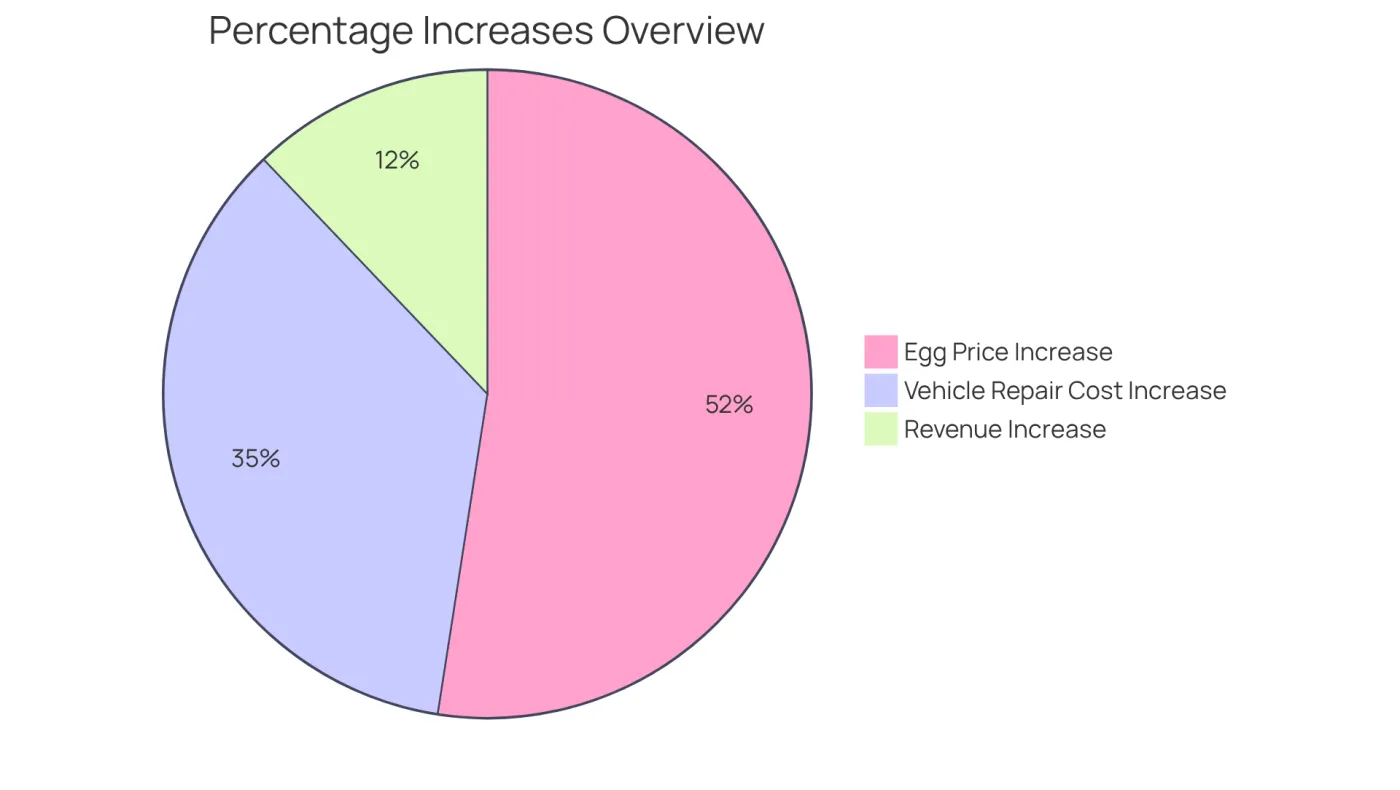
Financial analysts emphasize the importance of mastering proportional growth, as it aids in evaluating economic advancement and making strategic choices. For example, egg prices have surged by 86.5% since February 2020, while vehicle repair costs have risen by 58.4% during the same timeframe. By utilizing tools such as spreadsheets, professionals can streamline calculations using the percentage increase excel formula, enhancing their analytical capabilities and overall productivity.
Apply the Percentage Increase Formula in Excel: Step-by-Step Instructions
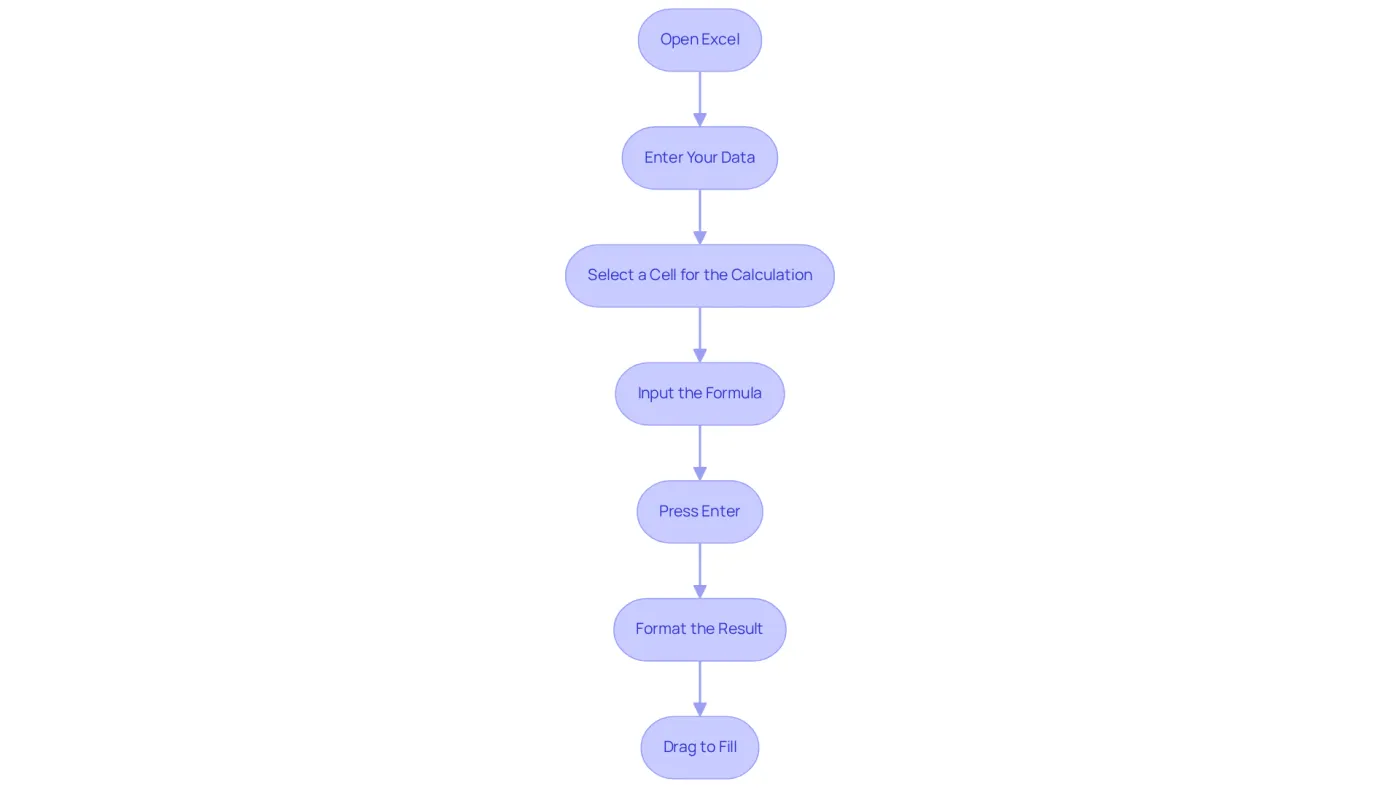
To apply the percentage increase formula in Excel, follow these essential steps:
-
Open Excel: Launch Microsoft Excel and open a new or existing spreadsheet.
-
Enter Your Data: In column A, input your original values. For example, enter
100in cell A1 and120in cell A2. -
Select a Cell for the Calculation: Click on cell B1 where you want the growth result to appear.
-
Input the Formula: Type the following formula into cell B1:
=(A2 - A1) / A1 * 100This formula calculates the percentage increase from the value in A1 to the value in A2.
-
Press Enter: Hit the Enter key to execute the formula. The result in cell B1 should show
20, indicating a 20% rise. -
Format the Result: To display the result as a fraction of a hundred, select cell B1, navigate to the Home tab, and click on the format style button in the Number group.
-
Drag to Fill: If you have more data, drag the fill handle (a small square at the bottom-right corner of the cell) down to apply the formula to additional rows.
By following these steps, you can efficiently calculate the percentage increase Excel formula for any set of values in a spreadsheet application. This method is crucial for finance professionals, enabling quick analysis of performance metrics, such as tracking sales growth or evaluating investment returns. Moreover, utilizing the fill handle function can significantly save time when applying formulas across various rows, enhancing efficiency in data analysis. Always ensure your old values are not zero to avoid division-by-zero errors, preventing computational issues.
Troubleshoot Common Errors in Percentage Increase Calculations
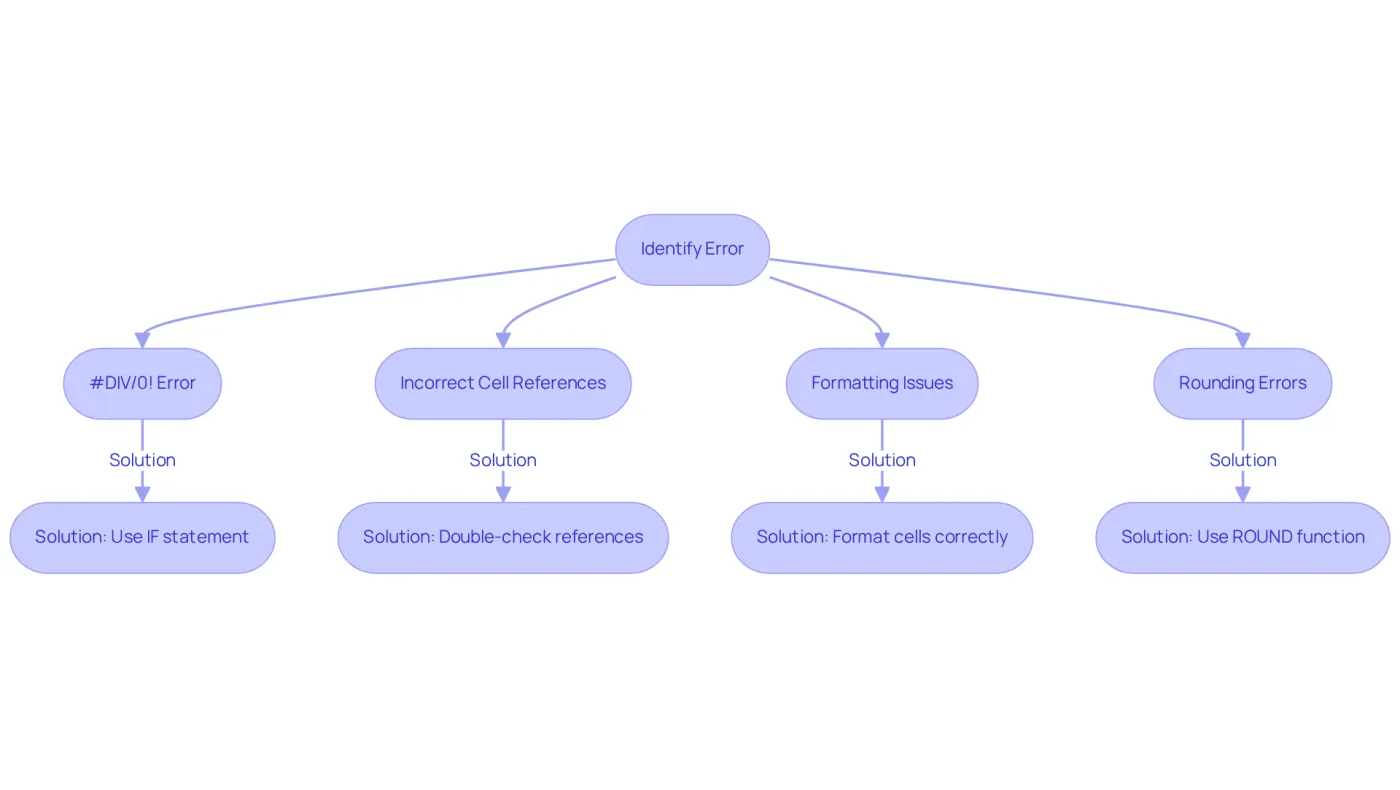
When determining rate increases in Excel, users often encounter typical mistakes that can lead to significant inaccuracies when using the percentage increase excel formula. Here are essential troubleshooting tips to ensure precise calculations:
-
#DIV/0! Error: This error occurs when the original value is zero. To prevent this, verify that the original value is not zero before executing the calculation. Implement an IF statement to manage this scenario effectively:
=IF(A1=0, "N/A", (A2-A1)/A1*100)This error is particularly common, and understanding its frequency can help users remain vigilant.
-
Incorrect Cell References: Always double-check that you are referencing the correct cells in your formula. Swapping the original and new values can lead to erroneous results, which can be particularly detrimental in financial contexts.
-
Formatting Issues: Ensure that the cells containing your results are formatted correctly. If the result appears as a decimal rather than a fraction, select the cell and format it as a fraction to enhance clarity.
-
Rounding Errors: The software may display rounding errors due to its management of decimal places. To address this, utilize the ROUND function:
=ROUND((A2-A1)/A1*100, 2)This formula rounds the result to two decimal places, improving the accuracy of your financial reporting.
By being aware of these frequent mistakes and their remedies, you can significantly enhance the precision of growth assessments with the percentage increase excel formula in spreadsheet software. Given that nearly 94% of business spreadsheets contain critical errors, implementing these strategies is crucial for maintaining data integrity and avoiding costly mistakes. For instance, the University of Toledo faced a $25 million budget shortfall due to a miscalculation in student enrollment, underscoring the real-world implications of spreadsheet errors. As Prof. Pak-Lok Poon pointed out, 'The high rate of errors in these spreadsheets is troubling,' emphasizing the necessity for careful management of spreadsheet computations.
Leverage Tools and Resources for Enhanced Excel Functionality
Elevate Your Excel Skills: Mastering Percentage Increases
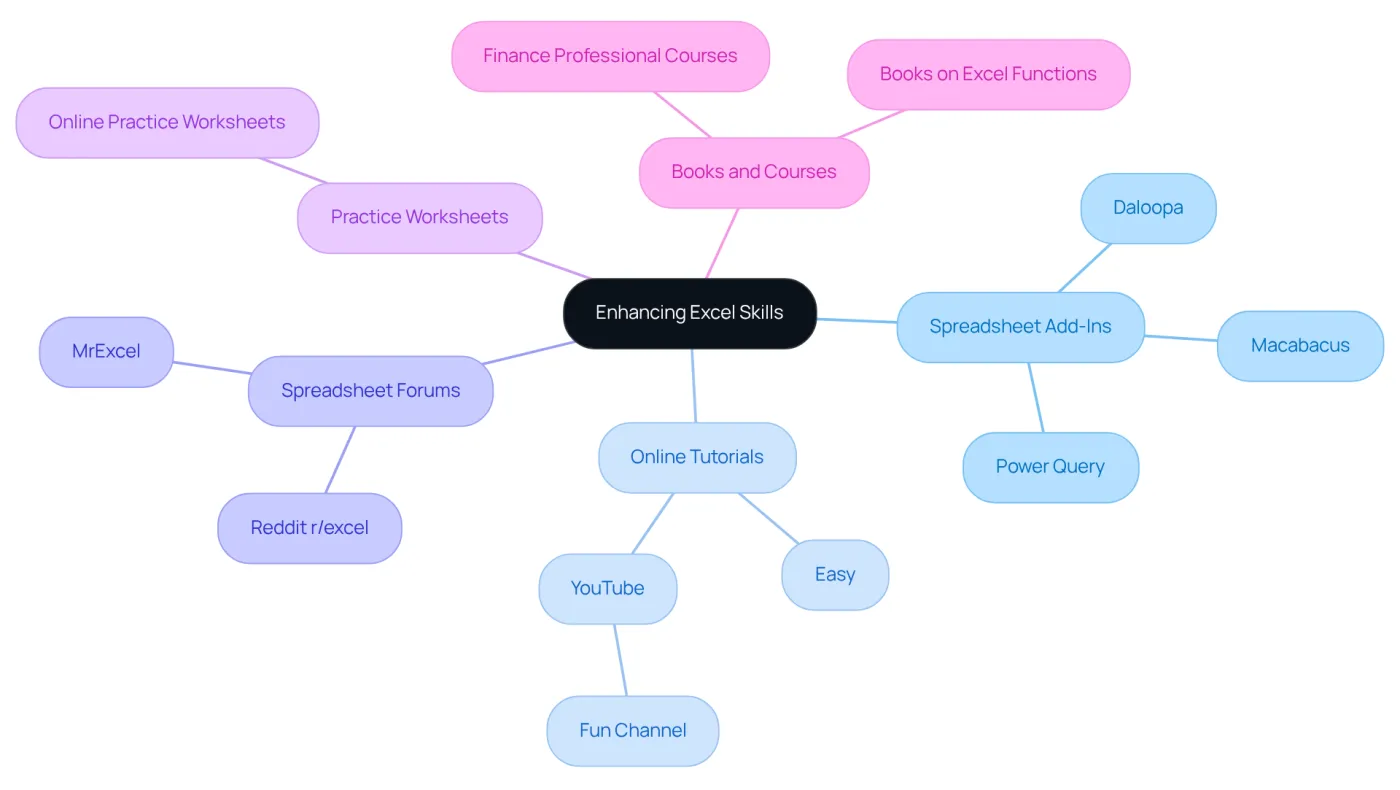
Are you looking to enhance your Excel skills, particularly in calculating percentage increases? Leveraging the right tools and resources can make a significant difference in your proficiency. Here’s how you can get started:
-
Spreadsheet Add-Ins: Consider powerful add-ins like Daloopa and Power Query. These tools not only enhance efficiency in computations but also offer advanced functionalities tailored for financial analysis. For instance, Daloopa automates data extraction and integration, significantly reducing manual entry time for financial analysts.
-
Online Tutorials: Access comprehensive tutorials on platforms like Easy and YouTube channels such as Fun. These resources cover a wide range of functions, including detailed guidance on the percentage increase excel formula for calculations. Statistics show that users who engage with online tutorials report a 70% improvement in their spreadsheet skills.
-
Spreadsheet Forums: Connect with communities on platforms like MrExcel or Reddit's r/excel. Here, you can ask questions, share knowledge, and gain insights from the experiences of other spreadsheet users. These forums often feature discussions on the latest trends and tools in spreadsheet software for 2025.
-
Practice Worksheets: Utilize online practice worksheets designed to sharpen your skills in ratio computations and other fundamental Excel functions. Regular practice can lead to a 50% increase in speed and accuracy when applying the percentage increase excel formula to calculations.
-
Books and Courses: Invest in specialized books or online courses aimed at finance professionals. These resources delve into advanced topics like ratio assessments, providing comprehensive knowledge and practical applications. Courses featuring expert insights, such as those from finance leaders like Mike Dion, can further enrich your learning experience.
By utilizing these resources, you can significantly boost your Excel proficiency and tackle percentage calculations with newfound confidence. Don't wait-start enhancing your skills today!
Conclusion
Mastering the percentage increase formula in Excel is not just an essential skill; it’s a game-changer for professionals across various fields. This guide has equipped you with the knowledge to quantify growth and make informed decisions based on numerical data.
Key insights include:
- A clear definition of percentage increase
- Step-by-step instructions for applying the formula in Excel
- The identification of common mistakes that can lead to inaccuracies
By grasping these components, you can enhance your analytical capabilities and ensure data integrity. This ultimately leads to more effective performance evaluations and strategic decision-making.
Embracing these skills enhances your proficiency and contributes significantly to overall business success. As the demand for data-driven insights continues to rise, investing time in mastering the percentage increase formula and utilizing available resources will empower you to excel in your role.
So, why wait? Start implementing these techniques today and unlock the full potential of your Excel capabilities.
Frequently Asked Questions
What is percentage increase?
Percentage increase is a mathematical concept that measures the relative change in a value over time, expressed as a fraction of the initial value. It is calculated using the formula: Percentage Increase = (New Value - Original Value) / Original Value × 100.
Why is understanding percentage increase important?
Understanding percentage increase is crucial for evaluating growth, performance, and trends across various fields such as finance, marketing, and data analysis. It helps professionals make informed decisions based on numerical data and accurately interpret changes.
Can you provide an example of how to calculate percentage increase?
For example, if a company's revenue rises from $100,000 to $120,000, the percentage increase can be calculated as follows: Percentage Increase = (120,000 - 100,000) / 100,000 × 100 = 20%.
How is percentage increase used in marketing?
In marketing, businesses use percentage increase metrics to assess the effectiveness of pricing strategies and promotional campaigns, helping them remain competitive in a fluctuating market.
What trends are observed regarding price increases?
Current trends indicate that 76% of monitored items have shown price increases over the past year, highlighting the importance of understanding percentage increases in data analysis.
How can professionals streamline calculations for percentage increase?
Professionals can streamline calculations using tools such as spreadsheets and the percentage increase excel formula, which enhances their analytical capabilities and overall productivity.
What are some real-world examples of significant percentage increases?
Examples include egg prices, which have surged by 86.5% since February 2020, and vehicle repair costs, which have risen by 58.4% during the same timeframe.