
Master the Shortcut for All Borders in Excel: Step-by-Step Guide
Discover the efficient shortcut for all borders in Excel to enhance your spreadsheet formatting.

Introduction
Mastering Excel often feels like navigating a complex maze, particularly when it comes to efficiently formatting data. Keyboard shortcuts stand out as invaluable allies in this journey, providing a streamlined approach to tasks that would otherwise consume precious time. This article explores the specific shortcut for applying all borders in Excel, demonstrating how this simple command can significantly enhance both productivity and the visual appeal of spreadsheets.
But what happens when these shortcuts don’t work as expected? Understanding the nuances of these tools could be the key to fostering a more efficient workflow. By mastering these shortcuts, you not only save time but also elevate the quality of your spreadsheets, making them more visually appealing and easier to read.
Are you ready to transform your Excel experience? Let's delve deeper into the world of keyboard shortcuts and discover how they can revolutionize your approach to data management.
Understand the Importance of Keyboard Shortcuts in Excel
Keyboard combinations in spreadsheet applications are essential tools that empower users to execute tasks swiftly and effectively, eliminating the need for mouse navigation. By utilizing these shortcuts, you can significantly reduce the time spent on repetitive tasks, allowing you to focus on more complex analyses. Familiarizing yourself with these techniques not only boosts productivity but also enhances your overall experience in Excel.
As you transition to Google Sheets, leveraging these quick commands will help maintain your workflow and minimize interruptions. For instance, the shortcut for all borders in Excel (Alt + H, B, A) can significantly improve the efficiency of formatting data. Embrace these shortcuts to elevate your productivity and streamline your processes.

Learn the Shortcut for Applying All Borders
Effortlessly Enhance Your Excel Spreadsheets with ShortieCuts
Are you tired of navigating through endless menus to format your Excel spreadsheets? You’re not alone. Many professionals face this challenge, which can slow down productivity and hinder efficiency. Fortunately, there’s a solution: the ShortieCuts extension.
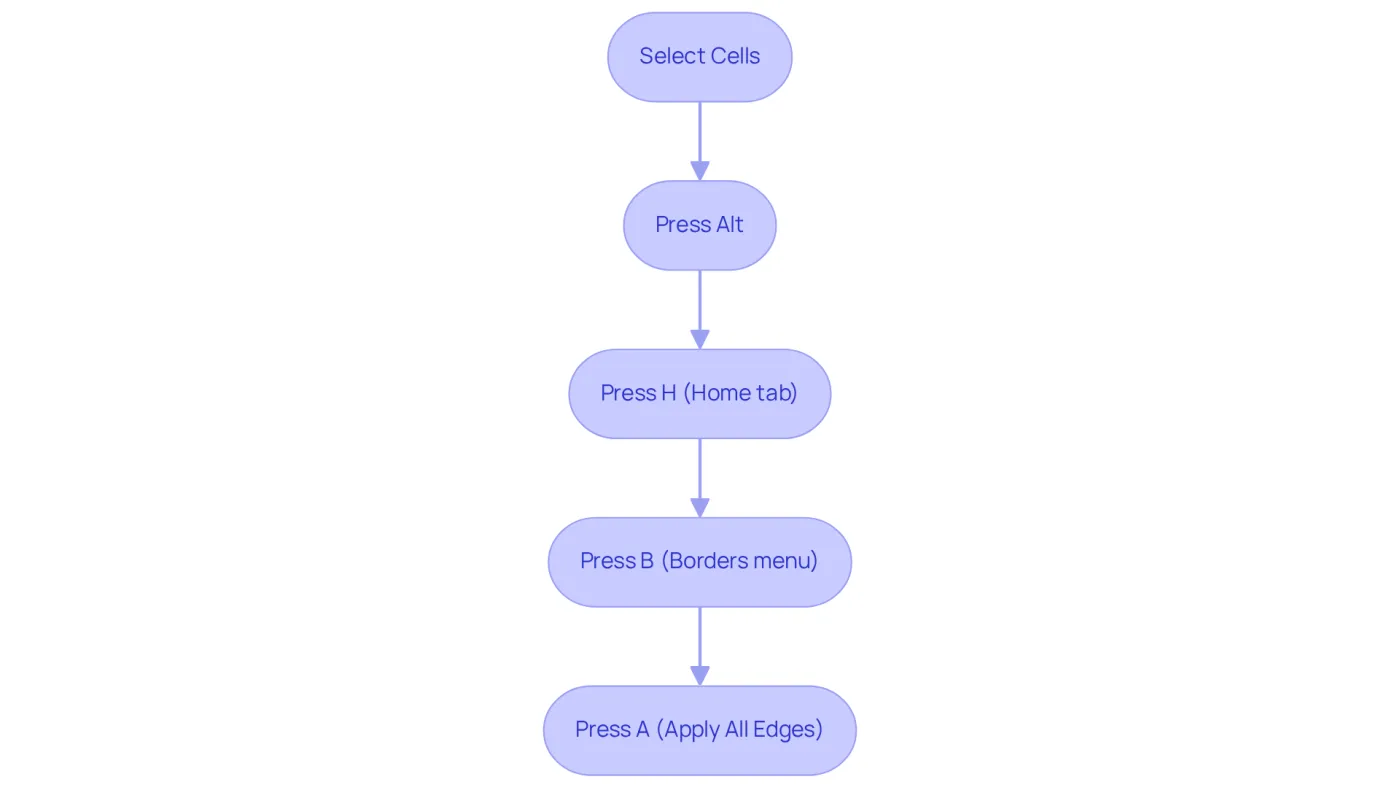
To use the shortcut for all borders in Excel on selected cells, simply use the keyboard combination: Alt + H, B, A. This quick sequence is a shortcut for all borders in Excel, allowing you to add borders to your data seamlessly. Here’s how it works:
- Select the range of cells you want to format.
- Hit Alt to activate the ribbon shortcuts; key-tips will appear in the corner of your screen, guiding you through the process.
- Press H to access the Home tab.
- Press B to open the Borders menu.
- Finally, press A to apply all edges.
This method not only enhances the readability of your spreadsheets but also significantly boosts your workflow efficiency by utilizing the shortcut for all borders in Excel with the help of ShortieCuts.
Don’t let formatting slow you down - embrace this powerful tool and transform your Excel experience today!
Apply the All Borders Shortcut: Step-by-Step Instructions
Mastering the All Borders Shortcut in Google Sheets with ShortieCuts
Are you looking to enhance your efficiency in Google Sheets? Using the shortcut for all borders in Excel can significantly streamline your workflow. Here’s how to do it:
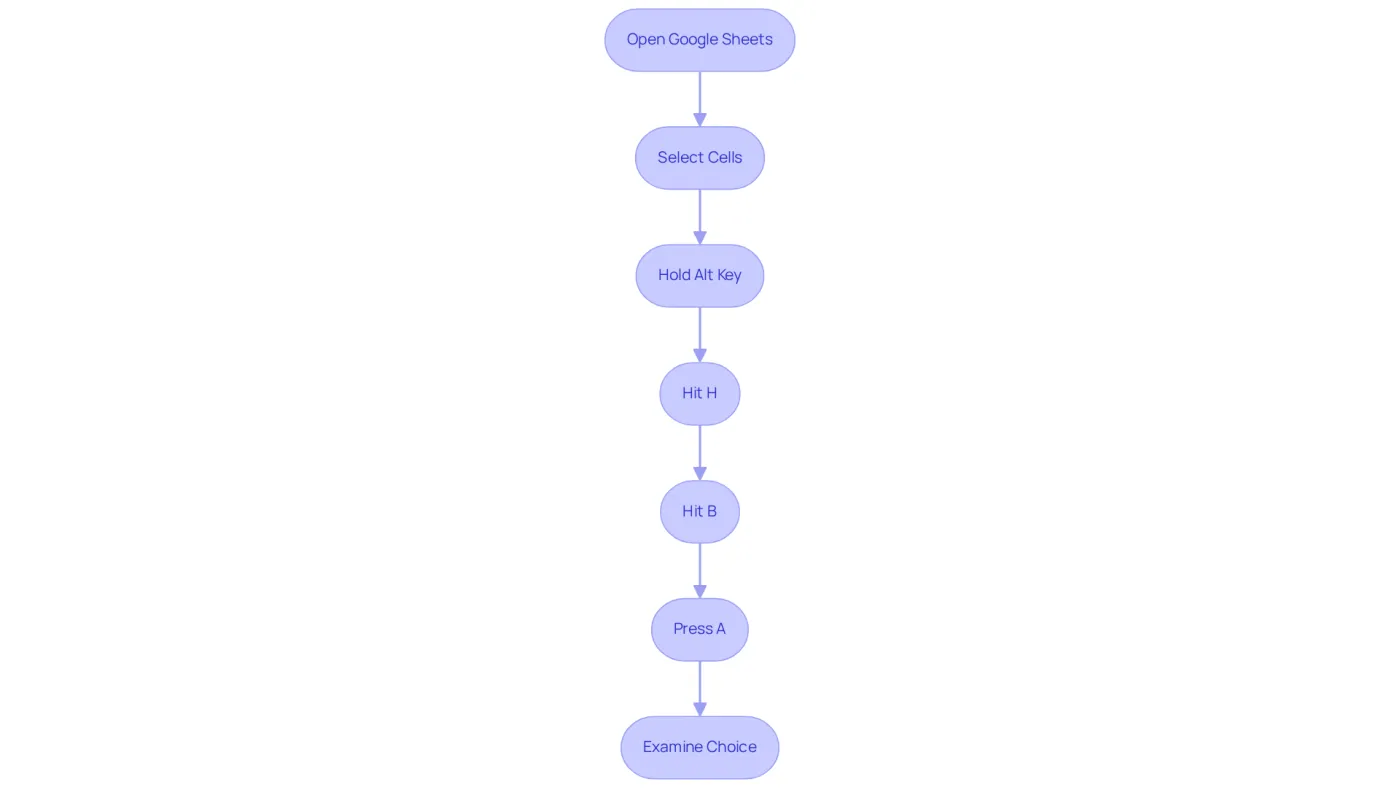
- Open Google Sheets and navigate to your spreadsheet.
- Select the cells you wish to format by clicking and dragging your mouse over them.
- Hold down the Alt key (or Option on Mac) on your keyboard to highlight the ribbon shortcuts.
- Hit H to open the Home tab.
- Hit B to access the Borders menu.
- Press A to apply all outlines.
- Examine your choice to ensure the outlines have been applied as intended.
This method not only saves time but also enhances the visual structure of your data. Users who embrace keyboard combinations report a significant boost in efficiency. In fact, studies show that those who use these methods can complete tasks up to 30% faster than those who depend solely on mouse navigation. For instance, finance experts frequently use the shortcut for all borders in Excel to swiftly outline sections in financial reports, enhancing clarity and presentation.
However, it’s crucial to use borders judiciously. Instead of outlining every cell, consider using outside or horizontal borders for clarity. By mastering this technique, you can elevate your workflow and maintain a professional appearance in your spreadsheets.
Moreover, keyboard combinations are particularly beneficial for individuals with mobility or vision impairments, making Google Sheets more accessible. If you’re seeking an alternative method for organizing data, consider utilizing Google Sheets' Format as Table function for enhanced readability without outlines.
Take action today and implement these shortcuts to transform your Google Sheets experience!
Troubleshoot Common Issues with the All Borders Shortcut
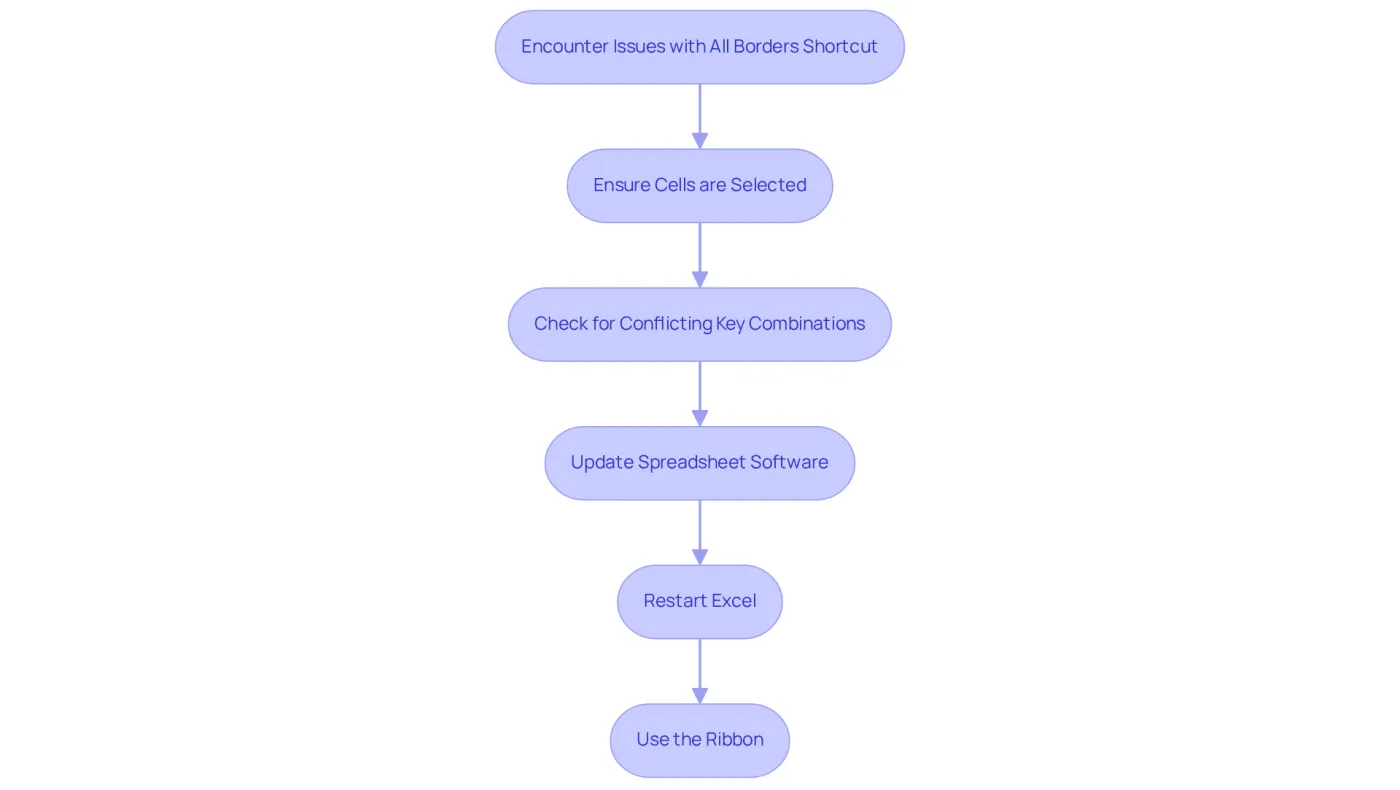
If you encounter issues while using the all borders shortcut, consider these troubleshooting tips:
- Ensure the cells are selected: The key combination will not function if no cells are highlighted. Before using the shortcut for all borders in Excel, ensure you choose the desired range.
- Check for conflicting key combinations, as other applications or configurations may disrupt the shortcut for all borders in Excel. Verify that no other applications are using the same key combinations, as this can hinder functionality. For instance, user Blanca Recio Fernández noted, "Ctrl+H (highlight) and Ctrl+R (fill to the right) are not working as expected, with Ctrl+R instead closing the sheet."
- Update the spreadsheet software: Keeping your application up to date is crucial, as enhancements often resolve issues that can impact the shortcut for all borders in Excel's performance. Statistics indicate that many users face functionality problems due to outdated software.
- Restart Excel: If the key combination still doesn’t work, try closing and reopening Excel to reset any temporary glitches that may be causing the issue.
- Use the Ribbon: As a last resort, you can apply borders through the ribbon by navigating to the Home tab and selecting the Borders dropdown manually. This method ensures that you can still achieve your formatting goals even if shortcuts are not functioning properly.
Conclusion
Mastering keyboard shortcuts in Excel is not just beneficial; it’s essential for enhancing productivity and streamlining workflow. Take, for instance, the shortcut for applying all borders, specifically Alt + H, B, A. This powerful tool saves time and significantly improves the visual organization of your data. By embracing this technique, you can navigate Excel more efficiently, allowing for a more focused approach to complex analyses.
Throughout this article, we’ve highlighted key insights that underscore the importance of using shortcuts to minimize mouse navigation and the associated time loss. The step-by-step guide provided clear instructions for applying the all borders shortcut in both Excel and Google Sheets, while also addressing common troubleshooting issues you may encounter. The benefits of keyboard shortcuts extend beyond mere convenience; they can lead to a noticeable increase in task completion speed and overall efficiency, particularly for professionals managing large datasets.
Incorporating these shortcuts into your daily routine not only enhances your performance but also contributes to a more effective and organized work environment. Embrace the power of keyboard shortcuts in Excel and Google Sheets to transform your data management experience. Take the first step today by implementing the all borders shortcut, and witness the positive impact it can have on your productivity and spreadsheet aesthetics.
Frequently Asked Questions
Why are keyboard shortcuts important in Excel?
Keyboard shortcuts in Excel are essential tools that enable users to execute tasks quickly and effectively, reducing the need for mouse navigation and significantly decreasing the time spent on repetitive tasks.
How do keyboard shortcuts enhance productivity in Excel?
Familiarizing yourself with keyboard shortcuts boosts productivity by allowing you to focus on complex analyses rather than getting bogged down by repetitive tasks.
Can keyboard shortcuts be used in Google Sheets?
Yes, as you transition to Google Sheets, leveraging keyboard shortcuts helps maintain your workflow and minimize interruptions.
Can you provide an example of a useful keyboard shortcut in Excel?
One example is the shortcut for applying all borders in Excel, which is Alt + H, B, A. This shortcut can improve the efficiency of formatting data.
What overall benefit do keyboard shortcuts provide in spreadsheet applications?
Keyboard shortcuts elevate productivity and streamline processes, enhancing the overall user experience in spreadsheet applications like Excel and Google Sheets.