
Master the Shortcut for Column Width in Excel: A Step-by-Step Guide
Learn effective methods and shortcuts for adjusting column width in Excel for better data presentation.

Introduction
Adjusting column width in Excel is not merely a cosmetic task; it is essential for ensuring data clarity and a professional presentation. As spreadsheets grow more complex, mastering the nuances of column width adjustments can significantly boost readability and efficiency. This guide explores effective techniques, including handy keyboard shortcuts and the powerful AutoFit feature, designed to streamline your workflow.
But what if these adjustments don’t yield the desired results? By examining common pitfalls and their solutions, you’ll be empowered to navigate these challenges, elevating your spreadsheet skills to new heights. Ready to transform your Excel experience? Let’s dive in.
Understand Column Width Adjustment in Excel
Adjusting column width in Excel is crucial for ensuring that all information within a cell is visible and that your spreadsheet maintains a professional appearance. When sections are too narrow, text may be truncated, leading to confusion and misinterpretation of data. Conversely, excessively wide sections can waste space and create an unkempt look. Understanding how to effectively modify section dimensions empowers users to enhance clarity and presentation.
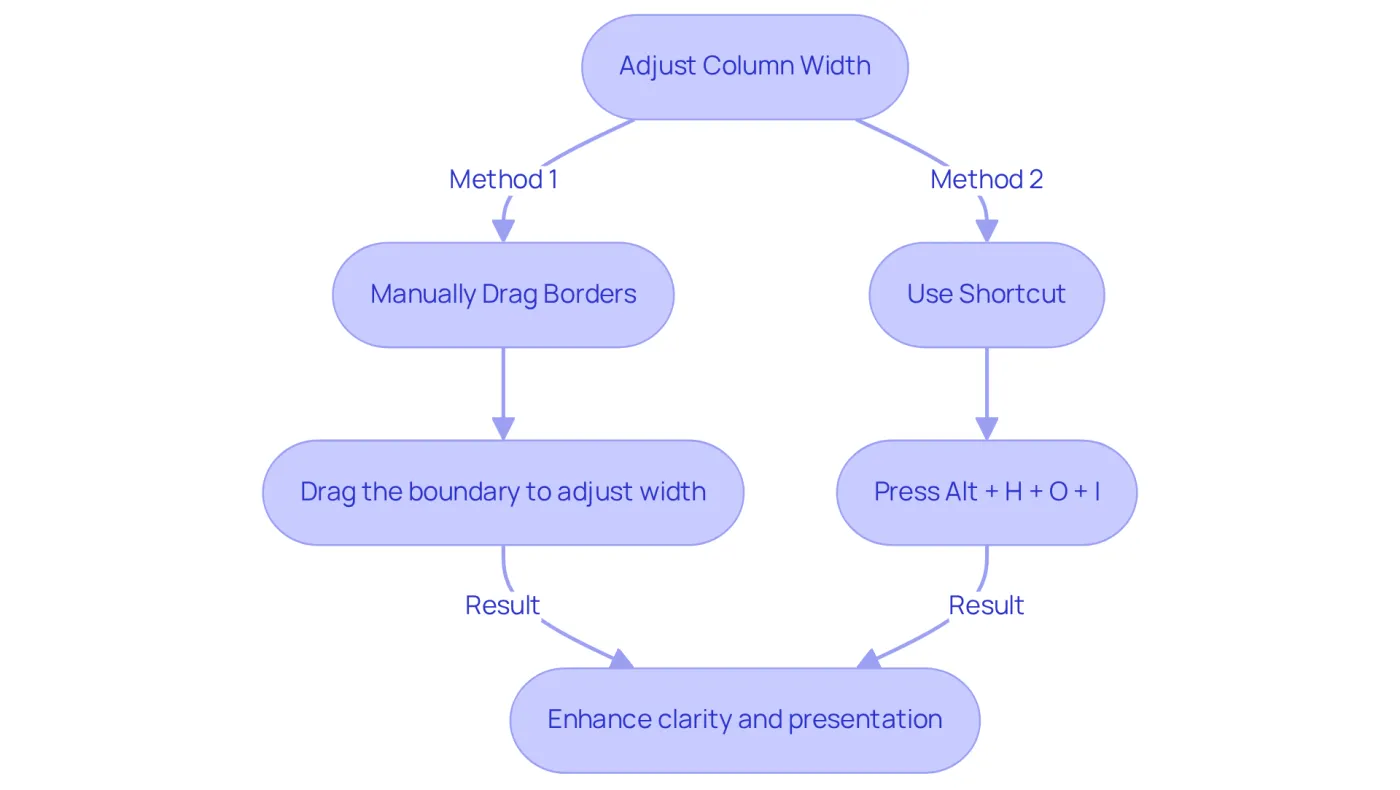
To adjust the width of sections, users can either:
- Manually drag the borders
- Use the shortcut for column width in Excel
This guide will explore various techniques to achieve optimal dimensions for vertical sections, ensuring that your data is presented clearly and efficiently.
By mastering these adjustments, you not only improve the readability of your spreadsheets but also project a polished image in your professional communications. Don't let poorly sized columns detract from your hard work - take control of your data presentation today!
Utilize Keyboard Shortcuts for Quick Adjustments
Boost Your Excel Efficiency with ShortieCuts
Excel offers a range of keyboard shortcuts that empower users to swiftly modify width settings, enhancing efficiency in spreadsheet management. With the ShortieCuts extension, you can access 233 Excel ALT shortcuts for Google Sheets, seamlessly integrating these functionalities into your workflow. Here are some essential shortcuts:
-
The shortcut for column width in Excel allows you to automatically resize selected columns to fit their contents by selecting the column(s) and pressing
Alt + H, thenO, followed byI. This command is invaluable for finance professionals who must ensure data visibility in reports and dashboards. Keep in mind that using the AutoFit feature may complicate the undo function (Ctrl+Z), as it logs this action as a separate event, which is crucial to consider when making adjustments. -
To set specific width of cells, use the shortcut for column width in Excel by selecting the cell(s), pressing
Alt + H, thenO, and finallyW. A dialog box will appear, allowing you to enter the desired measurement in characters, ensuring uniformity across your spreadsheet. -
Manual Adjustment: For fine-tuning, click and drag the right border of the header. Alternatively, double-click the boundary of the column header to auto-adjust the width based on the longest entry. This method is advantageous after utilizing the automatic fitting, enabling customized modifications based on specific requirements. Additionally, always check for merged cells or text wrapping, as these can affect how data is displayed in Excel.
By leveraging the ShortieCuts extension, mastering these shortcuts not only streamlines your workflow but also significantly boosts productivity. This makes managing large datasets and maintaining professional presentation standards in financial documents easier than ever.

Apply AutoFit to Optimize Column Width
Excel's AutoFit feature automatically adjusts column widths to fit the longest entry in each section, significantly enhancing organization and readability. Are you tired of manually resizing columns and looking for a shortcut for column width in Excel? Let’s explore how to effectively utilize AutoFit to streamline your workflow.
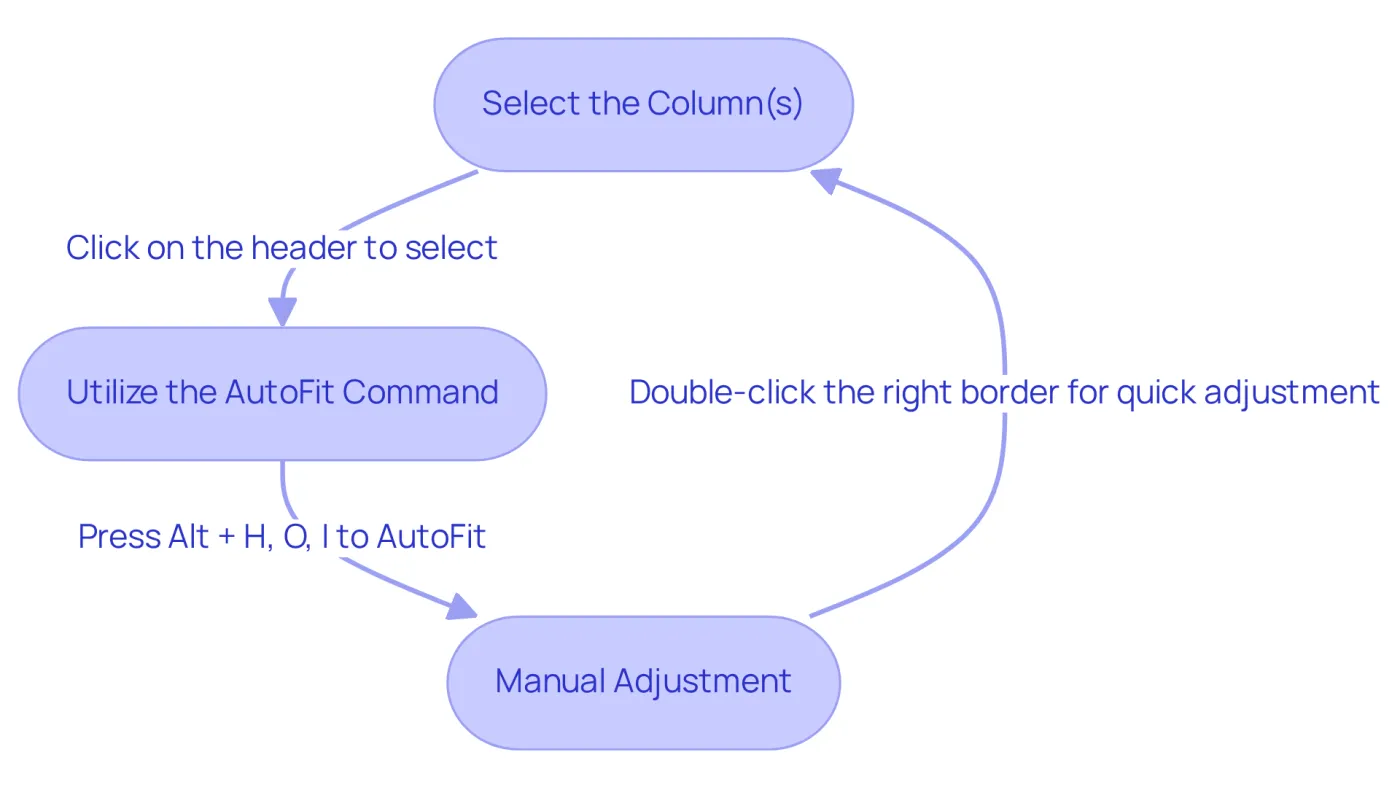
- Select the Column(s): Start by clicking on the header of the section you wish to adjust. If you need to adjust multiple sections, simply click and drag across the headers to select them all.
- Utilize the AutoFit Command: With your desired cell(s) selected, press
Alt + H, thenO, and finallyI. This command will resize the selected sections to fit their contents perfectly. - Manual Adjustment: Alternatively, for a quick adjustment of individual sections, double-click the right border of the header.
By utilizing the automatic adjustment feature, you not only save time but also keep your spreadsheet organized and visually appealing. However, be mindful that hidden content may occur if formulas do not display adequately with automatic adjustment. Organizations have reported significant improvements in spreadsheet management by leveraging this feature. For example, a mid-sized retail company enhanced its inventory tracking processes, reducing stockouts by 40% and overstock by 25% through effective data presentation.
Excel instructors emphasize that 'the automatic adjustment feature is a shortcut for column width in Excel, serving as a time-saver that boosts productivity by eliminating the tedious task of resizing columns.' By implementing AutoFit, you can save considerable time on adjustments, ensuring that your spreadsheets are not only functional but also visually appealing.
Troubleshoot Common Column Width Issues
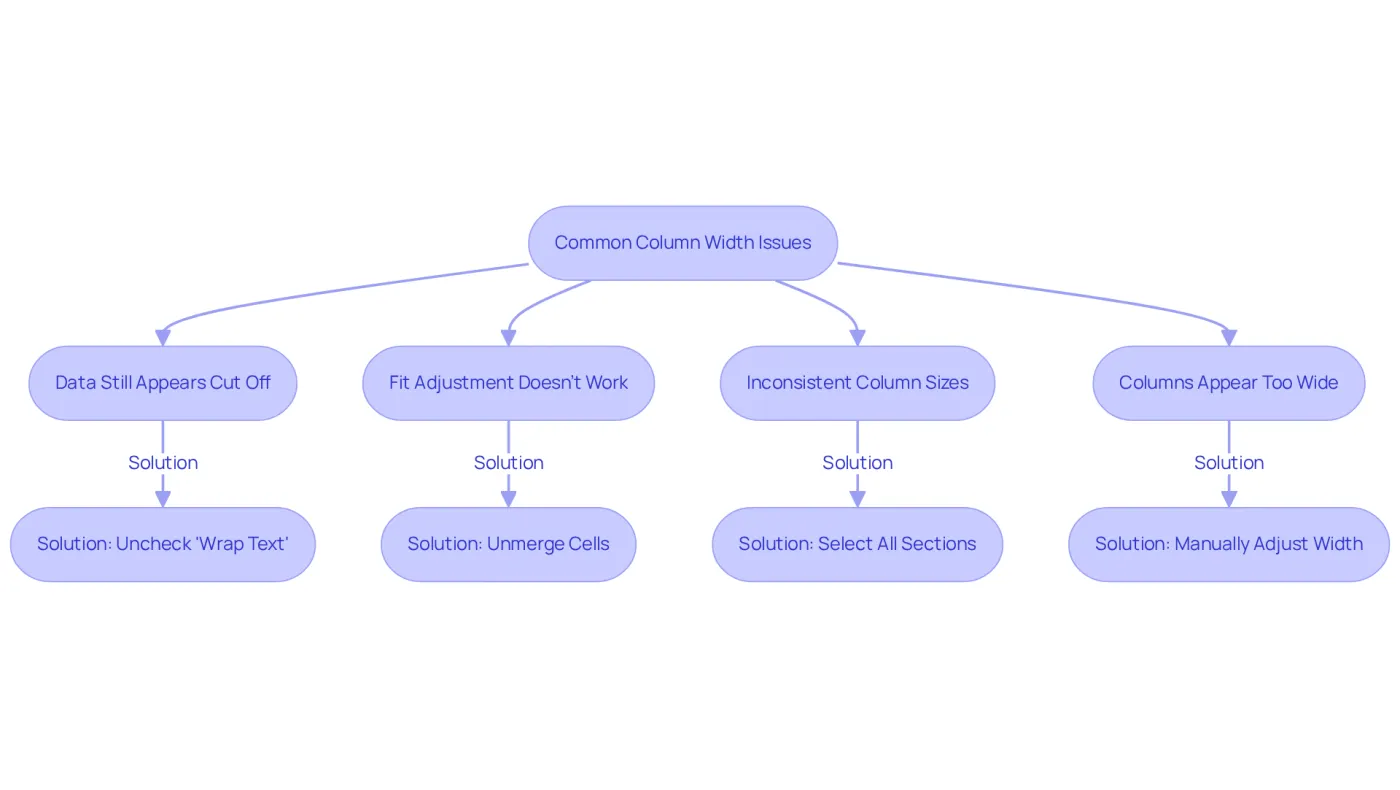
Even with the best methods, users often encounter challenges when adjusting section sizes. Here are some common issues and their solutions:
-
Data Still Appears Cut Off: If text remains cut off after adjusting the width, check for text wrapping. To resolve this, select the cell, right-click, and navigate to 'Format Cells' > 'Alignment', then uncheck 'Wrap Text', as it serves as a shortcut for column width in Excel. As noted by Jay Tr., improper formatting can significantly impact readability, making it essential to ensure that text wrapping is disabled when necessary.
-
Fit Adjustment Doesn't Work: If fit adjustment fails to function, merged cells in the column may be the culprit. Unmerge any cells and try using the shortcut for column width in Excel while adjusting the row height and column width again. Statistics indicate that automatic fitting problems are common, particularly when users have merged cells, which can prevent the feature from functioning correctly.
-
Inconsistent Column Sizes: When sections exhibit varying sizes despite utilizing AutoFit, ensure all sections are selected before using the shortcut for column width in Excel. Choosing specific sections can result in discrepancies. Experts highlight that keeping uniform measurements is essential for teamwork and minimizing mistakes in information interpretation.
-
If columns appear too wide, you can use the shortcut for column width in Excel by manually adjusting them by dragging the borders or entering a specific width with the
Alt + H,O,Wcommand. A well-organized spreadsheet not only enhances visual appeal but also improves efficiency and navigation, as highlighted in various case studies.
Understanding these common issues and their solutions is crucial for maintaining a smooth workflow and ensuring that spreadsheets are presented effectively. By addressing these challenges, users can enhance their productivity and ensure that their data is easily interpretable.
Conclusion
Mastering the adjustment of column width in Excel is crucial for presenting data clearly and professionally. Understanding and utilizing both manual and shortcut methods empowers users to create spreadsheets that are not only functional but also visually appealing. Proper column sizing significantly enhances readability and maintains a polished look in professional communications.
Key techniques include keyboard shortcuts like Alt + H, O, and I for AutoFit, alongside manual adjustment methods. The AutoFit feature stands out as a powerful tool that automatically resizes columns based on content, saving time and improving organization. Additionally, troubleshooting common column width issues ensures a smoother workflow, allowing users to maintain consistency across their spreadsheets.
Ultimately, effective column width management is an essential skill for anyone working with Excel. By implementing these strategies, users can significantly boost their productivity and present their data in the best possible light. Embrace these techniques today to elevate your spreadsheet game and communicate your data more effectively.
Frequently Asked Questions
Why is adjusting column width important in Excel?
Adjusting column width is crucial for ensuring that all information within a cell is visible and that the spreadsheet maintains a professional appearance. It prevents text from being truncated and avoids excessive space that can make the spreadsheet look unkempt.
What happens if column sections are too narrow?
If column sections are too narrow, text may be truncated, which can lead to confusion and misinterpretation of data.
What issues arise from excessively wide column sections?
Excessively wide column sections can waste space and create an unkempt look in the spreadsheet.
How can users adjust column width in Excel?
Users can adjust column width by either manually dragging the borders of the columns or using the shortcut for column width in Excel.
What is the benefit of mastering column width adjustments?
Mastering column width adjustments improves the readability of spreadsheets and helps project a polished image in professional communications.