
Master the Shortcut Key to Adjust Column Width in Excel
Learn the shortcut key to adjust column width in Excel for better data presentation.

Introduction
Adjusting column width in Excel using shortcut keys is a vital skill that can significantly enhance data presentation and comprehension. Properly sized columns not only improve readability but also ensure that essential information is conveyed effectively. This practice is crucial for professionals across various fields. Yet, many users encounter common challenges when adjusting columns, leading to frustration and inefficiency.
So, how can mastering these shortcuts streamline workflows and elevate the professionalism of your spreadsheets? By embracing these techniques, you can transform your approach to data management, making your work not only more efficient but also more impactful.
Understand the Importance of Adjusting Column Width in Excel
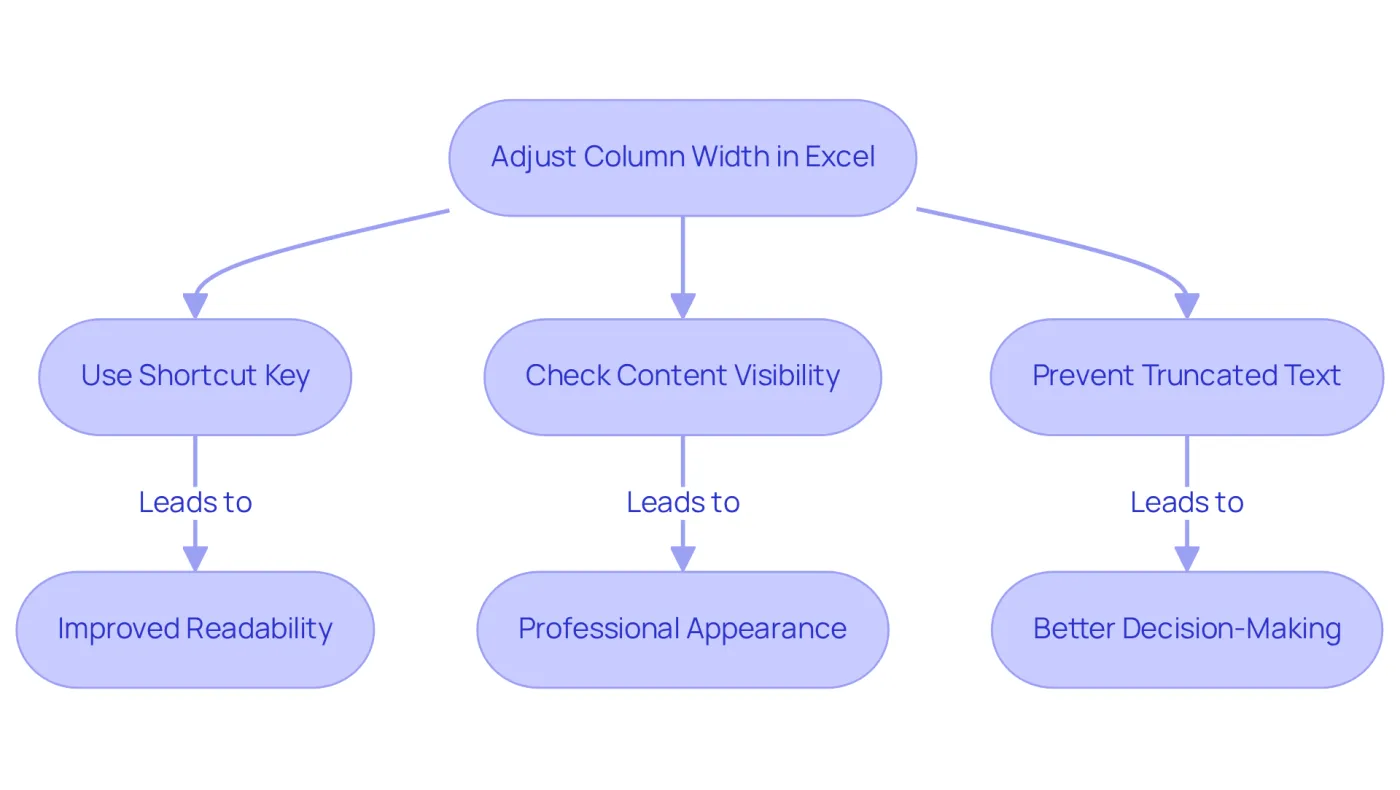
Using the shortcut key to adjust column width in Excel is more than just a minor tweak; it significantly impacts how information is displayed and comprehended. Properly sized cells ensure that all content is visible, preventing issues like truncated text or the dreaded '#####' in cells. This is crucial for finance professionals and analysts who need to present clear and concise information.
John Michaloudis, Founder & Chief Inspirational Officer, emphasizes, "Auto-adjusting the size of cells in Excel is vital because it saves time, improves readability, and guarantees a professional look for your spreadsheets." When cells are aligned correctly, the overall clarity of spreadsheets improves, making it easier for stakeholders to grasp complex information at a glance.
For example, in financial reports, ensuring that lengthy headers like 'Depreciation and Amortization Expenses' are fully visible can prevent misinterpretation and support better decision-making. However, using the shortcut key to adjust column width in Excel is important to avoid excessive blank space or truncated information that can occur with the AutoFit function.
In summary, this skill is essential for effective data management and presentation in spreadsheet software. By honing your ability to modify cell widths, you not only enhance the readability of your spreadsheets but also elevate your professional image.
Explore Effective Methods to Adjust Column Width
Mastering Column Width Adjustments in Excel
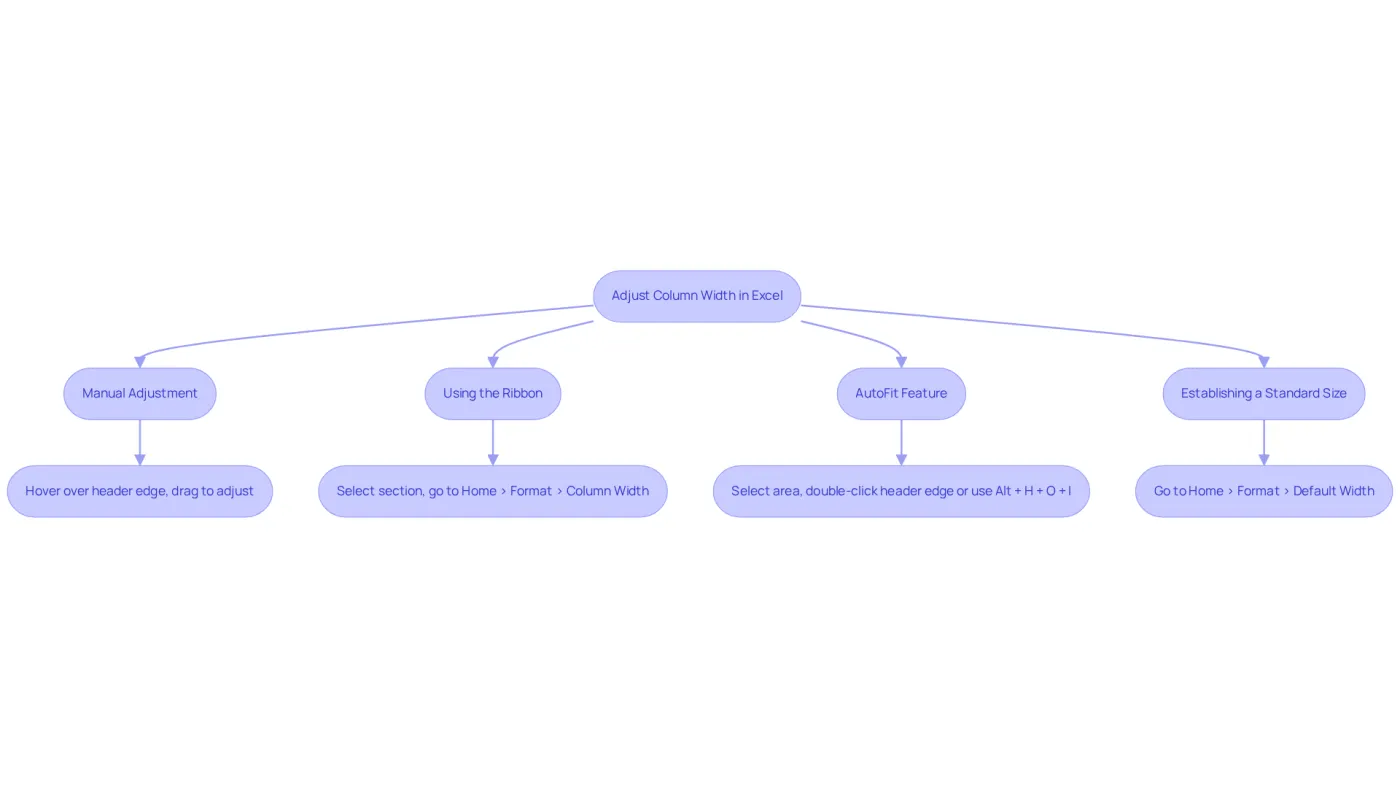
Adjusting column width in Excel is essential for creating a polished and efficient spreadsheet. Here are several effective methods tailored to meet your needs:
- Manual Adjustment: Simply hover over the right edge of the header until your cursor transforms into a double-sided arrow. Click and drag to manually set the desired size.
- Using the Ribbon: Select the relevant section(s), navigate to the 'Home' tab, click on 'Format' in the 'Cells' group, and choose 'Column Size' to input a specific measurement.
- AutoFit Feature: To automatically adjust the size of the section to fit its contents, select the area(s) and double-click the right edge of the header. Alternatively, use the shortcut
Alt + H + O + Ito AutoFit selected widths. - Establishing a Standard Size: For a consistent look throughout your spreadsheet, set a standard measurement by going to 'Format' in the 'Home' tab and selecting 'Default Size'.
These methods not only enhance the visual appeal of your spreadsheets but also include a shortcut key to adjust column width in Excel, thereby improving your workflow efficiency. Choose the approach that aligns best with your preferences and elevate your Excel experience.
Utilize Keyboard Shortcuts for Quick Adjustments
The shortcut key to adjust column width in Excel is essential for streamlining the process of adjusting section sizes, significantly enhancing productivity. Mastering these key shortcuts can transform your workflow:
- AutoFit Column Width: Select the column(s) and press
Alt + H + O + Ito automatically adjust the width to fit the contents. This ensures all data is visible without the hassle of manual adjustments. - Set Specific Width of Columns: To set a precise width, select the section(s), press
Alt + H + O + W, enter the desired width in points, and hit Enter. This allows for tailored formatting that meets your specific presentation needs. - Select Entire Area: Use
Ctrl + Spaceto select the entire area before making adjustments, simplifying the management of multiple sections at once. - Select All Columns: Press
Ctrl + Ato select all columns in the worksheet, facilitating bulk adjustments for a cleaner, more organized spreadsheet.
By mastering these shortcuts, finance professionals can utilize the shortcut key to adjust column width in Excel, allowing them to navigate spreadsheets more efficiently, reducing time spent on formatting tasks and maximizing focus on critical data analysis. The impact of these shortcuts on productivity is profound; they enable users to execute adjustments swiftly, leading to a more streamlined workflow. As productivity specialists note, the efficiency gained through keyboard shortcuts can revolutionize how users engage with spreadsheets, making them an indispensable tool for anyone involved in data-heavy tasks.

Troubleshoot Common Column Width Issues
Overcoming Common Excel Sizing Challenges
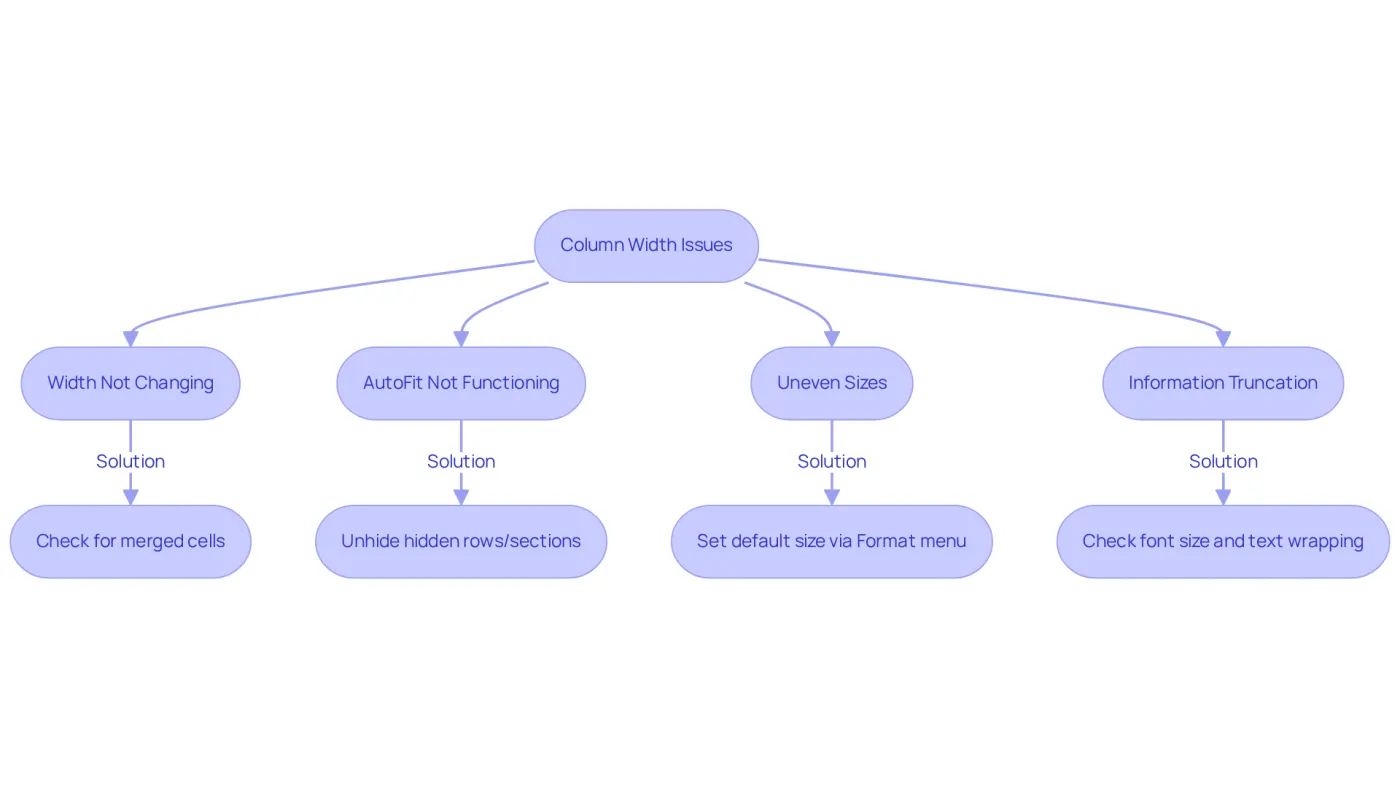
Users often face hurdles when adjusting section sizes in Excel. Here are effective troubleshooting tips to enhance your experience:
-
Width Not Changing: If the width remains unchanged, check for merged cells within the section. Merged cells can hinder adjustments; unmerging them will facilitate proper resizing. As expert Markus Kasanmascheff points out, the most frequent reason AutoFit fails is the presence of merged cells in the range you’re trying to adjust.
-
AutoFit Not Functioning: If the AutoFit feature isn’t working, ensure there are no hidden rows or sections obstructing visibility. Unhide any concealed elements before reapplying AutoFit to guarantee it functions correctly. This step is crucial, as hidden elements can significantly affect the visibility of your data.
-
Uneven Sizes: For sections that appear uneven, consider setting a default size for consistency. This can be done through the 'Format' menu in the 'Home' tab, helping maintain a uniform appearance across your spreadsheet. A well-structured spreadsheet minimizes errors and enhances teamwork, as highlighted in the case study on the importance of adjusting cell sizes.
-
Information Truncation: If information remains truncated after resizing, check that the font size is appropriate and that text wrapping is disabled if not needed. This ensures all content is visible without being cut off. Remember that the shortcut key to adjust column width in Excel is vital for improving readability and organization in spreadsheets.
By addressing these common issues, users can streamline their workflow and enhance both the functionality and aesthetics of their spreadsheets. This ultimately leads to improved data presentation and analysis.
Conclusion
Mastering the shortcut key to adjust column width in Excel is not just a skill; it's a necessity for anyone serious about enhancing the clarity and professionalism of their spreadsheets. Properly sized columns ensure that all data is visible, preventing misinterpretations that could arise from truncated information. This expertise is particularly crucial in fields like finance, where accuracy and readability are paramount.
In this article, we’ve explored various methods to adjust column width, including:
- Manual adjustments
- The Ribbon
- Keyboard shortcuts like
Alt + H + O + Ifor AutoFit
These techniques streamline the formatting process, contributing to a more organized and visually appealing spreadsheet. We also addressed common issues, such as merged cells or hidden rows, that can hinder adjustments, providing practical solutions to enhance your Excel experience.
Ultimately, mastering these techniques can significantly boost your productivity and improve data presentation. By applying the shortcut key to adjust column width and understanding the importance of proper sizing, you can ensure your spreadsheets are not only functional but also professional. Embracing these practices leads to clearer communication of complex information, making them indispensable tools for effective data management and analysis. Don't wait-start implementing these strategies today to elevate your Excel skills!
Frequently Asked Questions
Why is adjusting column width important in Excel?
Adjusting column width is important because it ensures that all content is visible, preventing issues like truncated text or the appearance of '#####' in cells. This is crucial for clear communication, especially for finance professionals and analysts.
What are the benefits of using the shortcut key to adjust column width?
Using the shortcut key to adjust column width saves time, improves readability, and guarantees a professional look for spreadsheets. It enhances the overall clarity of the data presented.
How does proper column width affect the presentation of financial reports?
Proper column width allows lengthy headers, such as 'Depreciation and Amortization Expenses', to be fully visible, which prevents misinterpretation and supports better decision-making.
What issues can arise from not adjusting column width correctly?
Not adjusting column width can lead to excessive blank space or truncated information, which can hinder the readability of spreadsheets and negatively impact the professional image of the document.
How does adjusting column width contribute to effective data management?
Adjusting column width is essential for effective data management as it enhances readability and presentation, making it easier for stakeholders to grasp complex information quickly.