
Master the Shortcut to Cut a Cell Value in Google Sheets
Learn the shortcut to cut a cell value in Google Sheets and boost your productivity today!

Introduction
Mastering the art of efficiency in data management can revolutionize how individuals engage with spreadsheets, and Google Sheets is no exception. The ability to swiftly cut and paste cell values using keyboard shortcuts not only streamlines workflows but also significantly boosts productivity, particularly for those already familiar with similar functions in Excel. But what happens when these shortcuts fail or the process becomes cumbersome?
Exploring the intricacies of cutting cell values in Google Sheets uncovers both the potential for enhanced efficiency and the common pitfalls that can hinder the user experience. By understanding these nuances, users can navigate challenges more effectively and leverage the full power of Google Sheets to optimize their data management tasks.
Understand the Shortcut for Cutting Cell Values
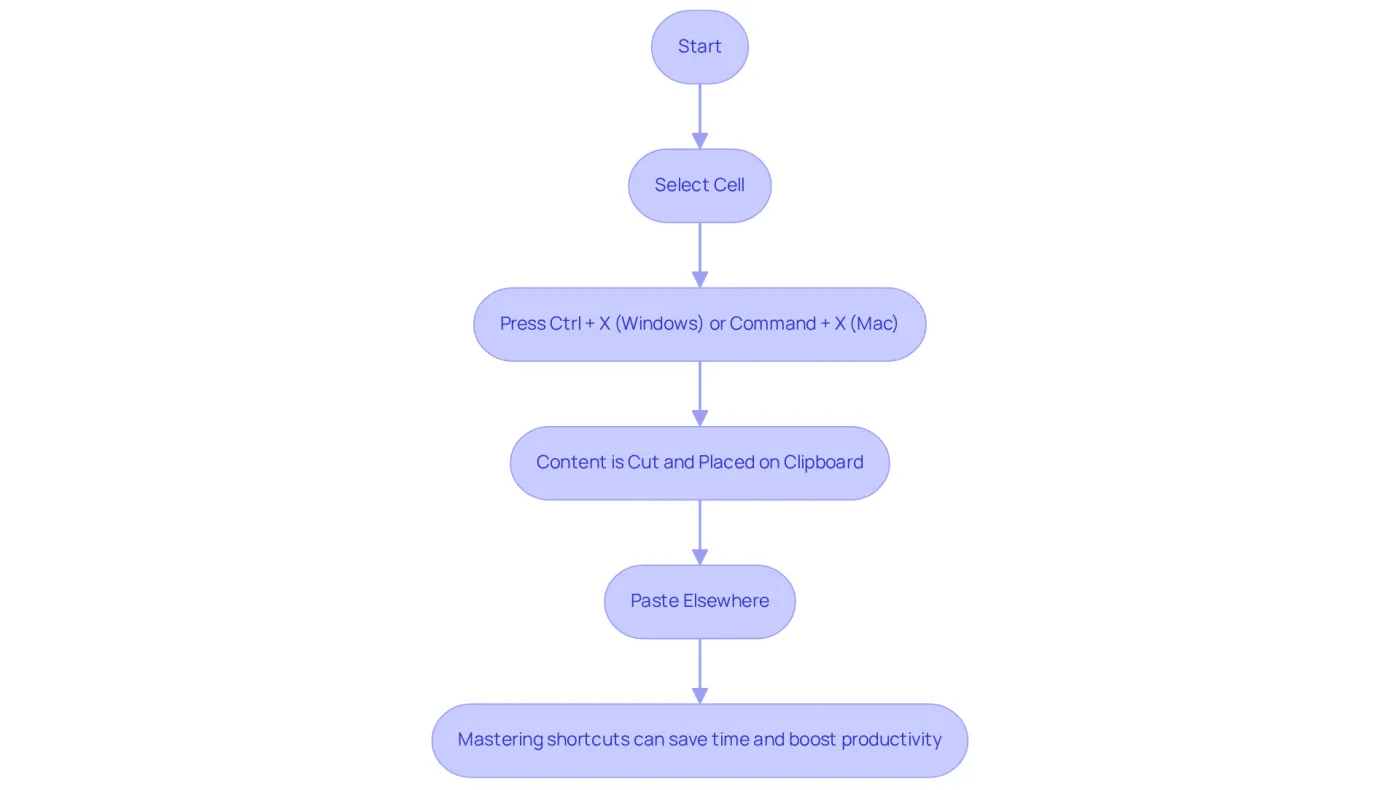
In Google Sheets, the shortcut to cut a cell value is Ctrl + X on Windows or Command + X on Mac. This command acts as a shortcut to cut a cell value, removing the selected cell's content and placing it on the clipboard for easy pasting elsewhere. Mastering this technique, including the shortcut to cut a cell value, is essential for efficient data management, especially for users transitioning from Excel, where the same method is utilized. By familiarizing yourself with this command, you can significantly streamline your workflow, reducing the time spent on mouse navigation.
Research indicates that keyboard combinations can save up to eight workdays annually, leading to a 3.3% increase in productivity. Utilizing commands like Ctrl + X illustrates how to eliminate friction in your tasks, ultimately boosting overall efficiency in Google Sheets.
With ShortieCuts, you can further enhance your experience by utilizing 233 Excel-style key combinations. This ensures that your data remains private and secure, as everything operates locally on your computer. As John Tan notes, these simple combinations of key presses can execute commands in an instant, underscoring the value of mastering keyboard shortcuts.
Are you ready to elevate your productivity? Embrace these shortcuts and transform your data management experience today.
Follow Step-by-Step Instructions to Cut a Cell Value
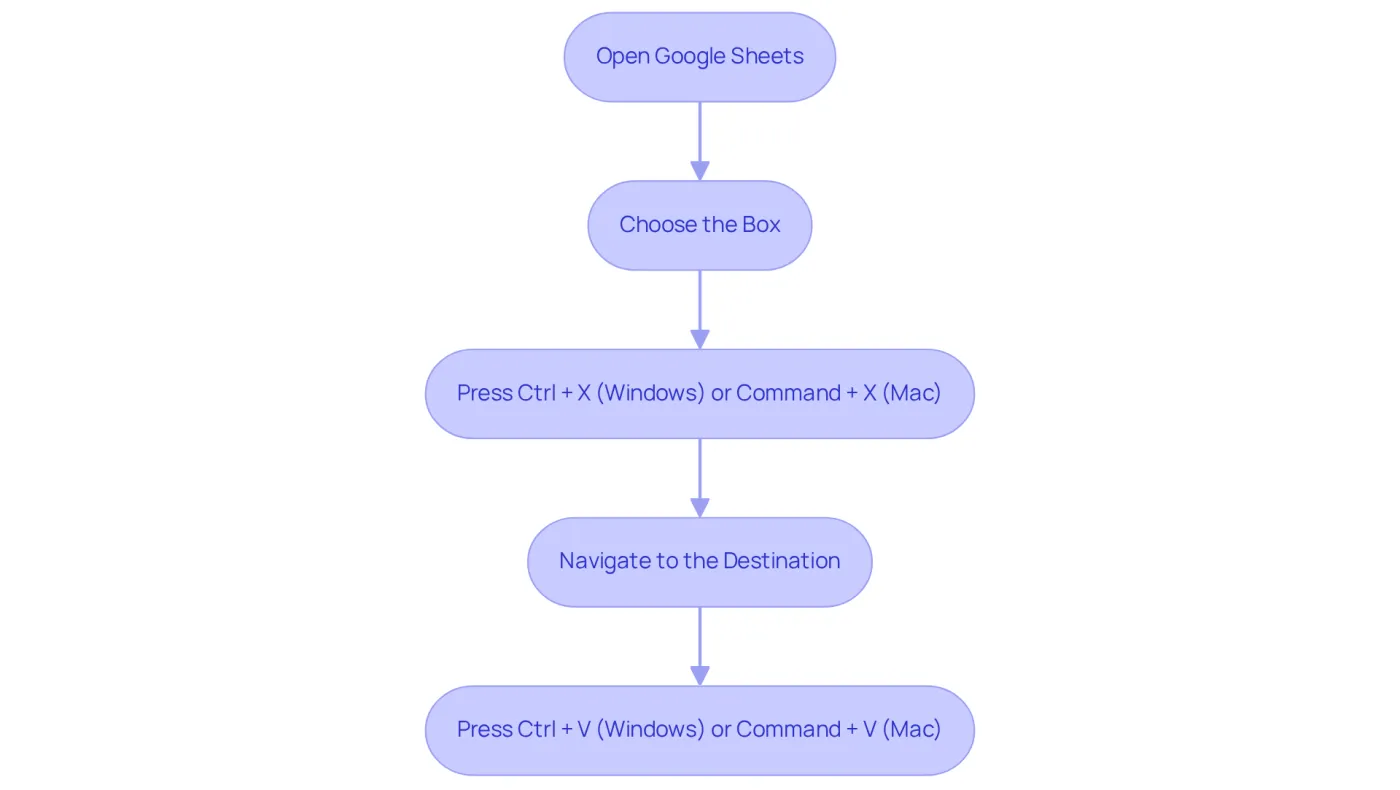
Open Google Sheets: Launch the Google Sheets document where you want to cut the value.
Choose the Box: Click on the box containing the value you wish to cut, ensuring it is highlighted.
To use the shortcut to cut a cell value, press Ctrl + X (Windows) or Command + X (Mac). The container's content will vanish, indicating it has been cut.
Navigate to the Destination: Click on the area where you want to paste the cut value.
To paste the value into the new location, use the shortcut to cut a cell value by pressing Ctrl + V (Windows) or Command + V (Mac). The cut value will now be displayed in the chosen box.
Utilizing a shortcut to cut a cell value for cutting and pasting can streamline your workflow and enhance productivity. This efficiency allows for uninterrupted work, particularly beneficial for finance professionals managing large datasets. By quickly moving values without relying on mouse navigation, you can maintain focus and speed.
Understanding the distinction between cutting and copying is crucial. Cutting retains original cell references, essential for maintaining data integrity in formulas. By mastering these techniques, you significantly enhance your data management efficiency in Google Sheets.
Are you ready to elevate your productivity? Start implementing these shortcuts today and experience the difference!
Troubleshoot Common Issues with Cutting Cell Values
Common Issues with the Cut Command in Google Sheets
When using the cut command (Ctrl + X or Command + X) in Google Sheets, users often face several challenges that can disrupt their productivity. Understanding these issues and their solutions is crucial as a shortcut to cut a cell value for a seamless experience.
-
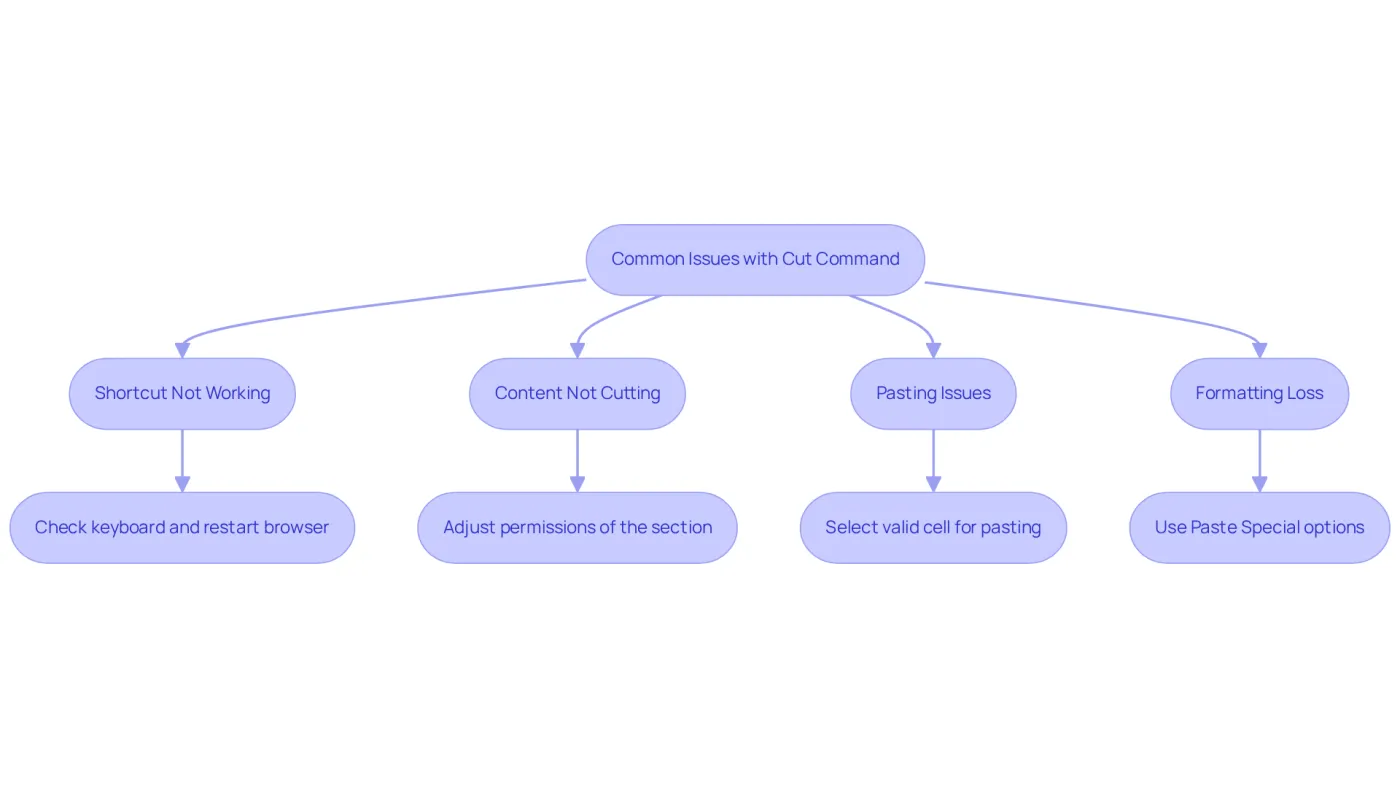
Shortcut Not Working: If the cut shortcut fails to function, first verify that your keyboard is operational and that no other applications are conflicting with keyboard shortcuts. Tech support professionals frequently recommend checking for software updates or restarting the browser to resolve such issues.
-
Content Not Cutting: If the content remains visible after attempting to cut, it may be due to the section being locked or protected. Adjusting the permissions of the compartment is necessary to enable cutting. Users often overlook this step, leading to frustration.
-
Pasting Issues: In instances where the cut value cannot be pasted, ensure that you are selecting a valid cell for pasting. If the standard paste command does not work, you can use the right-click context menu as a shortcut to cut a cell value and select 'Paste' instead. This alternative method can often bypass problems caused by key combinations. Additionally, employing the Paste Special hotkey (Ctrl + Alt + V for Windows or Cmd + Option + V for Mac) can enhance efficiency by allowing users to selectively paste data attributes, aligning perfectly with ShortieCuts' goal of providing Excel-style shortcuts for G Suite.
-
Formatting Loss: A common concern when cutting and pasting is the potential loss of formatting. To maintain the original formatting, utilize the 'Paste Special' options available in the Edit menu. This feature allows users to selectively paste values, formats, or formulas, preserving the integrity of the spreadsheet.
By understanding these common challenges and their solutions, users can navigate issues more effectively, ensuring a smoother experience in the application, including knowing the shortcut to cut a cell value. Mastering these troubleshooting techniques not only enhances efficiency but also minimizes disruptions in workflow, all while ensuring local data privacy with ShortieCuts. Currently, the app functions on Chrome, with plans to support Safari in the future.
Leverage ShortieCuts for Enhanced Shortcut Functionality
Unlock Enhanced Functionality with ShortieCuts
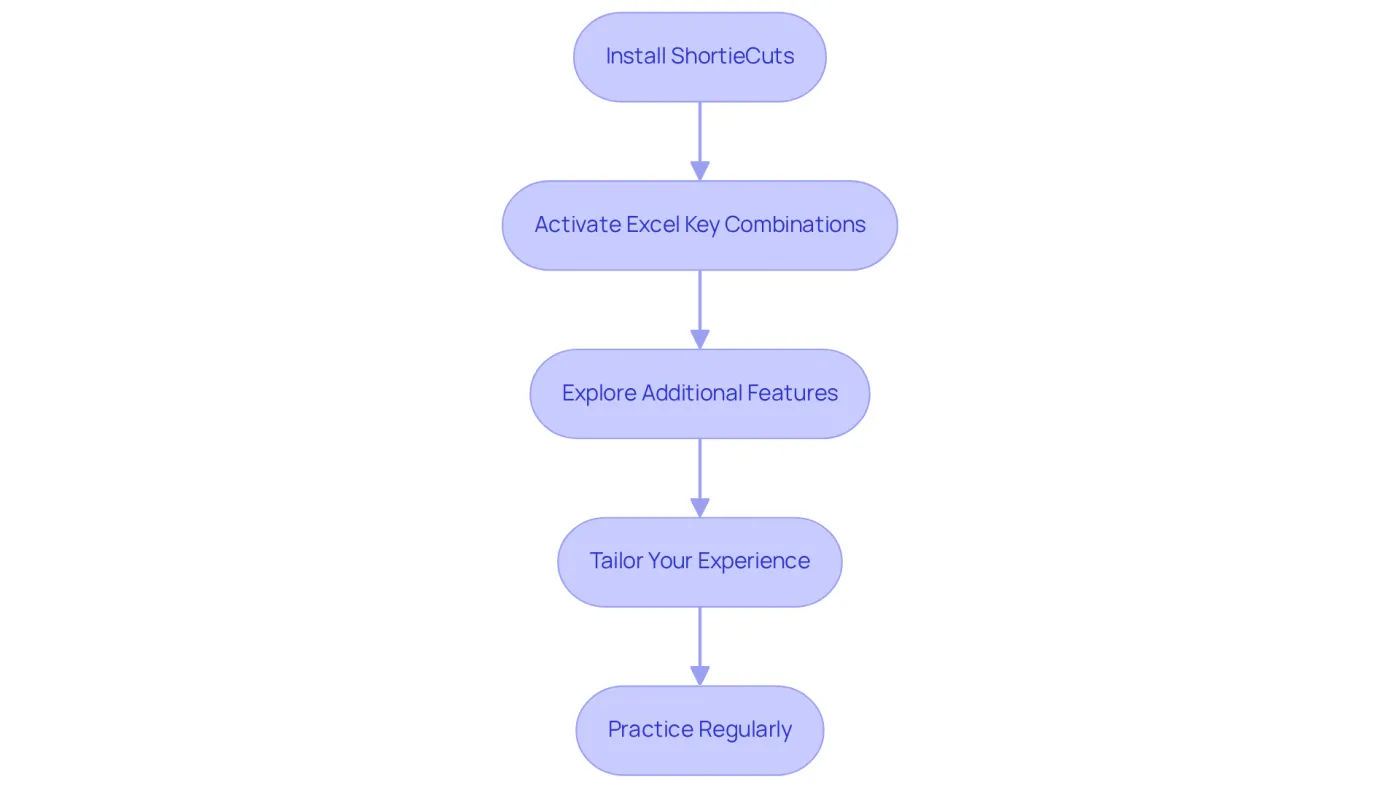
- Install ShortieCuts: Start by installing the ShortieCuts Chrome extension from the Chrome Web Store. This step is crucial for unlocking enhanced functionalities tailored specifically for Google Sheets.
- Activate Excel Key Combinations: Once installed, navigate to the ShortieCuts settings to enable Excel-style key combinations. This feature provides a shortcut to cut a cell value using familiar commands for cutting and pasting, ensuring a seamless transition from Excel. Simply press 'ALT' (or Option on Mac), and key-tips will appear in the corner of your screen, guiding you through 233 available Excel ALT combinations.
- Explore Additional Features: To maximize your efficiency, take advantage of advanced features like formula tracing and goal seeking. For example, the formula tracing tool helps you quickly identify dependencies within your spreadsheets, streamlining your data management process.
- Tailor Your Experience: ShortieCuts offers the flexibility to personalize keyboard commands. Customize key combinations in the settings to align with your workflow, significantly improving your overall productivity.
- Practice Regularly: Regular use of ShortieCuts enhances your proficiency with the shortcut to cut a cell value, integrating it into your daily tasks and greatly boosting your efficiency in the spreadsheet application.
By leveraging ShortieCuts, you can transform your Google Sheets experience, aligning it more closely with your previous Excel usage and enhancing your overall efficiency.
Conclusion
Mastering the shortcut to cut cell values in Google Sheets enhances efficiency and transforms data management. By using the Ctrl + X (Windows) or Command + X (Mac) command, you can streamline your workflow, reducing reliance on mouse navigation and enabling a more fluid data manipulation experience.
This guide has provided key insights, including:
- Step-by-step instructions for cutting and pasting
- Troubleshooting common issues
- The advantages of utilizing tools like ShortieCuts
Understanding the differences between cutting and copying, along with the potential pitfalls of these commands, empowers you to maintain data integrity and maximize productivity.
Embracing these keyboard shortcuts is not merely about convenience; it’s about adopting a more efficient approach to working with data. Implementing these techniques and leveraging tools designed to enhance functionality can significantly boost your productivity in Google Sheets.
Start today by practicing these shortcuts and witness the difference they can make in your data management tasks.
Frequently Asked Questions
What is the shortcut for cutting a cell value in Google Sheets?
The shortcut for cutting a cell value in Google Sheets is Ctrl + X on Windows or Command + X on Mac.
What happens when you use the cut command in Google Sheets?
Using the cut command removes the selected cell's content and places it on the clipboard for easy pasting elsewhere.
Why is mastering the cut shortcut important for users?
Mastering the cut shortcut is essential for efficient data management, especially for users transitioning from Excel, where the same method is utilized.
How can keyboard shortcuts impact productivity?
Research indicates that keyboard combinations can save up to eight workdays annually, leading to a 3.3% increase in productivity.
What is ShortieCuts and how does it enhance the Google Sheets experience?
ShortieCuts allows users to utilize 233 Excel-style key combinations, enhancing the experience while ensuring data privacy and security since everything operates locally on the computer.
What is the overall benefit of using keyboard shortcuts in Google Sheets?
Using keyboard shortcuts like Ctrl + X helps eliminate friction in tasks, ultimately boosting overall efficiency in Google Sheets.