
Master the TEXT Excel Function for Effective Financial Reporting
Master the TEXT Excel function to enhance financial reporting with clear, professional data presentation.

Introduction
Transforming raw numerical data into clear, professional reports is essential for finance professionals navigating the complexities of financial reporting. The TEXT function in Excel stands out as a powerful ally in this process, enabling users to format numbers, dates, and times in ways that significantly enhance readability and comprehension.
However, many finance professionals encounter challenges in mastering this function. This often leads to questions about its best practices and applications. How can finance teams effectively leverage the TEXT function to not only present data clearly but also ensure accuracy and clarity in their reports?
By understanding and utilizing the TEXT function, finance teams can elevate their reporting standards, making their data not just accessible but also impactful.
Understand the TEXT Function: Purpose and Basic Usage
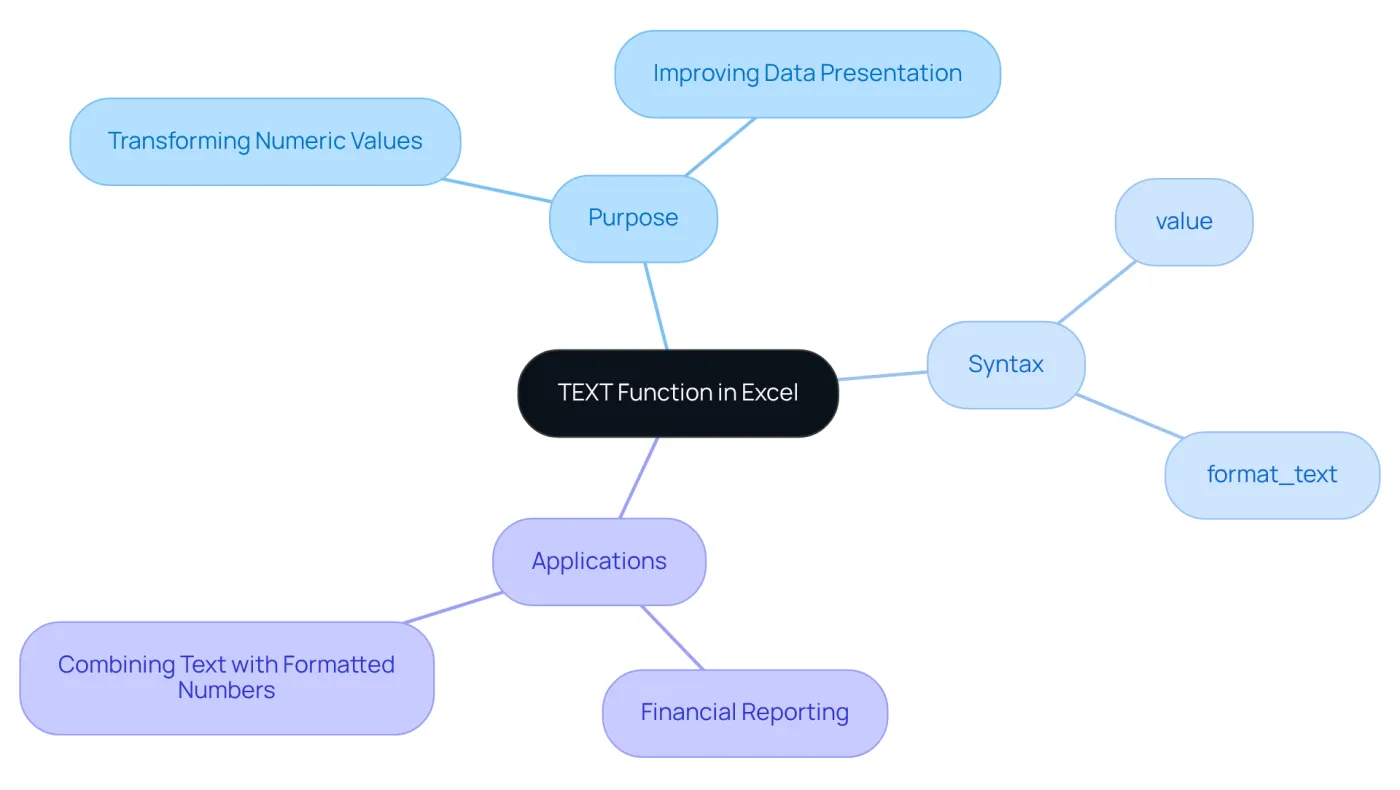
The TEXT function in Excel is crucial for transforming numeric values into text strings, enabling users to format numbers, dates, and times according to specific requirements. Its basic syntax is:
=TEXT(value, format_text)
- value: This represents the numeric value or cell reference you wish to convert to text.
- format_text: This string indicates the desired format, enclosed in quotation marks. For example, to format a number as currency, you would use:
=TEXT(1234.56, "$#,##0.00")
This function proves invaluable in financial reporting, where clear data presentation is essential for readability and analysis. Notably, 96% of budgeting and analysis (FP&A) professionals utilize spreadsheets as a planning tool at least weekly, underscoring the significance of effective data presentation.
The text excel function improves data presentation by ensuring consistency and clarity. For instance, using the formula ='Total Sales: ' & TEXT(A1, '$#,##0.00') results in 'Total Sales: $1,234.57', seamlessly combining text and formatted numbers in a single cell. This capability is vital for creating professional reports that accurately convey monetary information.
Moreover, its versatility allows finance professionals to adapt numeric formats to meet specific reporting standards, making it an indispensable tool in their daily tasks. As the landscape of monetary reporting evolves, mastering the text excel function will enable experts to present their data with precision and professionalism. Analysts emphasize, "Formatting numeric values correctly is essential for clear communication in monetary reports," highlighting the critical role of this tool in achieving effective communication.
Utilize Formatting Codes for Effective Data Presentation
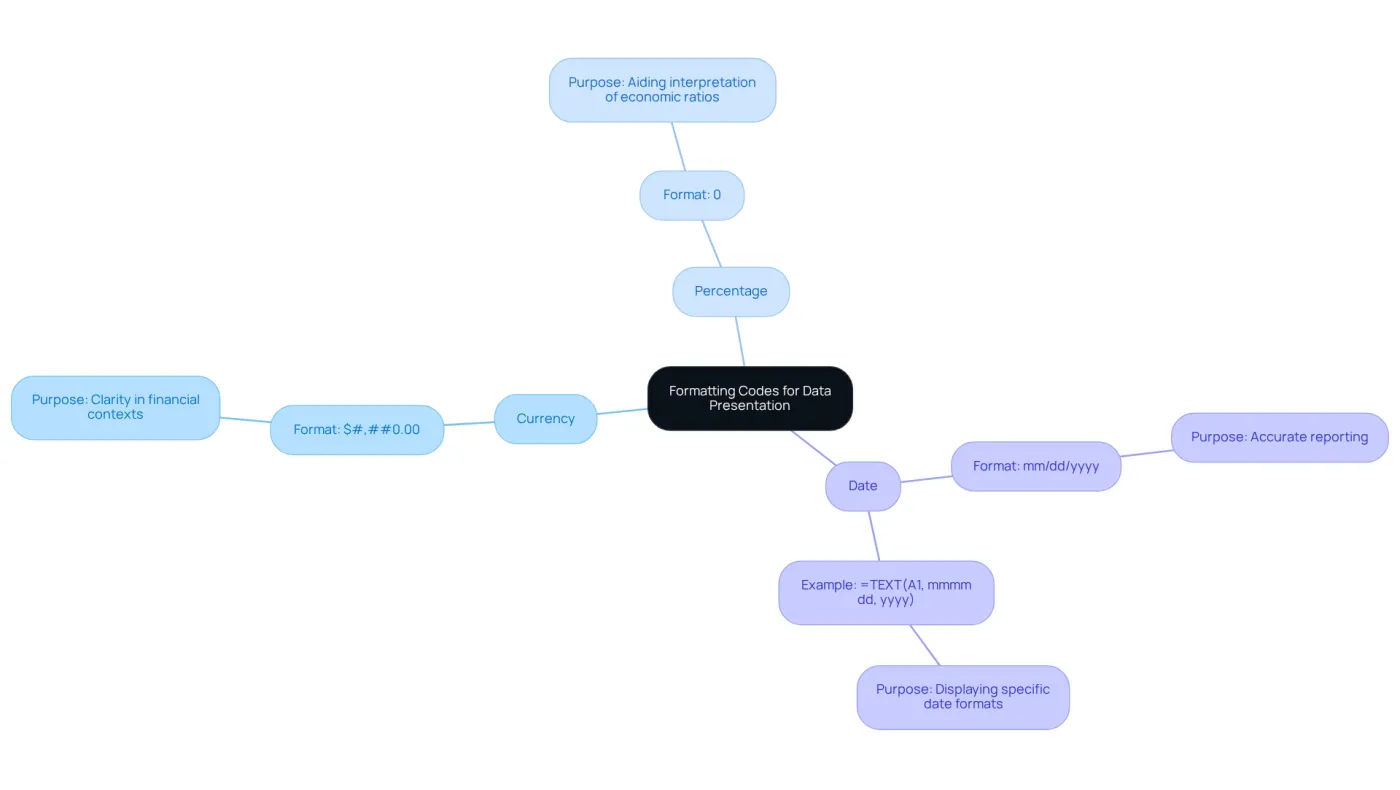
The text excel function relies on formatting codes, which are essential for allowing users to control how numbers and dates appear in their spreadsheets. Effective formatting not only enhances readability but also significantly impacts the presentation of monetary reports. Consider these commonly used formatting codes:
- Currency:
"$#,##0.00"formats a number as currency with two decimal places, ensuring clarity in financial contexts. - Percentage:
"0%"presents a number as a percentage, aiding in the interpretation of economic ratios and metrics. - Date:
"mm/dd/yyyy"formats a date in the specified format, crucial for accurate reporting.
For example, to display a date as 'January 1, 2026', the formula would be:
=TEXT(A1, "mmmm dd, yyyy")
Mastering these formatting codes is vital for crafting financial reports that are not only precise but also visually appealing. Research shows that well-formatted reports can enhance comprehension and retention of information by up to 15%. This makes it imperative for finance professionals to adopt these practices. As data visualization expert Amanda Makulec states, "How we visualize data will evolve into more complex forms that better communicate uncertainty and complexity." By implementing effective formatting codes, users can elevate the quality of their monetary presentations, ensuring that critical data is communicated clearly and effectively.
Apply the TEXT Function in Common Financial Reporting Scenarios
The text excel function is invaluable in various financial reporting scenarios, enhancing both clarity and professionalism. Here are some practical applications:
-
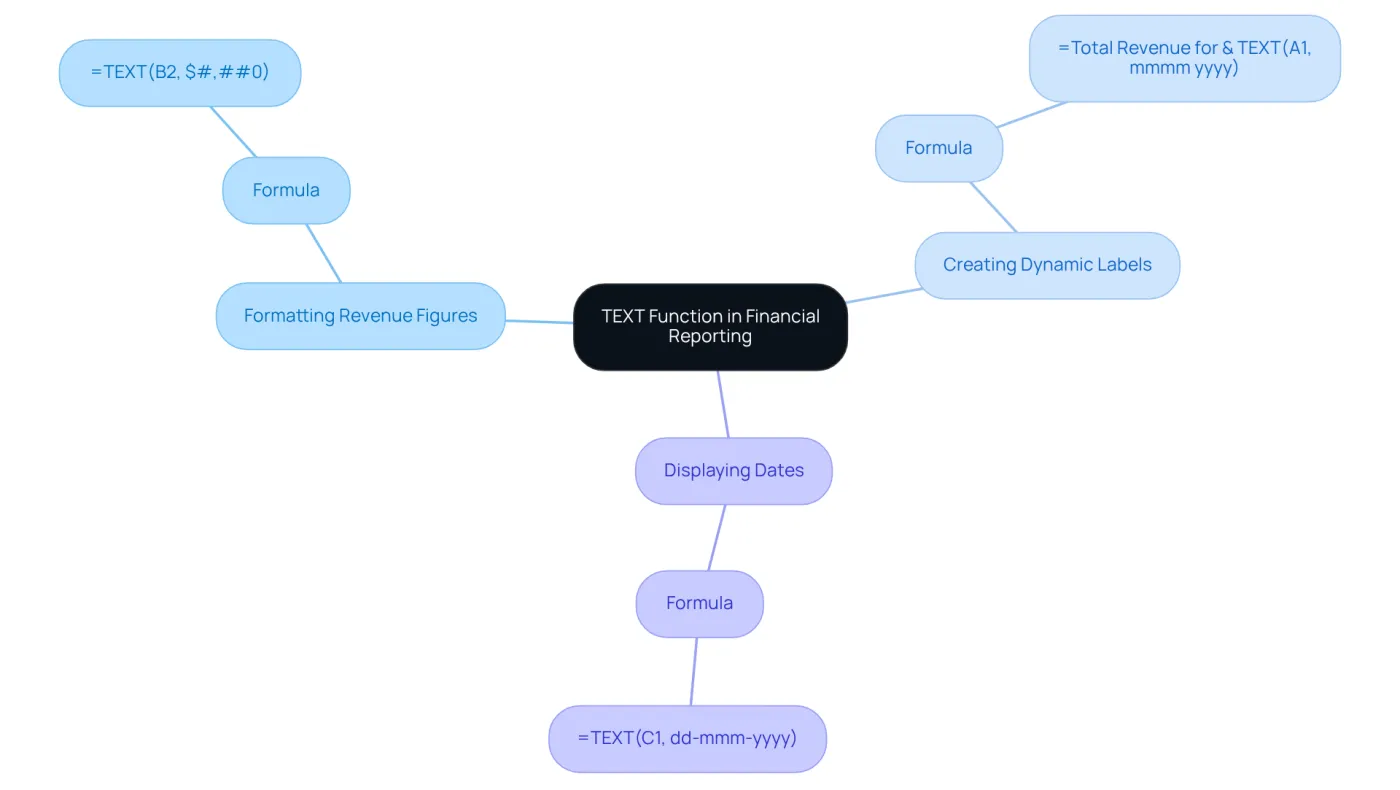
Formatting Revenue Figures: To present revenue figures clearly, use:
=TEXT(B2, "$#,##0")This formula converts the numeric revenue value in cell B2 into a currency format, making it easily readable.
-
Creating Dynamic Labels: Combine text and numbers for dynamic labels. For example:
="Total Revenue for " & TEXT(A1, "mmmm yyyy")This outputs 'Total Revenue for January 2026', providing context to the figures presented.
-
Displaying Dates: When preparing reports, specific date formats can enhance readability:
=TEXT(C1, "dd-mmm-yyyy")This formats the date in cell C1 to a more accessible format like '01-Jan-2026'.
These applications not only enhance the clarity of monetary reports but also elevate the overall professionalism of the documents created using the text excel function. A substantial proportion of finance experts frequently utilize the text excel function, highlighting its significance in effective monetary communication. By leveraging dynamic labels and clear formatting, finance teams can ensure their reports are both informative and visually appealing.
Troubleshoot Common Issues and FAQs Related to the TEXT Function
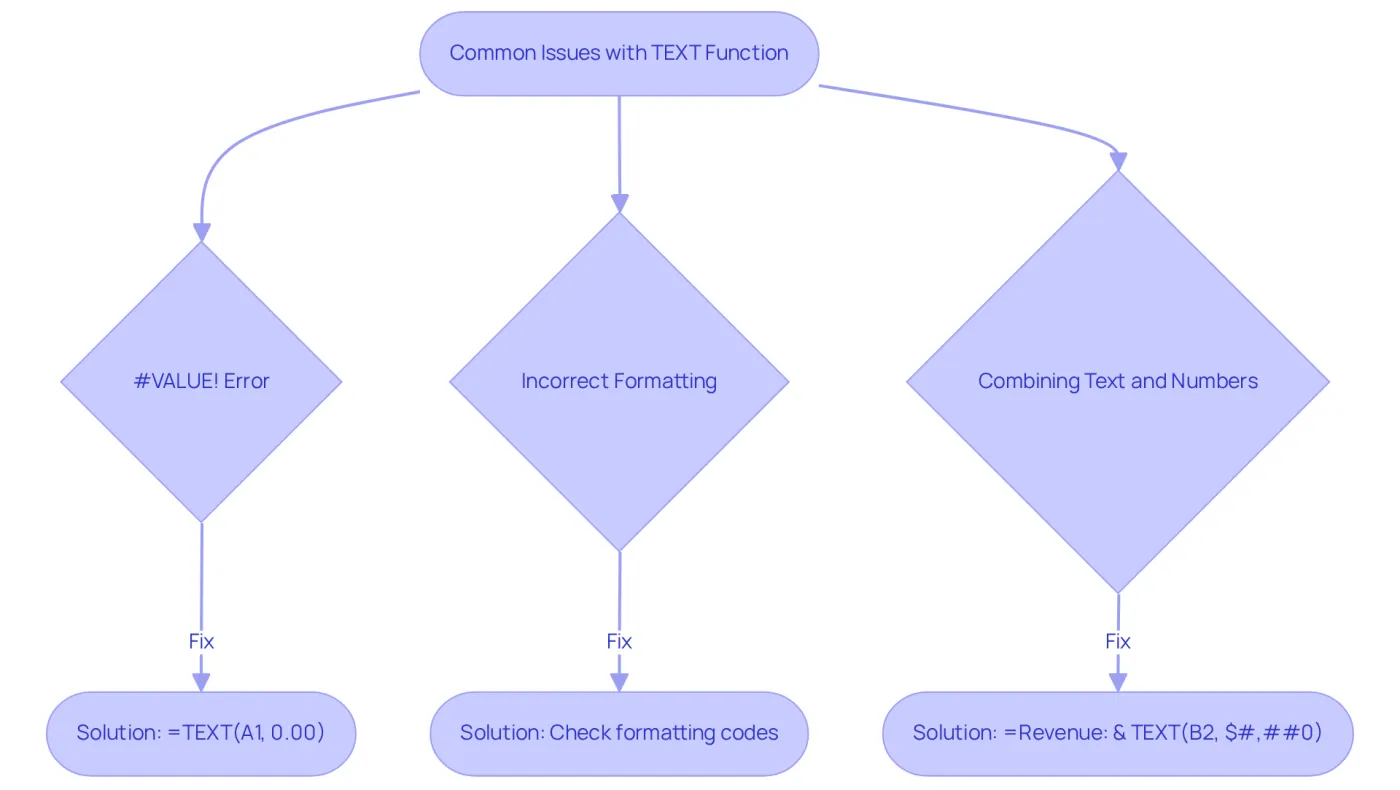
While the text excel function serves as a powerful tool for formatting data in Excel, many users encounter common issues that can hinder effective financial reporting. Understanding these challenges is crucial for enhancing your proficiency. Here are essential troubleshooting tips:
-
#VALUE! Error: This error typically arises when the format_text argument is not enclosed in quotes. To avoid this, ensure your formula is structured correctly, such as:
=TEXT(A1, "0.00") -
Incorrect Formatting: If the output does not match your expectations, verify your formatting codes. For example, using 'mm/dd/yyyy' will yield a standard date style, while 'dd-mm-yyyy' will produce a different appearance.
-
Combining Text and Numbers: When merging text with numeric values, it’s crucial to format the numbers correctly. For instance:
="Revenue: " & TEXT(B2, "$#,##0")This formula will accurately display the revenue alongside the label.
Statistics reveal that 41% of finance teams struggle to recognize and fix mistakes in Excel. This highlights the importance of mastering features like TEXT. By addressing these common issues, you can significantly enhance your proficiency with the text excel function, which will lead to improved accuracy and efficiency in financial reporting. Take action now to refine your skills and elevate your financial reporting capabilities.
Conclusion
Mastering the TEXT function in Excel is crucial for anyone involved in financial reporting. This function transforms numeric values into easily readable text strings, enhancing the overall presentation of financial data. By leveraging the TEXT function, finance professionals can ensure their reports are not only accurate but also visually appealing, improving clarity and communication.
Key insights shared throughout this article highlight the purpose and basic usage of the TEXT function, including its syntax and various formatting codes. Practical applications demonstrate how to format revenue figures, create dynamic labels, and effectively display dates. Additionally, troubleshooting common issues underscores the importance of understanding potential pitfalls when using the function, ensuring users can navigate challenges with confidence.
Incorporating the TEXT function into financial reporting practices can significantly elevate the quality of monetary presentations. As the landscape of financial communication evolves, embracing these tools and techniques empowers professionals to deliver reports that are not only informative but also engaging. By refining these skills, finance teams can enhance their reporting capabilities and drive better decision-making through clear and effective data presentation.
Frequently Asked Questions
What is the purpose of the TEXT function in Excel?
The TEXT function in Excel is used to transform numeric values into text strings, allowing users to format numbers, dates, and times according to specific requirements.
What is the basic syntax of the TEXT function?
The basic syntax of the TEXT function is =TEXT(value, format_text), where 'value' is the numeric value or cell reference to convert, and 'format_text' is the desired format enclosed in quotation marks.
Can you provide an example of how to use the TEXT function?
Yes, for example, to format a number as currency, you would use: =TEXT(1234.56, "$#,##0.00"). This converts the number into a text string formatted as currency.
Why is the TEXT function important in financial reporting?
The TEXT function is crucial in financial reporting because it enhances data presentation, ensuring clarity and consistency, which is essential for readability and analysis.
How do finance professionals utilize the TEXT function in their reports?
Finance professionals use the TEXT function to adapt numeric formats to meet specific reporting standards, allowing them to create professional reports that accurately convey monetary information.
What is an example of combining text and formatted numbers using the TEXT function?
An example is using the formula = 'Total Sales: ' & TEXT(A1, '$#,##0.00'), which results in 'Total Sales: $1,234.57', combining text with a formatted number in a single cell.
What do analysts say about the importance of formatting numeric values?
Analysts emphasize that formatting numeric values correctly is essential for clear communication in monetary reports, highlighting the critical role of the TEXT function in effective communication.