
Understanding the Excel Formula for Contains: Key Insights for Finance Pros
Master the Excel formula for contains to enhance data analysis and streamline financial reporting.

Introduction
Mastering Excel's complexities can revolutionize the way finance professionals handle extensive datasets. By utilizing a formula that replicates the 'Contains' function, analysts can swiftly pinpoint specific text within their data, significantly boosting both accuracy and efficiency in financial reporting. As the need for precise data analysis intensifies, how can finance experts fully harness these capabilities to prevent costly errors and streamline their workflows?
Defining the Excel Contains Function
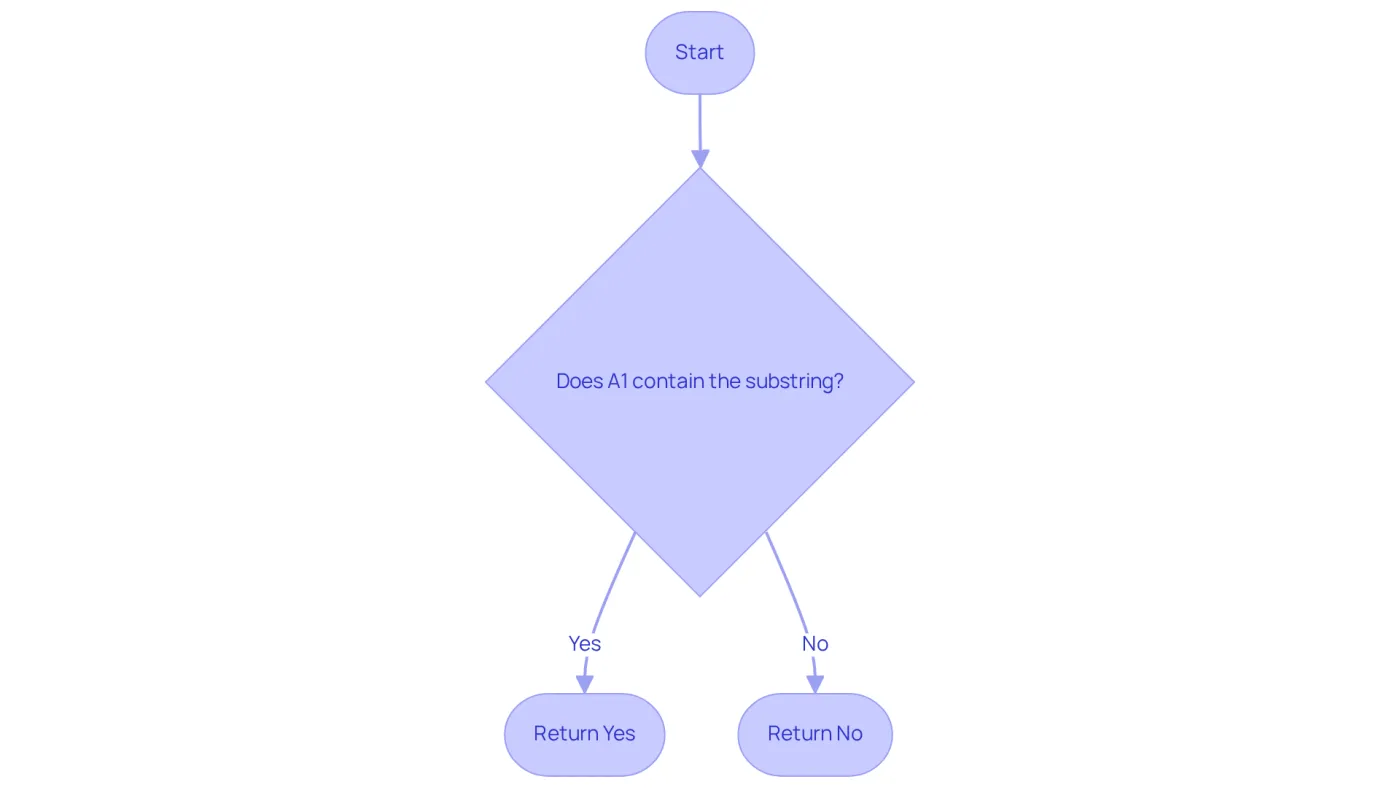
While Excel may not have a dedicated 'Contains' feature, users can effectively replicate this functionality by using an Excel formula for contains that leverages the power of the IF, SEARCH, and ISNUMBER functions. This combination allows for the detection of specific substrings within larger strings, utilizing the Excel formula for contains to address a common challenge faced by many.
Consider the formula =IF(ISNUMBER(SEARCH("text", A1)), "Yes", "No"). This formula evaluates whether the substring 'text' exists in cell A1, returning 'Yes' if it is found and 'No' if it is not. Such a method is invaluable for information validation and categorization, particularly in economic analysis, enabling professionals to streamline their workflows.
In fact, a staggering 96% of finance experts rely on Excel formulas for validation tasks. This statistic underscores the critical role these formulas play in enhancing precision and efficiency in financial modeling. By mastering these functions, you can significantly improve your analytical capabilities and decision-making processes.
Context and Importance of the Contains Function in Excel
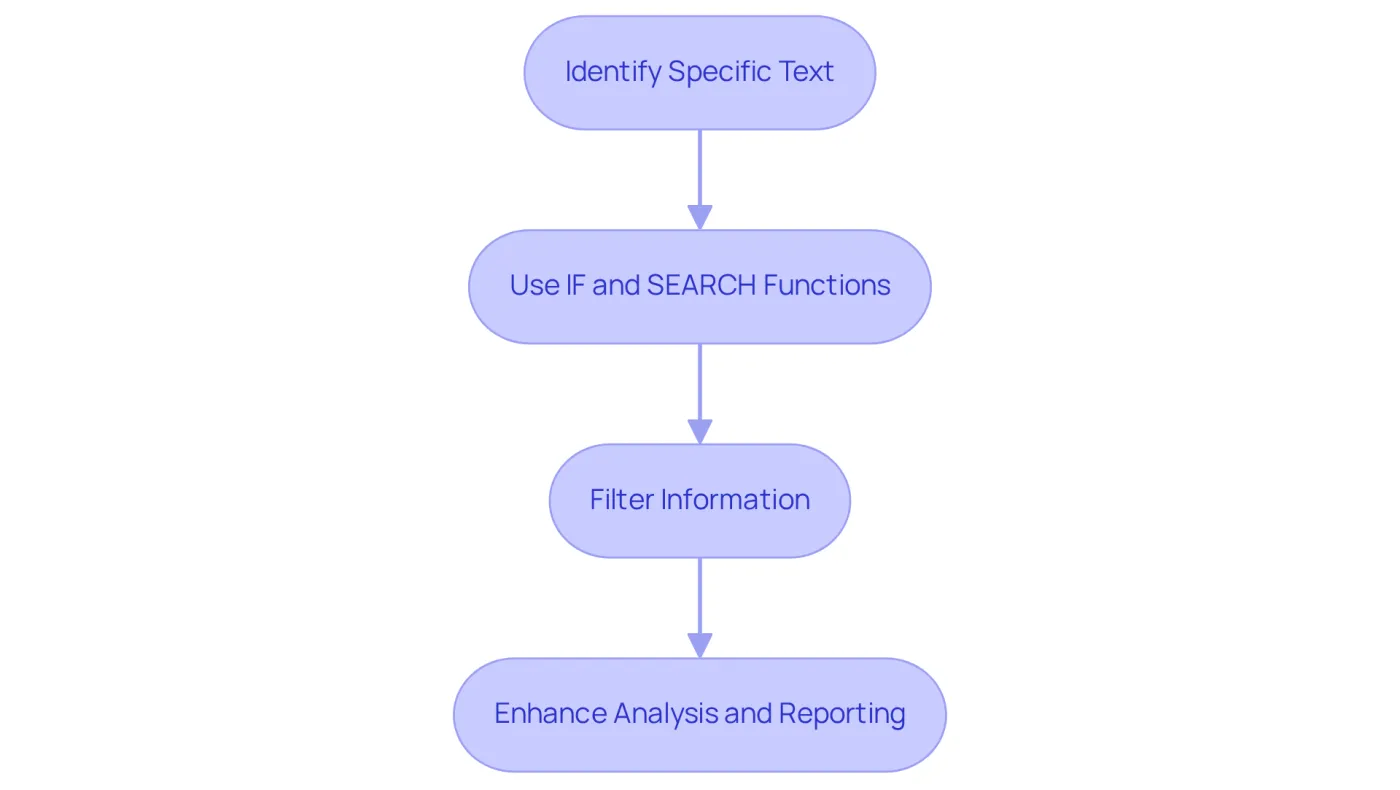
For finance professionals managing extensive datasets, utilizing an Excel formula for contains to determine if a cell contains specific text is crucial. Imagine an analyst examining sales information using an Excel formula for contains to identify all entries related to a specific product or category. By utilizing the IF and SEARCH functions, analysts can filter information effectively, allowing them to concentrate on pertinent details.
This capability not only speeds up the analysis process but also enhances the precision of monetary reports. In fact, case studies demonstrate that automating information filtering tasks can save finance teams substantial time, significantly boosting overall productivity. Did you know that 77% of information professionals consider trusted information essential for strategic monetary decisions? This statistic highlights the significance of precise information filtering.
Moreover, inadequate data quality can cost companies up to $15 million each year, emphasizing the importance for finance experts to excel in these spreadsheet tools. Mastering these tools is therefore a crucial skill for finance professionals aiming to enhance their analytical abilities and ensure accurate financial reporting.
Origin and Evolution of the Contains Function
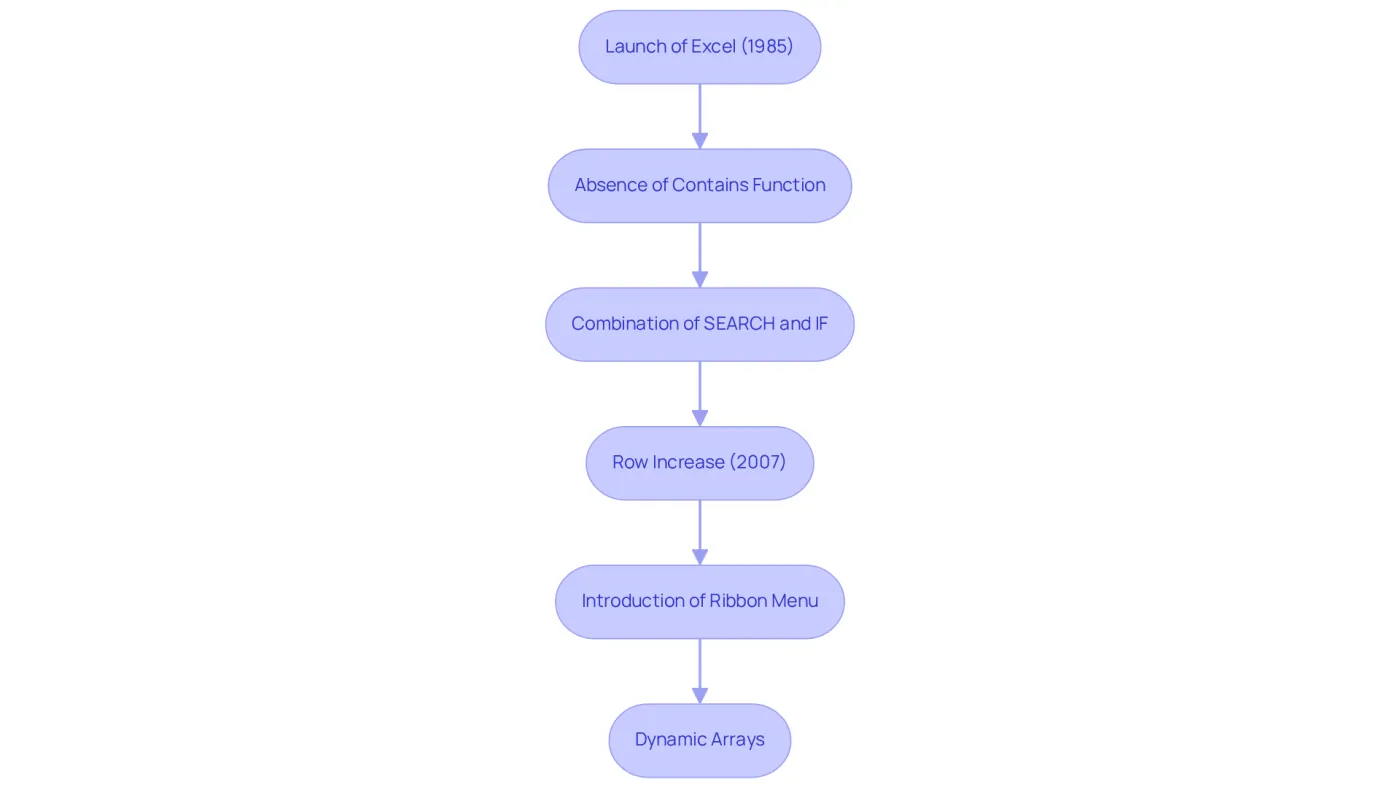
Since its launch in 1985, Excel has transformed remarkably, continually enhancing its functionality to meet user needs. Initially, users faced a challenge due to the absence of an Excel formula for contains. This limitation forced them to creatively combine existing functions like SEARCH and IF in an Excel formula for contains to replicate this capability. Such adaptability is crucial in financial contexts, where precise information manipulation is essential for analysis and decision-making.
Over the years, Excel has introduced significant upgrades. For instance, in 2007, the number of rows increased from 65,536 to 1,048,576, enabling finance professionals to handle larger datasets more effectively. The introduction of the Ribbon menu system and dynamic arrays further improved user experience, simplifying navigation and information management.
As Excel continues to evolve, understanding these essential features allows finance professionals to leverage its full capabilities. This optimization enhances workflows and boosts information management efficiency. As Stephen Eldridge notes, "Data analysis is an important part of both scientific research and business, where demand has grown in recent years for data-driven decision making." This statement underscores the vital role spreadsheets play in the financial sector, especially as they adapt to meet user needs.
Key Characteristics and Functionalities of the Contains Function
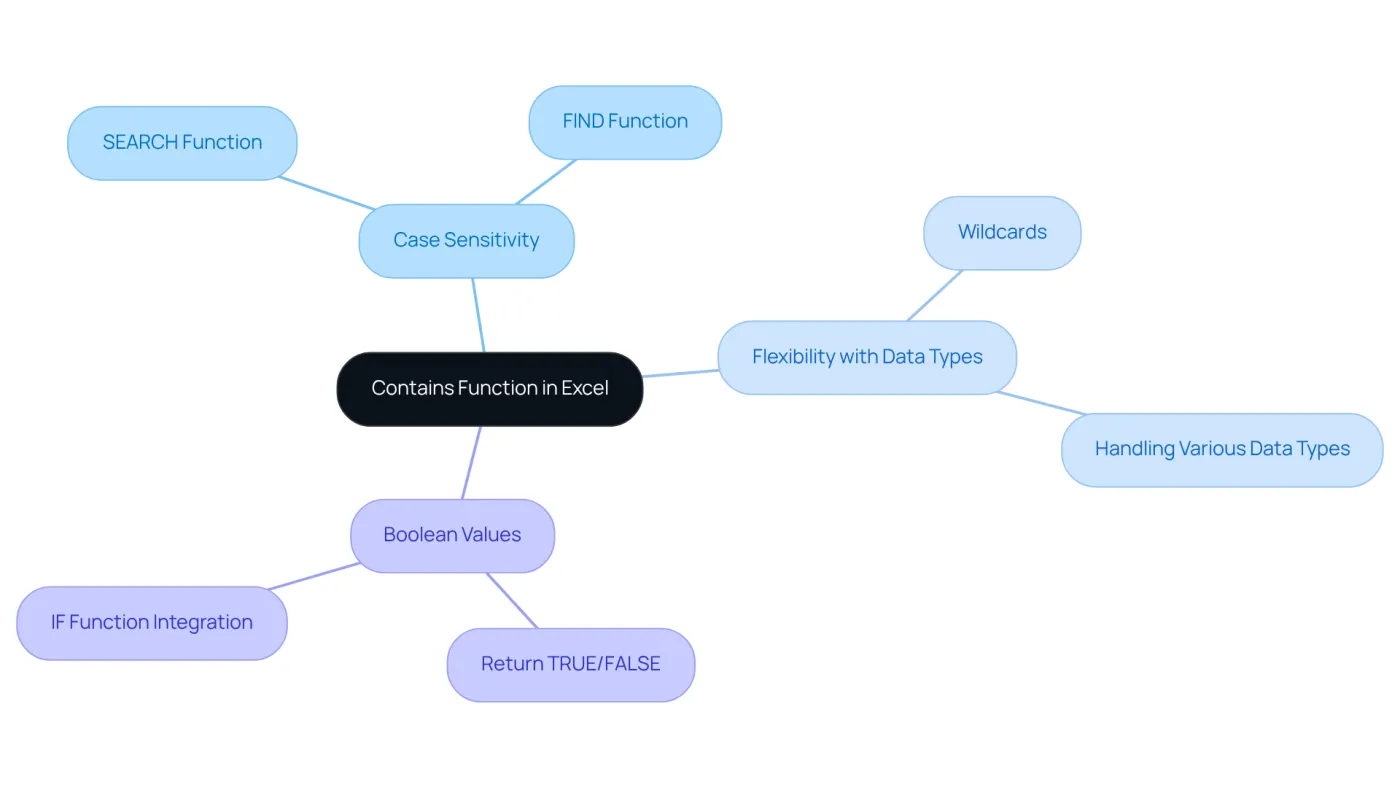
Understanding the capabilities of the Excel formula for contains alternatives in Excel is crucial for finance professionals aiming to enhance their data analysis skills. These functions are characterized by case sensitivity, flexibility in managing various data types, and the ability to return Boolean values. For example, the SEARCH feature stands out as case-insensitive, making it ideal for situations where the exact casing of text does not matter.
Moreover, users can significantly boost their search capabilities by combining these functions with wildcards. Consider the formula =IF(ISNUMBER(SEARCH("*text*", A1)), "Found", "Not Found"). This allows for partial matches, broadening the scope of analysis and providing deeper insights.
By mastering these functionalities, finance professionals can manipulate data more effectively. This not only leads to improved insights but also enhances decision-making processes. Embracing these tools empowers you to navigate complex datasets with confidence, ultimately driving better outcomes in your financial analyses.
Conclusion
Understanding the Excel formula for contains is crucial for finance professionals aiming to elevate their data analysis skills. By effectively utilizing functions like IF, SEARCH, and ISNUMBER, users can replicate the 'Contains' functionality, allowing them to navigate extensive datasets effortlessly. This expertise not only streamlines workflows but also significantly enhances the accuracy of financial reporting - an essential aspect in a field where precision is non-negotiable.
Key insights throughout this article underscore the importance of the contains function in Excel. From validating information and filtering data to its historical evolution and enhancements, the discussion highlights the necessity for finance experts to adapt and leverage these tools. Notably, statistics indicate that a substantial percentage of finance professionals rely on Excel for validation tasks, underscoring the critical role these formulas play in informed decision-making and strategic planning.
Ultimately, embracing the Excel formula for contains and its associated functionalities empowers finance professionals to confidently navigate complex datasets. As the financial landscape becomes increasingly data-driven, mastering these skills will not only enhance analytical capabilities but also lead to improved outcomes in financial analyses. Investing time in understanding and applying these functions can yield significant gains in efficiency and accuracy, solidifying Excel's position as an indispensable tool in the finance sector.
Frequently Asked Questions
What is the purpose of the Excel Contains function?
The Excel Contains function is not a dedicated feature, but it can be replicated using a combination of the IF, SEARCH, and ISNUMBER functions to detect specific substrings within larger strings.
How can I use Excel to check if a substring exists in a cell?
You can use the formula =IF(ISNUMBER(SEARCH("text", A1)), "Yes", "No") to check if the substring "text" exists in cell A1. It returns "Yes" if found and "No" if not.
In what scenarios is the Excel Contains function particularly useful?
This function is particularly useful for information validation and categorization, especially in fields like economic analysis, where it helps professionals streamline their workflows.
How prevalent is the use of Excel formulas for validation tasks among finance experts?
A significant 96% of finance experts rely on Excel formulas for validation tasks, highlighting their importance in enhancing precision and efficiency in financial modeling.
What benefits can mastering the IF, SEARCH, and ISNUMBER functions provide?
Mastering these functions can significantly improve your analytical capabilities and decision-making processes in Excel.