
Overview
A formula parse error in Google Sheets signifies that the application struggles to interpret an expression due to syntax issues. This often leads to error messages like #ERROR!, #NAME?, or #VALUE!. Understanding these errors is crucial for accurate data evaluation and effective troubleshooting in spreadsheet tasks.
Common causes of these errors include:
- Missing operators
- Unmatched parentheses
Recognizing these pitfalls not only aids in resolving immediate issues but also enhances your overall spreadsheet proficiency. By mastering the nuances of formula syntax, you empower yourself to navigate complex data scenarios with confidence.
In conclusion, grasping the intricacies of formula parse errors is essential for anyone working with Google Sheets. It not only streamlines your workflow but also ensures that your data analysis remains precise and reliable.
Introduction
Navigating the complexities of Google Sheets can feel overwhelming, particularly when confronted with the frustrating formula parse errors that can derail even the most careful data analysis. These errors, often cryptically displayed as messages like #ERROR! or #NAME?, arise from various issues, including syntax mistakes or incorrect function references. For those looking to sharpen their spreadsheet skills, deciphering the meaning behind these errors is not just advantageous—it's crucial.
How can you effectively traverse the maze of formula parse errors to guarantee accuracy and efficiency in your calculations? Understanding these challenges is the first step toward mastering Google Sheets and enhancing your data management capabilities.
Define Formula Parse Error in Google Sheets
Syntax parsing issues in Google Sheets arise when the application struggles to interpret an expression due to incorrect syntax or structure. This often manifests through messages like #ERROR!, which provides minimal information about the problem, or #NAME? and #VALUE!, indicating that the equation does not meet the expected format.
Common culprits behind these issues include:
- Missing operators
- Unmatched parentheses
- Incorrect function names
- References to non-existent named ranges
For instance, the #DIV/0! error occurs when a calculation attempts to divide by zero, while the #N/A message signifies that a lookup function cannot find the requested value. Furthermore, the #NUM! error appears when numeric values in a formula are invalid, such as trying to find the 10th smallest number in a dataset containing only five values.
Understanding what does formula parse error mean is crucial for users who aim to diagnose problems efficiently and ensure accurate data evaluation and computations in their spreadsheets. It's also essential to verify correct syntax, particularly in different locales where commas and semicolons may be used interchangeably.

Context and Importance of Formula Parse Errors
In fields where data accuracy is essential, such as finance and data analysis, it is crucial to understand what does formula parse error mean due to the critical nature of formula parse issues. For professionals transitioning from Excel to Google Sheets, these challenges can be particularly frustrating, especially when they encounter questions like what does formula parse error mean during intricate calculations that underpin vital decision-making processes. Research shows that a staggering 94% of business spreadsheets contain errors, often leading to significant financial implications. Mistakes can arise from various problems, including input errors, inaccurate calculations, inconsistent data formats, and understanding what does formula parse error mean. For instance, a basic equation misconfiguration can distort data analysis, resulting in misguided financial strategies.
The impact of formula inaccuracies, or what does formula parse error mean, extends beyond mere annoyance; they can undermine the reliability of financial models and analyses. Inaccurate data can lead to erroneous conclusions, affecting everything from budgeting to forecasting. Addressing quality concerns throughout the entire spreadsheet life cycle is essential for effective issue management. As users become more familiar with the application, they can develop strategies to manage and correct these issues efficiently, including identifying common errors such as #VALUE! and #DIV/0!. This not only enhances their proficiency but also builds greater confidence in their analytical capabilities, ultimately leading to improved efficiency in their work.

Types of Formula Parse Errors in Google Sheets
Formula parsing issues in applications can significantly hinder productivity, especially for finance professionals who rely on precise calculations, leading to confusion about what does formula parse error mean. Understanding these common errors is crucial for effective troubleshooting:
- #ERROR! This generic issue indicates that the formula cannot be processed due to a syntax problem, often arising from an incomplete or incorrect formula structure, leading one to wonder what does formula parse error mean.
- #NAME? This error occurs when Google Sheets fails to recognize a function or named range, typically due to typos or incorrect references. Ensuring that all function names are spelled correctly can help prevent this issue.
- #REF! This signifies that a calculation references an invalid cell, commonly happening when cells have been deleted or moved. To resolve this, users should replace the invalid reference with a valid one.
- #VALUE! This issue arises when an incorrect type of argument or operand is used in a calculation, such as attempting mathematical operations on text. Users should verify that all referenced values are of the expected type to avoid this problem.
- #NUM! This indicates that a calculation includes an invalid number, often because the number is too large or of the wrong type. Users should check that all numeric values in their formulas are valid and within acceptable ranges.
- #N/A This error occurs when a value is not accessible, frequently seen with functions like VLOOKUP, QUERY, or MATCH when the desired value is not found in the specified range. To fix this, users should check for misspellings or replace the unavailable value.
By familiarizing themselves with these common mistakes, users can learn what does formula parse error mean and troubleshoot issues within their spreadsheets more effectively, ultimately boosting their efficiency and accuracy. As expert Ben Collins notes, "A useful tool for basic checks, and for creating or analyzing complex or nested expressions, and for identifying 'Parse Error', and diagnosing #REF!, #NAME?, #N/A, #NUM!, #VALUE!" codes. Furthermore, users are encouraged to utilize suggestion tools in the application for accurate syntax guidance and to engage with community forums for targeted assistance.

Troubleshooting and Fixing Formula Parse Errors
Troubleshooting Formula Parse Mistakes in Google Sheets
Are you struggling with formula parse mistakes in Google Sheets? You’re not alone. Many users encounter these frustrating issues, but with the right strategies, you can resolve them effectively and enhance your spreadsheet skills.
-
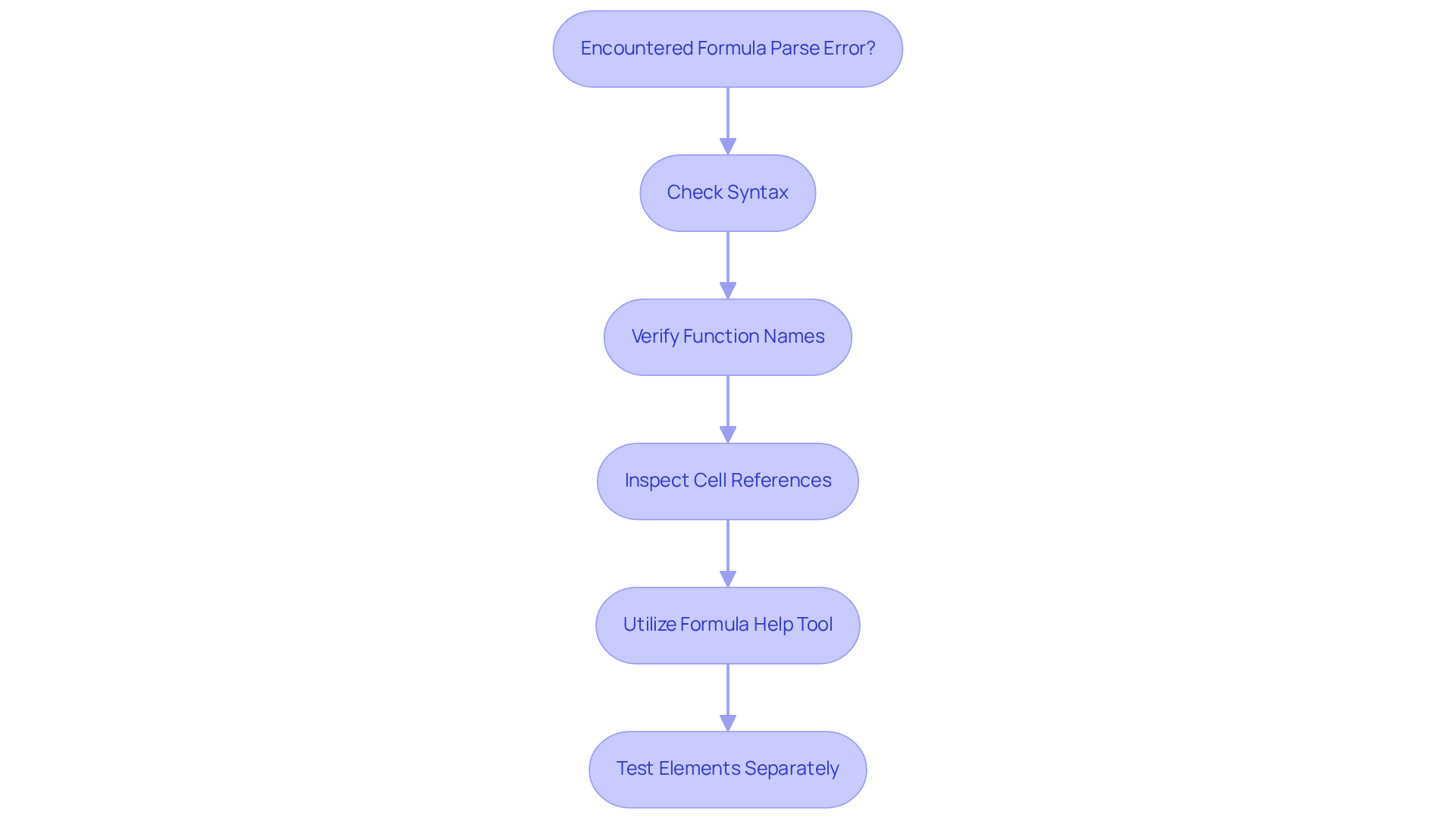
Check Syntax: Start by ensuring your formula adheres to the correct syntax. This includes the proper use of operators and parentheses. Missing punctuation can lead to errors like #NAME? or #ERROR!.
-
Verify Function Names: Double-check that all function names are spelled correctly and supported in Google Sheets. A common pitfall is misspelling function names, resulting in #NAME? errors.
-
Inspect Cell References: Confirm that all cell references are valid and haven’t been deleted or moved. The #REF! error often arises from referencing cells that no longer exist.
-
Utilize the Formula Help Tool: Google Sheets provides a formula help tool designed to assist users in constructing formulas accurately, minimizing the risk of syntax mistakes.
-
Test Elements Separately: Break down complex equations into smaller sections to pinpoint the issue. This approach can help identify specific problems, such as data type mismatches that lead to #VALUE! errors.
By systematically addressing these areas, you can effectively resolve issues related to what does formula parse error mean and significantly improve your proficiency in Google Sheets. Statistics show that around 70% of users frequently encounter formula mistakes, underscoring the importance of mastering these troubleshooting techniques. As spreadsheet expert Ben Collins wisely advises, "Take a deep breath, don’t panic! There’s an army of Google Sheets super users out there who would love to help you fix your issue, free of charge, in the active help forums.
Conclusion
Understanding formula parse errors in Google Sheets is crucial for maintaining accuracy and efficiency in data handling. These errors, often arising from syntax issues, can significantly disrupt workflows, particularly in fields that depend on precise calculations. By familiarizing yourself with various types of errors, such as #ERROR!, #NAME?, and #VALUE!, you can navigate the complexities of spreadsheet management more effectively.
Recognizing and addressing formula parse errors is essential to prevent data inaccuracies that could lead to misguided decisions. Key strategies for troubleshooting include:
- Checking syntax
- Verifying function names
- Inspecting cell references
These strategies collectively empower you to enhance your spreadsheet skills and confidence. Additionally, leveraging Google Sheets' built-in tools and community resources can provide valuable support in overcoming these challenges.
Mastering the intricacies of formula parse errors not only improves your proficiency but also contributes to the overall reliability of data analysis. By taking proactive steps to understand and resolve these errors, you can ensure that your spreadsheets serve as accurate and effective tools for decision-making. Embracing this knowledge is vital for anyone looking to optimize their use of Google Sheets and enhance their analytical capabilities.
Frequently Asked Questions
What is a formula parse error in Google Sheets?
A formula parse error in Google Sheets occurs when the application struggles to interpret an expression due to incorrect syntax or structure, often indicated by error messages like #ERROR!, #NAME?, or #VALUE!.
What are common causes of formula parse errors?
Common causes of formula parse errors include missing operators, unmatched parentheses, incorrect function names, and references to non-existent named ranges.
What does the #DIV/0! error mean?
The #DIV/0! error occurs when a calculation attempts to divide by zero.
What does the #N/A error signify?
The #N/A error signifies that a lookup function cannot find the requested value.
What is indicated by the #NUM! error?
The #NUM! error appears when numeric values in a formula are invalid, such as trying to find the 10th smallest number in a dataset that contains only five values.
Why is it important to understand formula parse errors?
Understanding formula parse errors is crucial for diagnosing problems efficiently and ensuring accurate data evaluation and computations in spreadsheets.
How can locale affect formula syntax in Google Sheets?
In different locales, commas and semicolons may be used interchangeably, which can impact the correct syntax of formulas.