
Which Formula to Use for Adding Two Numbers in Google Sheets
Learn which formula you use to add two numbers in Google Sheets efficiently.

Overview
The formula for adding two numbers in Google Sheets is the SUM function, initiated with =SUM(value1, value2, ...). This powerful tool not only enables users to efficiently add individual numbers or ranges but also offers troubleshooting tips for common issues. By understanding and utilizing the SUM function, users can enhance their data management skills significantly.
Introduction
Understanding how to efficiently add numbers in Google Sheets can significantly enhance productivity. This is particularly true for those who rely on data management in their daily tasks. The SUM function serves as a fundamental tool for this purpose, enabling users to quickly calculate totals with minimal effort.
However, despite its simplicity, many users encounter challenges when implementing this formula. What common pitfalls can derail a straightforward addition process? How can users ensure they harness the full potential of the SUM function?
By recognizing these obstacles and learning effective strategies, users can transform their data management experience, leading to improved efficiency and accuracy.
Understand the SUM Function Basics
The SUM formula stands as a cornerstone in Google Sheets, purposefully crafted to add a range of numbers with efficiency. Its syntax is simple: =SUM(value1, value2, ...), where value1, value2, and so forth can be individual numbers, cell references, or entire ranges.
It is essential to master which formula you use to add two numbers, as it underpins addition operations within your spreadsheets. Importantly, the SUM formula in Sheets mirrors its counterpart in Excel, facilitating a smooth transition for users migrating from Excel to Sheets.
As spreadsheet expert Vlad Fisun notes, "These operations perform similarly in Microsoft Excel as well, so once you grasp them, you can apply them across both platforms." Recent enhancements have further optimized its functionality, resulting in faster processing and an improved user experience.
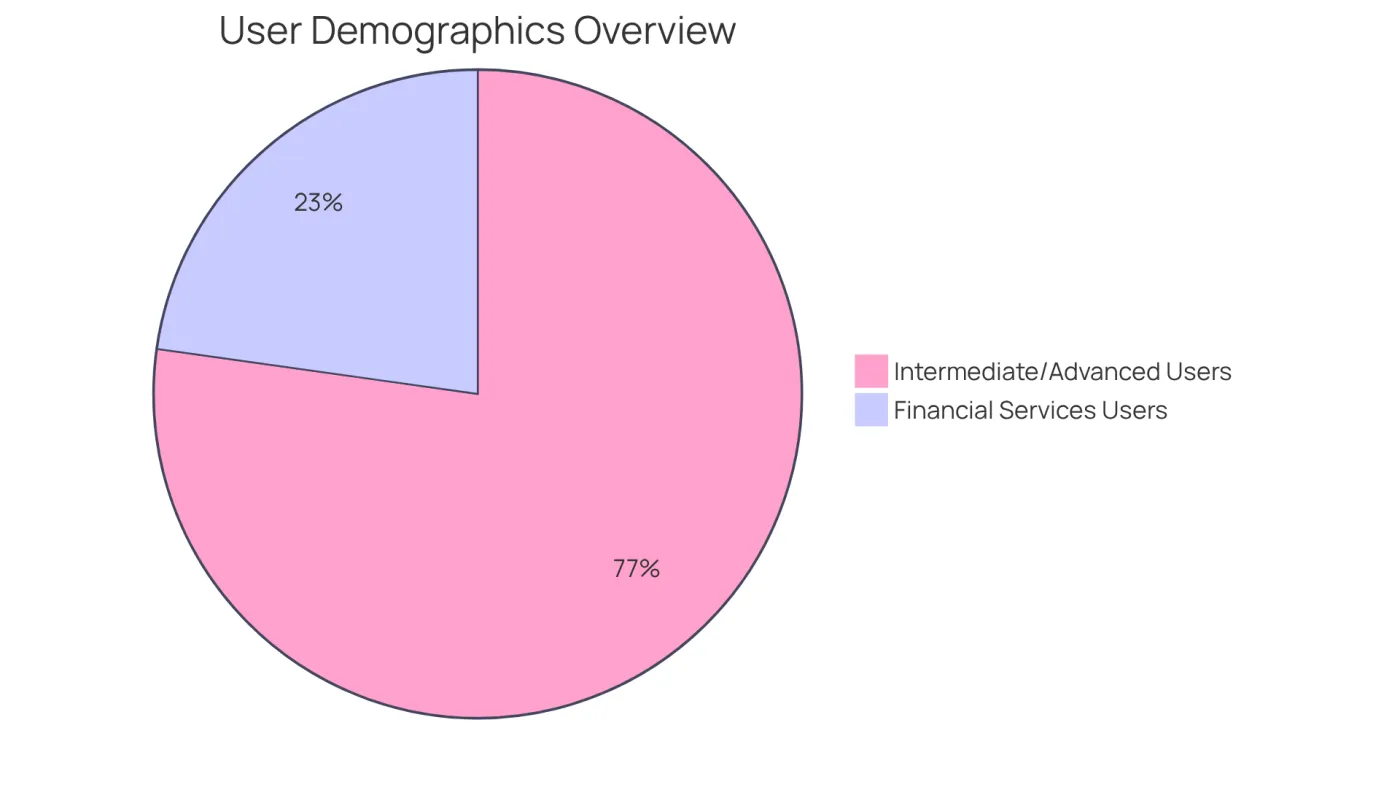
Notably, approximately 61% of Sheets users identify as intermediate or advanced spreadsheet users, many of whom are already well-acquainted with Excel features. Additionally, 18% of Sheets users work in the financial services sector, underscoring the significance of this tool for finance professionals.
This familiarity streamlines workflows and boosts productivity, making the SUM formula an indispensable element of effective data management. For example, finance experts transitioning from Excel can quickly adapt their understanding of which formula you use to add two numbers in Sheets, ensuring a seamless workflow.
Moreover, recent updates to Sheets have augmented the speed and effectiveness of the SUM feature, rendering it even more advantageous for users.
Input the SUM Function in a Cell
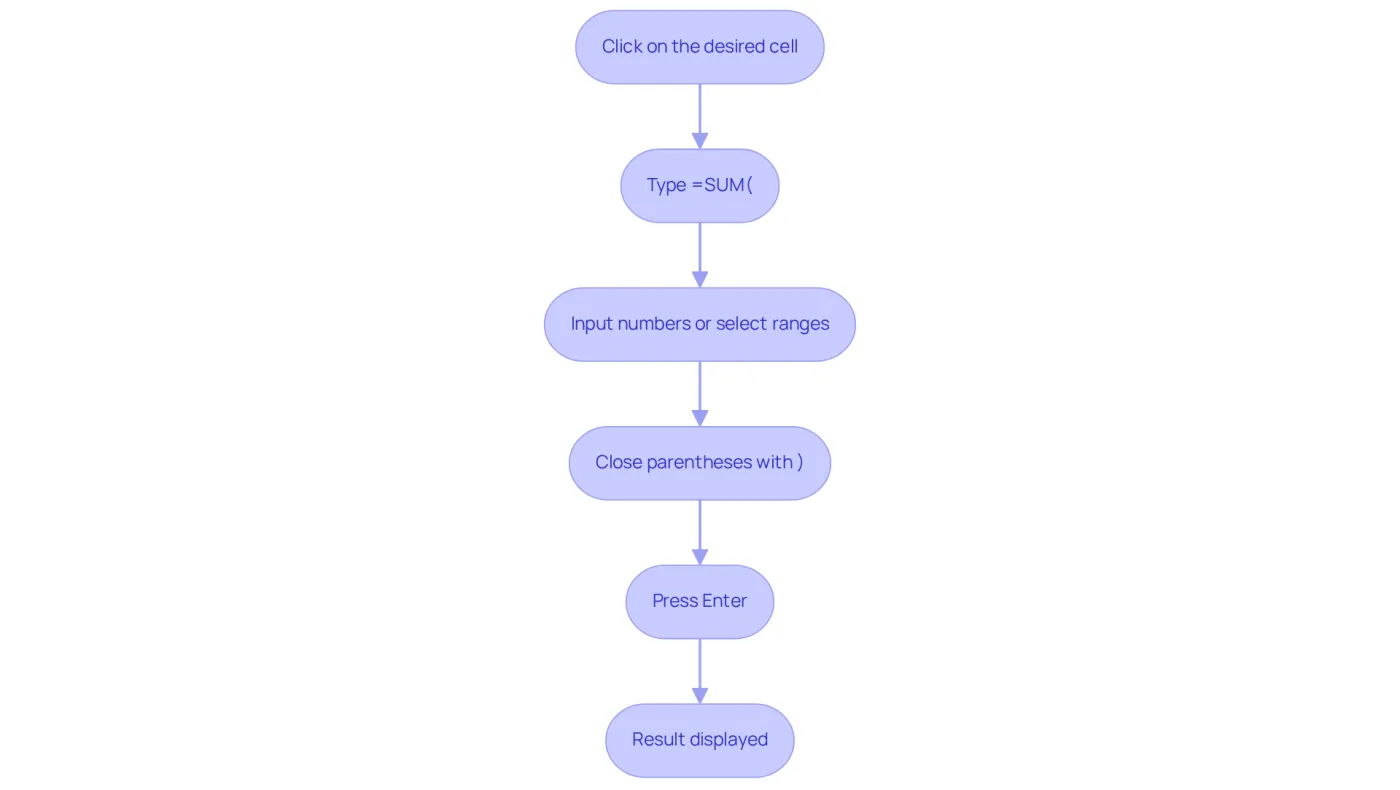
To input the SUM function in Google Sheets using ShortieCuts for seamless shortcut integration, follow these steps:
- Click on the area where you want the result of the addition to appear.
- Type
=SUM(to initiate the calculation. - You can either input the numbers directly or select the ranges containing the numbers you wish to add. If typing directly, separate each number with a comma.
- Close the parentheses by typing
), resulting in a formula that looks like=SUM(A1, A2, A3)or=SUM(10, 20, 30). - Press
Enterto execute the operation. The cell will now display the sum of the specified numbers.
For an even more efficient experience, remember to utilize the ShortieCuts extension. Simply hit "ALT" (or Option on Mac) to reveal key-tips in the corner of your screen, providing quick access to shortcuts that can enhance your workflow.
On average, users take roughly 15 minutes to learn the SUM formula, making it a quick yet powerful tool for financial analysis. Professionals frequently employ the SUM formula for tasks such as calculating total expenses, revenue, or any aggregated data necessary for informed decision-making. As productivity specialist Peter Drucker observed, "Efficiency is executing tasks correctly; effectiveness is undertaking the appropriate tasks," emphasizing the significance of mastering such operations for optimal productivity in data management. Moreover, it is crucial to ensure that the entries are configured to 'Number' format for the SUM operation to perform accurately and to verify for any circular dependencies that might arise in your calculations.
Select the Numbers to Add
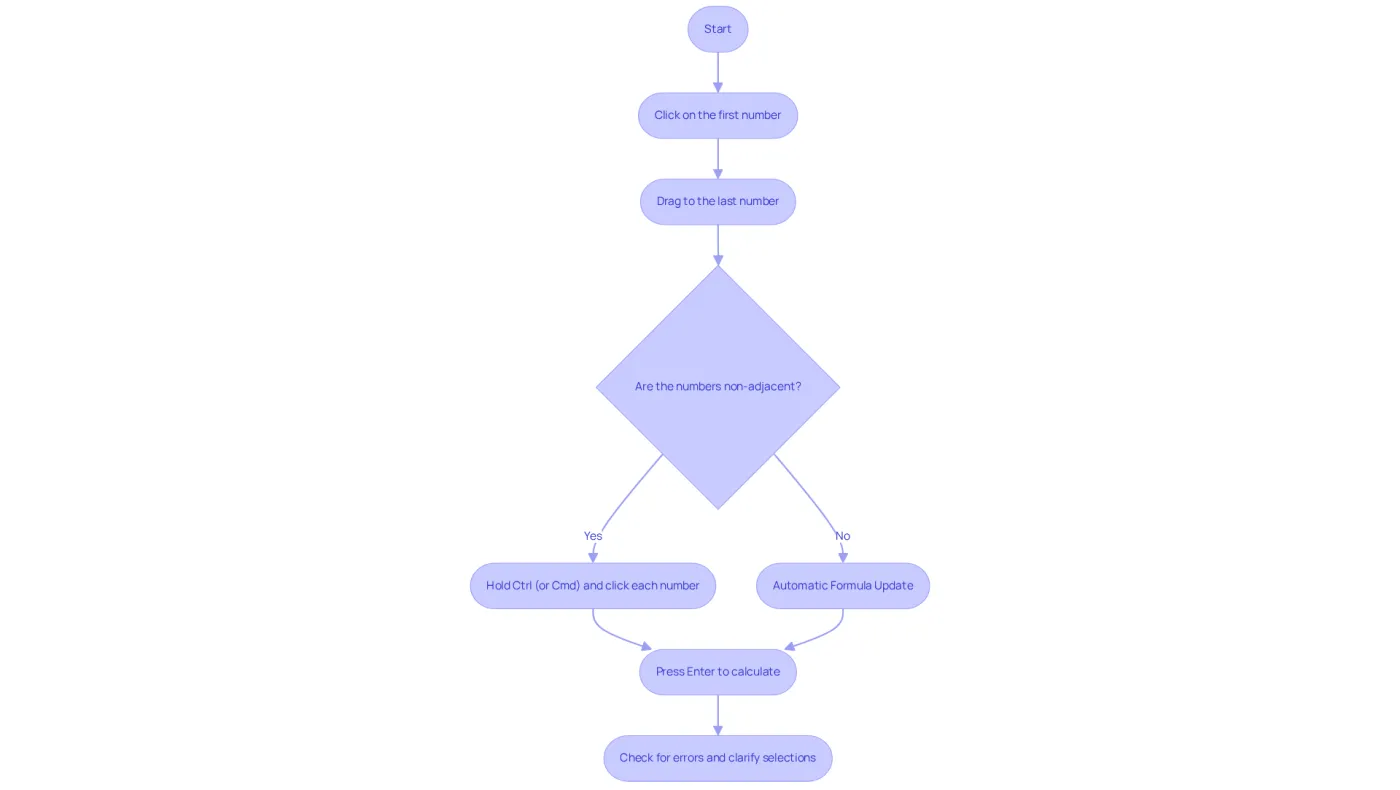
To efficiently select the numbers you want to add using the SUM function in Google Sheets, consider the following methods:
- Click and Drag: Begin by clicking on the first box containing a number. Hold the mouse button down and drag to the last box in the range. For instance, to total the values in boxes A1 through A3, click on A1 and drag to A3.
- Ctrl (or Cmd) Click: In cases where the units are not adjacent, hold down the
Ctrlkey (orCmdon Mac) and click on each individual unit you wish to include in the sum. - Automatic Formula Update: As you select the desired areas, the formula will automatically adjust to reflect the selected range, such as
=SUM(A1:A3). - Completing the Calculation: Once you have selected the areas, press
Enterto display the total of the selected figures.
Be mindful that errors can occur with the SUM operation, which formula you use to add two numbers, stemming from syntax mistakes like mismatched parentheses or incorrect references. Common issues include circular dependencies and data type mismatches. Statistics reveal that 60% to 80% of users spend considerable time locating data, emphasizing the necessity of mastering efficient selection techniques. As highlighted by data analysts, ensuring clarity in cell selection is vital for accurate calculations and effective data management. Furthermore, consider utilizing the SUMIF or SUMIFS formulas for summing values based on specific criteria, which can further enhance your data management capabilities.
Troubleshoot Common SUM Function Issues
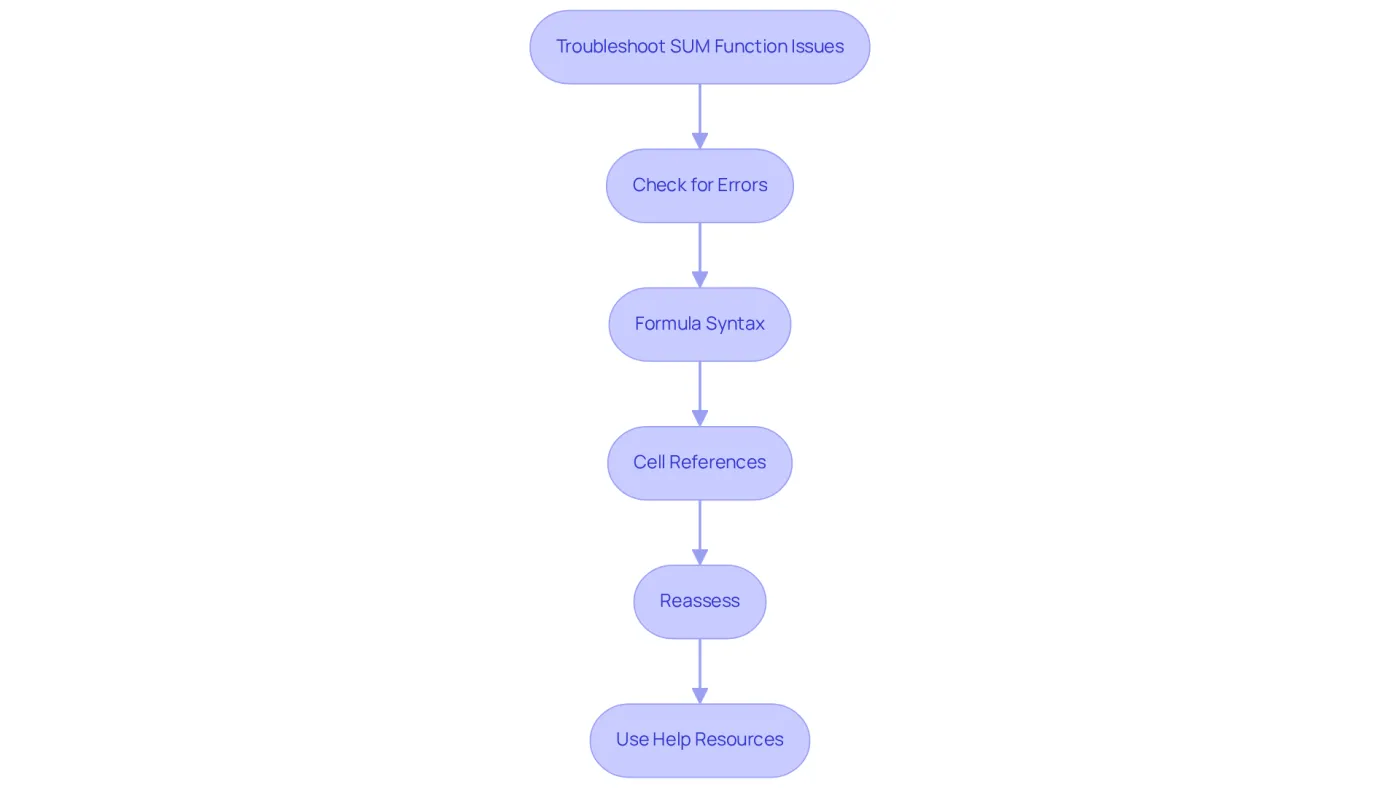
When encountering challenges with the SUM function in Google Sheets, it is essential to implement effective troubleshooting strategies:
- Check for Errors: Ensure that all referenced fields contain numerical values. Text or blank entries can lead to unexpected outcomes, such as returning zero or errors like #VALUE! and #REF!.
- Formula Syntax: Confirm that your formula is correctly formatted. It should begin with
=and follow the syntax:=SUM(value1, [value2, ...]). To avoid common pitfalls, it's crucial to understand which formula you use to add two numbers. - Cell References: Double-check that you are citing the correct boxes. Incorporating a box with text or a faulty formula can distort your total.
- Reassess: Sheets may not always recalculate automatically. To refresh your calculations, click on the box and press
Enteragain, ensuring that the latest data is reflected. Remember, Sheets automatically shows the sum in the bottom-right corner when selecting a range of cells, which can assist you in quickly verifying your calculations. - Use Help Resources: If issues persist, leverage Google Sheets' built-in help feature or explore online forums for additional insights. Numerous users effectively address their SUM-related problems on their own by referring to community resources.
Common errors include incorrect cell references and data type mismatches, which can often be resolved by ensuring that all data is formatted correctly. For instance, a user faced a scenario where the SUM formula returned zero because numbers were regarded as text. By modifying the formatting and utilizing the ARRAYFORMULA tool, they managed to resolve the issue efficiently. Matthew, a technical expert, emphasizes the importance of verifying formula syntax and ensuring that automatic calculation is enabled to maintain accuracy in summations. By following these troubleshooting steps, users can enhance their proficiency in managing data, particularly with the SUM function, which formula you use to add two numbers.
Conclusion
Mastering the SUM function in Google Sheets is not just a fundamental skill; it is a vital asset that enhances data management and analysis. This powerful formula streamlines workflows and boosts productivity, particularly for those transitioning from Excel or navigating finance sectors.
This guide has meticulously outlined the essential elements of the SUM function, including its basic syntax, methods for inputting the formula, selecting numbers for addition, and troubleshooting common issues. Key insights, such as ensuring numerical entries and correct syntax, have been emphasized to help users avoid pitfalls and maximize the utility of Google Sheets.
Ultimately, proficiency in using the SUM function leads to more efficient data handling and informed decision-making. Whether for personal budgeting or professional financial analysis, leveraging this tool can significantly enhance productivity. Embrace the power of the SUM function in Google Sheets and transform your approach to adding numbers in spreadsheets.
Frequently Asked Questions
What is the purpose of the SUM function in Google Sheets?
The SUM function is designed to efficiently add a range of numbers, allowing users to perform addition operations within their spreadsheets.
What is the syntax of the SUM function?
The syntax of the SUM function is =SUM(value1, value2, ...), where value1, value2, and so on can be individual numbers, cell references, or entire ranges.
How does the SUM function in Google Sheets compare to Excel?
The SUM function in Google Sheets mirrors its counterpart in Excel, making it easier for users transitioning from Excel to Sheets to apply their knowledge.
What percentage of Google Sheets users are intermediate or advanced users?
Approximately 61% of Google Sheets users identify as intermediate or advanced spreadsheet users.
What is the significance of the SUM function for finance professionals?
About 18% of Google Sheets users work in the financial services sector, highlighting the importance of the SUM function for finance professionals in managing data effectively.
What recent updates have been made to the SUM function in Google Sheets?
Recent updates have improved the speed and effectiveness of the SUM function, enhancing user experience and productivity.