
Buy ShortieCuts Chrome Extension to Boost Your Google Sheets Productivity
Easily buy the ShortieCuts Chrome extension to enhance your Google Sheets productivity.

Introduction
Navigating the complexities of Google Sheets can often seem overwhelming, particularly for those making the switch from Excel. Enter the ShortieCuts Chrome extension - a true game-changer. With 233 shortcuts at your fingertips, it’s designed to streamline your workflow and significantly boost productivity. But with a plethora of tools available, how do you determine the best fit for your needs? This guide not only outlines the purchasing and installation process but also explores how to leverage ShortieCuts effectively, elevating your productivity and addressing common challenges along the way.
Purchase the ShortieCuts Chrome Extension
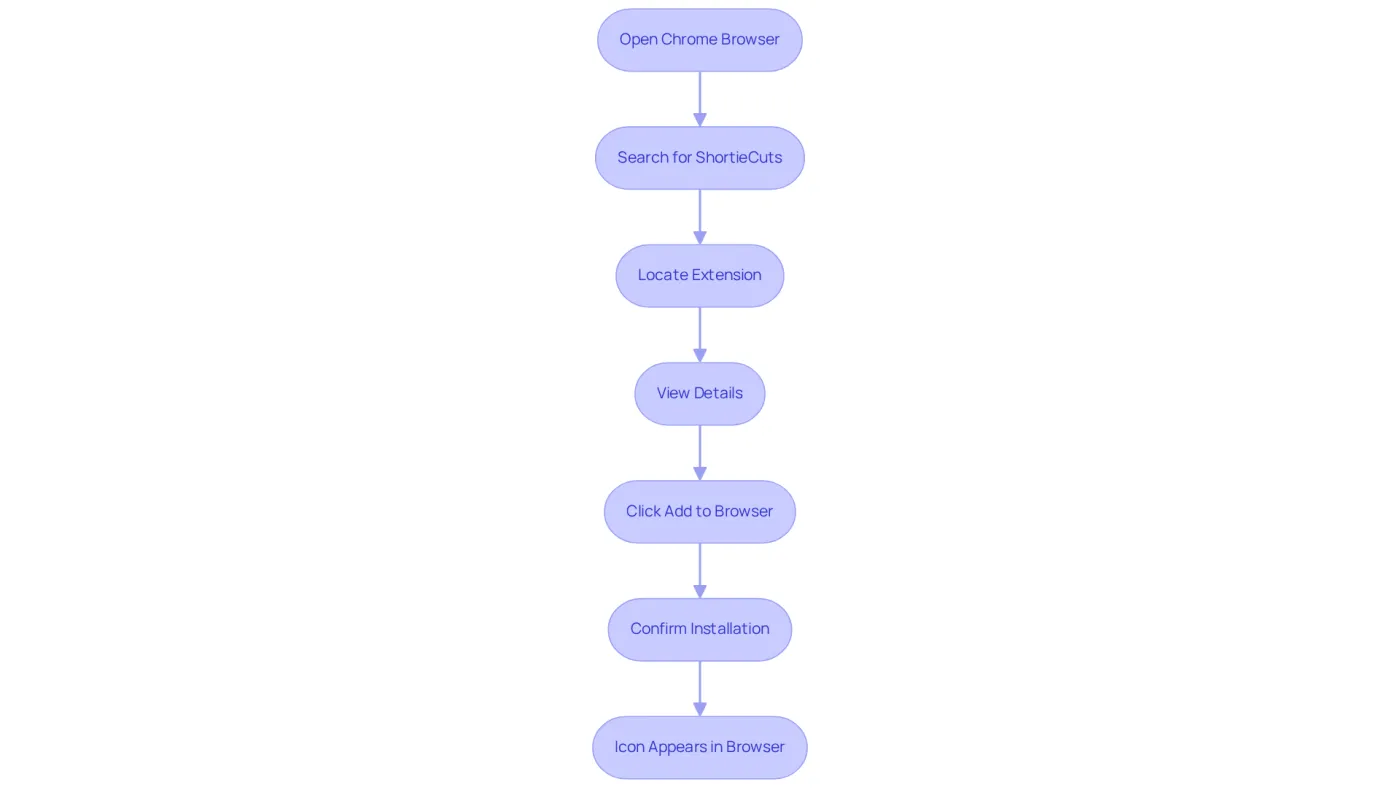
- Open your Chrome browser and navigate to the Chrome Web Store.
- In the search bar, type 'buy ShortieCuts Chrome extension' and press Enter.
- You can buy the ShortieCuts Chrome extension titled 'Shortcuts for Google™' by locating it in the search results.
- Click on the add-on to view its details, which emphasize its remarkable rating of 4.8 based on 3.2K reviews and highlight that many users choose to buy ShortieCuts Chrome extension.
- Click the 'Add to Browser' button.
- A confirmation pop-up will appear; click 'Add feature' to finalize the installation.
- After installation, the icon will show up in the top-right corner of your Chrome browser, signifying that you can buy ShortieCuts Chrome extension and it is ready for use.
With the Shortcuts tool, simply press the 'ALT' key (or Option on Mac) to display key-tips in the corner of your screen. This feature provides easy access to 233 Excel shortcuts designed specifically for Google Sheets. As Karan B. remarked, "All serious Excel users who have been waiting to transition to Sheets will value this addition." This feedback underscores the significance of the service for finance professionals aiming to enhance their productivity.
Install ShortieCuts in Your Chrome Browser
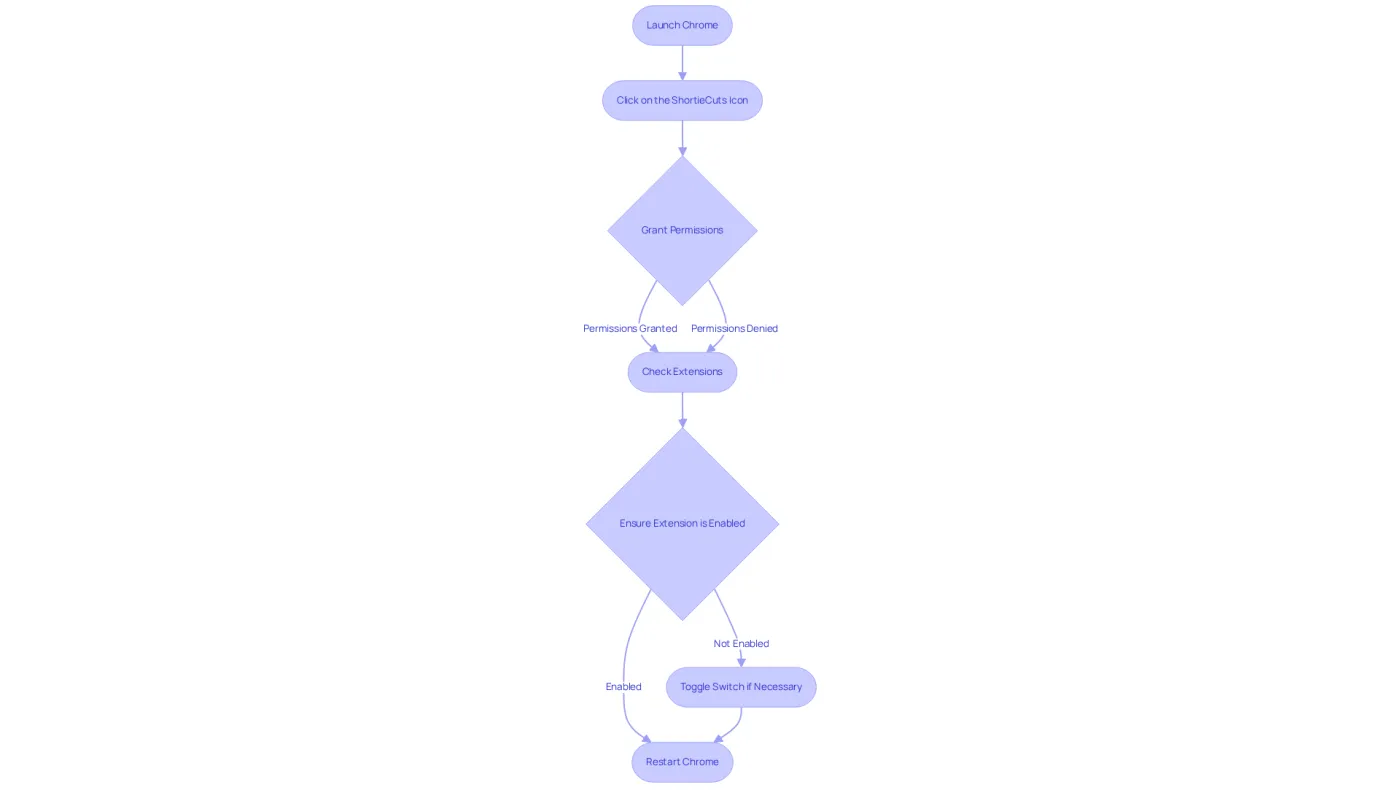
- After you buy ShortieCuts Chrome extension, launch your Chrome application.
- To get started, you need to buy ShortieCuts Chrome extension and then click on the icon located in the top-right corner of the window.
- If prompted, grant the necessary permissions for the add-on to function correctly, especially when you buy ShortieCuts Chrome extension.
- To confirm the installation, navigate to
chrome://extensionsin your web client and check if you can buy ShortieCuts Chrome extension. - Ensure that you buy ShortieCuts Chrome extension and that it is listed and enabled.
- If it is not enabled, you should toggle the switch to activate the buy ShortieCuts Chrome extension.
- To complete the installation process, please buy ShortieCuts Chrome extension and then restart your web application.
The platform offers 233 Excel ALT shortcuts for Google Sheets, significantly boosting your productivity. By simply pressing "ALT" (or Option on Mac), key-tips will appear in the corner of your screen, guiding you through the various shortcuts available. This user-friendly feature facilitates seamless transitions from Excel to Google Sheets, ensuring you can work efficiently while safeguarding your data privacy.
Utilize ShortieCuts Features for Enhanced Productivity
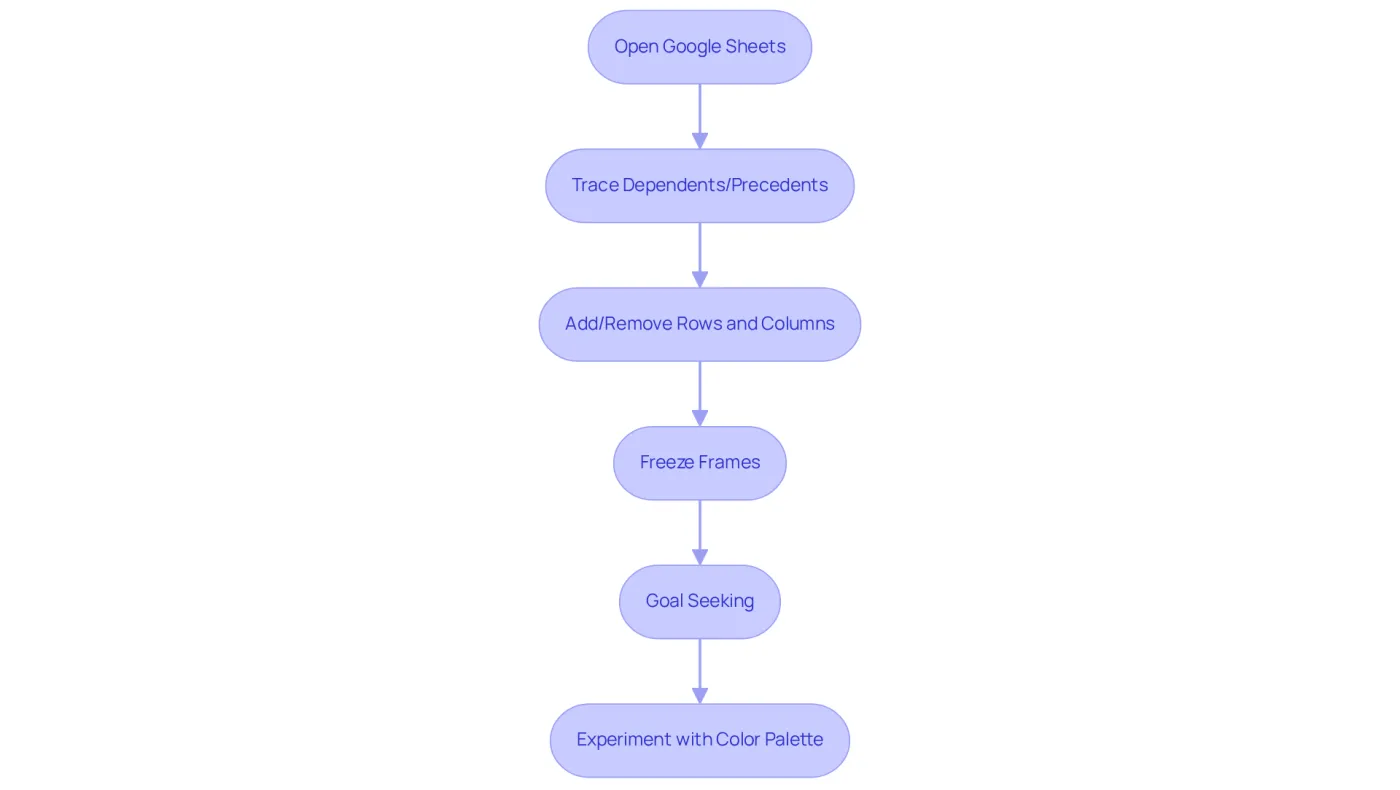
- Open Google Sheets in your web browser.
- To effectively trace dependents or precedents in your formulas, select the cell containing the formula. Use the shortcut
Alt + Tto trace dependents orAlt + Pfor precedents. This feature allows you to quickly identify relationships between cells, enhancing your data analysis. - Adding or removing rows and columns is straightforward. Press
Alt + Shift + Rto add a row andAlt + Shift + Cto add a column. This flexibility helps you organize your data efficiently. - To freeze frames for better visibility, simply press
Alt + Fand select your desired freeze option. This ensures that important headers remain visible as you scroll through your data. - For goal seeking, navigate to the cell where you want to find the necessary value. Press
Alt + Gto open the Goal Seek function, allowing you to determine the input needed to achieve a specific goal. - Experiment with the color palette feature to enhance keyboard-only navigation. Press
Alt + Kto access the color options, making your spreadsheet visually appealing and easier to navigate.
Troubleshoot Common Issues with ShortieCuts
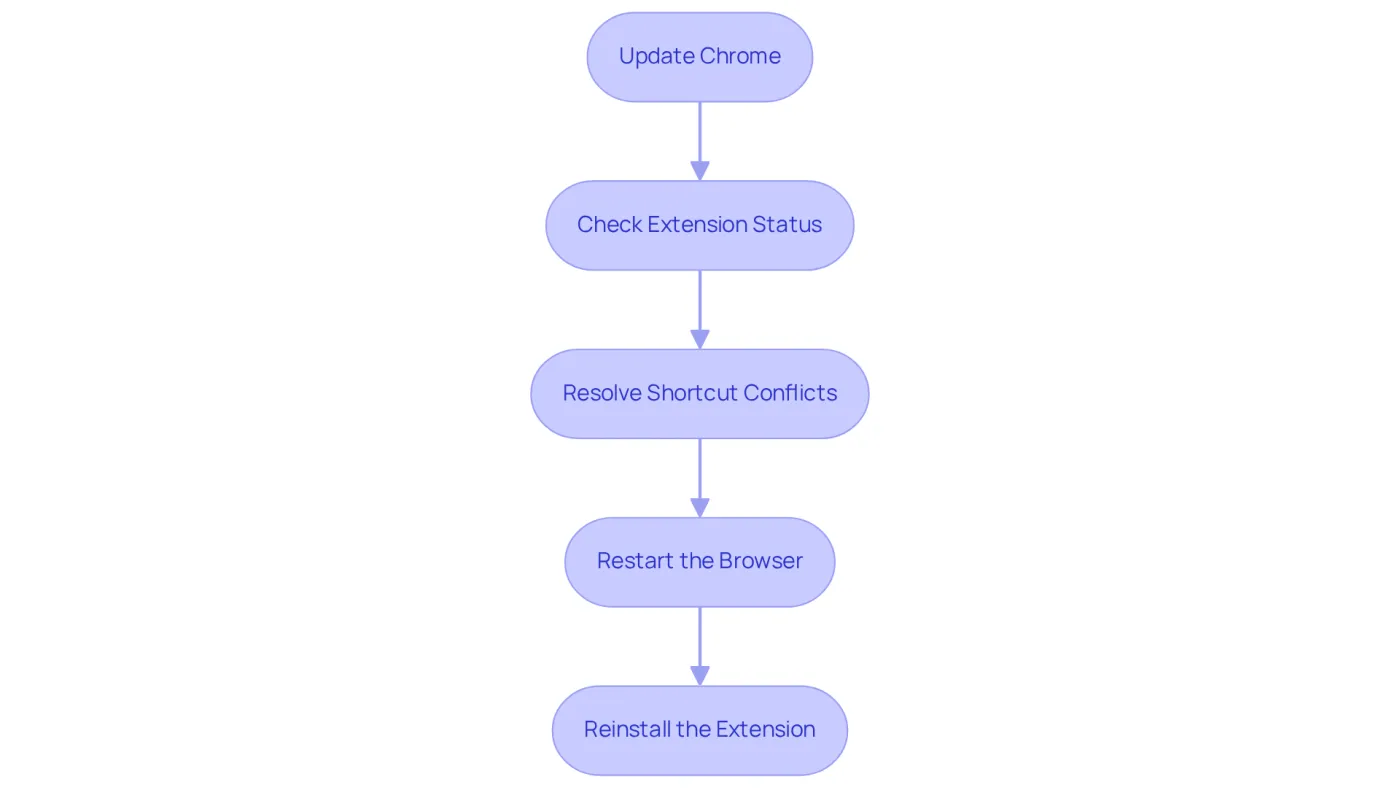
To troubleshoot common issues with the ShortieCuts extension, follow these essential steps to ensure optimal functionality:
- Update Chrome: Make sure your Chrome browser is updated to the latest version. Outdated software can lead to compatibility issues that hinder performance.
- Check Extension Status: Navigate to
chrome://extensionsto confirm that the ShortieCuts add-on is enabled. The toggle should be set to 'on' for proper functionality. - Resolve Shortcut Conflicts: If you encounter conflicts with keyboard shortcuts, visit
chrome://extensions/shortcutsto view and customize your shortcuts, ensuring they do not overlap with other add-ons. - Restart the Browser: A simple restart of your web browser can refresh the extension and resolve minor glitches that may arise.
- Reinstall the Extension: If problems persist, consider removing and reinstalling ShortieCuts. Go to
chrome://extensions, click 'Remove', and then reinstall it from the web store.
Maintaining a clean system free from malware is crucial. Malware can lead to unexpected behavior and interfere with your browsing experience. Recent statistics show that users who follow these troubleshooting steps report a significant improvement in their experience with Chrome add-ons, with success rates exceeding 80% in resolving common issues. As tech support expert DennyL stated, "Regular updates and careful management of add-ons can significantly enhance user experience." By proactively addressing these potential problems, you can enhance your productivity and fully leverage the capabilities to buy ShortieCuts Chrome extension.
Conclusion
Acquiring and installing the ShortieCuts Chrome extension is a simple yet impactful step that can dramatically boost your productivity in Google Sheets. This powerful tool provides access to 233 Excel shortcuts, ensuring a smooth transition from Excel to Google Sheets. By incorporating this extension into your daily tasks, you can tap into a suite of features designed to streamline your workflow and enhance data management.
The article outlines a clear, step-by-step guide to obtaining the ShortieCuts extension, starting from its discovery on the Chrome Web Store to confirming its installation and activation in your browser. Essential functionalities, such as:
- Tracing dependents
- Adding rows and columns
- Utilizing goal-seeking features
are emphasized as vital tools for maximizing your productivity. Additionally, common troubleshooting tips are provided, equipping users with practical solutions to improve their experience with the extension.
Ultimately, utilizing the ShortieCuts Chrome extension not only boosts individual productivity but also fosters a more organized and efficient approach to data management in Google Sheets. Embracing such tools can lead to significant time savings and enhanced accuracy in your work. For anyone eager to optimize their Google Sheets experience, investing in the ShortieCuts extension is a crucial step toward achieving greater efficiency and effectiveness in data handling.
Frequently Asked Questions
How do I purchase the ShortieCuts Chrome extension?
To purchase the ShortieCuts Chrome extension, open your Chrome browser and go to the Chrome Web Store. In the search bar, type 'buy ShortieCuts Chrome extension' and press Enter. Locate the extension titled 'Shortcuts for Google™' in the search results and click on it to view its details.
What are the ratings and reviews for the ShortieCuts Chrome extension?
The ShortieCuts Chrome extension has a remarkable rating of 4.8 based on 3.2K reviews, indicating a positive reception among users.
How do I install the ShortieCuts Chrome extension?
After locating the extension, click the 'Add to Browser' button. A confirmation pop-up will appear; click 'Add feature' to finalize the installation. Once installed, the icon will appear in the top-right corner of your Chrome browser.
What features does the ShortieCuts Chrome extension offer?
The ShortieCuts Chrome extension provides easy access to 233 Excel shortcuts specifically designed for Google Sheets. Users can press the 'ALT' key (or Option on Mac) to display key-tips in the corner of the screen.
Who would benefit from using the ShortieCuts Chrome extension?
The ShortieCuts Chrome extension is particularly beneficial for finance professionals and serious Excel users transitioning to Google Sheets, as it enhances productivity and provides valuable shortcuts.