
Master How to Unhide Worksheets in Excel for Seamless Use
Learn how to unhide worksheets in Excel easily with various effective methods and troubleshooting tips.
Overview
The article focuses on effectively unhiding worksheets in Excel, outlining various methods and troubleshooting tips to enhance user experience. It emphasizes that understanding these techniques not only helps users manage their spreadsheets more efficiently but also addresses common issues such as hidden sheets and permissions. By mastering these skills, users can significantly improve their overall productivity.
Introduction
Mastering the art of unhiding worksheets in Excel is not just a skill; it is a gateway to transforming a chaotic spreadsheet into a streamlined, efficient workspace. Did you know that nearly 38% of users rely on hidden sheets to enhance their productivity? This statistic underscores the necessity of understanding the various methods to reveal these concealed tabs, which is essential for effective data management.
However, what occurs when the unhide option fails, or when users encounter hidden sheets that seem impossible to access? This guide delves into the intricacies of unhiding worksheets, offering practical solutions and tips to navigate common challenges. By ensuring that no valuable data remains out of sight, you will enhance your productivity and streamline your workflow.
Understand the Basics of Hiding and Unhiding Worksheets
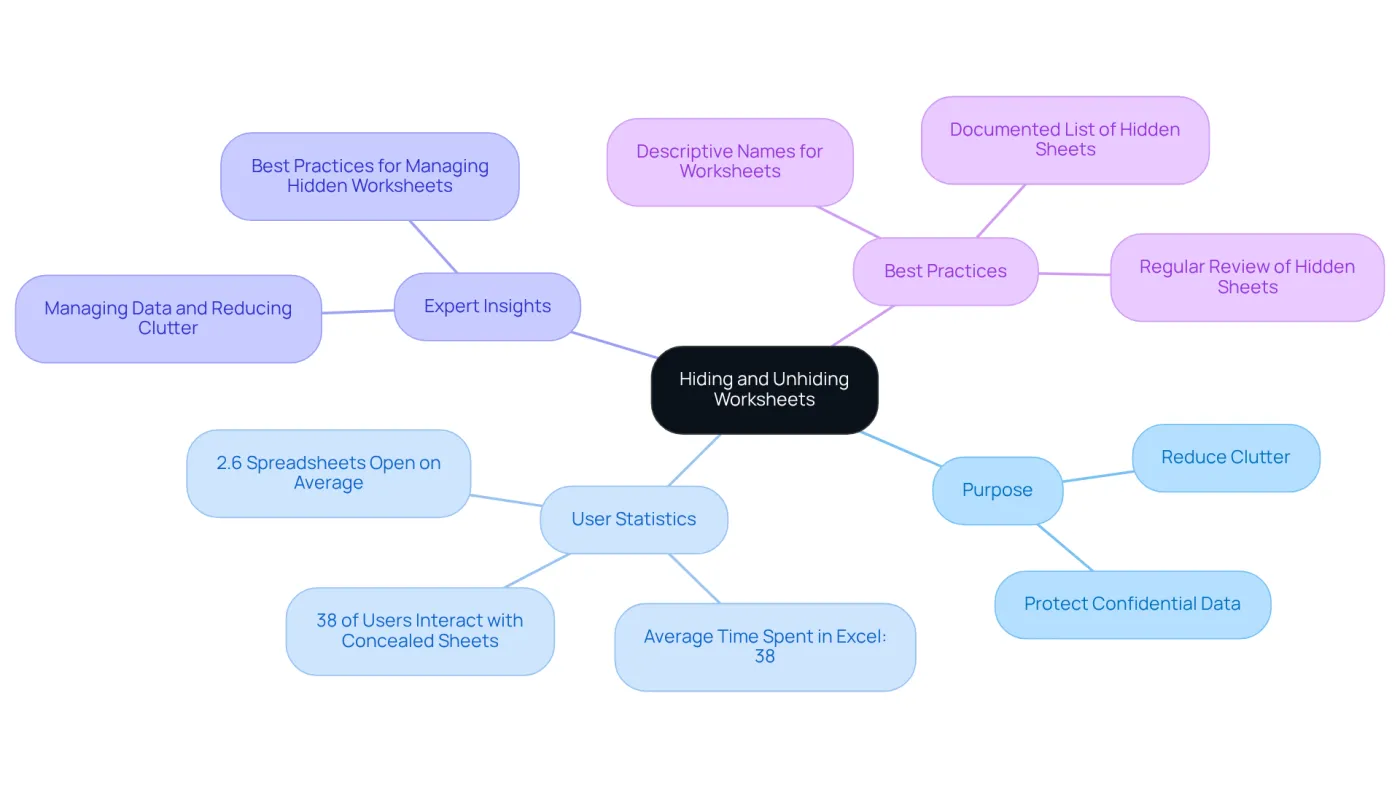
In a spreadsheet application, sheets can be concealed for various purposes, such as reducing clutter in the display or safeguarding confidential data. This functionality is essential for efficient spreadsheet oversight; concealed sheets are not removed but merely turn invisible within the workbook. Users can learn how to unhide worksheets in Excel through the spreadsheet interface, which facilitates a straightforward unhide process.
Statistics indicate that a substantial percentage of Excel users—approximately 38%—interact with concealed sheets to optimize their workflow, based on research conducted in January and February 2022 using Pollfish. Expert insights reveal that effectively managing concealed worksheets can enhance organization and clarity, ultimately improving productivity. For instance, applying best practices such as using descriptive names for concealed tabs and maintaining a documented list of their purposes can prevent confusion when sharing workbooks with colleagues.
As noted by LSEG & Macabacus, "Managing data and reducing clutter can become a challenge sometimes. By hiding the sheets that are not relevant at the moment, your workspace will become manageable, and you’ll be able to focus on the most strategic information."
By familiarizing yourself with these concepts, you will understand how to unhide worksheets in Excel, making the unhide process smoother and more intuitive for efficient navigation through your spreadsheets. This understanding not only aids in maintaining a clean workspace but also ensures that sensitive data remains protected while still being accessible when needed. Additionally, users should be aware of potential issues such as workbook protection or corruption that may hinder how to unhide worksheets in Excel.
Explore Different Methods to Unhide Worksheets
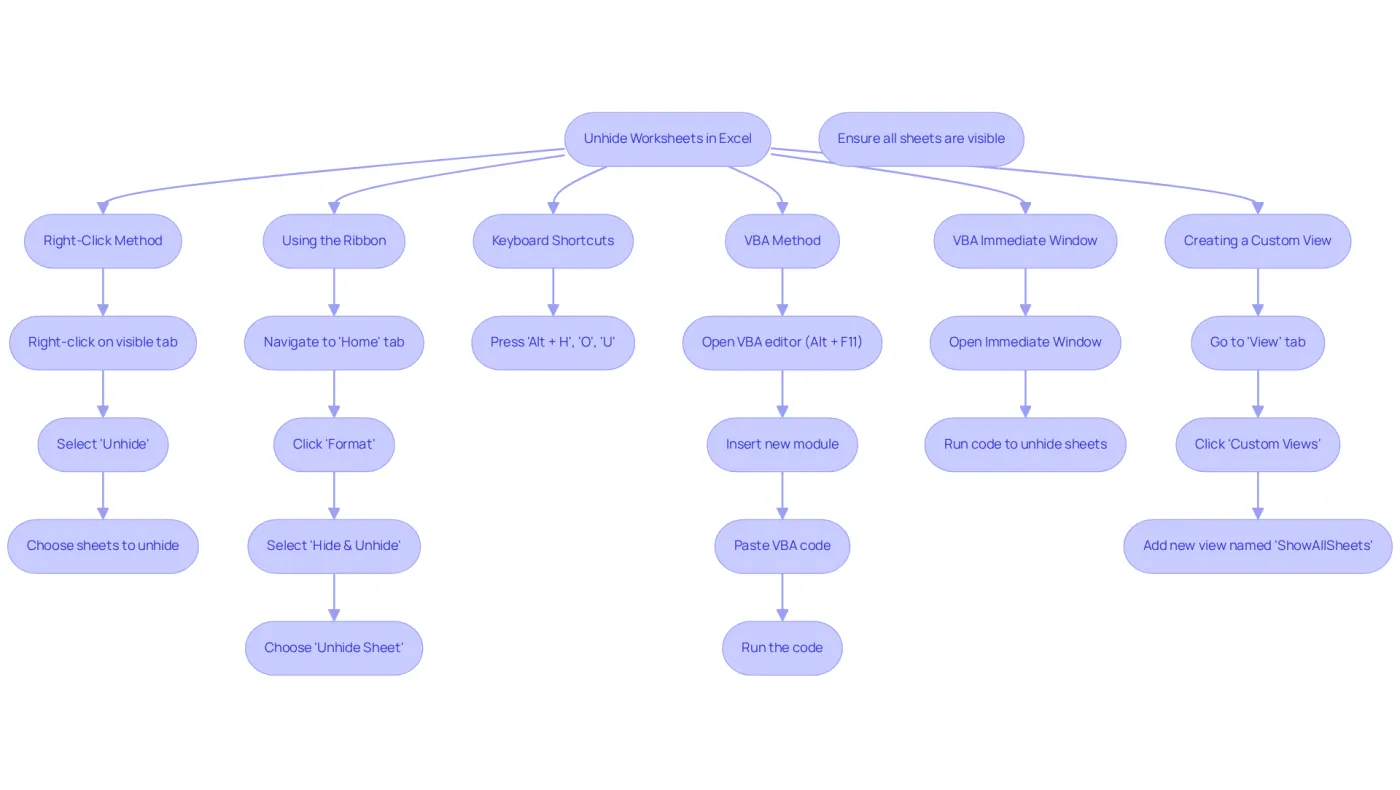
Multiple methods exist for unhiding worksheets in Excel, catering to different user preferences and enhancing productivity:
-
Using the Right-Click Method: Right-click on any visible worksheet tab at the bottom of the Excel window. From the context menu, select 'Unhide'. A dialog box will show all concealed tabs. Select the preferred document and click 'OK' to bring back its visibility. If the Unhide command is disabled, it indicates that there are no concealed pages in the workbook, which is useful information when considering how to unhide worksheets in Excel.
-
Using the Ribbon: Navigate to the 'Home' tab, click on 'Format' in the 'Cells' group, and select 'Hide & Unhide'. Then, choose 'Unhide Sheet' from the dropdown menu. This action will also display the dialog box for selecting how to unhide worksheets in Excel.
-
Using Keyboard Shortcuts: For those who prefer keyboard shortcuts, press
Alt + H, thenO, and finallyUto quickly access the unhide option. This method is particularly beneficial for users familiar with Excel shortcuts, streamlining the process significantly. -
VBA Method: Advanced users can employ a straightforward VBA script to reveal all tabs at once. Open the VBA editor by pressing
Alt + F11, insert a new module, and paste the following code:Sub UnhideAllSheets() Dim ws As Worksheet For Each ws In ThisWorkbook.Worksheets ws.Visible = xlSheetVisible Next ws End SubRunning this script will make all worksheets in your workbook visible at once, providing a quick solution for managing multiple hidden sheets. Note that to learn how to unhide worksheets in Excel that are concealed by VBA code using the xlSheetVeryHidden property, you cannot display them with the Unhide command and must change the property in the Visual Basic Editor.
-
Using the VBA Immediate Window: Users can also reveal tabs without needing a macro-enabled workbook by using the VBA Immediate Window. Open the VBA editor, activate the Immediate Window, and run the following code:
For Each sh In Worksheets: sh.Visible = True: Next shThis method allows for unhiding all hidden sheets quickly.
-
Creating a Custom View: To manage visibility in extensive workbooks, users can establish a custom view that records the current visibility status of all tabs. This enables them to swiftly return to this condition later, streamlining the process of handling concealed documents. Ensure that the workbook structure is not protected before attempting to unhide sheets.
Troubleshoot Common Issues When Unhiding Worksheets
While unhiding worksheets can be straightforward, users often encounter several common issues:
-
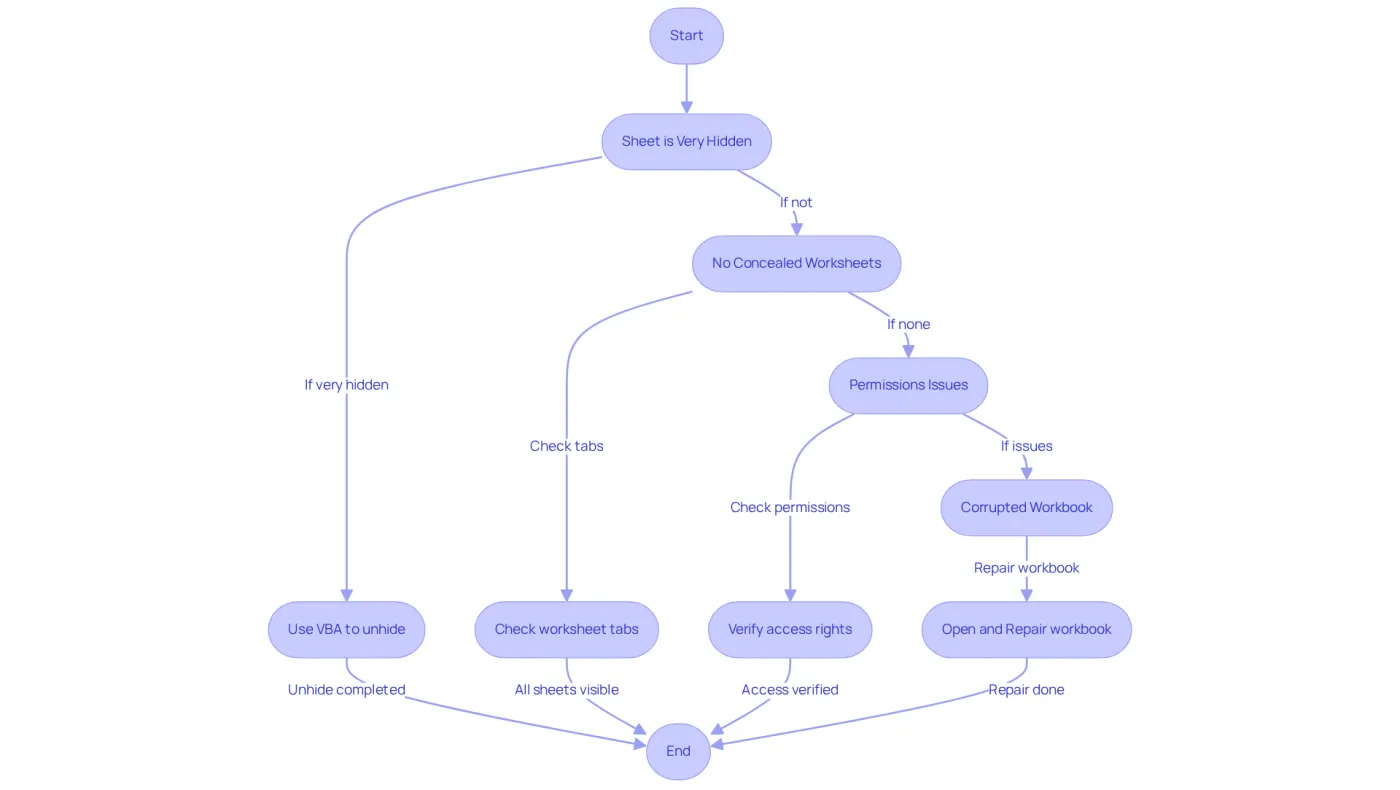
Sheet is Very Hidden: If a sheet is set to 'Very Hidden', it won't appear in the unhide dialog. To resolve this, access the VBA editor by pressing Alt + F11. Then, use the command
Worksheets("SheetName").Visible = xlSheetVisibleto change its visibility. -
No Concealed Worksheets: If you attempt to reveal sheets and find no options, it may indicate that there are no concealed pages. Double-check your worksheet tabs to ensure all pages are accounted for.
-
Permissions Issues: In shared workbooks, certain pages may be hidden due to permissions. Ensure you have the necessary access rights to view all documents, as restrictions can prevent visibility.
-
Corrupted Workbook: If you suspect your workbook is damaged, try opening it in another version of the software or use the 'Open and Repair' function located in the 'Open' dialog box. This can occasionally recover concealed pages.
It's essential to remember that at least one page must remain visible in a workbook; otherwise, users may face challenges when attempting to manage concealed pages. Excel professionals emphasize the importance of understanding how to unhide worksheets in Excel, as 'Very Hidden' worksheets can complicate data management. A significant number of users have reported issues with these hidden documents, underscoring the need for effective troubleshooting techniques. For instance, one user noted that despite seeing sheets in the VBA manager, they were unable to unhide them using standard methods, emphasizing the necessity of VBA for resolving such visibility challenges. As Ben Kusmin points out, following specific steps is crucial to understanding how to unhide worksheets in Excel that are very hidden.
Utilize Tools and Resources for Enhanced Excel Functionality
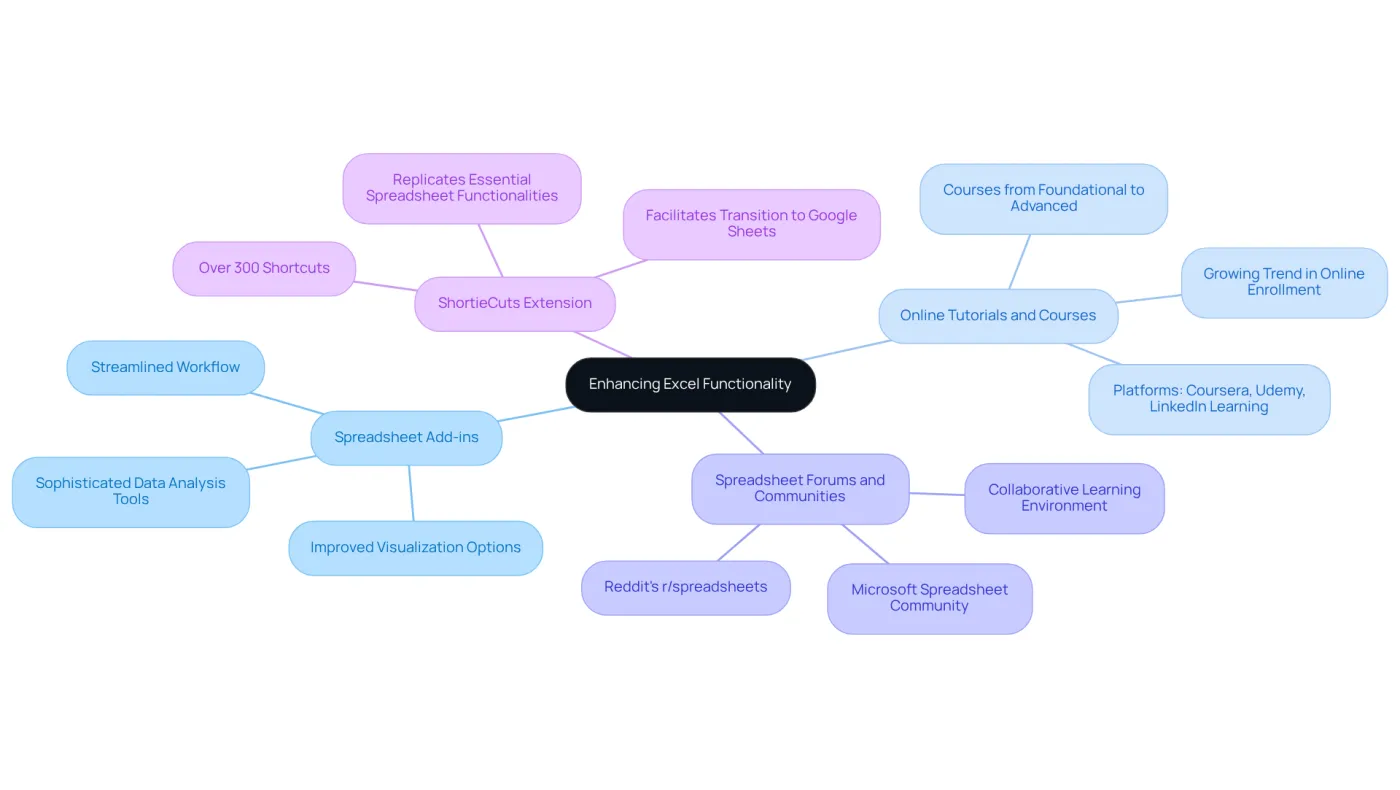
To elevate your Excel experience, consider leveraging the following tools and resources:
-
Spreadsheet Add-ins: Explore a range of add-ins that enhance functionality, providing sophisticated data analysis tools and improved visualization options. These add-ins can significantly streamline your workflow and enhance data management.
-
Online Tutorials and Courses: Platforms like Coursera, Udemy, and LinkedIn Learning offer extensive courses on spreadsheets, covering foundational skills to advanced techniques. With a growing trend in online course enrollment, these resources are invaluable for professionals aiming to enhance their proficiency. Research indicates that 66% of office workers utilize spreadsheet software at least once per hour, underscoring its critical role in business operations.
-
Spreadsheet Forums and Communities: Engage with vibrant online communities such as Reddit's r/spreadsheets or the Microsoft Spreadsheet Community. These forums serve as excellent platforms for asking questions, sharing insights, and learning from the experiences of other users, fostering a collaborative learning environment.
-
ShortieCuts Extension: For individuals transitioning from traditional spreadsheet software to Google Sheets, the ShortieCuts Chrome extension stands out as a revolutionary tool. It replicates essential spreadsheet functionalities, including over 230 shortcuts and advanced features, facilitating a smoother transition and boosting productivity within Google Sheets. As noted by Steve Kirkland, Vice President of Finance, tools like ShortieCuts can help bridge the gap for users lacking formal training, as 38% of individuals who spend over 50% of their time in Excel have never received such training.
Conclusion
Mastering the process of unhiding worksheets in Excel is crucial for maintaining an organized and efficient workspace. Understanding the various methods available enables users to manage their spreadsheets effectively, ensuring that both visible and hidden data are accessible when needed. This skill enhances productivity and allows for better data management and collaboration among team members.
In this article, key techniques for unhiding worksheets were explored, including:
- Right-clicking
- Using the Ribbon
- Keyboard shortcuts
- VBA methods for advanced users
Common issues such as very hidden sheets, permissions problems, and workbook corruption were also addressed, providing readers with necessary troubleshooting strategies to overcome these challenges. By utilizing available tools and resources, such as add-ins and online courses, users can further enhance Excel functionality and proficiency.
In conclusion, the ability to effectively hide and unhide worksheets in Excel is not merely a simple task; it is an essential component of efficient data management. Embracing these techniques empowers users to streamline their workflow, maintain clarity in their spreadsheets, and ultimately improve their overall productivity. Whether for personal use or collaborative projects, mastering these skills can significantly impact how one interacts with data in Excel, making it a valuable investment in professional development.
Frequently Asked Questions
Why would someone want to hide worksheets in Excel?
Worksheets can be hidden to reduce clutter in the display or to protect confidential data, helping to maintain an organized and efficient spreadsheet environment.
Are hidden worksheets removed from the workbook?
No, hidden worksheets are not removed; they are simply turned invisible within the workbook.
How common is the use of hidden sheets among Excel users?
Approximately 38% of Excel users interact with concealed sheets to optimize their workflow, according to research conducted in early 2022.
What best practices can help manage hidden worksheets effectively?
Best practices include using descriptive names for concealed tabs and maintaining a documented list of their purposes to prevent confusion when sharing workbooks.
What are the benefits of managing concealed worksheets?
Effectively managing concealed worksheets can enhance organization and clarity, ultimately improving productivity and allowing users to focus on the most relevant information.
What should users be aware of when trying to unhide worksheets in Excel?
Users should be aware of potential issues such as workbook protection or corruption, which may hinder the ability to unhide worksheets.
How can understanding the hiding and unhiding process improve spreadsheet navigation?
Familiarizing oneself with the concepts of hiding and unhiding worksheets makes the unhide process smoother and more intuitive, aiding in efficient navigation through spreadsheets.