
Understanding Excel Formula to Remove Characters for Finance Pros
Master Excel formulas to efficiently remove characters and enhance data integrity in finance.

Overview
The article addresses a critical challenge faced by finance professionals: the need to eliminate unwanted characters from data. This task is essential for preserving the integrity and accuracy of financial reporting. To tackle this issue, the article introduces effective Excel formulas that can streamline this process.
Key functions such as SUBSTITUTE, REPLACE, TRIM, and CLEAN are highlighted, each explained in terms of its specific applications. Mastering these tools is not just beneficial; it is vital for enhancing data quality and improving workflows within the finance sector. By utilizing these formulas, professionals can ensure their data remains pristine, thereby bolstering the reliability of their reports.
In conclusion, the ability to effectively manipulate data through Excel not only aids in maintaining accuracy but also empowers finance professionals to work more efficiently. Embracing these techniques can lead to significant improvements in financial reporting practices.
Introduction
In the fast-paced world of finance, maintaining the integrity of data is critical for accurate analysis and sound decision-making. Excel formulas designed to remove characters play a pivotal role in this process, enabling professionals to cleanse their datasets and eliminate unwanted symbols that could obscure insights.
However, as users delve into these powerful tools, they often face challenges that can lead to errors and misinterpretations. How can finance experts effectively navigate these hurdles to ensure their data remains reliable and actionable?
This question underscores the importance of mastering these tools to enhance data quality and drive informed decisions.
Define Excel Formulas for Character Removal
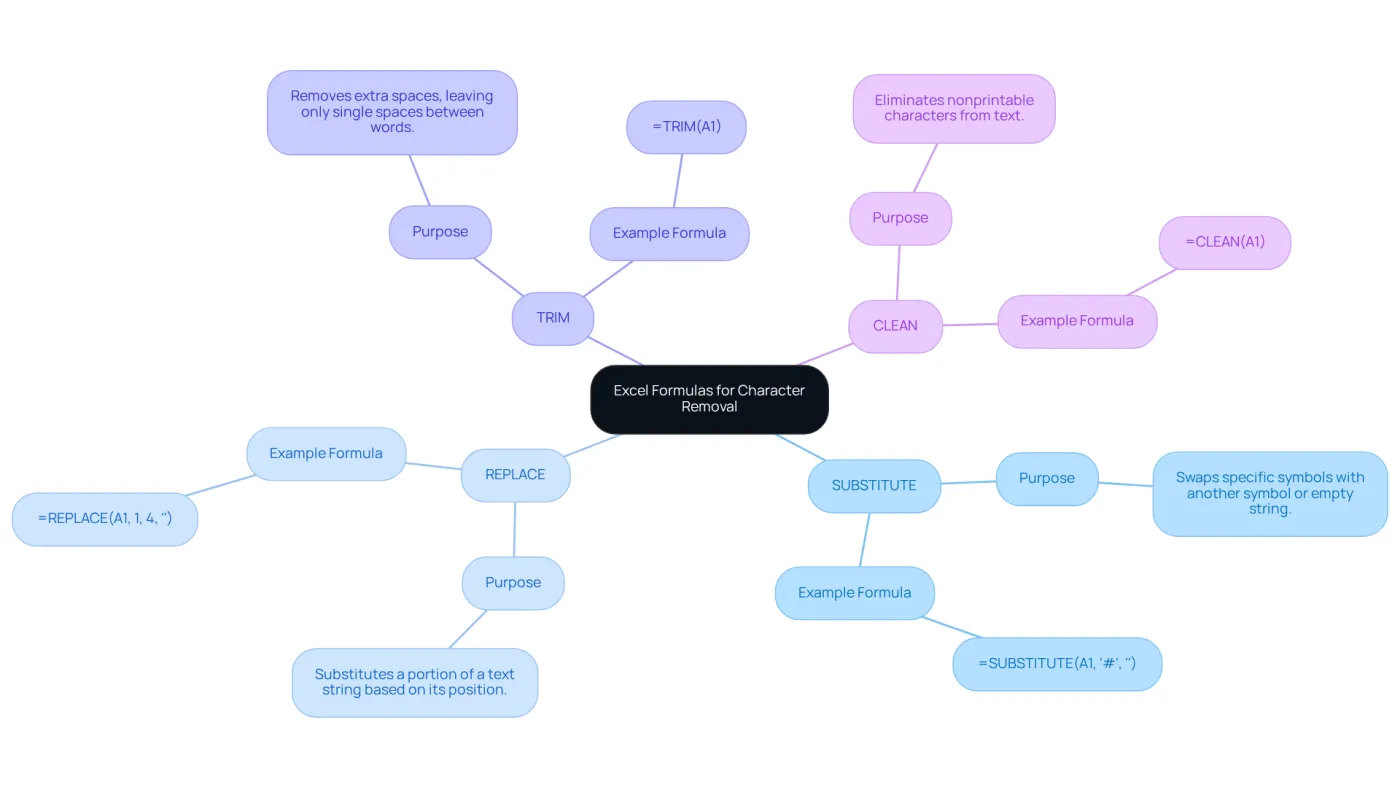
An excel formula to remove characters is an essential tool for cleaning text strings within spreadsheets. Key operations include SUBSTITUTE, REPLACE, TRIM, and CLEAN, each serving a unique purpose in data management. The SUBSTITUTE tool allows users to swap particular symbols with a different symbol or an empty string, effectively removing undesired components. For example, to remove a specific character like '#', the formula =SUBSTITUTE(A1, '#', '') can be employed.
The REPLACE function, on the other hand, allows users to substitute a portion of a text string based on its position. This is particularly useful for modifying structured data, such as changing a currency format or removing unwanted prefixes. For instance, using =REPLACE(A1, 1, 4, '') can remove the first four characters from a string.
The TRIM method is vital for removing extra spaces, ensuring that only single spaces remain between words. This operation is especially advantageous when cleansing information imported from other sources, where irregular spacing can hinder analysis. A common application is =TRIM(A1), which cleans up the text in cell A1 by removing leading and trailing spaces.
Statistics show that around 80% of finance experts rely on an excel formula to remove characters for cleansing tasks, highlighting the importance of mastering these features. Case studies illustrate their efficacy: for example, users have effectively employed SUBSTITUTE to eliminate non-alphanumeric symbols, leading to cleaner datasets that enable improved analysis. Furthermore, the CLEAN method can be utilized to eliminate nonprintable characters, guaranteeing that information imported from other applications is tidy and functional.
Incorporating these functions into daily workflows not only improves efficiency but also ensures accuracy in financial reporting and analysis. Mastery of SUBSTITUTE, REPLACE, TRIM, and CLEAN is thus essential for finance professionals aiming to uphold high standards in information management.
Context and Importance of Removing Characters in Excel
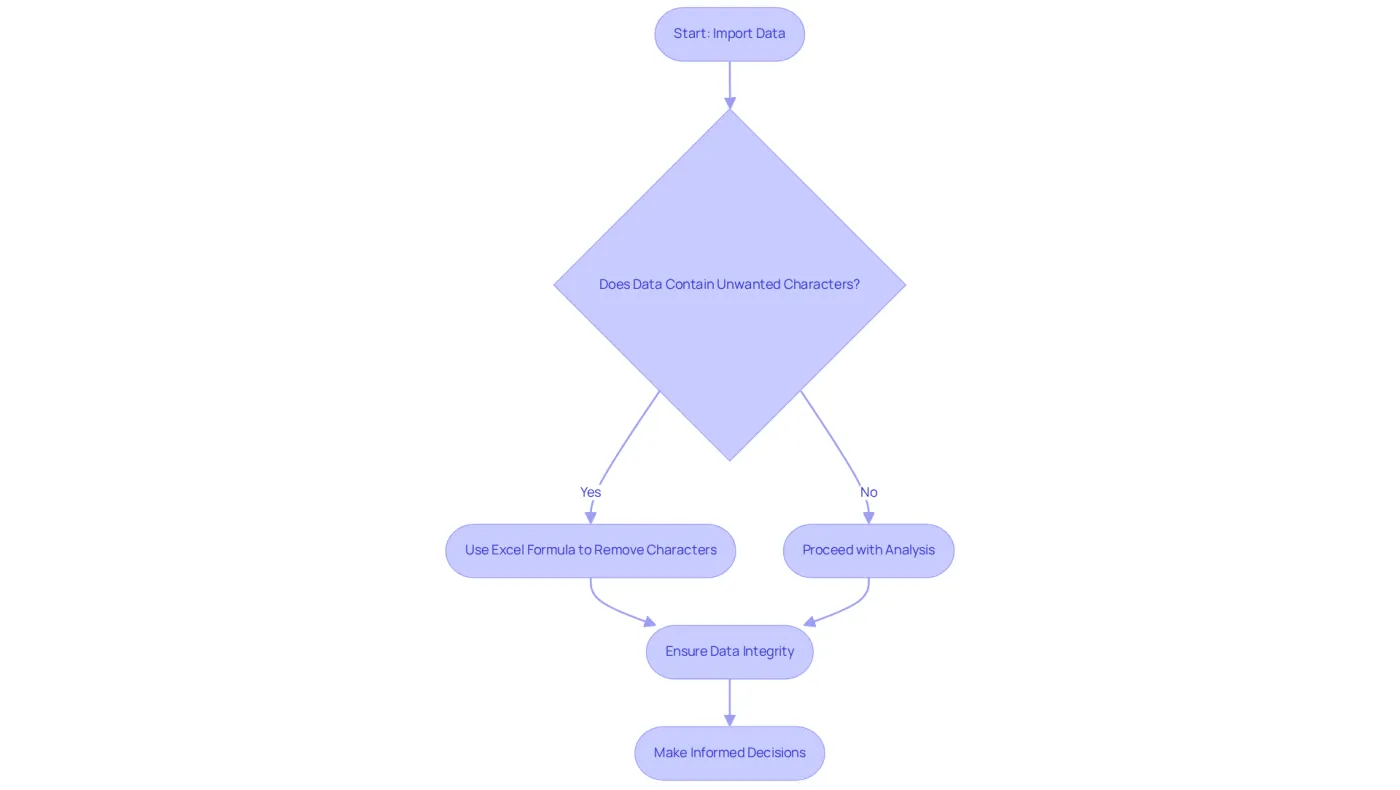
In the realm of finance, information integrity is paramount for precise analysis and decision-making. The process of using an Excel formula to remove characters from datasets is an essential phase in cleansing information, ensuring that analyses yield dependable outcomes. When importing data from external sources, such as CSV files, users may encounter undesirable symbols that can lead to errors in calculations or misinterpretations of information. W. Edwards Deming aptly stated, 'Without information, you're just another person with an opinion,' underscoring the necessity of maintaining quality in records.
Mastering the Excel formula to remove characters enables finance professionals to streamline their workflows and enhance the quality of their reports. This capability ultimately empowers them to make more informed decisions based on clean, trustworthy information. Such diligence not only improves the precision of financial analyses but also fortifies the overall integrity of the information utilized in crucial business decisions.
Neglecting to uphold information integrity can result in misguided strategies and missed opportunities. This reality highlights the significance of efficient information management in today's data-driven landscape.
Explore Methods for Removing Characters in Excel
Excel offers several effective methods, such as an excel formula to remove characters, each tailored to meet specific needs. The TRIM operation excels at eliminating extra spaces from text, ensuring clean and readable data. For instance, utilizing the formula =TRIM(A2) effectively removes unnecessary spaces from the string in cell A2.
In contrast, the SUBSTITUTE tool enables users to swap specific symbols, such as commas or periods, with nothing, thus effectively cleaning up unwanted marks. An example of this is =SUBSTITUTE(A2, '#', ''), which removes the '#' symbol from cell A2.
The REPLACE method is particularly beneficial for replacing symbols at specified locations within a string, offering precise control over text alteration. Furthermore, users can leverage the TEXTJOIN operation alongside array formulas to eliminate several symbols simultaneously, enhancing the data cleaning process. For instance, nesting SUBSTITUTE functions can efficiently remove multiple undesired symbols: =SUBSTITUTE(SUBSTITUTE(A2, '#', ''), '/', '').
Additionally, the Find & Replace tool can be employed to efficiently eliminate specific symbols from a range of cells. Understanding these methods empowers finance professionals to utilize an excel formula to remove characters, which helps maintain accurate and relevant datasets, significantly enhancing the quality of their analyses.

Identify Challenges in Using Excel Formulas for Character Removal
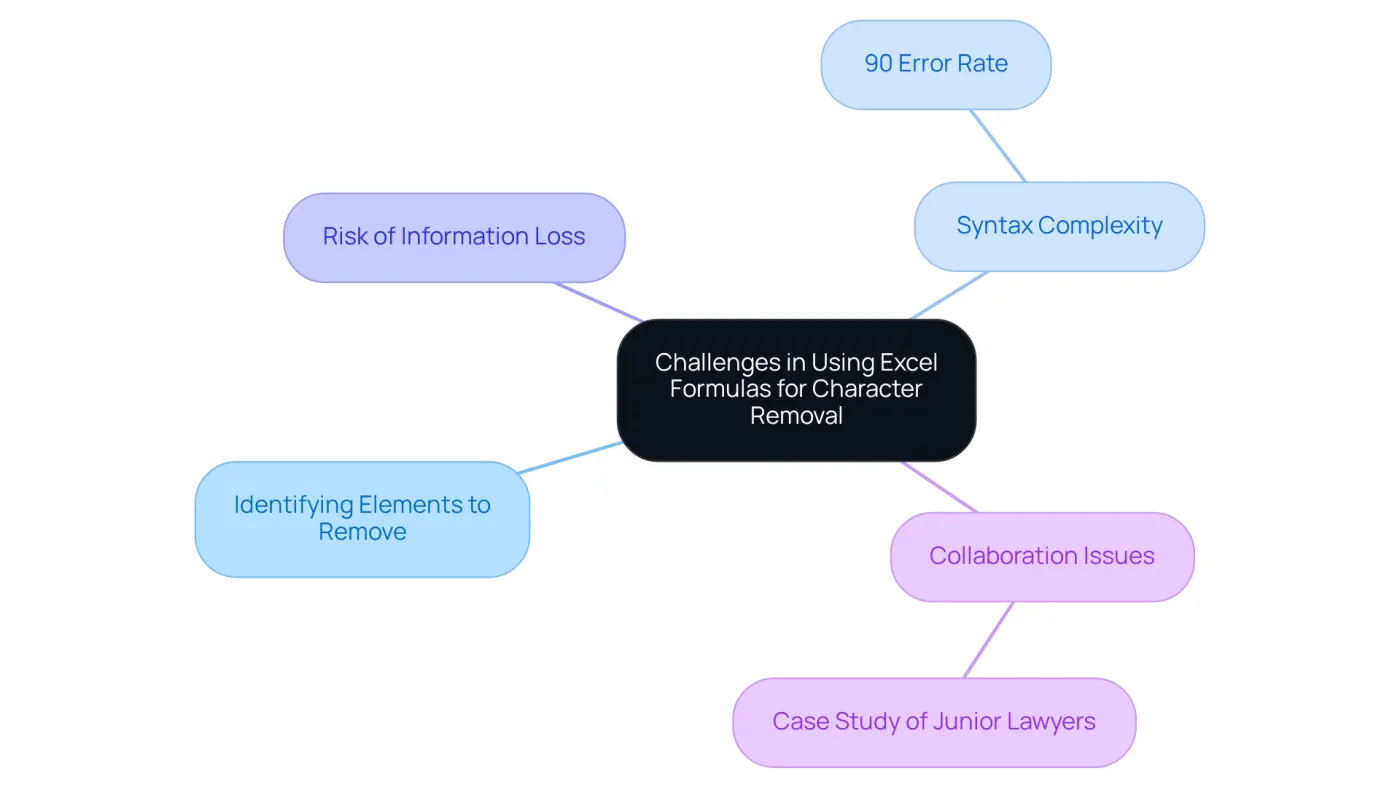
The excel formula to remove characters offers substantial functionalities; however, users often encounter various obstacles. A primary issue is identifying which elements to remove, particularly within extensive datasets. This difficulty can lead to confusion and errors, especially when dealing with complex formulas. Furthermore, the syntax of these formulas can be intricate, increasing the likelihood of mistakes during execution. A significant statistic indicates that nearly 90 percent of spreadsheets contain errors, underscoring the necessity of accuracy in formula use, especially when eliminating elements that may impact information integrity.
Another critical concern is the risk of unintended information loss if formulas are not implemented correctly. For instance, a case study involving two junior lawyers at Barclays illustrates how miscommunication regarding spreadsheet formatting led to significant errors in contract purchases. This highlights the pitfalls of relying on Excel for collaborative tasks. The incident exemplifies the broader issue that Excel cannot accommodate multiple users inputting and analyzing data simultaneously, which can exacerbate mistakes in data removal processes.
To tackle these challenges efficiently, finance experts should practice utilizing an excel formula to remove characters on sample datasets. Familiarizing themselves with Excel's error-checking features can help ensure that their formulas produce the intended results, ultimately enhancing accuracy and efficiency in their financial reporting. Additionally, recognizing the limitations of Excel for enterprise-level financial reporting can further inform their approach to utilizing an excel formula to remove characters in larger datasets.
Conclusion
Mastering Excel formulas for character removal is essential for finance professionals who aim to uphold the integrity and accuracy of their data. By effectively utilizing functions such as SUBSTITUTE, REPLACE, TRIM, and CLEAN, users can streamline their data management processes, ensuring analyses are based on clean and reliable information.
This article underscores the significance of these formulas in enhancing data quality. Key points include:
- The ability to remove unwanted characters
- Eliminate extra spaces
- Manage structured data more effectively
Additionally, it highlights common challenges faced when implementing these formulas, such as potential errors and the complexity of syntax, which can lead to unintended data loss if not handled with care.
In a field where precision is paramount, adopting best practices for character removal is crucial. Finance professionals are encouraged to familiarize themselves with these Excel functions and practice using them on sample datasets. By doing so, they can enhance their efficiency and accuracy in financial reporting, ultimately leading to more informed decision-making. Embracing these tools not only improves the quality of financial analyses but also safeguards against the pitfalls of poor data management in today's complex financial landscape.
Frequently Asked Questions
What is the purpose of Excel formulas for character removal?
Excel formulas for character removal are essential tools for cleaning text strings within spreadsheets, helping to manage and prepare data for analysis.
What are the main functions used for character removal in Excel?
The main functions used for character removal in Excel are SUBSTITUTE, REPLACE, TRIM, and CLEAN, each serving a unique purpose in data management.
How does the SUBSTITUTE function work?
The SUBSTITUTE function allows users to swap particular symbols with a different symbol or an empty string to remove undesired components. For example, the formula =SUBSTITUTE(A1, '#', '') removes the '#' character from the text in cell A1.
What is the REPLACE function used for?
The REPLACE function substitutes a portion of a text string based on its position, making it useful for modifying structured data, such as changing currency formats or removing unwanted prefixes. For instance, =REPLACE(A1, 1, 4, '') removes the first four characters from the string in cell A1.
What does the TRIM function do?
The TRIM function removes extra spaces from text, ensuring that only single spaces remain between words. This is particularly helpful when cleansing information imported from other sources, as in the formula =TRIM(A1), which cleans up the text in cell A1 by removing leading and trailing spaces.
Why is character removal important for finance professionals?
Character removal is crucial for finance professionals as it enhances the accuracy and efficiency of financial reporting and analysis. Mastery of these functions is essential for maintaining high standards in information management.
How prevalent is the use of Excel formulas for character removal among finance experts?
Statistics show that around 80% of finance experts rely on Excel formulas to remove characters for cleansing tasks, underscoring the importance of these tools in data management.
What is the CLEAN function used for?
The CLEAN function is used to eliminate nonprintable characters from text, ensuring that information imported from other applications is tidy and functional.