
Easily Remove Filter Shortcut in Excel: A Step-by-Step Guide
Learn how to easily remove filter shortcuts in Excel with this step-by-step guide.

Overview
Managing filters in Excel can often be a frustrating experience for users. Fortunately, there’s a straightforward solution to streamline this process. This article serves as your authoritative guide to removing filter shortcuts in Excel, equipping you with the essential keyboard shortcuts and methods to manage filters effectively.
To begin, you can easily toggle filters on and off using the keyboard shortcut Ctrl + Shift + L. This simple command allows you to quickly access filter options without navigating through menus. Additionally, if you need to clear filters, the shortcut Alt + A + C will do just that, ensuring your data is displayed without any filtering constraints.
However, users may encounter common troubleshooting issues during this process. It’s crucial to be aware of these potential pitfalls to maintain efficiency. By following the outlined steps, you can avoid unnecessary complications and enhance your productivity.
Implementing these shortcuts not only saves time but also empowers you to manage your data more effectively. With a clear understanding of how to utilize these tools, you can navigate Excel with confidence, making your workflow smoother and more efficient.
In conclusion, mastering these filter shortcuts in Excel is essential for any finance professional looking to optimize their data management skills. By incorporating these techniques into your routine, you’ll find that managing filters becomes a seamless part of your Excel experience.
Introduction
Excel filters are essential tools for managing and analyzing data, enabling users to concentrate on what truly matters. As professionals increasingly depend on these functionalities, understanding how to efficiently remove filter shortcuts becomes vital for maintaining a streamlined workflow. But what happens when these shortcuts fail to work as expected, or when users encounter common pitfalls that disrupt their productivity?
This article explores the step-by-step process of removing filter shortcuts in Excel, addressing potential challenges and offering solutions to enhance efficiency in data handling. By mastering these techniques, you can significantly improve your workflow and ensure that your data analysis remains effective and focused.
Understand Excel Filters and Their Shortcuts
Understand Excel Filters and Their Shortcuts
Excel filters are crucial for displaying only the rows that meet specific criteria, significantly enhancing data analysis manageability. By employing selections, analysts can extract pertinent information from extensive datasets, which is vital for generating insights and reports.
Unlock the Power of ShortieCuts
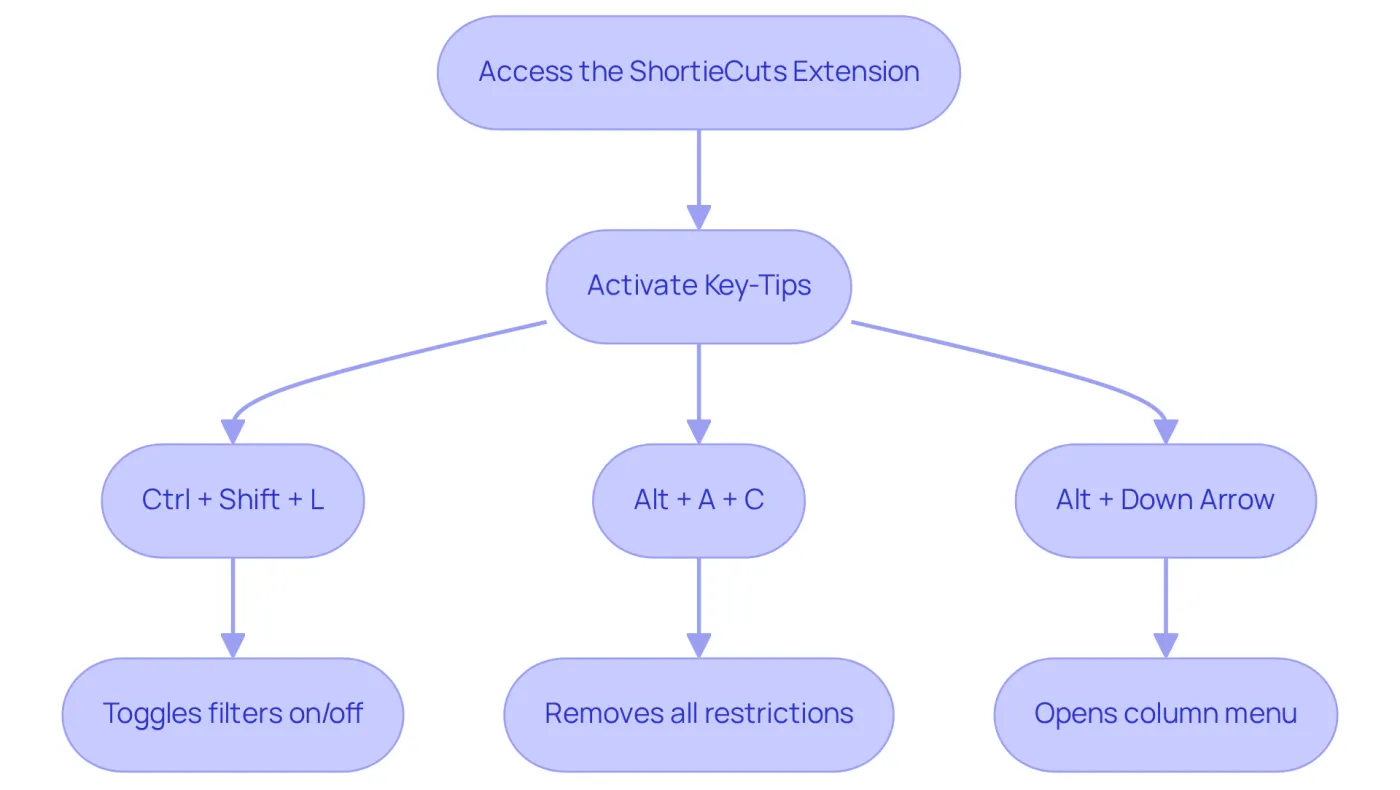
To effectively use filters in Google Sheets with the ShortieCuts extension, follow these steps:
- Access the ShortieCuts Extension: Ensure you have the ShortieCuts extension installed in your Google Sheets. You can find it in the Google Workspace Marketplace.
- Activate Key-Tips: Press the 'ALT' key (or Option on Mac) to reveal key-tips in the corner of your screen, indicating available commands.
- Use the Following Shortcuts for Managing Filters:
- Ctrl + Shift + L: This shortcut toggles filters on and off for the selected range, streamlining the process of applying or removing filters.
- Alt + A + C: This command removes all restrictions applied to the information, swiftly returning the initial view of the dataset.
- Alt + Down Arrow: Opens the menu for the chosen column, allowing for precise modifications to selection criteria.
Mastering these techniques can greatly improve workflow effectiveness, especially for finance professionals who frequently handle large amounts of information. In fact, around 57% of spreadsheet users consider themselves knowledgeable about shortcut techniques, underscoring their significance in daily tasks. Practical applications of these tools in finance include examining transaction information, where users can quickly identify specific entries based on factors like date ranges or transaction categories. As industry specialists emphasize, efficient use of sorting tools not only streamlines information management but also enables analysts to obtain actionable insights swiftly.
Step-by-Step Process to Remove Filter Shortcuts
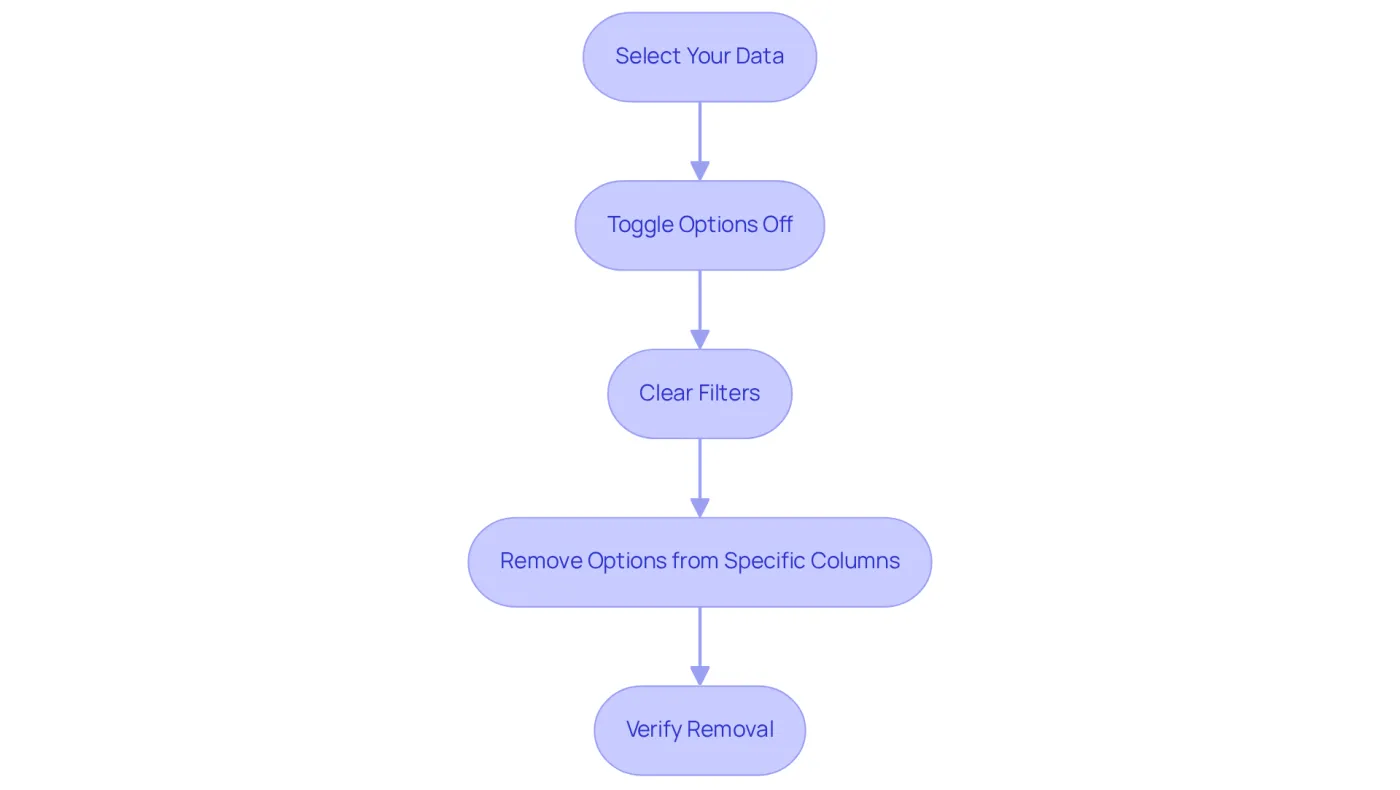
To effectively remove filters in Excel, follow these essential steps:
- Select Your Data: Click on any cell within the range of data that has sorting options applied.
- Toggle Options Off: Press
Ctrl + Shift + Lto disable the options. This action will effectively remove filter shortcuts in Excel from the column headers, streamlining your view. - Clear Filters: To reset the view and display all data without removing the dropdowns, use
Alt + A + C. Alternatively, you can use the remove filter shortcut in Excel by pressingAlt + D + F + Fto eliminate all restrictions at once, restoring visibility to your entire dataset. - Remove Options from Specific Columns: If you want to remove options from a specific column, click the drop-down arrow next to the column header and select 'Clear Selection from [Column Name]'.
To streamline your workflow in Excel, you can use the remove filter shortcut in Excel. Verify Removal: Inspect the column headers to confirm that the icons (funnel shapes) are no longer visible, indicating that you can use the remove filter shortcut in Excel to eliminate the controls.
Utilizing these key combinations can significantly enhance your efficiency. Research shows that effective data handling in spreadsheets can reduce review time by over fifty percent. As productivity specialist John Michaloudis emphasizes, "If the spreadsheet won’t remove a restriction when utilizing the key combination, ensure the document isn’t safeguarded or shared, as this can limit key combination functionality.
Troubleshoot Common Issues When Removing Shortcuts
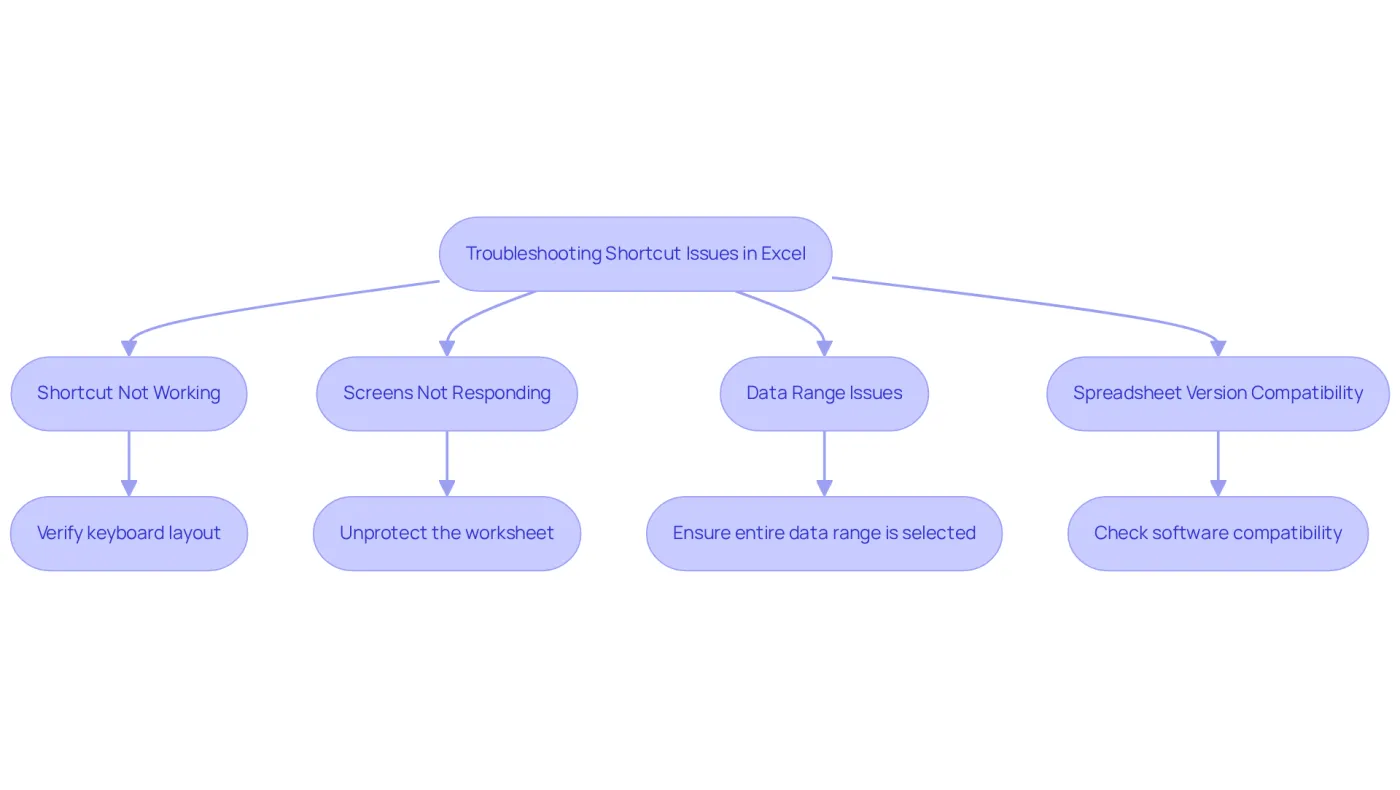
When facing challenges in removing filters in Excel, consider these troubleshooting strategies:
- Shortcut Not Working: Verify that your keyboard layout is correctly configured. Language settings can sometimes disrupt shortcut functionality, leading to unexpected behavior.
- Screens Not Responding: If the screens fail to toggle off, check whether the worksheet is protected. Unprotecting the sheet is essential to enable any adjustments to the filters.
- Data Range Issues: Ensure that the entire data range is selected. The existence of empty rows or columns can hinder the application from identifying the entire dataset for filtering, leading to issues with quick commands.
- Spreadsheet Version Compatibility: Ensure that you are utilizing a compatible version of the software, as key combinations may vary slightly across different versions. For specific guidance, refer to the Microsoft Support page tailored to your version.
Statistics indicate that 57% of users rate their Excel skills as intermediate, while 27% consider themselves advanced. Despite this, many still encounter issues with shortcuts. Common problems include misconfigured keyboard settings and unprotected worksheets, which can hinder productivity when trying to remove filter shortcut in Excel. Real-world examples highlight that users often overlook the importance of selecting the correct data range, leading to frustration when filters do not respond as expected. As one user, NikolinoDE, noted, "Pretty frustrating and time-consuming, but it's critical functionality I need for financial modeling." By addressing these common pitfalls, users can enhance their efficiency and streamline their workflow in Excel.
Conclusion
Removing filter shortcuts in Excel can significantly enhance your data management experience. This improvement allows for a clearer and more efficient workflow. In this article, we provide a comprehensive guide detailing the steps necessary to disable these shortcuts, troubleshoot common issues, and ensure smooth operation within your spreadsheets.
Understanding Excel filters is crucial. Mastering essential shortcuts like Ctrl + Shift + L and Alt + A + C can make a substantial difference. Additionally, recognizing common pitfalls that may hinder the removal process is vital. By following the outlined steps and implementing the troubleshooting strategies, users can overcome challenges and optimize their productivity.
Ultimately, mastering the removal of filter shortcuts streamlines data analysis and empowers users to leverage Excel's full potential. Embracing these techniques leads to more effective data handling and insights. It’s crucial for anyone working with spreadsheets to integrate these practices into their routine.
Frequently Asked Questions
What are Excel filters used for?
Excel filters are used to display only the rows that meet specific criteria, enhancing the manageability of data analysis and allowing analysts to extract pertinent information from extensive datasets.
How can I use the ShortieCuts extension in Google Sheets?
To use the ShortieCuts extension in Google Sheets, first ensure it is installed from the Google Workspace Marketplace. Then, press the 'ALT' key (or Option on Mac) to reveal key-tips indicating available commands.
What is the shortcut to toggle filters on and off in Google Sheets?
The shortcut to toggle filters on and off for the selected range in Google Sheets is Ctrl + Shift + L.
How can I remove all restrictions applied to my dataset in Google Sheets?
You can remove all restrictions applied to the information by using the shortcut Alt + A + C, which returns the dataset to its initial view.
What does the Alt + Down Arrow shortcut do in Google Sheets?
The Alt + Down Arrow shortcut opens the menu for the chosen column, allowing for precise modifications to selection criteria.
Why are shortcut techniques significant for spreadsheet users?
Shortcut techniques are significant for spreadsheet users because they improve workflow effectiveness, especially for finance professionals who frequently handle large amounts of information. Around 57% of spreadsheet users consider themselves knowledgeable about these techniques.
How can filters be practically applied in finance?
In finance, filters can be used to examine transaction information, allowing users to quickly identify specific entries based on factors like date ranges or transaction categories. Efficient use of sorting tools helps streamline information management and enables analysts to obtain actionable insights swiftly.