
How to Find Unsaved Excel Files: A Step-by-Step Recovery Guide
Quickly learn how to find unsaved Excel files and recover your important data efficiently.

Overview
Discovering unsaved Excel files can be a daunting challenge, but it doesn’t have to be. This article serves as your authoritative guide, highlighting the critical importance of leveraging built-in recovery features like AutoRecover. By understanding these tools, you can significantly mitigate the risk of data loss.
To begin, let’s explore the specific procedures for accessing unsaved documents. Utilizing AutoRecover is your first line of defense. This feature automatically saves your work at regular intervals, allowing you to recover files that may have been lost due to unexpected shutdowns or crashes. Additionally, we’ll delve into manual recovery steps that can further enhance your chances of retrieving important data.
But that’s not all. To bolster your data security and recovery capabilities, consider integrating additional backup options:
- Services like OneDrive not only provide cloud storage but also ensure that your files are safe and accessible from anywhere.
- Third-party recovery tools can offer an extra layer of protection, giving you peace of mind in case of unforeseen circumstances.
In conclusion, by utilizing these recovery features and backup solutions, you can safeguard your valuable data effectively. Don’t leave your important work to chance—take action today to enhance your data security and recovery strategies.
Introduction
Losing unsaved Excel files can be incredibly frustrating, especially when it involves important work. Knowing how to recover these files can be a game-changer. This guide provides a comprehensive, step-by-step approach to not only locate unsaved documents but also implement strategies that protect against future data loss.
Imagine a scenario where hours of hard work never vanish into thin air. By exploring built-in features, backup options, and external recovery tools, you can reclaim control over your data. This not only enhances your productivity but also gives you peace of mind knowing that your efforts are safeguarded.
In the following sections, we will delve into effective methods for recovering unsaved Excel files, ensuring that you are well-equipped to handle any unexpected data loss.
Understand the Importance of Recovering Unsaved Excel Files
Knowing how to find unsaved Excel files is essential for restoring spreadsheet documents, maintaining productivity, and mitigating the risks associated with data loss. Did you know that unexpected crashes or forgotten saves can lead to significant declines in productivity? Professionals often lose hours of valuable work due to these issues. Understanding the recovery options available within your software can alleviate this anxiety, particularly in knowing how to find unsaved Excel files, as these features are specifically designed to help users recover unsaved documents.
Familiarizing yourself with these built-in tools is crucial for safeguarding important data and ensuring that your hard work isn’t permanently lost. For instance, the AutoRecover feature in spreadsheet programs is essential for users who want to know how to find unsaved Excel files, as it routinely saves versions of their work, allowing them to retrieve documents even after an unexpected shutdown. Moreover, Excel offers information on how to find unsaved Excel files in the directory C:\users[YourSystemName]\AppData\Local\Microsoft\Office\Unsavedfiles, making it easier for users to locate their files.
By leveraging these tools, including the automatically activated AutoSave function, users can effectively minimize the impact of data loss and maintain their workflow. As Eleanor Reed aptly states, "These documents retain backup versions of your work while you are still editing it or executing formulas." Additionally, utilizing cloud storage options like OneDrive can create digital replicas of your spreadsheets, providing an extra layer of security against data loss.
Incorporating these strategies not only protects your work but also enhances your overall productivity. Don't wait until it's too late—take action now to secure your valuable data.

Locate Unsaved Excel Files Using Built-in Features
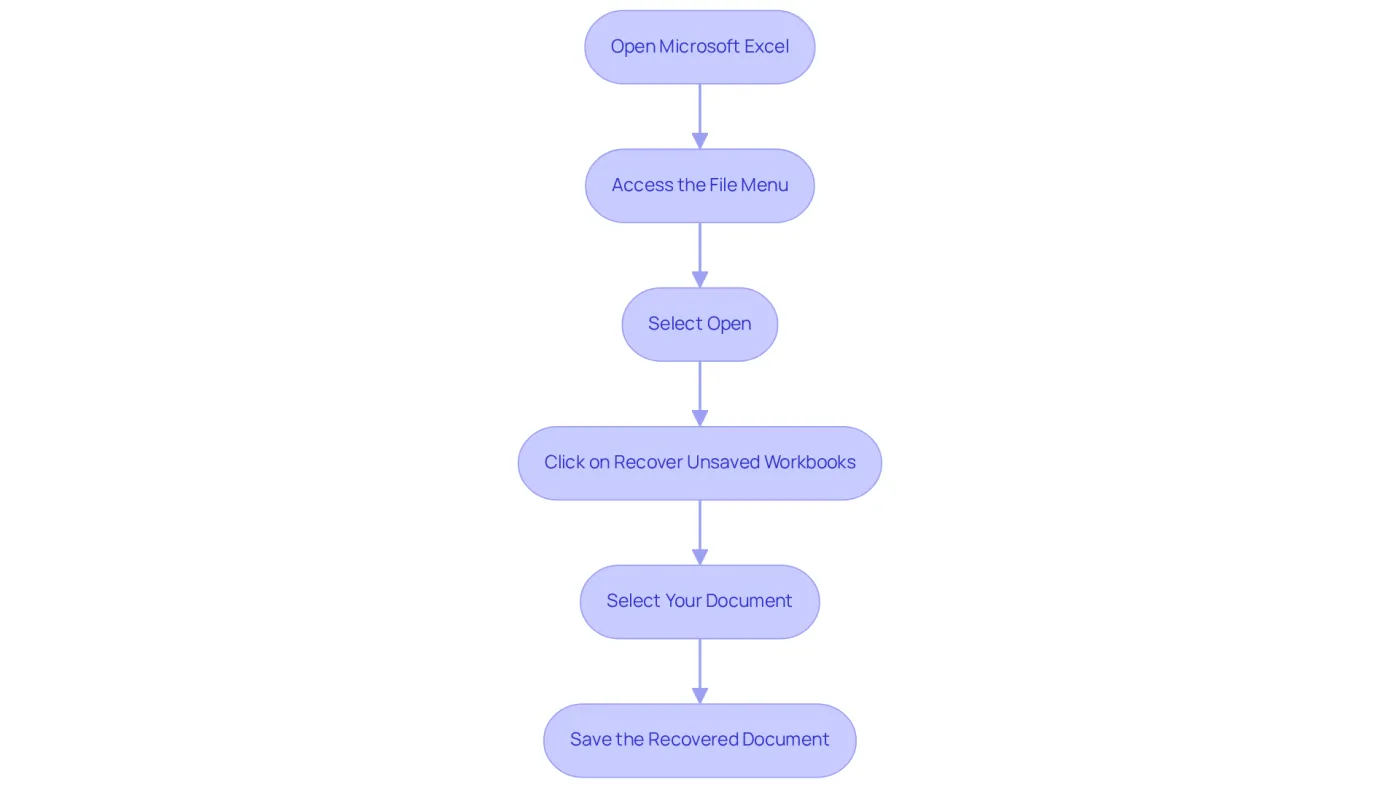
To locate unsaved Excel files, follow these essential steps:
- Open Microsoft Excel: Launch the application as you normally would.
- Access the File Menu: Click on the 'File' tab located in the upper left corner of the window.
- Select Open: From the menu, choose 'Open' to access document options.
- To understand how to find unsaved Excel files, you need to follow specific steps. To learn how to find unsaved Excel files, go to the bottom of the recent documents list and click on 'Recover Unsaved Workbooks'. This will open a dialog box showing any unsaved documents.
- Select Your Document: Browse through the list of unsaved documents. Select the one you wish to recover and click 'Open'.
- Save the Recovered Document: Once the document is open, promptly save it to prevent losing it again. Use 'File' > 'Save As' to choose a location and name for your file.
By following these steps, you can efficiently recover unsaved work and understand how to find unsaved Excel files to significantly minimize the impact of data loss.
Utilize Backup Options and External Tools for Recovery
In the realm of data protection, relying solely on Excel's built-in recovery features may not suffice. To bolster your data recovery capabilities, consider these essential backup options and external tools:
-
Enable AutoRecover: Make sure AutoRecover is activated in Excel. Navigate to 'File' > 'Options' > 'Save' and check the box for 'Save AutoRecover information every X minutes'. This feature automatically generates a temporary version of your work, simplifying the recovery process.
-
Utilize OneDrive or SharePoint: If your documents are stored in OneDrive or SharePoint, take advantage of version history. Right-click on the document in OneDrive and select 'Version History' to restore previous versions effortlessly.
-
Explore third-party recovery tools to understand how to find unsaved Excel files, using options like Disk Drill or EaseUS Data Recovery Wizard, which can scan your computer for lost documents. These tools are particularly beneficial when built-in options fall short.
-
Regular Backups: Establish a routine backup strategy. Utilize external hard drives or cloud storage solutions to consistently back up your important files. This proactive approach can safeguard you against significant data loss in the future.
By implementing these backup options and external tools, you not only enhance your data recovery capabilities but also ensure that your work remains secure and protected.

Conclusion
Recovering unsaved Excel files is more than just a technical skill; it’s a vital practice for anyone who depends on spreadsheets in their work. The ability to restore lost documents is crucial for maintaining productivity and alleviating the frustration that often accompanies data loss. By mastering Excel's built-in recovery features, users can protect their hard work from unexpected setbacks.
This guide has presented several effective strategies for locating unsaved Excel files, including:
- Utilizing the AutoRecover feature
- Accessing the Unsaved Files directory
Key steps involve:
- Navigating through the File menu
- Enabling AutoRecover settings
- Leveraging cloud storage options like OneDrive for added security
Together, these methods empower users to take control of their data and reduce the risks associated with potential losses.
In a landscape where time is precious and data integrity is essential, taking proactive measures to secure and recover unsaved Excel files is imperative. Regular backup routines and the consideration of third-party recovery tools can provide an additional layer of protection. By prioritizing these practices, individuals not only enhance their workflow but also foster a greater sense of confidence in their ability to manage data effectively.
Frequently Asked Questions
Why is it important to recover unsaved Excel files?
Recovering unsaved Excel files is essential for restoring spreadsheet documents, maintaining productivity, and mitigating the risks associated with data loss, especially after unexpected crashes or forgotten saves.
What can lead to the loss of Excel files?
Significant declines in productivity can occur due to unexpected crashes or forgetting to save documents, which often results in professionals losing hours of valuable work.
What features in Excel help recover unsaved files?
Excel has built-in features like AutoRecover, which routinely saves versions of work, allowing users to retrieve documents after unexpected shutdowns. Additionally, the AutoSave function helps minimize the impact of data loss.
Where can I find unsaved Excel files on my computer?
Unsaved Excel files can be located in the directory C:\users[YourSystemName]\AppData\Local\Microsoft\Office\Unsavedfiles.
How can cloud storage options assist in data recovery?
Utilizing cloud storage options like OneDrive can create digital replicas of your spreadsheets, providing an extra layer of security against data loss.
How can familiarizing myself with recovery tools enhance productivity?
Familiarizing yourself with recovery tools helps safeguard important data and ensures that hard work isn’t permanently lost, ultimately enhancing overall productivity.