
Master the ALT Hoi Excel Shortcut for Google Sheets Efficiency
Master the ALT Hoi Excel shortcut to enhance productivity in Google Sheets effortlessly.
Short Answer
Does Alt H O I work in Google Sheets?
Not on its own: Google Sheets has no ribbon, so typing Alt H O I does nothing. With the ShortieCuts Chrome extension, select the columns, press Alt (Option on Mac), then H, O, I, and the columns autofit as in Excel. Without an extension, right-click the column header and choose Resize column, then Fit to data, or double-click the column's right edge.
Introduction
Mastering spreadsheet efficiency can be a game-changer in today’s data-driven environment. However, many professionals find themselves bogged down by tedious formatting tasks. Enter the ALT Hoi shortcut, a staple in Excel for auto-fitting column widths. This powerful solution is not available in Google Sheets - until now. With the ShortieCuts extension, users can replicate this functionality, unlocking a new level of productivity and organization.
But how can you seamlessly transition from familiar Excel shortcuts to their Google Sheets counterparts without losing efficiency? This is where ShortieCuts comes into play, offering a straightforward solution to enhance your workflow. By implementing this tool, you can streamline your tasks and focus on what truly matters.
Understand the ALT Hoi Shortcut Functionality
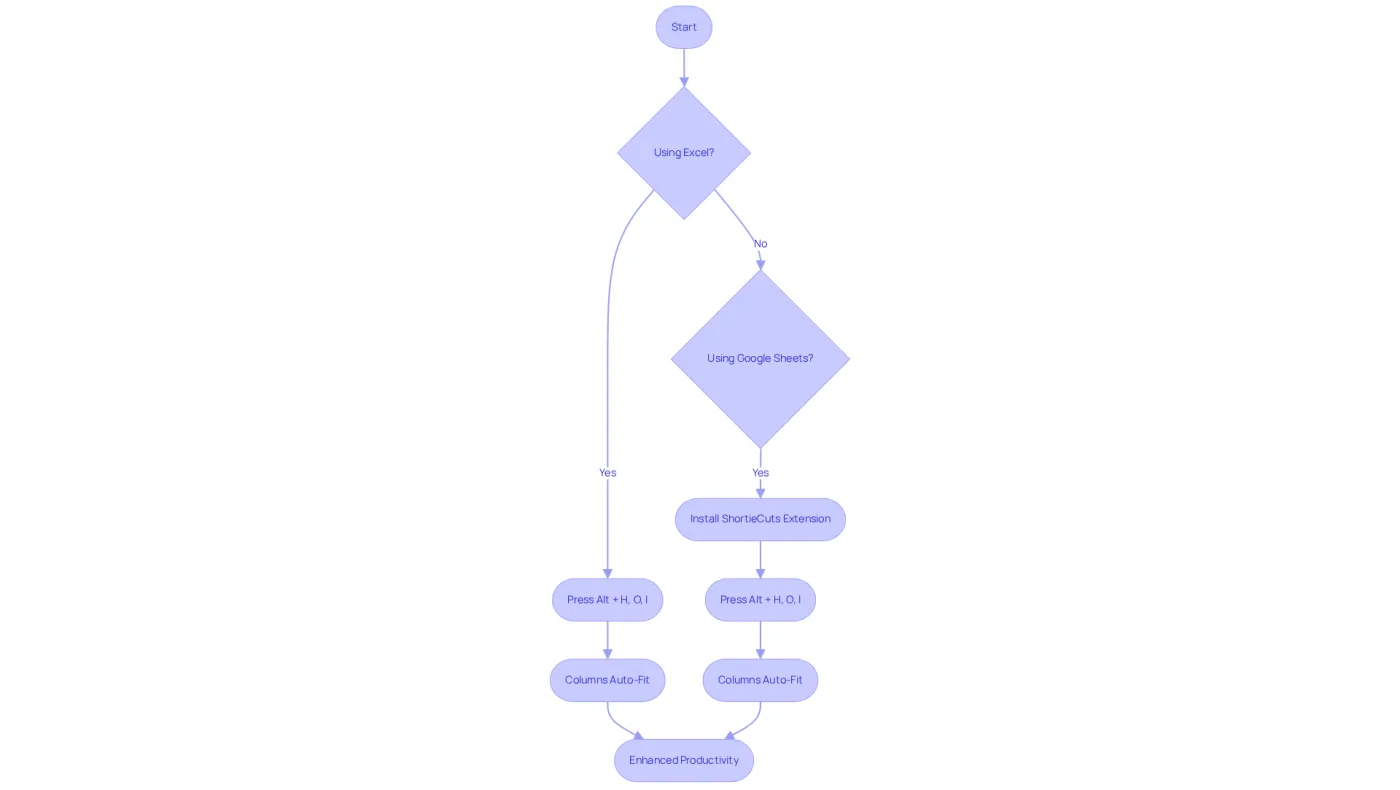
The key combination alt hoi in Excel is crucial for auto-fitting the width of selected columns to match their contents. This feature is essential for keeping documents neat and structured, allowing users to adjust column widths quickly without the hassle of dragging borders manually.
However, this shortcut doesn’t work natively in Google Sheets. Enter the ShortieCuts extension, which replicates this functionality, bridging the gap for those transitioning from Excel. By using ShortieCuts, you not only enhance data organization but also significantly boost productivity.
Are you ready to elevate your spreadsheet game? Embrace ShortieCuts and experience the difference in your productivity.
Adapt Excel Shortcuts for Google Sheets with ShortieCuts
Are you struggling to transition from Excel to Google Sheets? You’re not alone. Many finance professionals face this challenge, but there’s a solution: an extension that seamlessly integrates 233 Excel-like commands into Google Sheets.
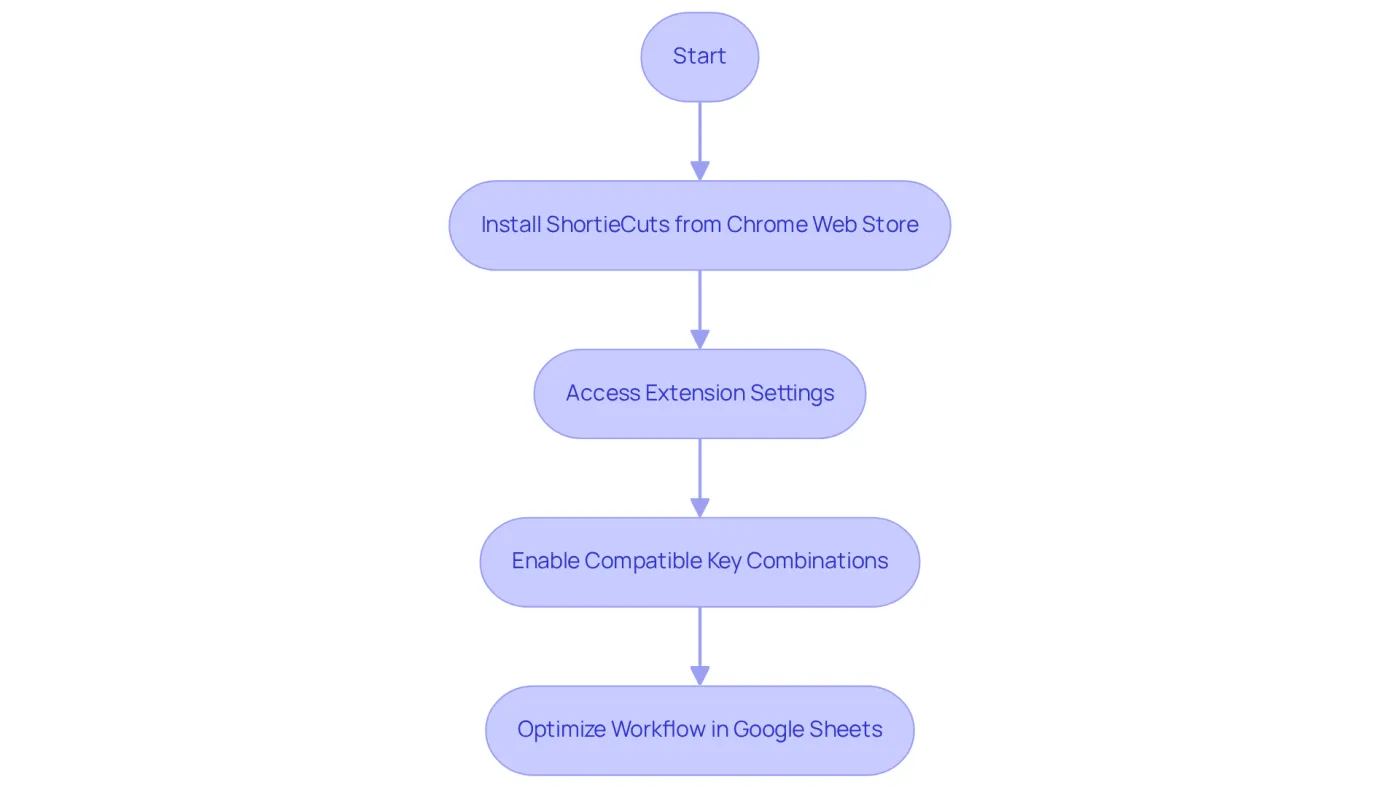
This powerful tool allows you to activate commands like alt hoi excel, effectively mirroring the familiar environment of Excel. To get started, simply install the extension from the Chrome Web Store. Once installed, access the extension settings to enable compatible key combinations. This adjustment not only enhances your efficiency by minimizing the learning curve associated with switching platforms but also ensures your data remains private, as the application operates directly on your computer without server access.
By implementing these techniques, finance experts can significantly optimize their workflow. Imagine faster formatting, editing, and navigation within Google Sheets-this extension makes it possible. Don’t let the transition hold you back; take action today and elevate your productivity!
Implement the ALT Hoi Shortcut: Step-by-Step Guide
Mastering the ALT Hoi Shortcut in Google Sheets
Are you struggling to manage your spreadsheet layouts effectively? The shortcut alt hoi excel in Google Sheets can be your solution. By following these straightforward steps, you can enhance the readability and organization of your spreadsheets, leveraging the power of ShortieCuts.
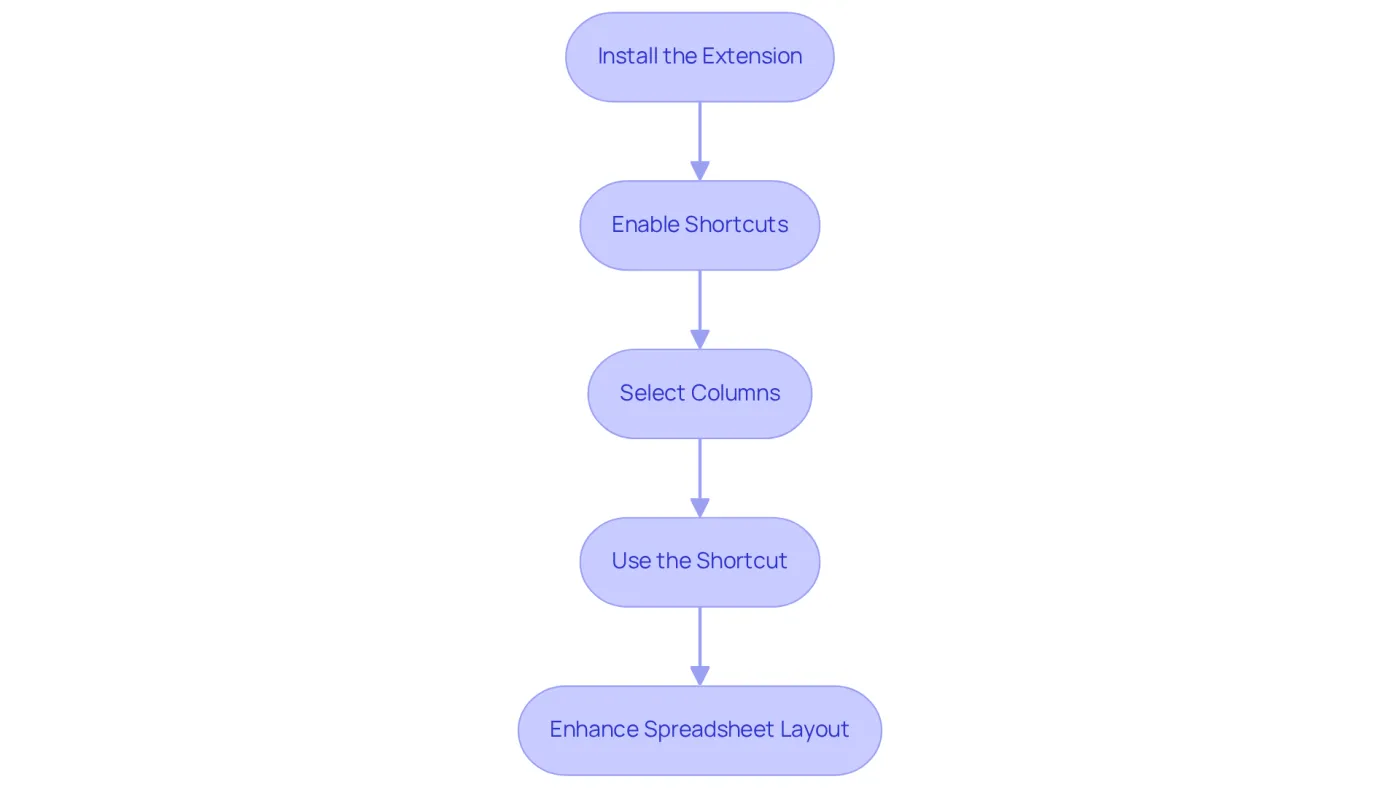
- Install the Extension: Begin by downloading and setting up the ShortieCuts extension from the Chrome Web Store.
- Enable Shortcuts: Open Google Sheets, click on the Shortcuts icon, and navigate to settings. Make sure to check 'Enable compatible key combinations.'
- Select Columns: Highlight the columns you wish to auto-fit.
- Use the Shortcut: Press the ALT key (or Option on Mac) to reveal key-tips in the corner of your screen. Then, press the keys alt hoi excel in succession. This action will automatically adjust the selected columns to fit their contents.
By implementing these steps, you can efficiently manage your spreadsheet layouts, significantly improving both readability and organization. With 233 Excel ALT Shortcuts available through ShortieCuts, you’ll find that your productivity can soar.
Maximize Productivity with the ALT Hoi Shortcut
Unlock Your Productivity with the ALT Hoi Technique
In the fast-paced world of finance, productivity is paramount. Many professionals struggle with time-consuming formatting tasks in Google Sheets, which detracts from their core responsibilities.
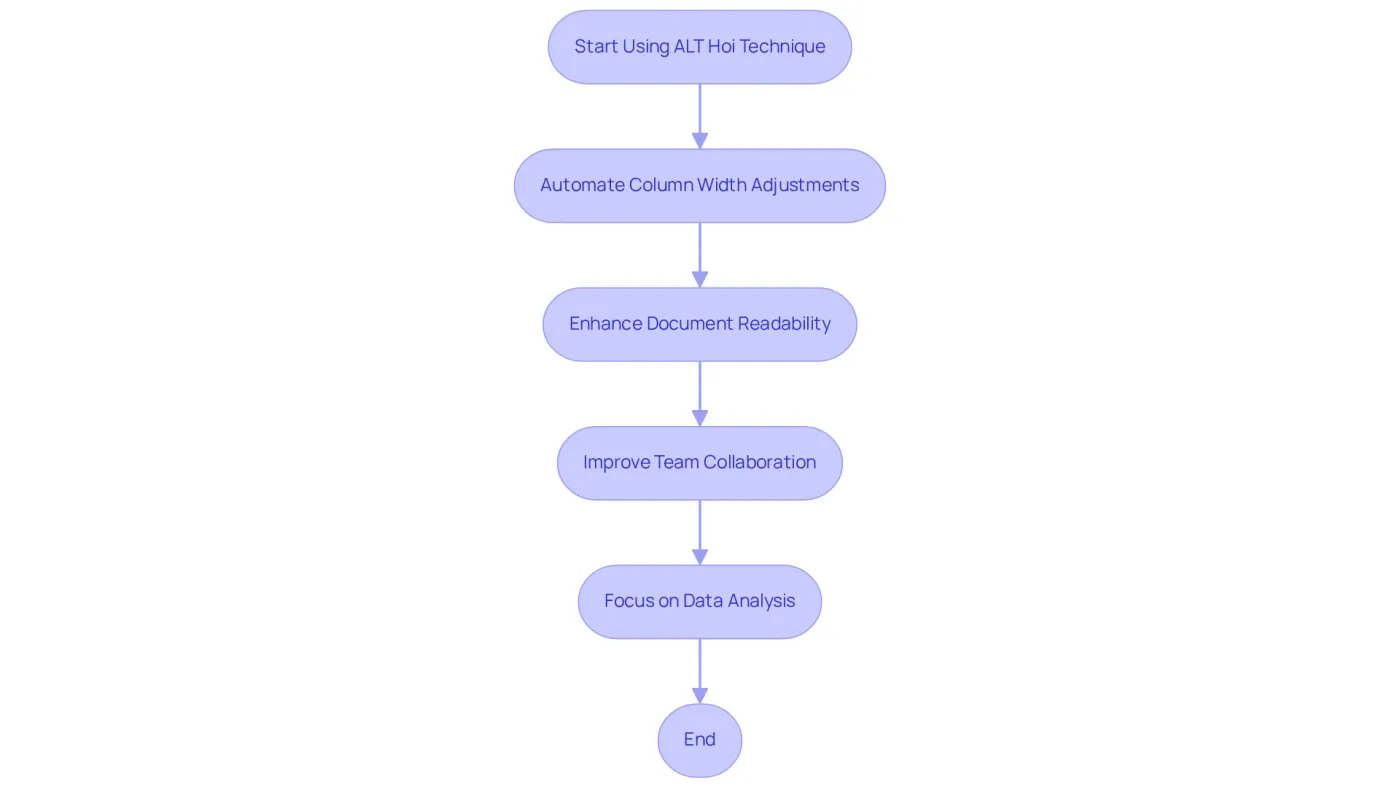
Enter the alt hoi excel technique, which is a game-changer for productivity. By automating column width adjustments, this method allows finance professionals to reclaim valuable time, redirecting their focus toward essential tasks like data analysis and report creation.
A well-structured document not only enhances readability but also fosters better collaboration among team members. With improved organization, insights can be shared more effectively, leading to a more cohesive team environment.
Consider the impact of features like conditional formatting, which can highlight crucial data points. This further streamlines organization and boosts efficiency. Regularly applying the alt hoi excel technique cultivates a more efficient workflow, allowing users to focus on their primary tasks without the distraction of formatting challenges.
Moreover, utilizing the IMPORTRANGE function ensures data consistency across documents - an essential aspect of collaborative efforts. Embracing these time-saving techniques not only elevates individual productivity but also contributes to a more streamlined team dynamic.
Take Action Now
Don't let formatting issues hold you back. Implement the alt hoi excel technique today and notice the difference in your productivity!
Conclusion
Mastering the ALT Hoi shortcut in Google Sheets is not just a minor improvement; it’s a pivotal strategy for enhancing spreadsheet efficiency and organization. This essential technique, which automatically adjusts column widths to fit their contents, is a game-changer for professionals eager to streamline their workflows. By leveraging the ShortieCuts extension, users can seamlessly replicate this Excel functionality, ensuring a smooth transition and a significant boost in productivity within Google Sheets.
Clarity and organization are paramount in spreadsheets, and the ALT Hoi shortcut exemplifies this principle. It not only saves time but also promotes better collaboration among team members. Moreover, the step-by-step guide provided empowers users to effectively harness this tool, enabling them to manage their data with ease.
In an environment where efficiency reigns supreme, embracing shortcuts like ALT Hoi is crucial for anyone aiming to elevate their spreadsheet capabilities. By integrating these techniques into daily practices, professionals can concentrate on what truly matters-data analysis and decision-making-while reaping the rewards of a more organized and productive workflow. Don’t wait; take action today and transform your spreadsheet experience.
Frequently Asked Questions
What does the ALT Hoi shortcut do in Excel?
The ALT Hoi shortcut in Excel auto-fits the width of selected columns to match their contents, helping to keep documents neat and structured.
Does the ALT Hoi shortcut work in Google Sheets?
No, the ALT Hoi shortcut does not work natively in Google Sheets.
How can users replicate the ALT Hoi functionality in Google Sheets?
Users can replicate the ALT Hoi functionality in Google Sheets by using the ShortieCuts extension.
What benefits does using ShortieCuts provide?
Using ShortieCuts enhances data organization and significantly boosts productivity by allowing users to auto-fit column widths easily.
Why is clarity in spreadsheets important?
Clarity in spreadsheets is essential for effective data analysis and decision-making, especially in finance, where clarity and precision are paramount.
Updated October 2026
Alt H O I in Google Sheets: Exact Keys, Native Options and Related Shortcuts
What Alt H O I Does in Excel
Alt + H + O + I is a path through Excel's ribbon, one letter per step:
- Alt turns on the key-tips.
- H picks the Home tab.
- O opens the Format menu in the Cells group.
- I picks AutoFit Column Width.
The result: the selected columns resize to fit their widest entry. It is the standard cleanup after pasting in data or building a new schedule, when numbers show as #### or labels are cut off.
Why It Does Nothing in Plain Google Sheets
Google Sheets has menus and a toolbar, not a ribbon, so there are no key-tips for Alt to reveal and no Home tab for H to open. Typing the sequence in a plain Sheets tab does not autofit anything. The command exists in Sheets, but only through the mouse.
How To Use Alt H O I in Google Sheets With ShortieCuts
- Select the columns to resize. Click a column letter, or Shift-click to select a run of columns.
- Press Alt. On a Mac, press Option.
- Excel-style key-tips appear over the sheet.
- Type H, then O, then I.
The selected columns fit their contents, the same outcome as in Excel. If the key-tip display is not to your taste, F10 cycles how the key-tips are shown.
The Native Google Sheets Alternative
Without ShortieCuts there are two mouse routes:
- Right-click menu: select the columns, right-click a selected column header, choose Resize column, pick Fit to data and click OK.
- Double-click the boundary: hover over the right edge of a column header until the cursor changes, then double-click.
Both work. The difference is speed: they pull your hand off the keyboard, which is what Excel users trained Alt + H + O + I to avoid. For a longer walkthrough of the native options, see how to autofit cells in Google Sheets.
Tips That Save a Second Pass
- Autofit is a one-time resize. Column widths do not update by themselves when the data changes later. Rerun Alt + H + O + I after a refresh brings in longer values.
- Long titles drive the width. A long heading in the same column will make the whole column wide. Wrap the heading with Alt + H + W or move it out of the data column.
- Use a fixed width for model columns. In a financial model, period columns usually look better at one consistent width than each autofit to its own contents. Set them all at once with Alt + H + O + W and save autofit for label columns and data dumps.
The Rest of the Alt H O Family
The Format menu in Excel holds the other sizing commands, and ShortieCuts supports them on the same letters.
| Keys | Excel Command | What It Does |
|---|---|---|
| Alt + H + O + I | AutoFit Column Width | Fits columns to their widest entry |
| Alt + H + O + A | AutoFit Row Height | Fits rows to their tallest entry, useful after wrapping text |
| Alt + H + O + W | Column Width | Sets an exact width for the selected columns |
| Alt + H + O + H | Row Height | Sets an exact height for the selected rows |
| Alt + H + O + D | Default Width | Sets the standard column width |
The same menu also holds hide and unhide (Alt + H + O + U + C hides columns) and sheet commands such as Alt + H + O + R to rename a tab. Every supported sequence is listed on the shortcuts index.
Frequently Asked Questions
What does Alt H O I do in Excel?
It runs Home, Format, AutoFit Column Width, which resizes the selected columns to fit their widest entry.
Does Alt H O I work in Google Sheets?
Not natively, because Google Sheets has no ribbon or key-tips. With the ShortieCuts extension, press Alt (Option on a Mac) and type H, O, I to autofit the selected columns.
How do I autofit column width in Google Sheets without a shortcut?
Right-click the column header, choose Resize column, select Fit to data and click OK, or double-click the right edge of the column header.
What is the shortcut to autofit row height?
In Excel it is Alt + H + O + A. With ShortieCuts the same sequence works in Google Sheets.